Fix SVGs that open blank, look blurry, import at the wrong size, have too many nodes, lose strokes, or will not ungroup. Start with the symptom and choose the right fix.
Featured
Auto-traced SVGs are often clogged with hundreds of unnecessary anchor points that make them hard to edit and slow to cut. Here's why it happens — and how to get clean ones.
You can edit an SVG two ways: visually in an editor, or directly in its code. Here's how to recolor, reshape, and resize one, and why a clean file is far easier.
A real SVG can still show pixels: an embedded image inside the file, a viewer that rasterizes, or icon-size softness. Here's the quick diagnosis and each fix.
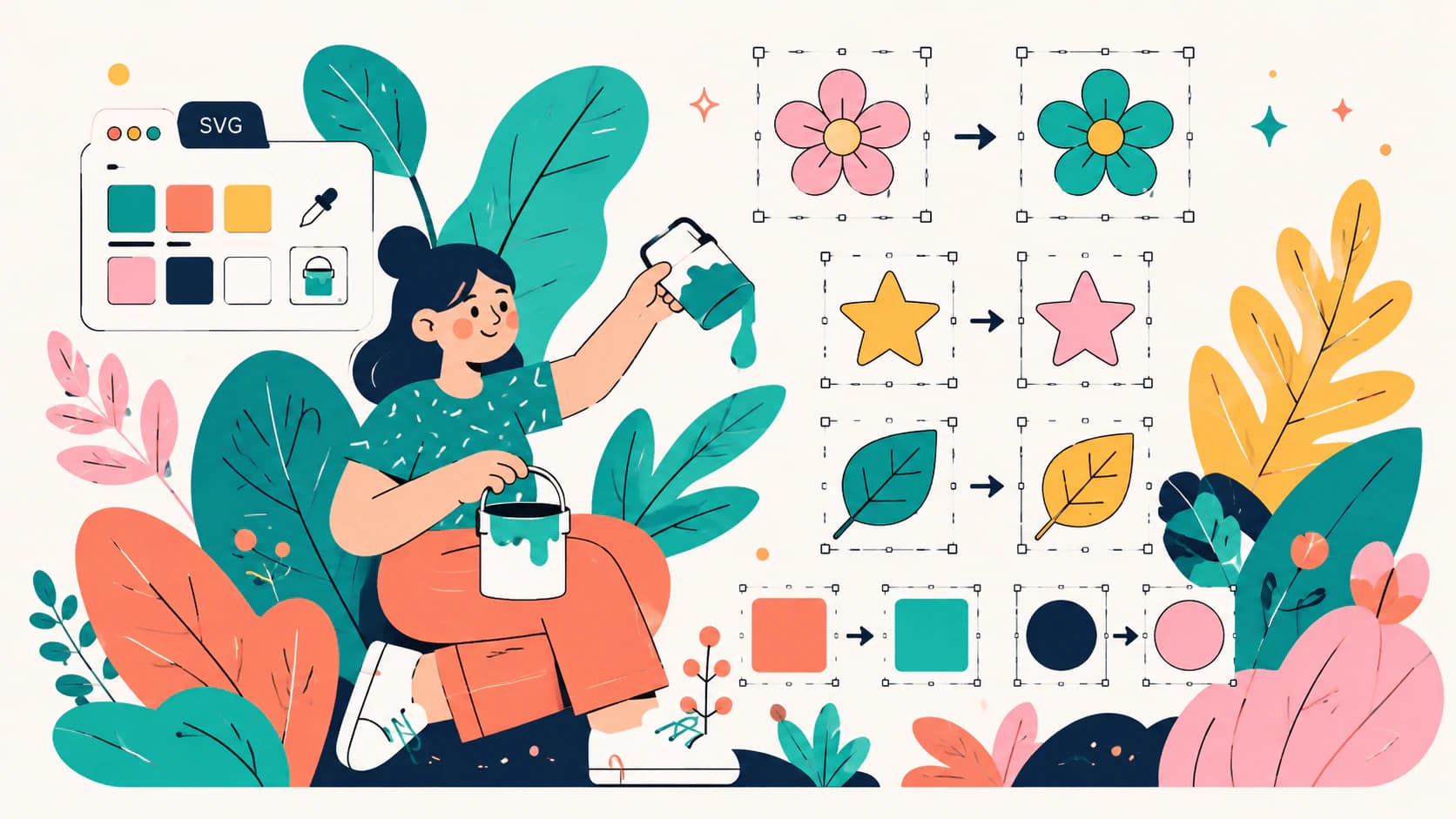
Three free ways to change an SVG file's colors, online, in a design app, or in the code, plus fixes for the SVG that stays black no matter what you try.
If an SVG will not ungroup, it may be one path, a compound path, or an embedded image rather than a group. Identify the object first, then use the right fix.
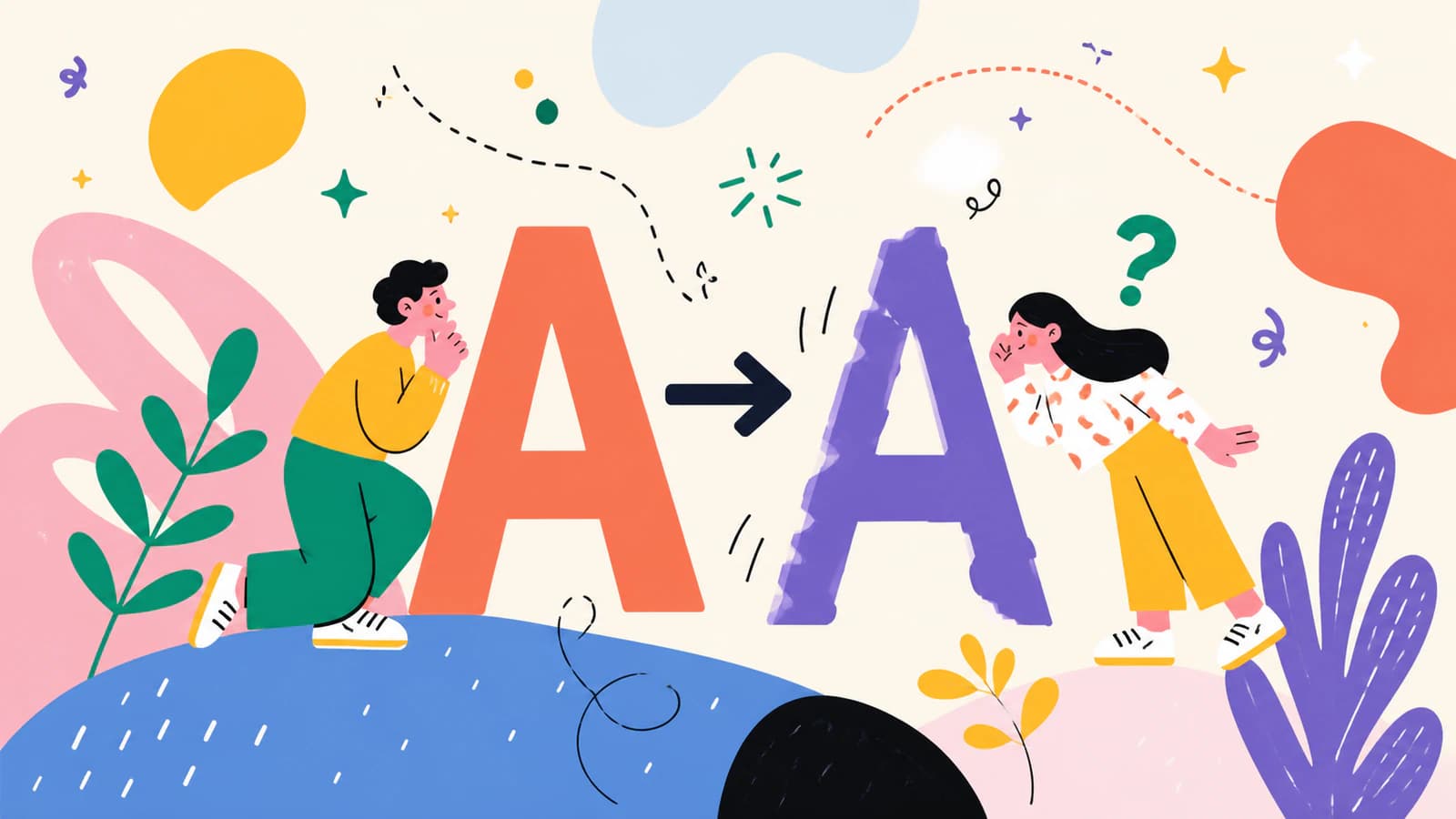
An SVG font changes when the intended typeface is unavailable or text is interpreted differently. Diagnose live text, fallback fonts, and outlined paths.
SVG strokes can vanish because of paint, scale, clipping, or unsupported effects. Diagnose the path first, then apply the smallest reliable fix.
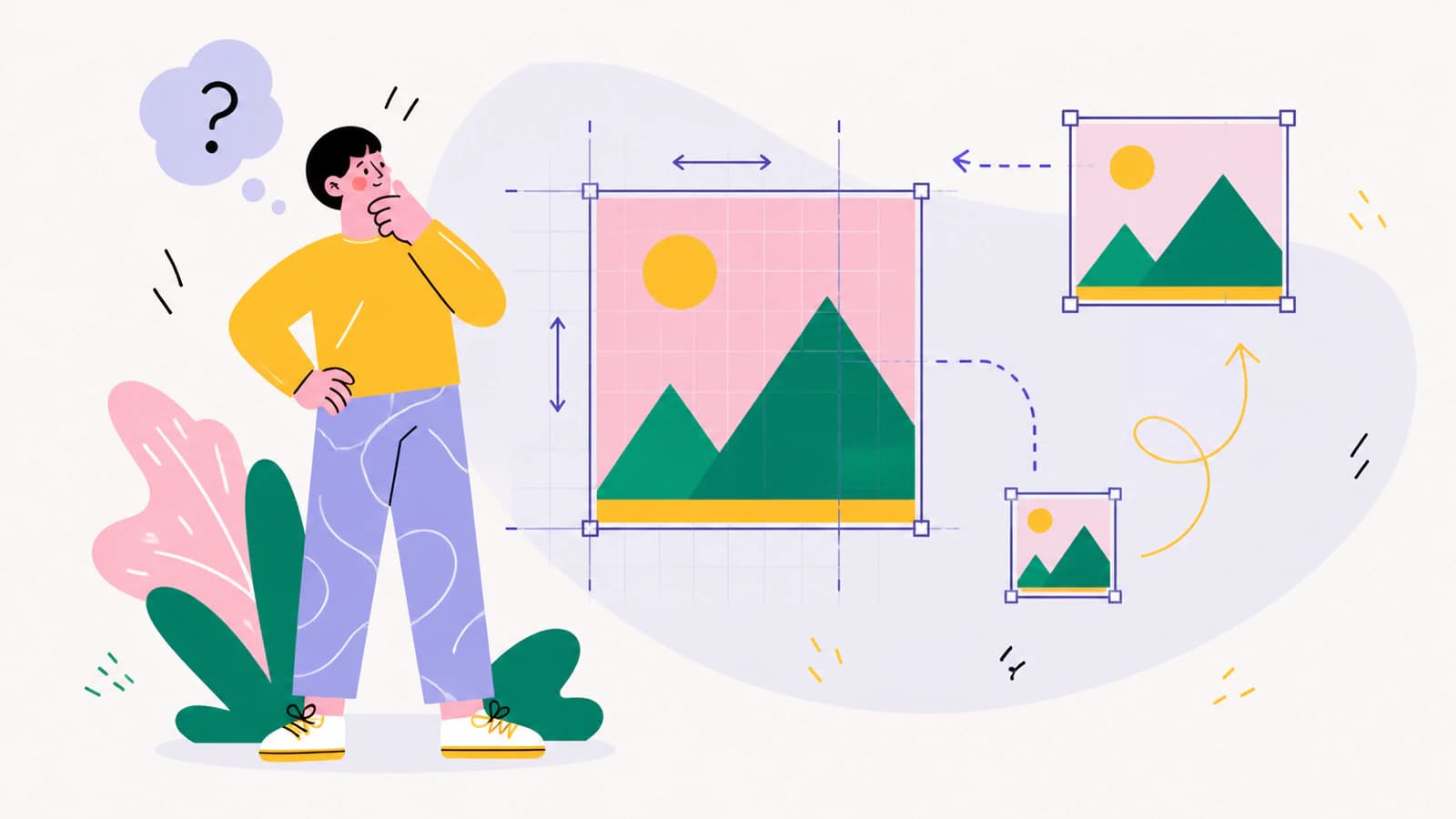
An SVG can import too small or too large when two apps interpret its units differently. Diagnose the scale with a reference square before editing the art.
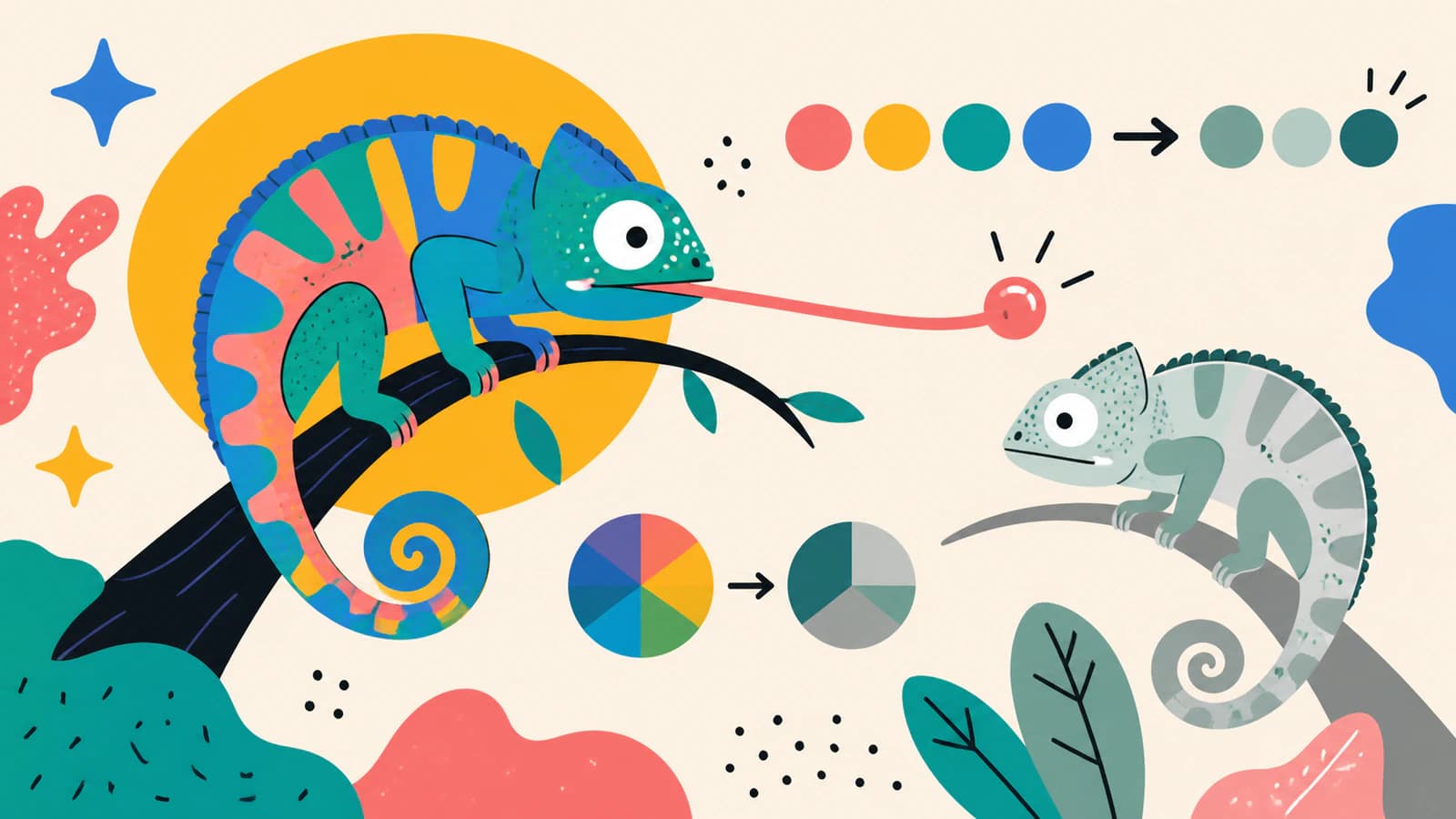
Reduce an SVG palette by visual role, not an arbitrary number. Merge near-colors while preserving contrast, negative space, cut layers, and operation colors.
White seams between SVG shapes may be anti-aliasing artifacts or real geometry gaps. Use zoom, background, raster, and outline tests before editing paths.
A blank SVG may be off-canvas, invisible, clipped, unsupported, malformed, or only a raster wrapper. Preserve it and run seven checks before rebuilding.