Apple Motion SVG Import: Check Art Before Animating
Import a static SVG into Apple Motion, check its transparency and unsupported features, and decide whether the artwork needs separate objects before animation.
On this page
Apple Motion supports SVG import. Apple's Motion 6.3 feature guide lists SVG support, so older advice that sends every SVG through another format is not a reliable starting point for that version. Begin with a static file, import it as media, and check the result before building the animation.
There are three different questions to answer: does the artwork appear, does its transparency look right, and can you control the parts that need to move independently? A graphic appearing in the canvas answers only the first. It does not establish that each SVG path has become a native Motion shape.
This workflow uses a simple ring-and-disc emblem to keep those checks visible. It is a documented procedure to try in your installed version, not a report of a native Motion import test.
Match the workflow to your Motion version and task
Check the installed version before following an old forum post or importing a large collection. Apple's current SVG guidance describes both supported use and specific limitations. If your installation differs from the documented version, check the matching guide before diagnosing the artwork itself.
Decide what needs to happen after import:
| Intended result | What the handoff must provide | Acceptance check |
|---|---|---|
| Move or scale the complete emblem | A correctly displayed static graphic | The whole design responds together |
| Move the small disc independently | Separately controllable objects | Moving the disc leaves the ring unchanged |
| Reshape the ring over time | A suitable native shape or other editable construction | The required geometry controls are available |
| Preserve an existing SVG animation | A separately planned animation-delivery route | The intended frames and timing survive that route |
The last row is especially important. Motion's SVG documentation says animated SVGs display only their first frame. Importing an animated file is not the same as importing its animation.
If you are choosing between animation applications, the After Effects logo-tracing guide and Adobe Animate tracing workflow explain their own destination objects. Their commands and object types are not interchangeable with Motion's media import.
Start with a source you can inspect
Save this original example as orbit-mark.svg:
<svg xmlns="http://www.w3.org/2000/svg" viewBox="0 0 160 120">
  <circle cx="68" cy="66" r="34" fill="none" stroke="#157D78" stroke-width="14"/>
  <circle cx="126" cy="24" r="12" fill="#EF8067"/>
</svg>
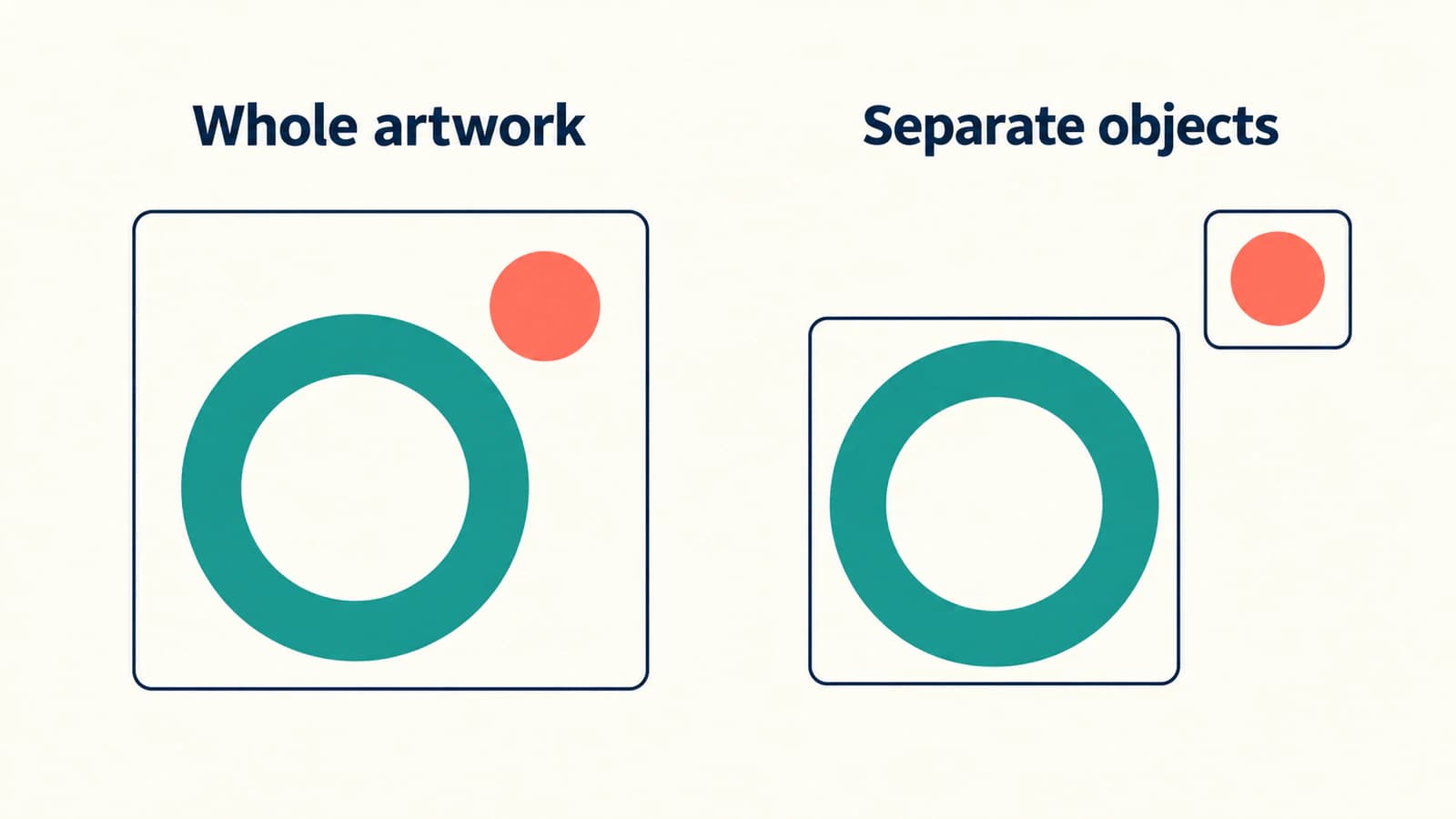
The teal ring has an empty center. A smaller coral disc sits above and to its right, separated by a gap. The file has no background rectangle, text, external image reference, script, or animation. Those choices make it a useful baseline for checking a more elaborate emblem later.
Open it in the source editor first. Check the ring opening, the gap, and the canvas boundary. Keep the editable master, because correcting the artwork and correcting an import setting are different tasks.
For your own file, simplify the delivery copy only where a specific feature causes trouble. A design with lettering needs an explicit font strategy; use the SVG font-change checklist before export. Preserve editable text in the master even if a delivery copy needs outlined lettering. Do not trace an already usable vector merely because the destination application is different.
Import into the composition, then check the media
Select the group where you want the emblem to appear. In the current Motion import workflow, choose File > Import > Media, or press Command-I, select the SVG, and import it. You can also drag the file from Finder into the canvas or a group in the Layers list.
After import, look for the graphic in the canvas and its layer in the intended group. Avoid judging the file solely by whether its name appears in the Media list. Apple also documents importing into that list without adding the media to the composition; in that case, it will not appear in the canvas or Layers list yet.
Place the emblem over a contrasting background for inspection. Look at the open center and the space between the two pieces. A dark viewer background can make missing content and transparent content look deceptively similar.
To inspect Motion's background substitution, click Media in the Project pane and select the SVG object. Open the Media Inspector. Apple's SVG page documents Use Background Color and the associated color controls. Leave that substitution off when the goal is to retain the source's transparent areas; enable it only when a replacement color is intentional.
An opaque rectangle already drawn inside the SVG is a separate issue. Turning off a media background option does not remove a path that belongs to the artwork. The transparent SVG background guide covers that source-level diagnosis.
Test control of the parts before adding keyframes
Select the imported emblem and make a small, reversible position change. If the ring and disc move together, that is useful behavior for a single graphic. Restore its position, then ask whether the planned animation needs more control.
For a disc that moves independently, try selecting and moving only that part. Accept the handoff only when the ring stays in place and the intended object is independently addressable. An SVG group name, a visible gap, or a layer thumbnail is not enough evidence by itself.
If the available object does not expose the controls you need, choose a construction that does. For this simple example, drawing a ring and a disc as separate native shapes is a reasonable option. Apple's simple-shape guide explains the Circle tool and its color and outline controls. Build the ring with an outline and an empty fill, and the disc with a solid fill, then check each object's selection separately.
For more elaborate artwork, another option is to prepare separate source files for the pieces that need independent movement. Keep a common canvas and record their intended alignment in the source editor. Verify their placement after import; a collection of files is not automatically an animation-ready layout.
This is a decision about the required objects, not a promise that SVG import breaks artwork into native shapes. If you need point-level deformation, establish that the chosen construction provides the required geometry controls before committing to the animation.
Diagnose unsupported content with a simpler copy
Apple's SVG limitations identify several reasons a file can differ from the source editor. Use the symptom to choose the next check.
| Symptom | Documented constraint or likely check | Next step |
|---|---|---|
| An animated SVG stays still | Motion displays its first frame | Treat the import as static; plan motion separately |
| An SVG with a fade-in appears empty | Its first frame may be transparent | Export a visible static state for the artwork handoff |
| A file containing custom fonts will not import | Custom-font SVGs are unsupported | Prepare a suitable delivery copy and retain the editable master |
| An expected image becomes a placeholder | External image references are unsupported | Replace the dependency with an appropriate self-contained delivery asset and test it |
| Linked or scripted content is missing | JavaScript objects and embedded links do not appear | Remove reliance on interactive behavior |
| Partially transparent shapes look different | Varying shape opacity may render differently | Compare a simplified copy and the intended composite |
Do not interpret the external-reference limitation as proof that every possible self-contained SVG feature works. A smaller baseline file helps isolate the dependency, but your final artwork still needs its own check.
Once the static appearance is correct, review the emblem at the smallest and largest sizes used in the composition. Watch the ring's inner opening and the gap beside the disc. Then inspect a short exported section at the intended delivery resolution. Vector source geometry does not remove the need to check compositing, effects, and the final video frame.
Prepare a raster-only emblem for Motion
If the editable emblem is missing and only a simple PNG or JPG remains, PerfectVector's image-to-vector workflow can help prepare a static SVG candidate. Crop to the emblem, inspect the preview for a filled ring opening, a merged disc, or unwanted background shapes, and compare the candidate with the source. Download the accepted artwork, then repeat the import and independent-object checks.
Vectorization does not recover keyframes, timing, native Motion layers, or an animation rig. Use the existing vector master when available. Keep photographs and effect-heavy images raster when that preserves their appearance better; draw a simple ring and disc directly in Motion when native object control is the real requirement.
Before handing the project to someone else, record the source filename, Motion version, background choice, and which elements must remain separate. Include the editable master and a reference showing the intended arrangement. The blog's artwork workflows cover the preparation decisions that precede that handoff.
FAQ
Can Apple Motion import SVG files directly? Yes. Apple's Motion 6.3 documentation lists SVG support. Use the import workflow for your installed version, then inspect the artwork and its required controls.
Does importing an SVG preserve its animation? No. Motion displays only the first frame of an animated SVG. If that frame is transparent, the imported artwork may appear empty.
Why does my SVG have a colored background in Motion? Check Use Background Color in the Media Inspector and inspect the source for an opaque background shape. A media background setting and a rectangle drawn into the SVG are separate causes.
Does each SVG path become an editable Motion shape? Do not assume that from a successful import. Test whether the required parts and geometry controls are available. Prepare separate objects or use an appropriate native construction when the animation requires independent control.
Sources
- Apple — What’s new in Motion — Motion 6.3's documented SVG support.
- Apple — Work with SVG files in Motion — transparency controls and SVG feature limitations.
- Apple — Import media into Motion — media import, group placement, and Media-list-only import.
- Apple — Draw simple shapes in Motion — a native alternative for separately controlled simple geometry.
Check one emblem's appearance and object structure before preparing the full sequence. If only raster artwork remains, prepare a static SVG candidate, inspect the separate pieces, and validate the accepted file in Motion before animating.
More from the blog

Matplotlib SVG: Keep Plot and Logo Artwork as Paths
Export your Matplotlib plot as SVG, compose separate logo paths with svgutils, and check the delivered file for embedded pixels, placement, and font changes.

SVG Alpha Threshold: Make Transparency a Hard Cutoff
Use feFuncA to turn SVG alpha into a hard cutoff. Compare discrete and table transfer on known PNG pixels, preserve holes, and check why opaque white stays.