Laser Mode — built for cutting & engraving

Stop cutting every line twice.

or try by clicking an image

No credit cardFree trial conversionsSVG ready in seconds
What you can make

From a picture to a finished piece.

One clean cut file unlocks the whole shop — layered signs, ornaments, coasters, toppers, and leather goods.

A wedding wreath plaque

A wedding wreath plaque

An acrylic cake topper

An acrylic cake topper

A plywood snowflake ornament

A plywood snowflake ornament

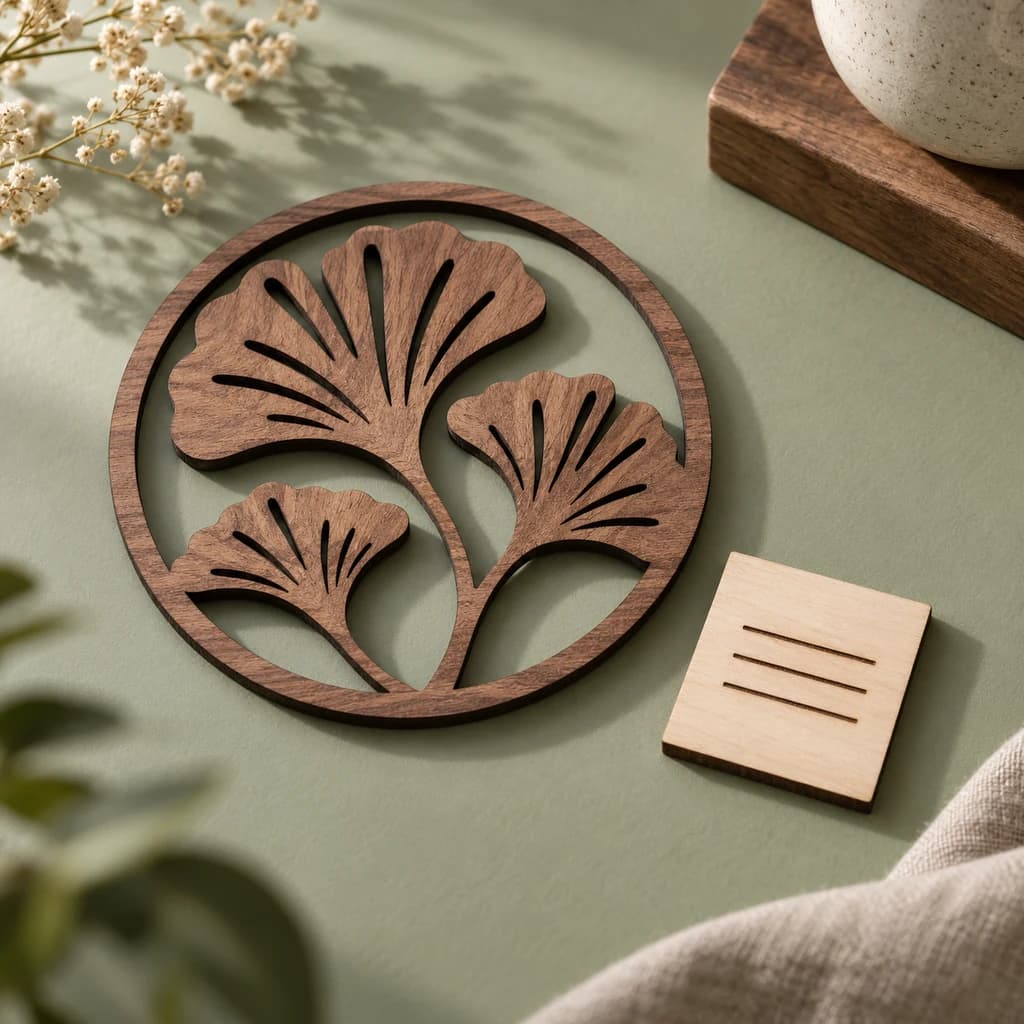
A walnut coaster set

A walnut coaster set

An engraved leather tag

An engraved leather tag

Layered wood wall art

Layered wood wall art

Real conversions

See the before & after.

Real designs rebuilt as clean, closed cut paths — every color on its own layer, ready for LightBurn, XCS, or the Glowforge app.

PNG
Sunset roundel — cut-ready SVGSVG
Sunset roundel
Layered wood art7 colors
PNG
Mandala cat — cut-ready SVGSVG
Mandala cat
Layered wood portrait20 colors
PNG
Campsite sign — cut-ready SVGSVG
Campsite sign
Layered wood sign2 colors
PNG
Filigree butterfly — cut-ready SVGSVG
Filigree butterfly
Wedding & party decor6 colors
PNG
Botanical panel — cut-ready SVGSVG
Botanical panel
Modern wall panel3 colors
PNG
Layered dragon — cut-ready SVGSVG
Layered dragon
3D layered decor26 colors
PNG
Sunburst coaster — cut-ready SVGSVG
Sunburst coaster
Walnut coaster2 colors
Your image (raster) Cut-ready SVG (vector, transparent)

Love these? Cut your own this weekend.

Vectorize an image — free

Free to try · Takes seconds · Imports straight into LightBurn

You’ve tried tracing it.

Sound familiar?

You imported your PNG, hit Trace Image, and it looked fine — until the preview showed every stroke outlined twice. You ran the job anyway: the beam cut both edges of every line, and the letters fell right out of the sign.

So you tried a free converter (an engrave-only bitmap wearing an .svg extension), a paid file (text shattered on import), then Inkscape — Trace Bitmap, simplify, break apart — and ended up with a thousand-node tangle anyway.

A clean pine-tree ornament design beside its rough auto-traced copy — wobbly doubled outlines, a gap where the ring never closes, and stray fragments.

Whether it’s your logo or your kid’s drawing — none of it hands a laser the paths it actually needs.

The real cost

A bad trace costs you twice.

Once in scorched plywood. Again in the evening you spent deleting nodes and re-cutting. And if you sell — a third time: a piece with a double-burned edge you can’t ship.

Wasted material An evening of node edits A double-burned edge
The fix

PerfectVector hands your laser exactly what it follows.

Closed single-line paths, a low node count, and cut, score, and engrave separated by color.

Generic auto-trace
hundreds of stray points
PerfectVector
a handful of clean nodes

Same image. The beam follows one smooth path instead of stuttering over hundreds of stray points.

01

Closed, single-line paths

One outline per shape. No double-traced strokes, no phantom rectangles, no open segments your software refuses to fill.

02

Colors become layers

Each color arrives as its own selectable layer, so cut, score, and engrave separate cleanly in LightBurn or XCS — no redrawing.

03

Edit, then auto-optimize

Merge near-duplicate colors right in your browser. Every download is re-optimized — overlapping same-color shapes merge, dropping the node count even further.

Want a file that cuts in one pass?

Vectorize yours — free

Free to try · Closed paths · Color layers included

COMPARISON

PerfectVector vs. the usual ways to get a laser SVG

PerfectVectorLightBurn Trace ImageFree auto-tracers
What you getA true SVG with clean, closed pathsVectors from your bitmap — solid for logos and silhouettesAn SVG, but often a pixel-for-pixel trace
Strokes & outlinesOne single line per strokeBoth edges traced — lines often cut twiceBoth edges traced, plus stray fragments
Color layersSeparated — one layer per colorSingle layer — no color separationRarely separated cleanly
Node countLow — smooth curves the beam follows in one passOptimize slider helps, but detail gets heavyHigh — hundreds of stray anchor points
Edit before cuttingBuilt-in editor to merge colors and trim layersNode editing by handNone — re-upload to change anything
PriceFree to try, no credit cardIncluded with LightBurnFree, with quality trade-offs
See it work

Watch a flat PNG become a cut-ready SVG.

Drop, vectorize, simplify, download — the whole thing takes seconds, right in your browser.

PerfectVector — converting your image…
PNG
Clean cut-ready layered sunset roundel SVG
Cut-ready SVG

An illustration of the convert-and-simplify flow.

HOW IT WORKS

How to make a cut-ready laser SVG

  1. 1

    Upload your image

    Drag in a PNG or JPG — a logo, drawing, or design. No credit card to start, and your first conversions are free.

  2. 2

    Let the AI vectorize it

    PerfectVector rebuilds your image as clean, closed, single-line vector paths with a low node count — no double-traced strokes, no stray boxes.

  3. 3

    Merge colors into layers

    Use the built-in editor to merge near-duplicate colors. Each remaining color becomes its own layer — ready to assign as cut, score, or engrave.

  4. 4

    Download and import

    Download the SVG and drop it into LightBurn, xTool Creative Space, or the Glowforge app. Shapes arrive as closed paths, sorted by color.

Your design deserves one clean pass.

Drop in your image and get a laser-ready SVG in seconds.

Try it free
WORKS WITH YOUR MACHINE

Tips for every laser

A clean SVG behaves on any machine — here's what to know about yours.

Glowforge

Upload the SVG directly — vector files support cutting, scoring, and engraving, while JPG and PNG uploads are engrave-only. Keep colors separated so each operation stays selectable.

xTool (XCS)

XCS imports SVG natively but can't process text elements inside one. PerfectVector outputs pure paths — no text objects — so nothing vanishes on import. Set your physical size in XCS after importing.

OMTech, K40 & CO₂ lasers

In LightBurn, each color in your SVG lands on its own layer with its own power and speed settings — perfect for separating a cut outline from an engraved fill.

Diode lasers (Atomstack, Sculpfun, Ortur…)

Most diode machines run LightBurn too. A low node count keeps long jobs streaming smoothly and curves burning clean instead of jittering.

  • No credit card to start
  • Closed, single-pass cut paths
  • Color layers for cut, score & engrave
  • Built-in color editor
  • Works with LightBurn, XCS & Glowforge
SIMPLE, FAIR PRICING

Start free. Upgrade anytime.

Free

For getting started

$0

Free for everyone

  • 3 SVG downloads a day
  • Built-in color editor
  • Simplify & merge colors
  • Clean, optimized SVG output
  • No credit card required
Recommended

Light

For everyday productivity

$10$7/monthSave 30%

Early-access pricing

  • Everything in Free and:
  • 8× more usage than Free
  • 25 SVG downloads a day (~750/mo)
  • Lock in early-access pricing (was $10)
  • Priority SVG generation
  • Priority email support
  • Early access to new features
Coming soon

Pro

For maximum productivity

Pricing soon
  • Everything in Light and:
  • More usage than Light
  • Highest download volume
  • Most accurate SVG generation

Cancel anytime.

FREQUENTLY ASKED QUESTIONS

Questions before you convert?

Can I use these SVGs with my Glowforge?+
Yes. Glowforge accepts SVG files for both cutting and engraving — it's raster uploads like JPG and PNG that are limited to engraving only. Because PerfectVector outputs true vector paths with no embedded bitmaps, your design arrives with cut and score available, not just engrave.
What kinds of images work best for laser cutting?+
Logos, line art, silhouettes, lettering, badges, and flat illustrations — anything with defined shapes and a limited palette converts into crisp, closed cut paths. Busy photographs and soft gradients don't make good cut files in any tool; for photos, see the engraving question below.
Can I convert a photo for laser engraving?+
Mostly no — and it's worth knowing why. Photo engraving is a raster process: your laser software dithers the image into rows of dots and burns them line by line, so the photo itself is the right file for that job. An image-to-SVG converter is the wrong tool for photo engraving. Where PerfectVector shines is cut lines, score lines, and logo or line-art engraving.
Why does my laser cut every line twice?+
Because the file was auto-traced from art with stroked lines: tracers outline both edges of each stroke, so the laser dutifully cuts twice and thin letters fall apart. It's one of the most common complaints on laser forums. PerfectVector rebuilds shapes as single closed outlines — each line is one path, and one pass.
Why won't my SVG import into LightBurn — or only lets me engrave?+
Usually one of two things is hiding inside the file: a bitmap image (an SVG wrapped around pixels can only be engraved) or text elements, which some apps — including xTool Creative Space — can't process. PerfectVector outputs pure vector paths with no embedded bitmaps and no text objects, so the file imports as cuttable geometry.
Do I need to clean up the SVG before cutting?+
Usually not. Paths come out closed and background-free, so there's no phantom rectangle to delete and no open segments to repair. If your art has more colors than you want to manage as layers, merge them in the built-in editor before downloading — that's typically the only cleanup a job needs.
Can I get a DXF instead of an SVG?+
PerfectVector exports SVG only — and for laser work, that covers the workflow: LightBurn, xTool Creative Space, and the Glowforge app all import SVG directly. DXF mostly matters for CNC and CAD/CAM pipelines, which are a different job.
Is it free to make an SVG for laser cutting?+
Yes — your first conversions are free with no credit card required, and the built-in color editor is included. If you cut a lot, the Light plan is $7/month.

Ready for a cut that just works?

Convert Image to SVG for Laser Cutting — Free AI Vectorizer · PerfectVector