Too Many SVG Nodes? Clean Up Your Auto-Trace Result
Auto-traced SVGs are often clogged with hundreds of unnecessary anchor points that make them hard to edit and slow to cut. Here's why it happens — and how to get clean ones.
On this page
You traced a PNG into an SVG, opened it up to start editing — and the path is buried under anchor points. Hundreds of them, clustered along curves that should have taken five or six. Every time you try to nudge a shape, you're fighting a dozen handles you didn't ask for.
If that sounds familiar, your vectorizer isn't broken. It's doing exactly what most auto-tracers do: transcribing pixels instead of drawing shapes. Here's why that happens, why it slows you down more than you'd think, and how to get vectors that are actually clean from the start.
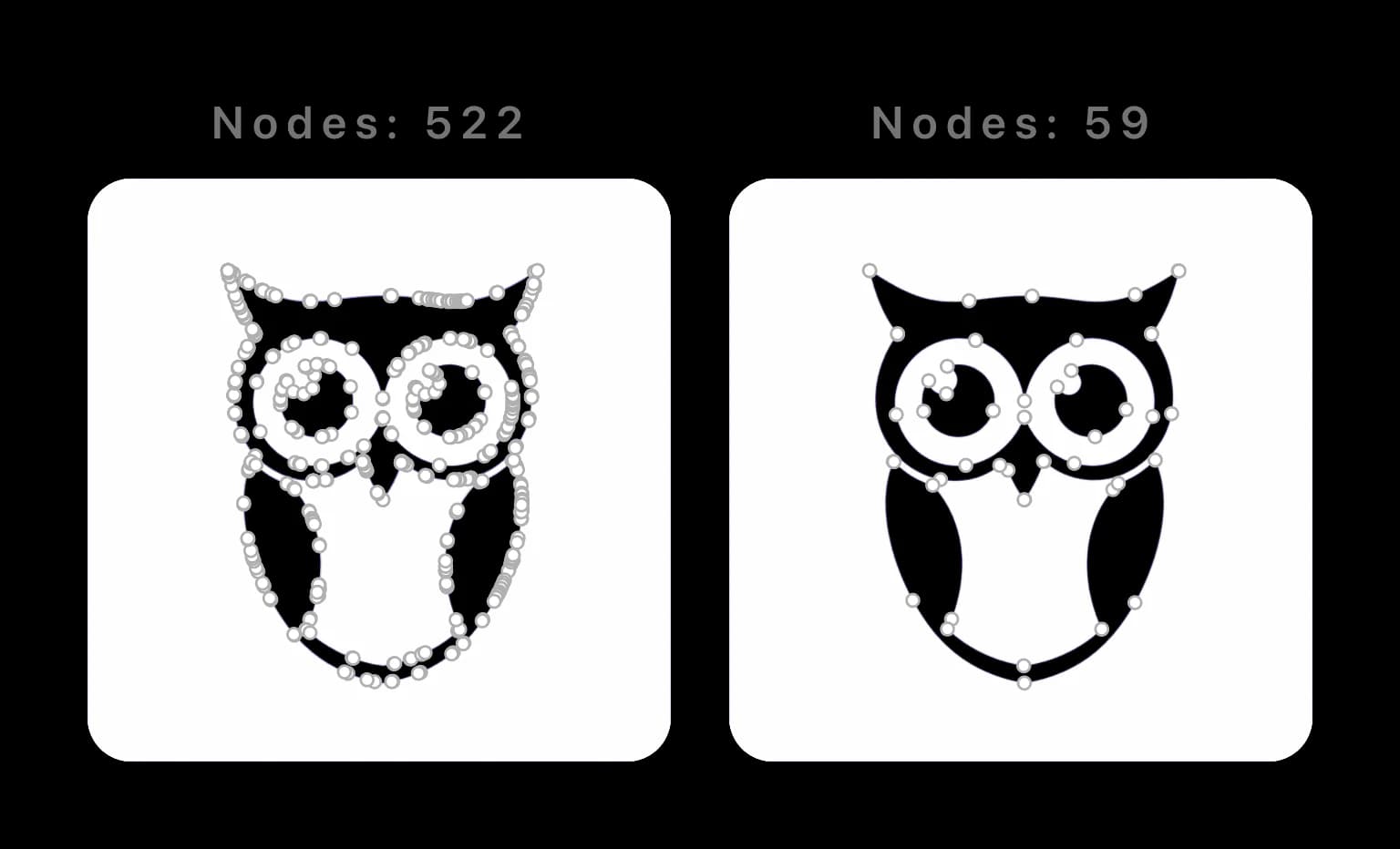
Method note: the counts in this article come from selecting and counting the paths in the specific displayed comparison files. They are examples, not averages for every tracing tool or image.
What "too many nodes" actually means
An SVG path is described by commands and coordinates that form line and curve segments. Editors expose the relevant coordinates as anchor points (also called nodes), with direction handles for Bézier curves. A few well-placed anchors can describe a long, smooth curve. See the W3C SVG path specification. For a single unwanted corner along an otherwise smooth bend, the Bézier join repair shows how to align handles while keeping the anchors fixed.
The trouble starts when there are far more anchors than the shape needs. A curve a designer would draw with five points ends up with fifty. The image still looks fine at a glance, but the underlying path is a mess.
You're probably looking at node bloat if:
- A simple curve has anchor points every few pixels instead of every few inches.
- Selecting one shape lights up dozens of points where you'd expect a handful.
- The file is surprisingly large for how simple the artwork is.
Why auto-tracers pile on nodes
Classic tracing tools derive boundaries or centerlines from the raster image and approximate them with vector curves. Adobe exposes this as Image Trace with controls such as Paths, Corners, and Noise; Potrace documents a polygon-based curve-fitting algorithm for bitmap outlines. (Adobe Image Trace options; Potrace paper)
The catch is where that boundary sits. Your PNG has anti-aliasing: the soft, semi-transparent pixels that smooth out edges on screen. To a tracer, that soft edge looks like a slightly wobbly line, so it adds points to follow every wobble. It isn't asking "is this an arc or a straight segment?" — it's transcribing the pixel contour, jitter and all. How aggressively a tool does this varies widely — here's how the main AI image vectorizers compare.
You can see it in the path data itself. Here's roughly what one ear tuft of that owl looks like traced versus drawn cleanly:
<!-- Auto-traced: one ear tuft, 40+ points -->
<path d="M312.4,98.1 C313.0,97.8 313.9,97.2 314.6,96.9 C315.2,96.7
316.1,96.4 316.8,96.2 C317.4,96.0 318.3,95.7 319.0,95.5 ...(many more) Z"/>

<!-- Clean: the same tuft, 6 points -->
<path d="M312,98 C320,70 360,68 372,96 C378,112 340,140 312,98 Z"/>
Same curve. One is a transcription of every pixel; the other is a shape.
Why it slows you down
A dense path doesn't just look untidy in the editor. It gives you more anchors to select and reshape, can increase path-data size, and creates more segments for downstream tools to process. The effect depends on the artwork, editor, machine, and export settings; node count is a diagnostic, not a universal pass/fail number.
| Dense traced path | Simpler path | |
|---|---|---|
| Anchor points | More points to inspect | Fewer points to inspect |
| Editing | More handles involved in each change | Easier to reshape directly |
| File size | Often more path data | Often less path data |
| Cutting workflow | More segments to review | Simpler toolpath geometry |
In design tools
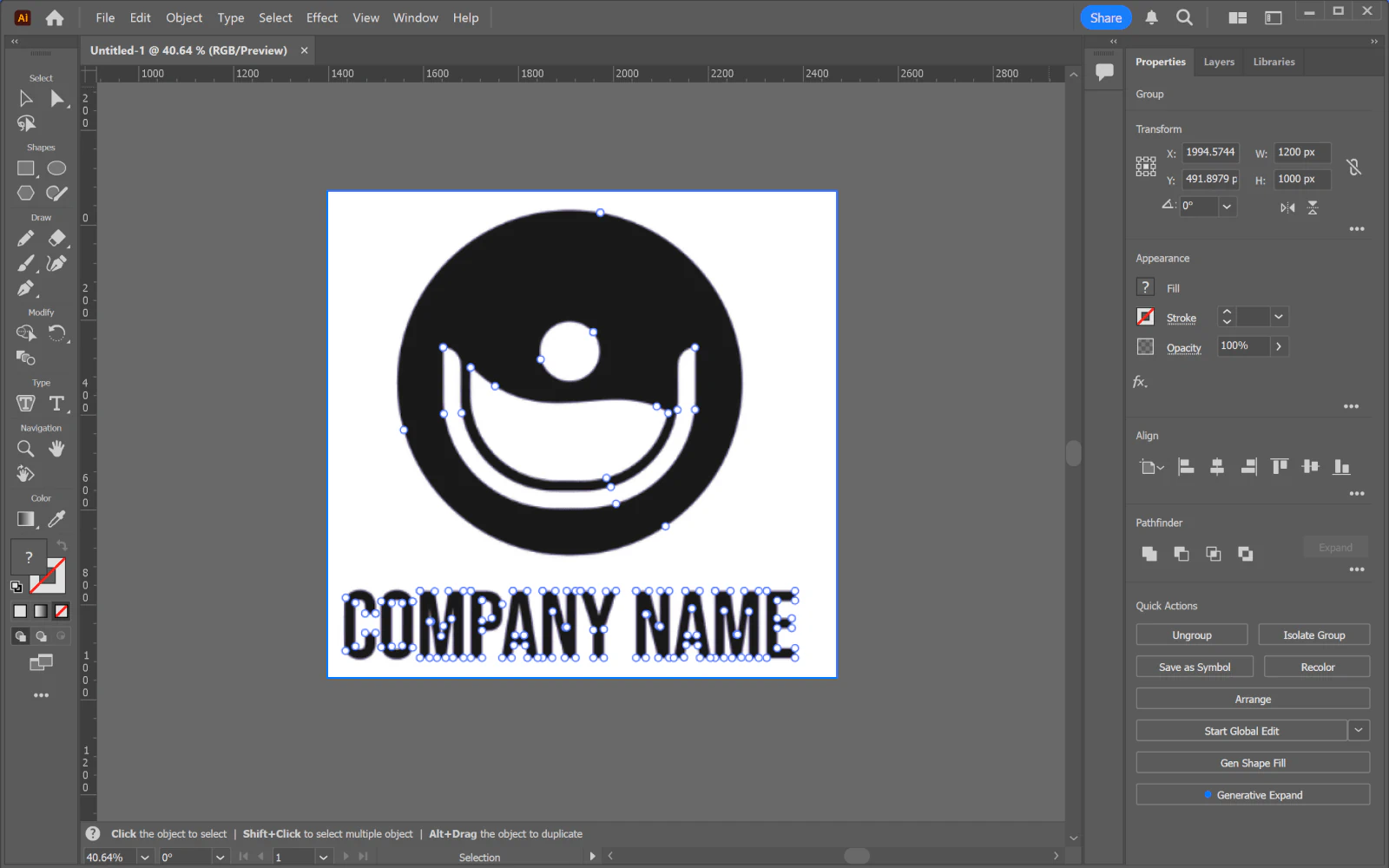
In Illustrator or Figma, every extra anchor is something you have to select around, avoid, or clean up before you can make a real change. Reshaping a clean curve takes one or two points. Reshaping a transcribed one means wrestling the whole cluster — and good luck keeping it smooth.
On cutting machines
Cutters use the vector geometry to derive a toolpath, so unnecessary micro-segments are worth simplifying and test-cutting. Do not assume node count is the only cause of a failed import or cut: Cricut separately documents unsupported SVG features such as pattern fills, clipping paths, editable text, and embedded raster images. See Cricut's unsupported-items guide. If your file is headed for a laser, prepare a laser-ready SVG and verify it in the machine software.
If Cricut rejects the upload, diagnose the File Too Large error; path count and file size are different from node count.
How to get clean nodes
There are three ways out, in rough order of how much pain they save:
- Simplify after the fact. Illustrator's Object → Path → Simplify can reduce anchor points. Adobe provides controls for balancing simplification against curve precision and corner preservation, so preview the result rather than assuming it is lossless. See Adobe's Simplify documentation.
- Lower the trace detail. Most tracers let you reduce complexity, but it's a blunt instrument: turn it down far enough to cut nodes and you start losing the details you wanted.
- Start clean. The real fix is to vectorize with something that outputs clean paths in the first place, so there's nothing to clean up.
That last goal is one reason we built PerfectVector. It is designed to produce editable vector shapes rather than preserve every source-pixel fluctuation. Use the vector trace quality scorecard to compare the silhouette, corner fidelity, node count, and editability against another trace before choosing a file.
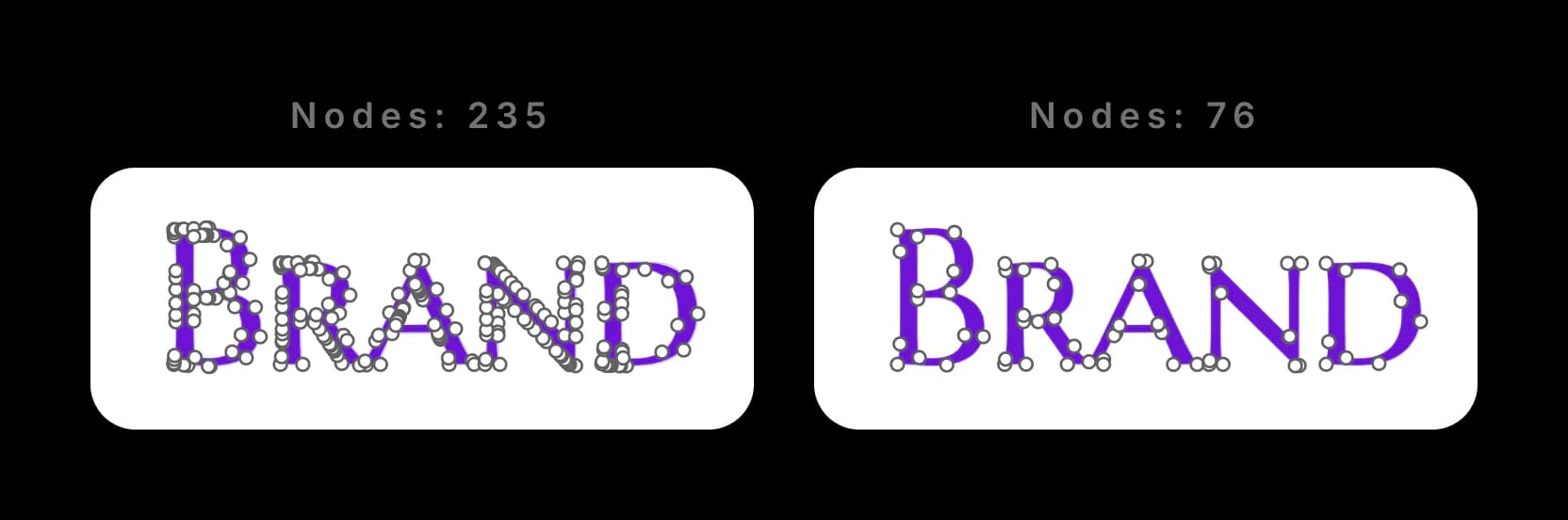
And it isn't only illustrations — logos and lettering bloat exactly the same way, which bites hardest where you need crisp edges and clean vinyl cuts.
For web delivery, follow the SVGO optimization guide after the geometry is sound. It tests file-size changes and ID-dependent styling separately; a smaller SVG is not proof that the editable paths or page behavior still meet your needs.
If the downstream export is DXF, check segment density in the CNC workflow as a separate handoff issue.
If two artwork states will animate into one another, the SVG morph animation guide shows why node cleanup must preserve useful point correspondence. Inspect the transition midway as well as its static endpoints.
Try it
Drop a PNG or JPG into PerfectVector's image-to-vector converter — no login, no credit card. You'll see the node and color count right on your result, so you can judge the difference yourself before you download anything.
FAQ
How many nodes should an SVG have? There's no universal target: the right count is the fewest points that preserve the shape and its required detail. As a scale reference for this article's displayed owl only, the compared trace had 522 nodes and the PerfectVector result had 59. Treat that as a reproducible example, not an average for all tools or images.
Do too many nodes matter on a cutting machine? They can. Dense paths create more segments for the cutting workflow to process and can be harder to inspect or edit. The visible effect depends on the machine, material, speed, blade, and path geometry, so simplify carefully and make a small test cut. Also check for unsupported SVG features rather than attributing every import problem to node count.
How do I reduce the number of nodes in an SVG? Three ways, in rough order of how much pain they save. Simplify the path after the fact (Illustrator's Object → Path → Simplify), which is lossy; lower the trace detail setting, which is a blunt instrument that loses wanted detail too; or retrace the image with a vectorizer that places clean points from the start, so there's nothing to remove.
Can't I just use Simplify in Illustrator? You can. Illustrator's Simplify feature reduces anchor points while offering controls for curve precision and corner preservation. Aggressive settings can change corners or curves, so use the preview and compare the silhouette before accepting the result. Starting from a simpler trace can reduce how much cleanup you need.
Sources
- W3C — SVG Paths — Normative definition of SVG path commands, coordinates, and curve segments.
- Adobe Illustrator — Image Trace panel options — Official controls for path fitting, corners, noise, colors, and tracing complexity.
- Adobe Illustrator — Auto simplify paths — Official simplification workflow and precision-versus-point-count controls.
- Selinger — Potrace: a polygon-based tracing algorithm — Primary technical description of boundary approximation and curve fitting in a classic tracer.
- Cricut — Image uploads: unsupported items — Official list of SVG structures that can block or alter a Design Space upload.
More from the blog

Round SVG Path Corners by Changing the Filled Shape
Round one filled SVG corner with a tangent arc, check whether the radius fits its edges, and see why a round stroke join leaves the original fill unchanged.

SVG Gradient Along a Path: Check Color Around a Bend
Compare an SVG coordinate gradient with deliberate color bands around a curved ribbon. Inspect the source, test two sizes, and choose the geometry tradeoff.