Best AI Image Vectorizers in 2026: An Honest Comparison
Compare leading AI vectorizers by editability, node count, color handling, privacy, and price—then test the right option on your own artwork and workflow.
On this page
- How we judge a vectorizer
- First: generator, or vectorizer?
- The tools, one by one
- Vectorizer.AI — configurable tracing with an API
- Recraft — AI design suite with vectorization
- Vector Magic — the veteran full-color tracer
- Adobe Illustrator Image Trace — already in your toolbox
- Inkscape (Potrace) — the free, open-source option
- VTracer — open-source and scriptable
- AIVector and the free, no-signup web tools
- PerfectVector — built for the edit afterward
- At a glance
- Which one should you pick?
- FAQ
- Sources
"Best vectorizer" depends on a question most comparison lists skip: best at what? Most roundups rank tools on speed and price, then quietly crown whichever one the author is affiliated with. But if you actually have to use the SVG afterward — edit it in Illustrator, recolor it in Figma, or cut it on a Cricut — the thing that decides everything is what the file looks like when you open it: how clean the paths are, and how many anchor points you have to wrestle.
This is an honest look at the main image vectorizers in 2026 — what each one is genuinely good at, and the trade-off it makes. We're one of the tools on this list, and we've held ourselves to the same yardstick as everyone else.
Short on time? The quick answer
- Low-node, editable SVGs are your priority → test PerfectVector on your artwork
- Configurable full-color tracing, or an API → Vectorizer.AI
- Automatic tracing with online and desktop editions → Vector Magic
- Free and open-source → Inkscape (Potrace)
- Already living in Adobe → Illustrator Image Trace
- Already designing in Figma → compare its paid built-in Vectorize AI tool with a dedicated converter
The rest of this guide explains the trade-offs behind those picks.
How we judge a vectorizer
Before the tools, use this six-part vector trace quality scorecard to inspect the output. Speed and price are easy to compare; these are the checks that bite you later:
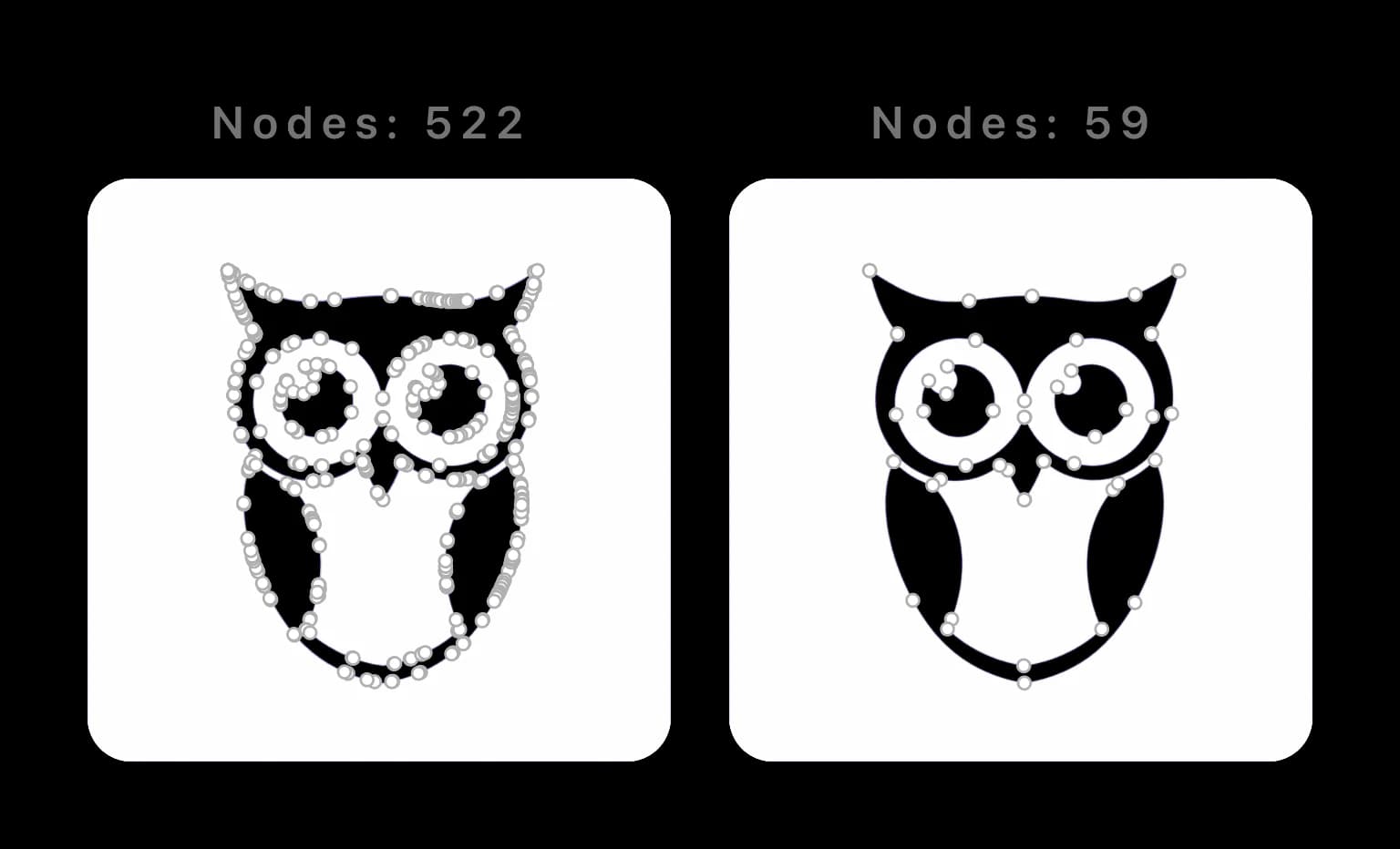
- Output editability (node count). A vectorizer can hit the same picture two ways: a clean path with a handful of well-placed anchor points, or the same shape buried under hundreds of them. The first is a joy to edit; the second fights you on every nudge. This is the single biggest difference between tools, and the one roundups ignore most. (Here's why auto-traced SVGs end up with too many nodes.)
- Color handling. Flat, illustrative art (logos, icons, stickers) vectorizes cleanly. Full-color photographs don't — they turn into huge files or a posterized mess. Some tools are tuned for one, some for the other.
- Privacy & data retention. Where do your uploads go, and how long are they kept? It matters for client work.
- Licensing. Can you use the result commercially? Rights and free-tier terms vary, so check the current terms before using an output in paid work.
- Friction & automation. Signup required? Is there an API for batch work?
A note on method, since the top results for this query rarely give one: we weight these criteria from hands-on use and from what each tool documents it is built to optimize — not from a controlled, identical-input benchmark across every tool. Where we have not run that benchmark, we do not turn an impression into a numeric score. Pricing and features below were checked August 25, 2026; confirm them on each tool's own site. SVG itself is an open W3C standard, but standards-compliant SVGs can still differ substantially in path structure and editability.
First: generator, or vectorizer?
One thing 2026 changed: "AI SVG" now means two different tool categories. Generators make new vector art from a text prompt; vectorizers convert an image you already have into vector paths. This list ranks vectorizers. If what you're actually shopping for is new art from a prompt, that's a different comparison, and AI SVG generator vs. AI vectorizer walks the line between the two, including how to judge either one's output. Recraft, below, is the tool that straddles both camps.
For Quiver AI, the vectorization workflow comparison keeps that question tied to your input: an existing image that needs tracing. Use the same source and inspect the downloaded geometry before choosing between workflows.
The tools, one by one
If you are comparing SVGtrace for craft files, start with the SVGtrace cut-file workflow comparison. Compare color-layer editing and download access, then check your chosen SVG in the cutting app before using materials.
Vectorizer.AI — configurable tracing with an API
Vectorizer.AI documents a raster-to-vector API, SDKs, a CLI, and SVG/PDF/EPS/DXF output for automated workflows. Its web app also exposes export controls for compatibility.
- Pros: configurable full-color tracing; developer API, SDK, and CLI options.
- Cons: production downloads are paid; inspect node count on your own source if hand-editing matters. (We've written a deeper look at what switching away actually trades.)
- Best for: teams that need configurable output or an API.
Recraft — AI design suite with vectorization
Recraft's vectorizing workflow converts PNG or JPG artwork to editable SVG, includes color reduction and recoloring, and sits inside its broader generation and editing suite.
- Pros: documented vectorization inside a larger generation and editing suite, with color reduction and recoloring.
- Cons: vectorizing is one feature of a broader platform rather than a standalone converter; inspect the exported path structure for your editing workflow.
- Best for: designers already working inside Recraft's AI ecosystem.
See Recraft versus a focused vectorization workflow if you are choosing where to trace an existing image.
For the in-app steps, follow the Recraft vectorizer and generator guide. Start with the existing image when reconstruction is the goal.
Vector Magic — the veteran full-color tracer
Vector Magic's current product documentation describes both online and desktop editions, automatic vectorization, segmentation editing, and SVG/EPS/PDF output.
- Pros: automatic tracing plus inspection and segmentation-editing tools; online and offline options.
- Cons: paid saving/export; the online and desktop feature sets differ, so compare them before buying. The alternatives breakdown covers which is which.
- Best for: people who want an established tracer with online and desktop workflows.
Adobe Illustrator Image Trace — already in your toolbox
If you already pay for Illustrator, Image Trace is included in the app. Adobe documents presets plus controls for color, threshold, curves, transparency, shapes, paths, anchors, and expansion into editable vectors.
- Pros: deep manual control; lives inside the editor; no extra cost if you have Creative Cloud.
- Cons: needs an Adobe subscription; real learning curve; some presets and sources can produce dense paths that need Simplify or manual cleanup (see the node-count trade-off).
- Best for: designers who live in Adobe and want manual, frame-by-frame control. Compare Illustrator Image Trace with an AI vectorizer for control, cleanup, and node count before choosing the workflow.
Inkscape (Potrace) — the free, open-source option
Inkscape is a free, open-source vector editor. Its current Trace Bitmap documentation covers single scans and color tracing, while the underlying Potrace project documents bitmap-to-vector tracing.
- Pros: completely free and offline; a full vector editor, not just a converter; no signup.
- Cons: its scan modes and thresholds require more manual choices; multiple scans create stacked objects, and every result should be checked for node density.
- Best for: anyone who wants free and offline and doesn't mind learning the tool. (Our Trace Bitmap guide covers the settings that actually matter.)
For the workflow trade-off, compare Inkscape Trace Bitmap with a browser workflow.
VTracer — open-source and scriptable
VTracer is an open-source raster-to-SVG project with command-line and library surfaces for automation.
- Pros: free and open-source; color-capable; scriptable for batch and automation workflows.
- Cons: developer-oriented; inspect the output in a separate vector editor before production use.
- Best for: developers automating conversions at scale.
AIVector and the free, no-signup web tools
There's also a lane of quick web vectorizers and converters, including Adobe Express's quick-action converter. Signup rules, download rights, and output structure differ by service, so check each one rather than treating “free converter” as one product category.
If your shortlist is specifically for vinyl, layered color, or Cricut work, compare the craft-focused SVGTrace alternatives with the same image and judge the downloaded paths rather than the landing-page preview.
- Pros: low-friction previews or one-off conversions are common.
- Cons: account requirements, licenses, privacy policies, and editability vary; inspect the paths and current terms before production use.
- Best for: evaluating a simple one-off when you are willing to verify the result.
PerfectVector — built for the edit afterward
Now us, same yardstick. PerfectVector is AI-native and tuned for one thing specifically: low node counts and clean, editable paths, so the SVG survives real editing in Illustrator or Figma and cuts cleanly on a Cricut. A built-in color editor lets you recolor or merge near-duplicate colors before you download.
- Pros: tuned for low node counts and clean, editable paths; built-in color editor; browser previews before download; lawful commercial use is permitted subject to the rights in the input. Review the current pricing, Terms, and Privacy Policy for credits, licensing, and retention.
- Cons: purpose-built for flat and illustrative art; for photorealistic or full-color images, compare it with a full-color tracer such as Vector Magic or Vectorizer.AI on the same source.
- Best for: logos, icons, illustrations, AI art, and maker/Cricut work you'll edit, recolor, or cut.
At a glance
| Tool | Documented focus | What to inspect | Color approach | Pricing model |
|---|---|---|---|---|
| PerfectVector | Low-node, editable SVGs | Paths, nodes, color separation | Flat & illustrative art | Free preview; credits/plans for downloads |
| Vectorizer.AI | Configurable web and API tracing | Paths, nodes, export settings | Full-color controls | Paid production output |
| Recraft | AI design suite + vectorize | Shape count and editability | Color reduction/recoloring | Free and paid plans |
| Vector Magic | Automatic online/desktop tracing | Segmentation and path density | Full-color modes | Paid saving/export |
| Illustrator Image Trace | Manual control in-app | Paths, anchors, preset result | Color/grayscale/B&W presets | Adobe subscription |
| Inkscape (Potrace) | Free, offline tracing/editing | Stacked scans and nodes | Single or multiple scans | Free / open-source |
| VTracer | Scriptable conversion | Path structure in an editor | Color-capable | Free / open-source |
| Quick web converters | Low-friction conversion | Real paths, terms, retention | Varies | Varies |
Checked August 25, 2026 — pricing and features change; verify on each tool's site. This table summarizes documented focus, not a controlled quality benchmark.
Which one should you pick?
Match the tool to the job, not to a leaderboard:
- You'll edit, recolor, or cut the result → compare node count, shape fidelity, and cleanup time on the same source. PerfectVector is built for low-node output — start with PNG to SVG or JPG to SVG.
- You need configurable full-color conversion or an API → Vectorizer.AI (or Recraft, if you already work in its ecosystem).
- You want automatic tracing with online and desktop options → Vector Magic.
- You want free → Inkscape for an offline editor, or VTracer if you're automating from a script.
- You already work in Adobe and want manual control → Illustrator Image Trace.
- You need a quick, one-off evaluation → a web tool can be convenient, but check its download terms, privacy policy, and actual paths first.
And by project: for Cricut and cutting machines, you want separated layers and clean cuts — see how to prepare SVG files for Cricut and the image-to-SVG-for-Cricut converter. For AI-generated art, see how to vectorize AI art for print. For logos, vectorizing a logo is its own workflow.
FAQ
What's the best free AI vectorizer in 2026? It depends on what “free” needs to cover. Inkscape and VTracer are open-source options. Web services often separate free previewing from paid downloads, so confirm the current price, export rights, and privacy terms before choosing one.
Which vectorizer gives the cleanest, most editable SVG? “Cleanest” needs a defined test. Run the same source through each candidate, expand or open the paths, then compare node count, color separation, visible edge errors, and cleanup time. PerfectVector explicitly optimizes for low-node editable output, but you should verify it on your own artwork.
Can I vectorize a full-color photograph? Usually you shouldn't. Photos have too many gradients to become clean shapes — you'll get a huge file or a posterized look. Vectorization is built for flat, illustrative art; keep photoreal work as a high-resolution raster. (More on what vectorization is and isn't.)
Is it safe to upload my images? That depends on each tool's data-retention policy, so check it — especially for client work. PerfectVector's Privacy Policy explains its current retention and states that uploads and generated SVGs are not used to train machine-learning models.
Can ChatGPT or Gemini vectorize an image instead? General chatbot image-generation features document raster output, and generated SVG code is not the same as faithfully tracing an uploaded file into editable paths. See what ChatGPT currently does and what Gemini currently does, then use a dedicated vectorizer when faithful tracing is the requirement.
Do I have to pay to vectorize an image? Options range from open-source software to paid web services. PerfectVector currently makes vectorizing and previewing free; one credit unlocks the finished SVG. Verify current pricing and commercial-use terms before a production project.
Sources
- W3C — Scalable Vector Graphics (SVG) 2 — the format standard used to evaluate real SVG output.
- Vectorizer.AI — Developer documentation — API, SDK, CLI, output formats, test modes, and current production-credit behavior.
- Recraft — Vectorizing — raster-to-SVG workflow, color reduction, editing, and export.
- Vector Magic — Desktop Edition — online/desktop feature matrix, output formats, trial, and licensing model.
- Adobe — Image Trace panel options — current Illustrator tracing controls and editable-path workflow.
- Inkscape — Tracing an Image — current Trace Bitmap modes and multi-scan behavior.
- VTracer — Official GitHub repository — open-source raster-to-vector project and automation surfaces.
- PerfectVector — Terms and Privacy Policy — current download, licensing, commercial-use, and upload-handling commitments; see also the Privacy Policy.
Want to test the clean-path option? Try it on your own image, compare the preview with the source, and inspect the nodes and color shapes before spending a credit on the finished SVG.
More from the blog
Can AI Image Generators Make Real Vector SVGs?
Diffusion models paint pixels, so most AI images can never be SVGs. Here's why that's baked into the technology, and the three real routes to vector output.
Can Photoshop Vectorize an Image? Know Its Limits
Photoshop has manual vector tools, but it cannot auto-trace an image into clean paths. See what its work-path trick does and which alternatives to use.