
Convert an Image to SVG for Clean 3D Printing
A 3D printer can't extrude pixels, so flat designs start as an SVG. Here's how to turn an image into a clean, closed-path SVG that imports and extrudes the first time.
On this page
- Why a 3D printer needs an SVG, not a PNG
- Which images extrude well, and which don't
- The workflow: from image to extrude-ready SVG
- 1. Start from the right source image
- 2. Convert it to clean vector paths
- 3. Merge colors down to the parts you'll print
- 4. Check the paths before you import
- 5. Import and extrude
- What this looks like with PerfectVector
- When an SVG isn't the right move
- FAQ
- Sources
To use a flat image in an extrusion-based 3D-printing workflow, trace the picture into vector paths, clean the intended boundaries, and import the SVG into software that supports it. In Autodesk Fusion, for example, you can insert an SVG into a sketch and extrude a valid profile into a solid. Whether the result prints well also depends on dimensions, feature thickness, the 3D model, slicer settings, material, and printer setup.
This guide walks the whole route for flat designs (logos, lettering, silhouettes, ornaments, cookie cutters), from picking the image to the moment it extrudes. For a scripted modeling workflow, follow the OpenSCAD SVG import and extrusion steps, including a separate check for real holes. If vector files are new to you, what image vectorization actually does is a useful two-minute primer first.
Short on time? The whole workflow
- Check the design suits flat extrusion. Flat, graphic art maps naturally to profiles; photos and sculptural objects need another 3D workflow.
- Start from your sharpest image, high contrast, ideally on a clean or transparent background.
- Convert it to SVG with an AI vectorizer and merge the colors down to the parts you'll actually print.
- Check the paths: closed shapes, a sane node count, no stray background box, no broken islands.
- Import and extrude in a documented SVG-capable CAD or modeling tool, then export a 3D format your slicer supports.
Why a 3D printer needs an SVG, not a PNG
A PNG or JPG is a grid of pixels rather than editable boundary geometry. An SVG can store paths and shapes that a supporting CAD or modeling application imports into a sketch. For a normal profile extrusion, connected boundaries must define an area the tool can select; Autodesk documents shaded profiles from closed planar curves and selection of sketch profiles for solid extrusion.
So the SVG is the middle step. Your image becomes an SVG, the SVG becomes a 3D body, and the 3D body becomes the STL your slicer prints. The conversion you're doing here only covers the first arrow, but it's the one that decides whether the rest goes smoothly.
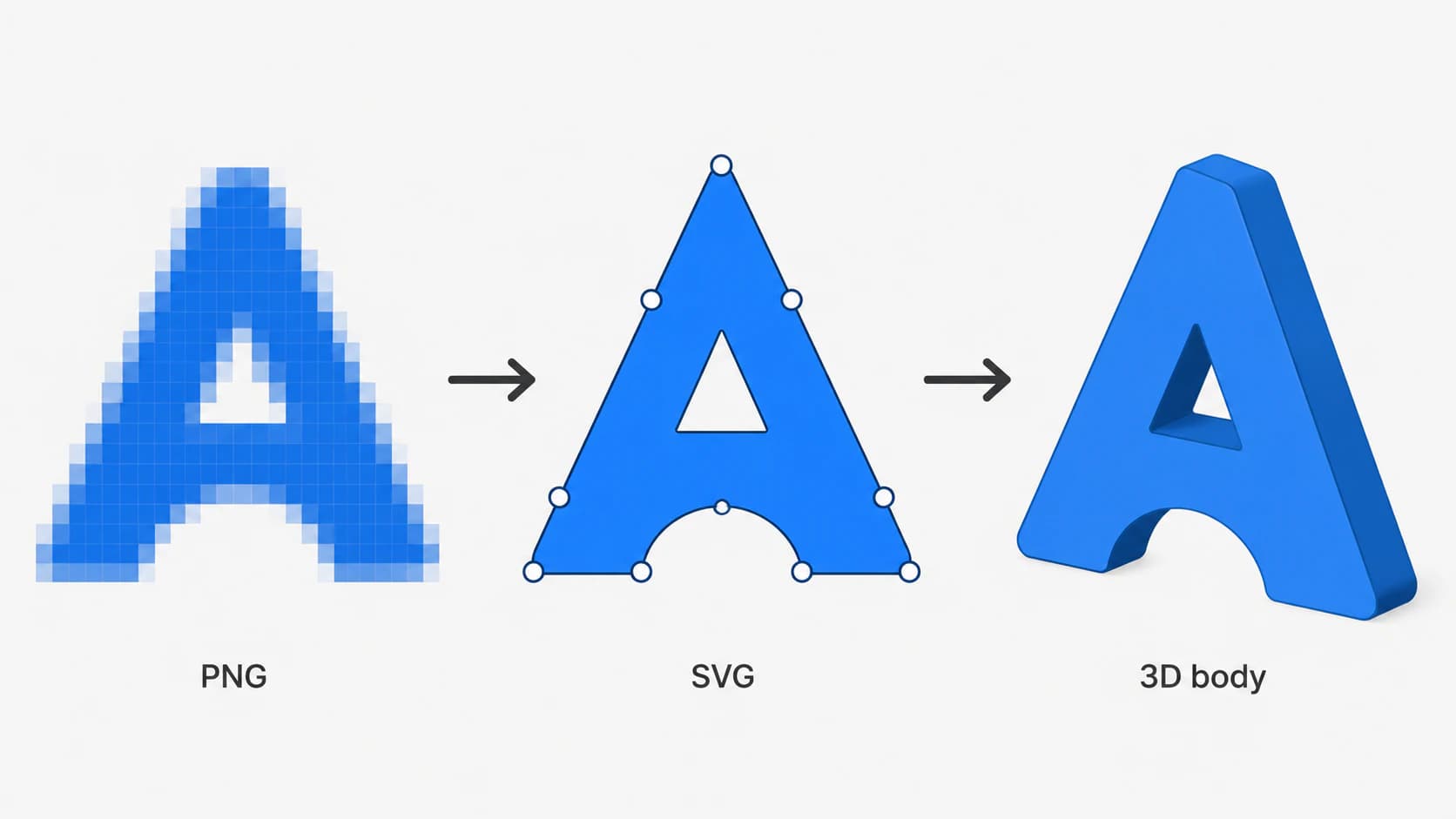
One thing worth clearing up: this is not the same as the AI "image to 3D" tools that promise a full model from a single photo. Those guess at depth and geometry to sculpt a whole object, which is its own use case. The SVG route does something narrower and more exact: it takes a flat design and gives you precise, clean geometry to extrude yourself. For a logo keychain or an embossed sign, that control is what you want.
Which images extrude well, and which don't
What makes a good image for 3D printing? Flat, graphic artwork with clear edges: logos, monograms, lettering, silhouettes, line art, simple icons. These trace into clean closed shapes that extrude into crisp solids. Photographs, gradient-heavy AI art, and anything with soft shading do not, because there are no clean edges to trace; you get blobby, meaningless outlines. If your design is essentially a flat graphic, you're in good shape.
| Your image | Extrude as SVG, or not | Why |
|---|---|---|
| Logo, monogram, lettering | Yes | Clear edges trace into closed shapes that extrude cleanly |
| Silhouette or bold icon | Yes | Single solid shape, ideal for keychains and ornaments |
| Line art or outline drawing | Usually | Works if lines are thick enough to print; thin strokes get fragile |
| Photo or portrait | Use another workflow or stylize deliberately | Flat tracing does not preserve depth or continuous tone |
| Gradient or shaded AI art | Simplify into flat regions or use another method | Soft transitions do not directly define one extrusion boundary |
If your design lands in a "no" row, an SVG probably isn't the route; the last section covers what to do instead. For everything else, on to the conversion.
The workflow: from image to extrude-ready SVG
1. Start from the right source image
The trace can only be as clean as what you feed it. Use the largest, sharpest version of the image you have, with strong contrast between the design and its background. Prefer a transparent or solid background so the converter doesn't trace a rectangle around your design, the classic stray-box problem that leaves you with an unwanted slab around your shape. A high-resolution source also protects edge detail, and here every wobble in a path becomes a wobble printed in plastic. There's more on protecting edges in converting without losing quality.
2. Convert it to clean vector paths
Upload the image to a vectorizer and inspect the trace. You can convert your image to an SVG for a 3D-printing workflow directly. What you want from this step is specific: boundaries that produce the intended selectable regions, plus a manageable structure rather than hundreds of speckled fragments. This is the part that decides whether the profile can be used, which is why it gets its own check in step 4.
3. Merge colors down to the parts you'll print
If you're printing in a single color, you want one clean shape, so merge everything down. For a multi-color or multi-part print, splitting each part into its own SVG lets you set a separate height and color per piece: the base plate, the raised lettering, an accent shape. PerfectVector's color editor does this merge or separation before you download, so you're not untangling fragments later. The thinking is the same as building a layered SVG for a cutting machine, just with extrude heights instead of vinyl colors.
If the destination needs separate parts by color, split the finished palette into aligned SVG files and verify their common scale.
4. Check the paths before you import
This is the step every converter tutorial skips, and it's the one that saves you the "shape too complex" errors. Open the SVG (your browser or any vector editor will preview it) and look for four things:
- Closed shapes. A path with a gap has no defined inside, so the software can't extrude it into a solid. Outlines must close all the way around. If the curves import but no face appears, use the SVG extrusion diagnosis to find open endpoints, overlaps, and line-only artwork.
- Node count. Hundreds of needless anchor points are what turn one logo into hundreds of tiny segments on import, drag a CAD sketch to a crawl, and trigger "shape too complex." A clean trace uses far fewer. Why traces end up over-noded explains what a sane path looks like.
- No stray background box. If a rectangle got traced around your art, delete it before importing, or it extrudes into a slab.
- Islands and counters. The hole in an "O", the center of an "A", the gap inside a ring: these need to survive as holes, not fill in. A clean SVG keeps them as separate subpaths so the extrude reads them correctly.
5. Import and extrude
Bring the SVG into a tool that documents SVG import, verify scale, and create the 3D body. In Fusion, use Insert SVG on a sketch plane, confirm that the intended regions appear as profiles, then use Extrude on those profiles. Other CAD and slicer applications have different import limits, so verify their current documentation rather than assuming the same behavior. For Tinkercad, follow the SVG import and shape checks to inspect filled regions, openings, dimensions, and height. If Bambu Studio is your destination, use the Bambu-specific PNG-to-SVG import checklist for color regions, holes, scale, and post-import verification.
For Rhino 8, use the SVG import choices for curves, hatches, and planar faces to choose the object type your next operation needs and verify an imported sample.
After modeling, export a 3D format supported by your slicer, slice it, and inspect the generated layers and toolpaths. The SVG is an intermediate 2D source, not the printer instruction file.
For an embossing job in PrusaSlicer, follow its SVG emboss workflow and check the result on the target surface.
What this looks like with PerfectVector
PerfectVector handles the raster-to-vector stage of this workflow. It reconstructs visible regions as editable paths, and its color controls can help consolidate or separate the parts you plan to model. Inspect the downloaded SVG in the destination tool: no vectorizer can guarantee that every CAD importer will recognize every traced region as a valid profile.

It's worth knowing where the tool stops: PerfectVector gives you the clean SVG (and DXF, EPS, or PDF if your pipeline prefers them), and your slicer or CAD tool does the actual extrude into an STL. That split is deliberate, because a clean 2D outline is what makes the 3D step easy. Convert an image and check the result yourself, or start from the general image to vector converter if your project isn't 3D-specific.
When an SVG isn't the right move
Use this filter before you spend filament:
- Photos and portraits lose tone and depth when reduced to flat outlines. If you want a photographic or sculptural result, consider a lithophane, photogrammetry, or a purpose-built image-to-3D workflow instead.
- Organic, sculptural objects like a figurine, a curved vase, or anything with real depth aren't flat designs, so extruding a single outline won't capture them. Model or scan those instead.
- Gradient-heavy AI art has the same edge problem. Flatten it to solid shapes first, or accept that only the bold outlines will extrude.
- Very thin lines and tiny text trace fine but print fragile, snapping off a keychain or failing to bond. Thicken strokes in the source, or scale the print up.
The honest filter is simple: if you could draw the design with a marker as flat shapes, it'll extrude well. If it only makes sense with shading and depth, reach for a different 3D workflow.
FAQ
Can a 3D printer print an SVG directly? An SVG is normally an intermediate 2D design source, not machine instructions. Import it into software that supports SVG, turn the intended profiles into a 3D body, export a slicer-supported 3D format, and inspect the sliced toolpaths. Exact supported formats depend on the slicer and printer workflow.
What's the difference between image to SVG and image to 3D AI tools? Image-to-SVG converts a flat design into a precise 2D outline you extrude yourself, which gives exact, clean geometry for logos, lettering, and signs. AI image-to-3D tools try to generate a whole sculpted model from one photo by guessing depth. The SVG route is the better fit whenever your design is essentially flat.
Why does my SVG import as a blob or throw "shape too complex"? Common causes include invalid or overlapping boundaries, excessive nodes, tiny fragments, an embedded raster, or an importer limitation. Inspect the paths, simplify only where the design survives, and delete any confirmed stray background rectangle before importing again.
Can I 3D print a photo as an SVG? You can stylize a photo into flat vector regions, but that does not preserve photographic depth or tone. For a photo-based 3D result, a lithophane or another depth-aware workflow may fit better than flat SVG extrusion.
How do I make a multi-color 3D print from an image? Separate the design into one clean shape per color or part, then extrude each to its own height and assign a color or filament. Merging and separating colors before you export the SVG, rather than splitting fragments later, makes this far less tedious.
Sources
- Autodesk Fusion — Insert SVG — Documents placing SVG geometry on a sketch plane.
- Autodesk Fusion — Create a 3D sketch — Explains how closed planar curves form shaded profiles.
- Autodesk Fusion — Extrude a solid body — Documents selecting sketch profiles and creating solid extrusions.
- W3C — Scalable Vector Graphics (SVG) 2 — Defines SVG’s 2D vector document model.
- PerfectVector — SVG for 3D Printing — States the current raster-to-SVG workflow for 3D-oriented projects.
Got a flat design waiting to become a print? Convert it to a clean SVG, run the path check, and import it into your slicer or CAD tool to extrude. A clean outline is what makes the 3D step the easy part. (Routing the same design to a router or plasma table instead? The CNC conversion is the sibling workflow.)
More from the blog
Convert an Image to SVG for Clean Laser Cutting
Laser cutters follow paths, not pixels. Here's how to turn a PNG or JPG into a clean, closed-path SVG your machine can cut, and when to engrave instead.
How to Check an SVG File Before You Cut It (or Buy It)
The five-minute preflight for cut files: spot fake vectors, doubled paths, node bloat, and stray boxes before you waste vinyl, plus what to check before buying.