How to Convert PNG to SVG Without Losing Quality
Convert a PNG into a sharp, editable SVG by checking path quality, node count, colors, and structure—and learn when keeping the raster is the better choice.
On this page
A PNG-to-SVG trace reconstructs pixels as shapes. It can make the reconstructed artwork scalable and editable, but it cannot guarantee an exact copy or recover detail missing from the source. For a logo, icon, or flat illustration, compare contours, colors, and small details before deciding that the SVG is ready. For a photograph, keeping the raster is usually the better choice unless you want a stylized result.
You need the best available PNG, a clear intended use, and an SVG-capable editor or production app for the final check. Keep the original PNG and an untouched SVG export so you can undo cleanup that changes the design.
First, why PNG and SVG aren't the same kind of file
A PNG is a raster image — a grid of pixel samples. It looks fine at its intended size, but enlarge it far enough and the grid shows: edges go soft or blocky. PNG compression is lossless, but the stored image still has finite pixel dimensions. See the W3C PNG 3 specification.
An SVG can store vector geometry such as paths, curves, and fills. Those vector elements scale without raster pixelation, although an SVG may also contain embedded raster images or effects with their own limits. (W3C SVG 2; SVG embedded content) For the full explainer, see What Is Image Vectorization?.
So "converting PNG to SVG" means reconstructing the pixel image as editable shapes. The quality of the result depends entirely on how smart that reconstruction is.
What "without losing quality" actually means
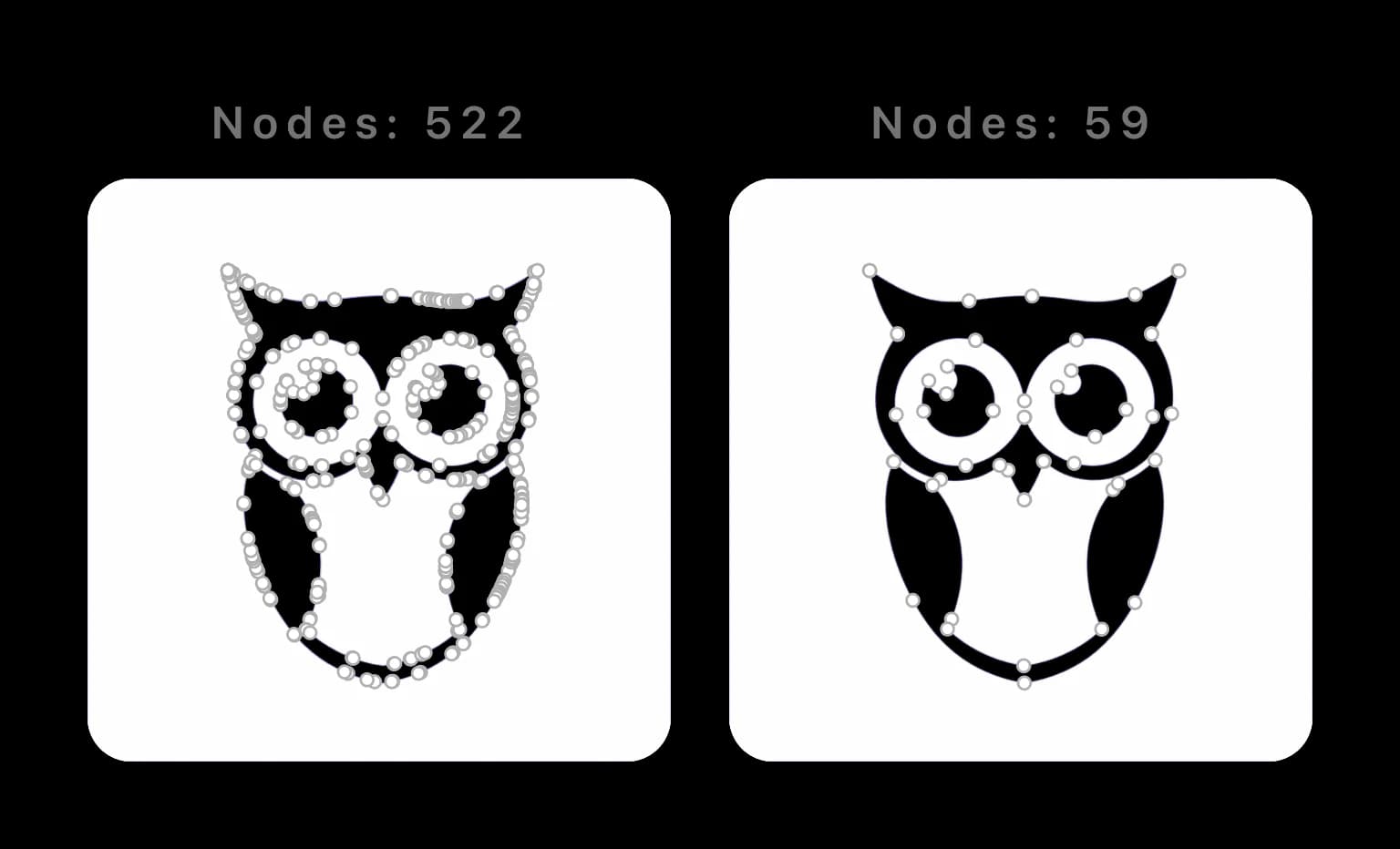
A high-quality PNG-to-SVG conversion isn't just "it opens in Illustrator." Inspect four properties of a reconstructed vector:
- Clean paths — smooth curves that follow the artwork, not the pixel grid.
- No unnecessary anchor nodes — use enough points to preserve the shape, but not so many that manual editing becomes cumbersome. Adobe likewise recommends fewer points for easier editing and smoother display. (Adobe path-editing guidance; why node count matters)
- Accurate color — flat regions stay flat instead of fracturing into dozens of near-identical shapes.
- Usable structure — intended parts can be selected and adjusted without unintended fragments or duplicate geometry. Some designs legitimately use groups or compound paths.
Automatic tracers vary widely. Detail, noise, path-fitting, corner, and color settings can trade fidelity for complexity; Adobe exposes those controls directly in Image Trace. See Adobe's Image Trace options. A file can be technically vector while still being inconvenient to edit or cut, so inspect its paths instead of judging it by the .svg extension. If your SVG is destined for a cutter, prepare it for laser cutting and verify the toolpath first.
How to convert a PNG to SVG without losing quality
One workflow is to use an automated vectorizer and then inspect its reconstruction of contours, anchor placement, colors, and layers. Here's that workflow with PerfectVector:
- Choose and inspect the source. Prefer the original artwork over a screenshot. Check letter counters, thin lines, transparency, and the smallest details at the size you intend to use.
- Upload and trace the PNG. Open the PNG-to-SVG converter. If upload preparation resizes or compresses the image, inspect the prepared image before continuing; changes there can affect the trace. The product facts distinguish preparation, conversion, preview, and unlocking.
- Compare the free preview with the source. Check the silhouette, intentional gaps, lettering, and visible colors. Previewing does not enable color editing.
- Unlock the result before editing. One credit unlocks a result. Then use the editor to recolor regions or merge near-duplicate colors. Inspect again after each change: a smaller palette can erase an intentional distinction, and recoloring does not merge overlapping cut geometry.
- Export a working copy as SVG. Preserve a copy before further cleanup.
- Open it in its destination app. Verify its dimensions, shapes, fills, strokes, and object structure. For production, test at the actual output size. A sharp browser preview alone does not prove that another app will import every feature correctly.
A practical quality check
Compare these features at the intended size and at a close zoom:
- Does the outer silhouette follow the original artwork?
- Are holes in letters and intentional small gaps still open?
- Are curves smooth without rounded-off corners that should remain sharp?
- Do the colors retain their visual roles after any palette merge?
- Can you select the intended shapes, rather than just one embedded image?
If a letter counter disappears, restore the earlier version and retain more detail or redraw that part. If extra fragments appear, inspect the source for noise and remove only unintended pieces. If the destination app changes the rendering, isolate the unsupported feature rather than retracing the whole design immediately. The pixelated-SVG guide helps distinguish embedded pixels from path-quality problems.
Converting a folder of interface icons adds a second quality problem: the files must work as one family. Use the PNG-icon-to-SVG UI-kit workflow to standardize their grid, optical size, color rules, and delivery checks after the representative traces pass.
Pro tips for the sharpest possible result
- Flat art beats photos. Logos, icons, and flat illustrations are useful candidates. Check the trace; detailed photographs need a different fidelity expectation.
- Check contrast carefully. Improve a washed-out copy only if doing so preserves the intended details.
- Prefer the best available source. A larger, sharper PNG can provide more edge information than a small thumbnail, but extra pixels cannot restore detail already blurred or removed.
- Simplify colors after, not before. Trace first, unlock, then compare each palette merge with the original.
Compare tracing workflows by control and fidelity
It helps to see what you're choosing between. The useful comparison is not a universal ranking; it is how much control each workflow gives you and what you must verify:
| Approach | Main control | What to verify |
|---|---|---|
| Automated vectorizer (including PerfectVector) | Fast first pass with product-specific controls | Source fidelity, node count, palette, privacy, and current pricing |
| Illustrator Image Trace | Paths, corners, noise, colors, and method settings | Expand the result, then inspect path complexity and missing detail |
| Inkscape Trace Bitmap | Scan mode, threshold, and multiple-scan controls | Stacked objects, speckles, and path cleanup |
| Manual redrawing | Direct control over every shape and anchor | Time required and consistency with the source |
Manual redrawing gives the most direct control, but the time required depends on the artwork and the operator. Automated tools can be faster, but their output quality also varies by image and settings. Adobe documents detailed Image Trace controls, while Inkscape documents threshold and multiple-scan workflows. (Adobe Image Trace workflow; Inkscape tracing guide) Weighing product options? See the AI image vectorizers compared.
When you should not convert a PNG to SVG
Vectorization shines on graphics with clear shapes — logos, icons, illustrations, line art, lettering. It struggles with photographs. A photograph contains continuous tonal detail; approximating it with shapes can increase file complexity or produce a simplified, posterized appearance.
Rule of thumb: if your image has crisp edges and a limited palette, vectorize it. If it's a photograph, keep it raster — or expect a stylized result, not a faithful one.
FAQ
Does converting a PNG to SVG reduce quality? Changing the container does not automatically improve or reduce quality. A traced SVG can scale its reconstructed paths without raster pixelation, but its fidelity depends on the source, tracing method, and settings. An SVG that merely embeds the PNG has not converted the pixels into vector geometry at all.
Can I convert a photo from PNG to SVG? You can, but you usually shouldn't. Photos vectorize into huge or posterized files. Vectorization is built for logos, icons, and illustrations.
Is converting PNG to SVG free? Conversion and previewing are free; one credit unlocks a result for editing and export. Compare the preview with your source first, then unlock before using the color editor. Test the exported SVG in the app where it will be used.
What can open the SVG afterward? Many vector-capable tools, including Illustrator, Figma, Inkscape, Affinity Designer, and Canva, support SVG workflows. Support for features such as filters, text, masks, or embedded content can vary, so test the file in the exact application and version you will use.
Sources
- W3C — Portable Network Graphics (PNG) Specification, Third Edition — Current PNG standard, including lossless image representation and alpha.
- W3C — Scalable Vector Graphics (SVG) 2 — Standard defining vector shapes, paths, paint, and SVG rendering.
- W3C — SVG Embedded Content — Specification showing why putting a PNG inside SVG is not path vectorization.
- Adobe Illustrator — Image Trace panel options — Official detail, path, corner, noise, and color controls for raster tracing.
- Adobe Illustrator — Auto simplify paths — Official anchor-reduction controls and fidelity trade-offs.
- Inkscape — Tracing an Image — Official current workflow for single-scan and multiple-scan tracing.
- PerfectVector — Product facts — Upload preparation, free preview, and result unlock access.
Convert your PNG and compare the preview with the original contours and small details. Unlock before editing, then verify the exported SVG in the app where you will use it.
More from the blog

PNG to Android Vector Drawable: An Import Checklist
Convert a PNG into real SVG paths, import them as Android VectorDrawable XML, and check fills, gradients, masks, viewport sizing, and path complexity.

PNG vs SVG: Which to Use, and When to Convert
PNG is pixels and SVG is math, so the right one depends on what you're making. A plain guide to choosing between them, plus how to turn a PNG into a real SVG.