
How to Convert PDF to SVG: Export or Trace It
How you convert a PDF to SVG depends on what's inside it. If it's vector, you export it; if it's a scan, you trace it. Here's how to tell, and how to do both.
On this page
How you convert a PDF to SVG depends on what's inside the file. PDF can contain vector graphics, text, raster images, or a mixture, as reflected in Adobe’s PDF reference and developer documentation. If the artwork is already vector, preserve it by opening the PDF in a capable vector editor and exporting SVG. If the page is a scan or photo, a direct export may only place the pixels inside an SVG; creating editable paths requires tracing. So before you pick a method, inspect which kind of content you're holding.
This guide covers both paths and how to tell them apart. If file formats are new to you, what an SVG file actually is is a quick primer first.
The quick version
- A PDF can hold vector artwork, a scanned image, or both. What's inside decides how you convert it.
- Vector PDF → export it. Open it in a capable vector editor, verify which objects remain vector, and save a delivery copy as SVG.
- Scanned or photo PDF → trace it. A plain conversion can embed the page image in an
.svg, which is a fake vector. To create editable paths, trace the image. - Not sure which you have? Zoom in. If the art stays razor-sharp and you can select text, it's vector. If it blurs into pixels, it's a scan.
- PerfectVector accepts PDF directly for the trace path: choose one page, review the exact rendered image, then vectorize it.
First, is your PDF vector or scanned?
This one check decides everything, so do it before you touch a converter. A PDF can contain vector artwork (shapes and text stored as math), a raster image (a scan or photo stored as pixels), or a mix of both. Three quick ways to tell:
- Zoom way in. Vector artwork stays crisp at any zoom. If the edges turn soft and blocky, you're looking at pixels.
- Try to select the text. If your cursor highlights the words as text, that part is vector. If the whole page selects as one block, it's likely a scanned image.
- Open it in Inkscape and ungroup. Select the artwork, choose Object then Ungroup, and try to click an individual shape. If you can select shapes, it's vector. If it stays one object and the status bar calls it an "Image," it's raster.
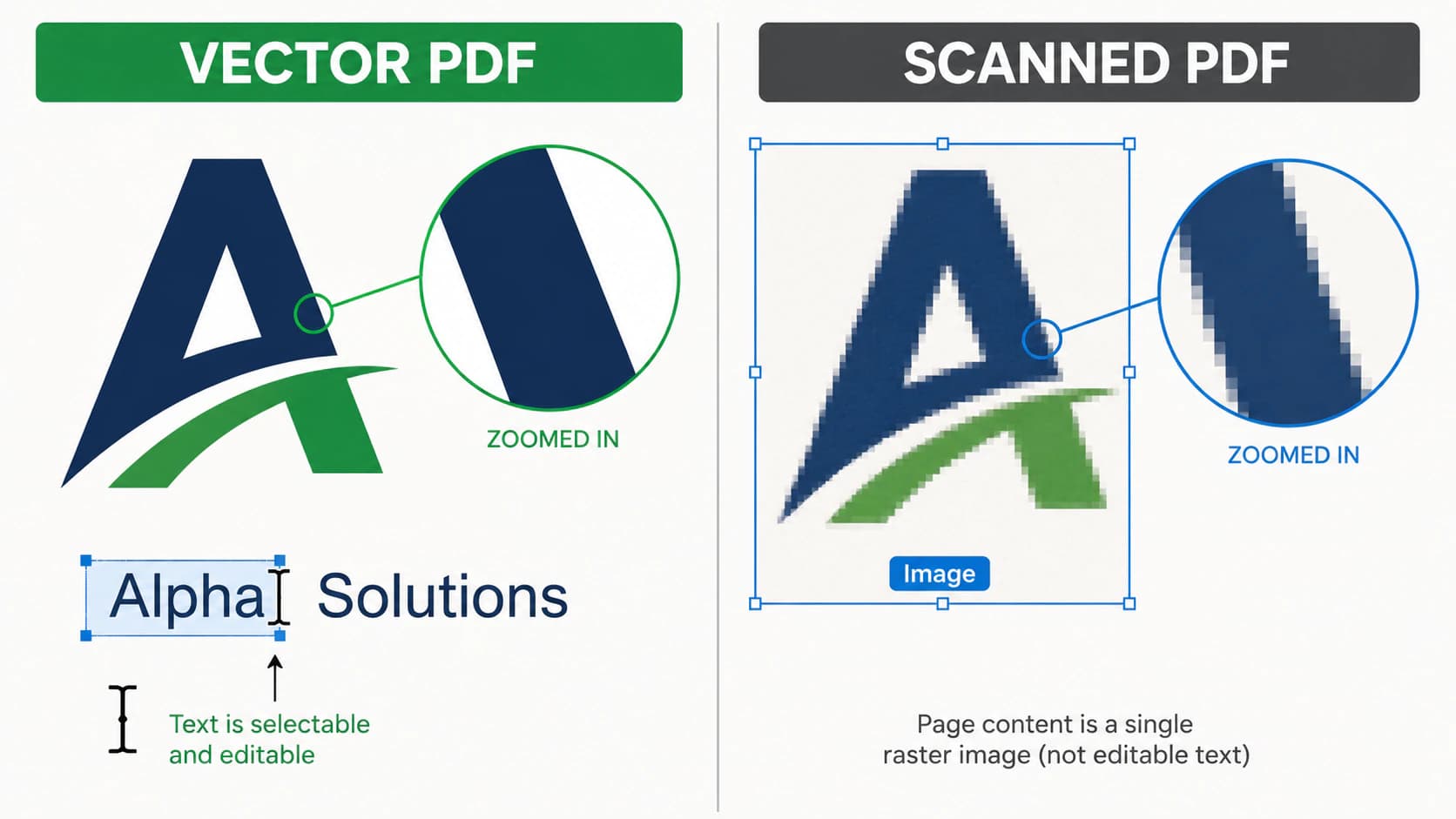
If it's vector, export it (next section). If it's a scan or a photo, the tracing section below is the one you want. If your own browser application created the PDF, check the jsPDF SVG export route before tracing its logo; you may be able to preserve the original paths at export.
If it's a vector PDF: export it
Good news: the artwork is already vector, so you're just moving it into the SVG format. Pick the route that fits your situation.
Inkscape
Inkscape can open PDF for editing, and its current multipage workflow can import all pages. For a portable SVG delivery file, verify the page and objects you actually need:
- Open the PDF in Inkscape (open it in Inkscape, not your PDF reader).
- In the PDF import dialog, choose the page or pages you intend to inspect.
- Confirm that the wanted artwork is selectable as paths or text; embedded scans will remain raster images.
- Copy one intended page or graphic to a clean document when a single portable SVG is the deliverable.
- Save a copy as Plain SVG (*.svg) and reopen it to verify text, effects, and embedded images.
Inkscape has supported importing multipage PDFs since version 1.2, but its multipage SVG pages use Inkscape-specific metadata and browsers display the first SVG viewBox. Export separate SVG files when each PDF page must work as an independent web or production asset. The project’s multipage documentation explains this boundary.
Illustrator
If you have Illustrator, open the PDF and export the intended artboard or selection as SVG. Adobe’s SVG saving guidance notes that some effects and image content can rasterize, so keep the editable source and inspect the exported file.
Tip: pulling one logo out of a busy page
If you only want a single graphic, say a logo on a full brochure page, don't convert the whole thing. In Inkscape, copy just that graphic, paste it into a new document, and resize the page to your selection. You end up with a much smaller, cleaner SVG than converting the entire page and deleting the rest.
A quick warning sign on any of these: if the exported SVG is huge and slow to open, the conversion packed in far more anchor points than the artwork needs. That bloat makes the file hard to edit and slow to render, and it's worth cleaning up the node count before you rely on the file.
If it's a scanned or photo PDF: trace it
Here's where most people get tripped up. Run a scanned PDF through any PDF-to-SVG converter and it happily produces an .svg, so it feels like it worked. But open that file and zoom in: it still blurs, because the converter just wrapped the original pixels inside an SVG container. There are no real paths in it. It's the same fake-vector trap people hit exporting a photo as SVG from other tools.
To get a genuine, scalable vector from a scanned or image-based PDF, you have to trace it, which means redrawing those pixels as real paths. The workflow is:
- Export the page as an image. In any PDF tool, save or screenshot the page (or just the part you want) as a PNG or JPG at the highest resolution you can.
- Trace that image into a vector. Run it through an image-to-vector tool, which redraws the shapes as editable paths.
- Check and clean up. Confirm it opens as editable shapes and stays sharp when you zoom.
Being honest about this: it works well on flat, graphic content, a logo, line art, lettering, a simple diagram. A detailed photograph won't become a clean vector from any tool, so for those, keep the raster.
For a flattened research figure, recover the visible scientific diagram only after checking whether the original vector or source data is available.
What this looks like with PerfectVector
PerfectVector handles the trace path, the harder half of this. You can drop the PDF directly into the PDF-to-SVG converter: it opens the document locally, asks you to choose one page, and shows the exact prepared image before vectorization. Because that page is rasterized first, a PDF with clean vector paths is still better exported directly with Inkscape or Illustrator. For a scan, photo, or flattened page, PerfectVector traces the rendered image into smooth, low-node paths with each color as its own editable shape—the opposite of a fake vector wrapping pixels. Then you can open the SVG in Illustrator, Figma, or Inkscape, or edit it right away.


For a vector PDF, you don't need this step at all, just export it as above. The trace path is specifically for when the PDF is a scan or photo and a plain conversion gives you nothing usable.
Which method should you use?
| Your PDF | Best route | Why |
|---|---|---|
| Vector artwork, one page | Inkscape or Illustrator | Preserve and inspect the existing paths |
| Vector artwork, sensitive file | A trusted local desktop tool | Review the tool’s data handling and avoid unnecessary uploads |
| Vector artwork, multi-page | Import pages, then export separate delivery SVGs | Browser SVG displays one root viewport |
| Just one logo on a busy page | Copy into a new Inkscape doc | Far smaller, cleaner SVG |
| A scan or photo | Export page as PNG, then trace | A plain convert only makes a fake vector |
A note for Cricut and cutting machines
Makers often grab a PDF design and need it as an SVG cut file. The same split applies, with higher stakes: a vector PDF exports to clean paths a machine can cut, but a scanned PDF "converted" to SVG carries no real cut lines, so it won't cut right. If your PDF is a scan, trace it into clean closed paths first, the same prep any Cricut-ready SVG needs. New to the why behind all this? Start with what image vectorization is.
FAQ
Is a PDF a vector or a raster file? Either, or both. A PDF is a container that can hold vector artwork (shapes and text as math), raster images (scans and photos as pixels), or a mix. That's why converting one to SVG depends on what's inside: vector content exports cleanly, while a scanned image only wraps pixels in the SVG unless you trace it.
How do I convert a PDF to SVG for free? For a vector PDF, open it in Inkscape, choose the intended page, confirm the artwork remains selectable, and save a clean document as Plain SVG. For a scanned or photo PDF, export or render the intended page and trace that raster with an image-to-vector tool, since a format-only export does not reconstruct paths.
Why does my converted SVG still look blurry or pixelated?
Because the PDF held a scanned or photo image, and the converter wrapped those pixels inside an SVG without tracing them. The file has an .svg extension but no real vector paths, so it blurs when you scale it. To fix it, trace the image into actual paths rather than relying on the conversion.
Can I convert a multi-page PDF to SVG? Yes, but decide whether you need one SVG per page or an editor-specific multipage document. Current Inkscape can import multiple PDF pages, while standard browser SVG displays the root viewport rather than a PDF-style page set. Export separate SVG delivery files when each page must stand alone.
How do I get just one logo out of a PDF as an SVG? Open the PDF in Inkscape, copy only that graphic, paste it into a new document, and resize the page to the selection before saving as SVG. That gives you a small, clean file instead of converting the whole page. If the logo is part of a scanned image, export it as a PNG and trace it instead.
Sources
- Library of Congress — PDF family — Describes PDF as a page-description family that can contain vector, text, and raster content.
- Adobe — Acrobat SDK and PDF references — Provides Adobe’s technical PDF documentation.
- Inkscape — Multipage — Documents multipage PDF import and the SVG/browser page boundary.
- Inkscape Beginners’ Guide — Importing other file formats — Explains importing PDF and other non-SVG sources for editing.
- Adobe Illustrator — Save artwork — Documents SVG saving and cases where content may be rasterized.
- PerfectVector — PDF to SVG Converter — States the current page-selection and raster-tracing workflow.
Got a scanned PDF that a plain conversion turned into a blurry fake vector? Choose the page and trace it into a clean, editable SVG, then check that it stays sharp when you zoom.
More from the blog
Animated GIF to SVG: Choose a Frame or Rebuild It
An animated GIF can become one still vector frame or a rebuilt SVG animation, but those are different jobs. Learn what each converter actually keeps.

Can Gemini Vectorize an Image? What It Can Do
Gemini can write SVG code from a text prompt, unlike most AI. But it can't trace your uploaded image into a clean, editable SVG. Here's what it can and can't do.