What Is an SVG File? (And How to Open, Use, and Make One)
An SVG is an image made of code instead of pixels, so it stays sharp at any size. Here's what that means in plain terms, what SVGs are for, and how to make one.
On this page
An SVG (Scalable Vector Graphics) file is an image described with XML and vector geometry instead of only a fixed grid of pixels. Because it can store a picture as shapes, paths, text, and fills, those vector elements stay sharp when resized. File size depends on the number and complexity of elements and whether the SVG embeds raster content. See the W3C SVG 2 standard.
This is a plain guide for anyone who just ran into one: what an SVG actually is, what's inside it, what it's good and bad at, how to open one, and how to make one from an image you already have. No web-development background needed.
The short version
- An SVG stores an image as shapes described in code, not pixels, so it scales to any size without going blurry.
- It's great for logos, icons, simple illustrations, and Cricut or print work. It's a poor fit for photos.
- Open one in any web browser, a design app (Illustrator, Inkscape, Figma, Canva), or even a plain text editor.
- Make one by designing it in vector software, or by converting an image you already have into an SVG.
SVG vs. a regular image (PNG or JPG)
A PNG or JPG is a raster image: a fixed grid of colored pixels, like a mosaic. Zoom in far enough and you see the squares, which is why a logo saved as a PNG goes blurry when you blow it up.
An SVG is a vector image: a set of instructions that says "draw a circle here, fill it orange, draw this curve there." Because the picture is redrawn from those instructions every time, it looks sharp at any size. That single difference is the whole appeal. (For a full breakdown of when to use each, see PNG vs SVG.)

What's actually inside an SVG file
Here's the part that surprises people: an SVG is text. Open one in Notepad or any code editor and you can read it. Under the hood it's XML, a tagged text format, where each shape is a line of code. A simple SVG of an orange circle looks like this:
<svg viewBox="0 0 100 100">
  <circle cx="50" cy="50" r="40" fill="orange" />
</svg>
That's the entire file. circle draws the shape, cx/cy place it, r sets the radius, and fill sets the color. Because SVG is text-based XML, you can inspect it and, in a simple file like this, change a color by editing one attribute. SVG is an open W3C standard implemented by modern browsers. Read the W3C introduction to SVG.
If a file arrives with an .svgz extension, the SVGZ and SVG comparison explains how to recover its markup and choose a form for editing or web delivery.

What SVGs are used for
SVGs shine anywhere a graphic needs to stay crisp at different sizes or be edited as shapes:
- Logos. One SVG works on a business card and a banner without a separate file for each size.
- Website icons and graphics. Buttons, arrows, and simple illustrations stay sharp on different screen densities; performance still depends on file complexity and how the asset is delivered.
- Cricut and cutting machines. SVG is the standard cut-file format. The machine follows the paths to cut vinyl, paper, or HTV. (Preparing SVG files for Cricut covers this end to end.)
- Print and signage. A vector scales to any physical size without pixelating.
What SVGs are not good for
SVGs are made for flat, graphic art, so they're a poor fit for photographs. A photo is millions of subtly blended colors with no flat regions, and forcing it into shapes gives you either a posterized, painting-like version or a huge, messy file. If you're tempted to vectorize a photo, read what actually happens when you convert a photo to SVG first. For real photographic detail, keep the JPG or PNG.
How to open an SVG file
You have three easy options, depending on what you want to do:
- Just look at it: drag the file into any web browser. It renders instantly, no software needed.
- Edit it visually: open it in a design app like Inkscape (free), Illustrator, Figma, or Canva. (How to edit an SVG walks through recoloring and reshaping.)
- See or tweak the code: open it in a plain text editor like Notepad or VS Code.
If the file itself opens to an empty canvas, use the blank SVG checklist before resaving it. The paths may be off-canvas, invisible, clipped, or unsupported by that one app.
How to make an SVG
There are two routes, and the right one depends on what you're starting from.
Design it from scratch. Draw your logo, icon, or illustration in vector software (Inkscape, Illustrator, Figma, or Canva) and export it as SVG. This gives you the cleanest result because the file was vector from the start.
Convert an image you already have. This is what most people actually need. If your logo or artwork only exists as a PNG or JPG, you turn it into an SVG by vectorizing it, which redraws the pixels as editable shapes. (What image vectorization is explains the process.)
What this looks like with PerfectVector
If you have a PNG or JPG and need a real SVG, that's the conversion route. PerfectVector reconstructs suitable logos, icons, and flat illustrations as editable SVG paths and color shapes. Turn your image into an SVG, compare the free preview with the source, and inspect its paths before spending one credit to unlock the finished file.
It works best on the same things SVG itself is good for: flat, graphic art and logos. For a detailed photo, no converter will give you a true photographic vector, and we'll tell you that rather than pretend otherwise.
A quick safety note
SVG can contain active content, including a <script> element, so an untrusted SVG should not be treated as automatically safe just because it is an image format. MDN documents SVG scripting directly. For a website upload workflow, validate the file type and content, rename stored uploads, apply size limits, and serve files with least privilege; OWASP recommends this defense-in-depth approach for untrusted uploads. See OWASP's File Upload Cheat Sheet.
FAQ
What is an SVG file used for? Logos, website icons, buttons, simple illustrations, and cut files for machines like Cricut. Anywhere a graphic needs to stay sharp at different sizes or be edited as shapes, an SVG is a strong choice. It's used heavily on the web because the files are small and scale without losing quality.
How do I open an SVG file? Drag it into a modern web browser to view it, open it in a compatible design app like Inkscape, Illustrator, Figma, or Canva to edit it visually, or open it in a text editor like Notepad to inspect the XML. A missing operating-system thumbnail does not by itself show that the file is broken; open it in a compatible viewer to check.
How do I create an SVG file? Either design it in vector software (Inkscape, Illustrator, Figma, or Canva) and export as SVG, or convert an image you already have, like a PNG or JPG logo, into an SVG by vectorizing it. Designing from scratch gives the cleanest result; converting is the quick route when you only have a raster file.
Is an SVG file a vector file? Yes. SVG stands for Scalable Vector Graphics, and it stores images as vector shapes rather than pixels. That's exactly why it scales to any size without losing quality.
What's the difference between an SVG and a PNG or JPG? A PNG or JPG is made of pixels and blurs when enlarged past its resolution. An SVG is made of shapes and stays sharp at any size. PNG and JPG are better for photos; SVG is better for logos, icons, and graphics.
Can I open an SVG file in Microsoft Word or Office? Yes, in supported Microsoft 365 and Office versions. Microsoft documents inserting SVG files and using Graphics Format controls to recolor or restyle them; available controls can vary by app and version. See Microsoft's SVG editing guide.
Sources
- W3C — Scalable Vector Graphics (SVG) 2 — Normative definition of SVG elements, geometry, rendering, and XML syntax.
- W3C — SVG Embedded Content — Standard behavior for raster images and other content embedded inside an SVG.
- MDN —
<script>in SVG — Reference showing that SVG can include executable script. - OWASP — File Upload Cheat Sheet — Security controls for accepting and serving untrusted uploaded files.
- Microsoft Support — Edit SVG images in Microsoft 365 — Official Office support and editing workflow for SVG graphics.
An SVG can describe artwork with paths instead of a fixed pixel grid. If your suitable flat artwork only exists as a PNG or JPG, trace it with PerfectVector, inspect the shapes in the preview, and test the unlocked SVG in the tool that will edit, print, or cut it.
More from the blog

How to Convert PDF to SVG: Export or Trace It
How you convert a PDF to SVG depends on what's inside it. If it's vector, you export it; if it's a scan, you trace it. Here's how to tell, and how to do both.
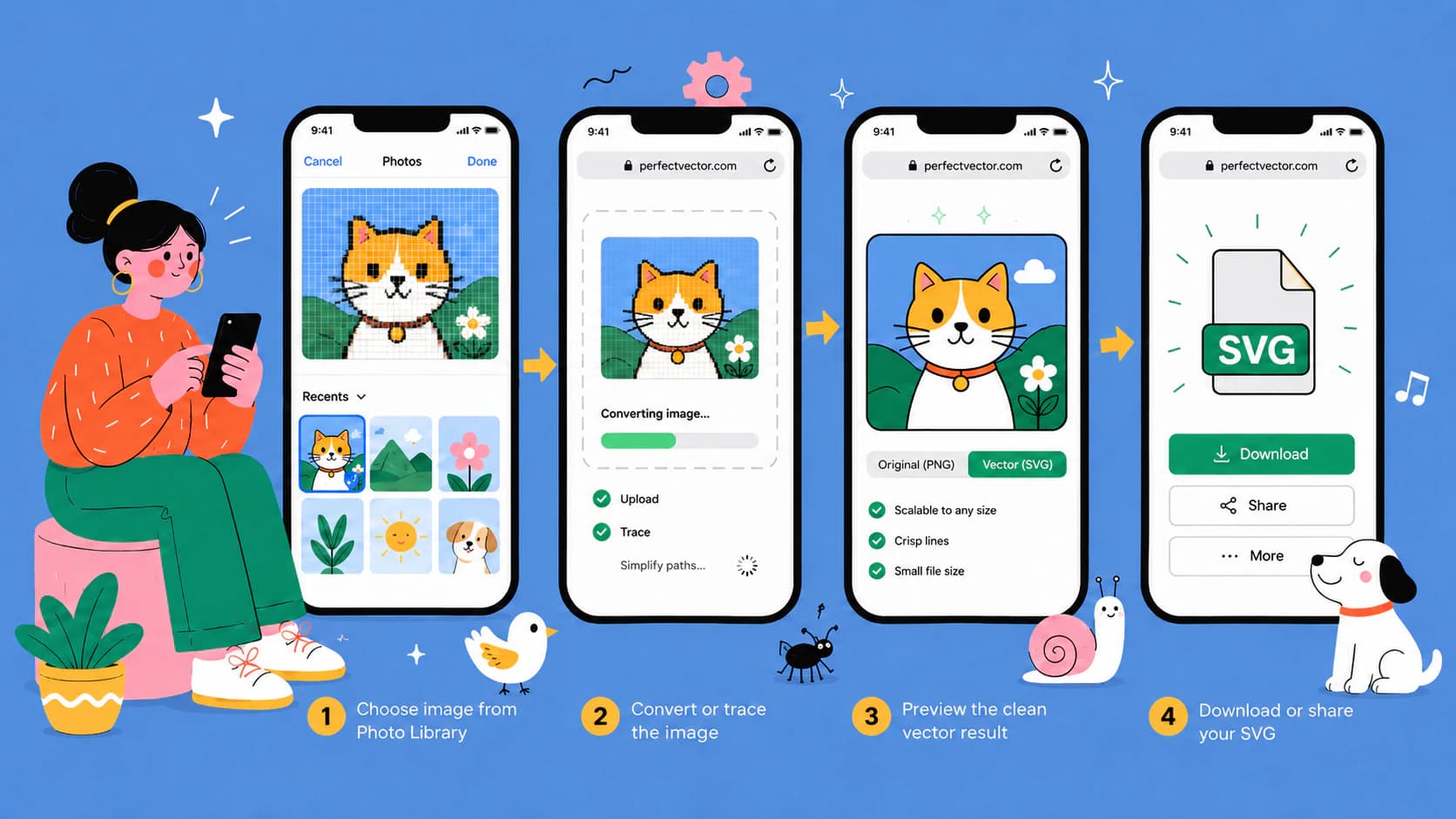
How to Convert an Image to SVG on an iPhone (No App Needed)
No app or computer needed: convert an image to SVG in Safari on your iPhone, HEIC photos included, and land the finished file in Files or Cricut Design Space.