How to Prepare SVG Files for Cricut
Prepare SVG paths, layers, colors, and dimensions for Cricut Design Space. Check import and mat layout, distinguish Weld from Attach, and test on scrap first.
On this page
Prepare an SVG for Cricut by checking its geometry, intended layers, dimensions, and operation types before loading material. An SVG can import successfully and still contain duplicate lines, unwanted pieces, or details too small for the chosen material. The file extension alone does not make artwork ready to cut.
You need a working copy of the artwork, an SVG-capable editor, and Cricut Design Space for the final import and mat checks. Decide whether the project is a material cut, a drawing, or Print Then Cut before editing. Keep the original file so you can recover details removed during cleanup.
Choose SVG or raster by the operation
A path describes geometry that an app can use as a line or shape. A raster image, such as PNG or JPEG, stores pixels. SVG can contain paths and other elements, including raster images; the SVG standard does not certify a file for cutting.
Cricut's upload instructions distinguish basic raster uploads from vector uploads. SVGs designed with layers retain those designed layers. That does not mean every unique fill color automatically becomes one consolidated layer.
PNG is a valid starting point. Design Space offers raster cleanup and conversion choices, including a Convert to Layers feature with separate access requirements. For a simple raster silhouette, its own upload workflow may be sufficient. For a layered logo or illustration, preparing vector geometry outside Design Space can give you more control over what you import.
| Intended project | Useful starting point | Main check |
|---|---|---|
| Cut a simple silhouette | Clean SVG or prepared raster upload | Intended contour and smallest details |
| Cut several material colors | SVG with deliberately structured parts | Imported layers and mat separation |
| Draw with a pen | Geometry assigned to the intended drawing operation | Centerlines, doubled outlines, and operation type |
| Print Then Cut | Artwork prepared for that workflow | Printed appearance and intended outer cut boundary |
For raster artwork that needs paths, see PNG-to-SVG quality checks. Working with Siser instead? Use the Leonardo import and test-cut workflow.
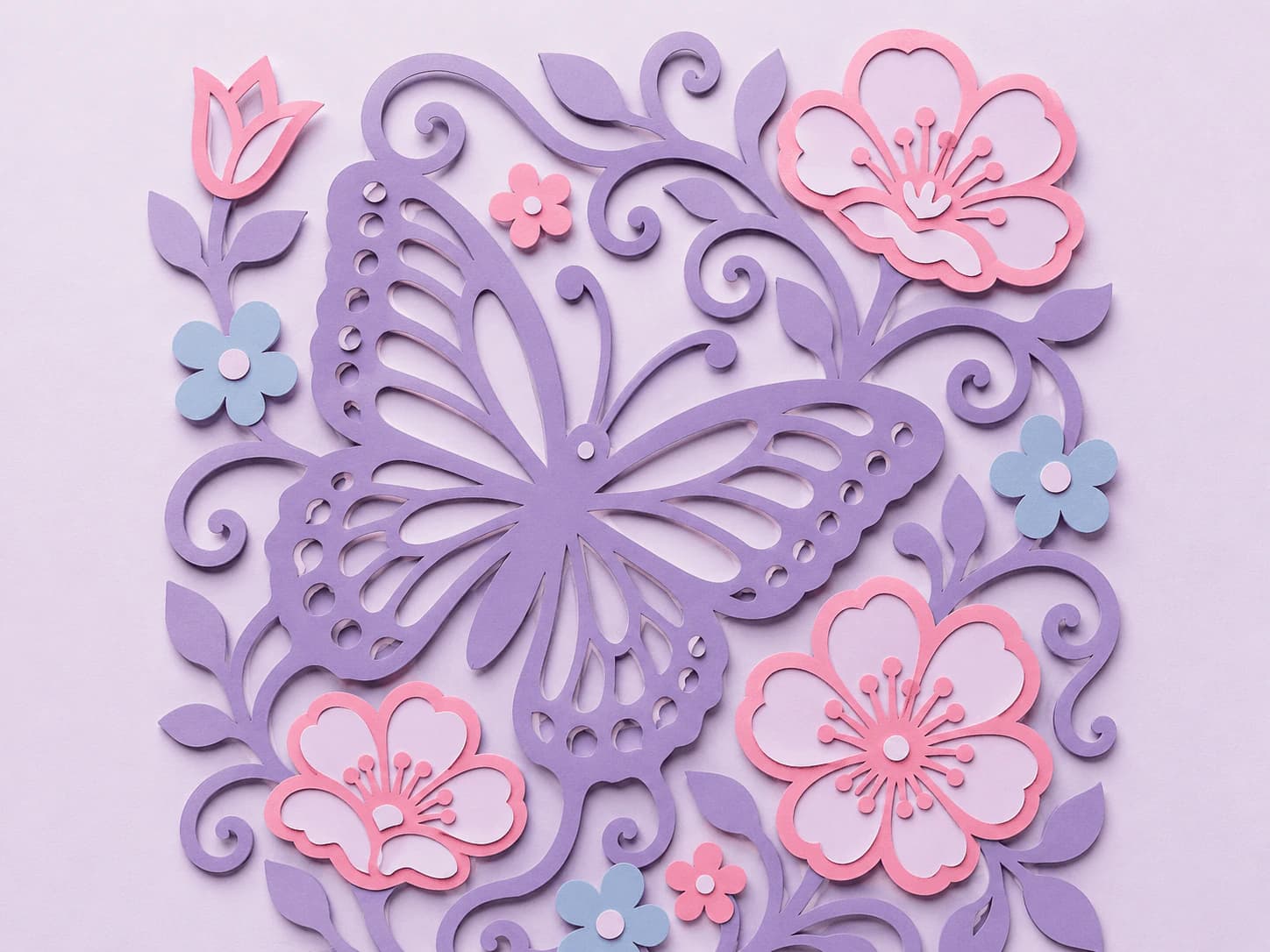
Prepare the geometry before importing
- Inspect existing vectors first. If you already have an SVG, preserve usable geometry instead of tracing it again. Confirm that the required parts are paths rather than embedded raster content. Cricut documents unsupported upload features, including features that may need preparation before import.
- Trace only when you need geometry from pixels. In PerfectVector, convert the raster artwork and compare the free preview with the source. Unlock the result before editing or exporting; the product facts separate preview access from result unlock.
- Remove unintended pieces and duplicates. Inspect specks, gaps, overlapping outlines, and letter counters. Keep intended openings. A node is an editable point along a path; fewer nodes are useful only if the contour remains correct.
- Plan the palette and structure. Merge near-duplicate colors only when they share the same material role. Recoloring does not weld overlapping paths or guarantee one imported layer. For separate aligned color files, the SVG color separator handles supported solid-color SVG artwork; inspect the files before relying on their grouping.
- Save a working SVG and set its intended size. Inspect the smallest detail at that size. An SVG can scale its geometry without raster pixelation, but physical cut and weeding limits still depend on the machine, blade, material, and settings.
Use the pre-cut file audit when you need a more detailed geometry checklist. Do not erase a fine detail just because a smaller palette or lower node count sounds preferable.
Check layers and layout in Design Space
Follow Cricut's current SVG upload instructions for your platform. Add the uploaded artwork to the canvas, then inspect the Layers panel, size, and operation assigned to each intended part.
Color, grouping, and geometry solve different problems:
- Changing a material color does not merge overlapping outlines.
- Weld joins overlapping cut geometry into a combined shape.
- Attach preserves relative placement on the mat; it does not weld those shapes.
- A group organizes objects, but it is not proof that their mat placement or cut geometry is correct.
These distinctions follow Cricut's crafting terminology guide. Use an operation because the project needs its result, rather than applying it to every import. For deliberate layered artwork, see the layered-SVG guide.
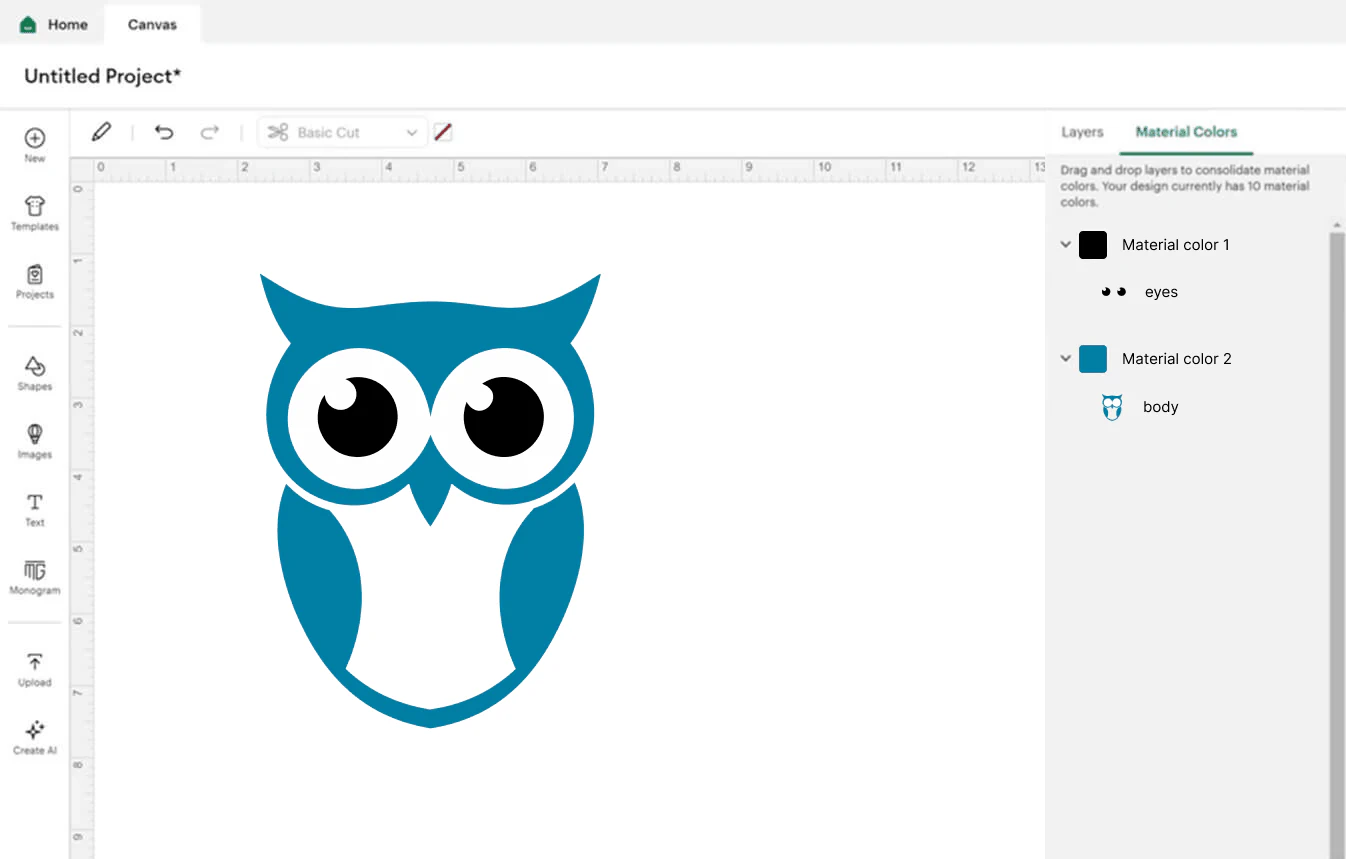
Check the mat preview before committing material. Confirm the arrangement, number of mats, intended size, and any project-specific setting such as mirroring. Then make a small test cut on scrap with the actual material and settings. A browser file inspection or a layout preview cannot replace that physical check.
Diagnose problems by their cause
| Symptom | Check first | Recovery |
|---|---|---|
| Jagged or torn edges | Contour geometry, duplicated lines, material, blade, and settings | Inspect the file, then test changed settings on scrap; do not assume PNG is the only cause |
| Parts do not share the intended mat | Imported layers, material colors, and placement | Adjust colors or placement operations after confirming the required structure |
| Too many tiny pieces | Unwanted specks versus intentional detail | Remove only unintended pieces; enlarge or redesign required details |
| A white box appears | Background path or unsupported embedded raster | Remove the correct background object or prepare the raster source |
| Upload reports excessive complexity | Path count and unsupported features | Reduce unnecessary geometry while comparing the contour; Cricut documents a 5,000-path SVG upload limit |
The path limit is an upload constraint, not a promise that every smaller file cuts well. For a larger diagnostic, see Cricut SVG file-too-large errors.
FAQ
Can Cricut use a PNG instead of an SVG? Yes. Design Space accepts raster uploads and offers cleanup and conversion choices. Use a prepared SVG when you want control over vector geometry and designed layers; choose the workflow that fits the intended operation.
What size should my SVG be for Cricut? Set the intended physical size and inspect the smallest details at that size. Vector geometry can scale without raster pixelation, but material, blade, machine, and weeding limits still apply.
Do I have to pay to upload my own SVG? Cricut lists user image uploads in its free and paid tiers, while some additional image-processing features have separate access requirements. PerfectVector offers free conversion and preview; a result must be unlocked before editing and export. Check the current offers for the features you intend to use.
My image is only a PNG — what now? For a simple silhouette, try Design Space's raster upload workflow. If you need more control over reconstructed paths or multiple parts, trace the PNG, inspect the preview, unlock before editing and export, then verify the SVG's imported structure in Design Space.
Will giving shapes the same color merge them into one cut shape? No. Shared paint is different from a geometric union. Inspect the imported layers and use an appropriate geometry operation, such as Weld, when overlapping shapes need to become one cut outline. Attach preserves placement instead.
Sources
- Cricut — How to upload images into Design Space — Raster and vector workflows, designed layers, feature access, and the SVG path limit.
- Cricut — Image uploads: unsupported items — SVG features requiring preparation for Design Space.
- Cricut — Crafting terminology — Group, Weld, Attach, and project-operation distinctions.
- Cricut — Terms and Cricut Access details — User image upload access and plan context.
- W3C — Scalable Vector Graphics (SVG) 2 — Vector geometry and SVG document features.
- PerfectVector — Product facts — Preview, result unlock, editing and export access.
Need paths from a raster design? Preview its SVG conversion, compare the contours, then unlock before editing and export. Verify the imported layers and mat layout in Design Space, and test on scrap before loading the final material.
More from the blog
Make SVG Files to Sell on Etsy: A Production Guide
On Etsy, the file is what buyers review, and messy files are what get refunded. Here's how to make a clean, layered SVG cut file that's good enough to sell.
PNG to SVG for Cricut: Diagnose and Repair the File
Fix a PNG-to-SVG file for Cricut: inspect paths, remove a verified background, review fragments and colors, then check size and placement in Design Space.