How to Vectorize a Logo and Check SVG Quality
Three ways to vectorize a logo: AI auto-trace, redraw in Illustrator, or hire it out. How to pick the right one, and how to tell a real vector from a fake.
On this page
- First: do you already have a vector?
- Is your logo even vector-ready?
- The three ways to vectorize a logo
- 1. AI auto-trace, the fast route
- 2. Illustrator Image Trace or pen-tool redraw, the most control
- 3. Hire a designer or redraw from scratch, when there's no shortcut
- How to tell it actually worked
- What this looks like with PerfectVector
- Which file format do you actually need?
- When to skip the converter
- FAQ
- Sources
There are really only three ways to vectorize a logo. You let an AI tool auto-trace it, you redraw it by hand in Illustrator, or you pay a designer to rebuild it. Which one you should use depends on how good your source file is and what you'll do with the result. The catch nobody mentions: a lot of "converted" logos aren't actually vectors at all.
This guide walks through the three routes, how to choose between them, and the quick checks that tell you whether you ended up with a real, editable vector or a pixel image in disguise.
The quick version
- Already have a vector? Ask your designer for the
.ai,.eps, or.svgsource first, and then you're done. - AI auto-trace is a fast first route for flat, high-contrast logos. Vectorize a logo, then inspect the paths.
- Illustrator (Image Trace or pen tool) gives you the most control. It's slower, and good for brand-critical logos.
- Hire / redraw when the only copy is low-res, photographic, or gradient-heavy.
- The check that matters: a real vector has editable paths and a low node count, not a PNG wrapped in an
.svg.
First: do you already have a vector?
Before you convert anything, find out whether a real vector already exists. Ask whoever made the logo for the source file: .ai, .eps, .svg, or a layered .pdf. If you have one of those, stop here. You don't need to vectorize anything.
Most people only need to vectorize because the original is long gone and all that's left is a PNG or JPG. Maybe a website export, an email-signature image, or a screenshot. That's the situation the rest of this guide is for.
Is your logo even vector-ready?
Not every image converts cleanly, so check before you invest time. Adobe's own Image Trace optimization guidance warns that tiny or barely recognizable raster sources cannot produce high-quality traced artwork:
- Converts well: flat, high-contrast, high-resolution art with solid shapes, a few clean colors, and sharp edges. Most logos, icons, and wordmarks.
- Converts badly: low-resolution or blurry source, photographic elements, soft gradients, drop shadows, or fine texture. These trace into messy blobs.
If your logo is in the first group, auto-trace is worth trying. If it's in the second, skip ahead to redrawing or hiring, because no converter will rescue a tiny, blurry source. (New to the idea? What image vectorization actually is covers the basics.)
The three ways to vectorize a logo
1. AI auto-trace, the fast route
Upload your PNG or JPG to a vectorizer and it rebuilds the artwork as vector paths in seconds. It's the right first move for a flat, clean logo. Drop the file into a logo vectorizer (or convert the PNG to an SVG directly), then check the result against the checklist below before you trust it.
2. Illustrator Image Trace or pen-tool redraw, the most control
The manual route gives you precision. Illustrator Image Trace produces a trace you can tune and expand into editable paths. The pen tool lets you redraw over the logo by hand. It's slower and needs some Illustrator comfort, but it gives you direct control over brand-critical curves when an auto-trace is close but not exact.
If you are choosing a tracing workflow, compare Illustrator Image Trace with PerfectVector before rebuilding the logo.
3. Hire a designer or redraw from scratch, when there's no shortcut
If the only copy you have is small, blurry, photographic, or gradient-heavy, automated tracing is unlikely to reproduce clean brand geometry. Recreating the logo from scratch, yourself or with a designer, gives you direct control instead of forcing cleanup on an uncertain trace.
| Your situation | Best route |
|---|---|
| Flat, high-res PNG/JPG of a simple logo | AI auto-trace |
| Auto-trace is close but edges need work | Illustrator (Image Trace + cleanup) |
| You need pixel-exact curves / brand precision | Pen-tool redraw |
| Low-res, photographic, or gradient-heavy source | Redraw or hire a designer |
How to tell it actually worked
Here's the trap: SVG explicitly permits a raster PNG or JPEG inside its <image> element. Such a file can have an .svg extension while the embedded artwork still pixelates and has no editable vector paths. That is a container change, not vectorization.
A real, usable vector logo passes four checks:
- Editable paths, not an embedded image. Open it and click a shape. You should be able to select and move individual paths, not just one flat picture.
- A low node count. Clean curves are defined by a handful of anchor points, not thousands. A bloated trace is hard to edit and slow everywhere downstream. See why auto-traced SVGs get too many nodes.
- Crisp edges at any size. Scale it up 10x. It should stay sharp.
- Separate, editable colors. Each color should be its own shape you can recolor.


What this looks like with PerfectVector
For the auto-trace route, the whole game is getting a result that passes those checks without excessive manual cleanup. That's what PerfectVector is built for. It rebuilds your logo as vector paths and separate color shapes, and exposes the result for you to inspect. You can vectorize your logo and check the paths yourself. Vectorizing and previewing are free, and one credit unlocks the finished SVG; verify current pricing and credits.

Which file format do you actually need?
A vector logo isn't one file. Keep the master and export per use:
| Use | Format |
|---|---|
| Web, app, editing | SVG |
| Print, signage, large format | EPS or PDF |
| Quick raster for web/email | PNG (exported from the vector) |
| Cutting machines (Cricut, vinyl) | SVG or DXF |
For a board destination, the KiCad logo workflow separates direct SVG import, bitmap conversion, and reference-only images before fabrication.
Keep the editable master (SVG or AI/EPS) once you have it. Export a delivery copy for the destination, because formats preserve different features; Adobe's SVG saving documentation notes, for example, that some Illustrator features are rasterized or represented differently in SVG. For the full use-by-use rundown, which format a logo should be covers every destination, sign shops and car decals included. If the logo itself came out of an AI generator, turning an AI-generated logo into a real SVG has the extra steps.
When to skip the converter
Auto-trace isn't magic, and pretending otherwise wastes time:
- Low-resolution sources can't be rescued. A blurry 200-px logo traces into a blurry vector. Recreate it instead.
- Photographic or gradient-heavy logos flatten into posterized blobs. Redraw the mark as flat shapes, or have a designer rebuild it.
- "Almost right" auto-traces are often faster to finish in Illustrator than to re-run repeatedly.
FAQ
Can I vectorize a logo for free?
Yes. Inkscape is a free, open-source option, and PerfectVector lets you vectorize and preview for free, with one credit to unlock the finished SVG. Check current pricing and credits, and confirm that any output contains editable paths rather than a PNG embedded in an .svg.
How do I vectorize a logo in Illustrator? Place the image, then either use Image Trace (Object, then Image Trace, then Expand) for a quick trace you clean up, or redraw it by hand with the pen tool for full control. Image Trace is faster. The pen tool is more precise.
Why does my "vector" logo still look pixelated?
It's probably a fake vector, a raster image embedded inside an .svg file. A true vector is made of paths and stays sharp at any size. Re-convert it into real, editable paths.
Can I vectorize a logo from a photo or screenshot? Only if it's flat and high-contrast enough. Low-resolution screenshots and photographic logos don't trace cleanly, so you'll get a better result by redrawing the mark from scratch.
What file format should a logo be? Keep an editable vector master (SVG, or AI/EPS) and export from it: SVG for web, EPS or PDF for print, PNG for quick raster needs.
Sources
- Adobe — Vectorize images using Image Trace — current Image Trace workflow and expansion into editable paths.
- Adobe — Optimize results using Image Trace — source-quality limits and trace preparation guidance.
- W3C — SVG 2 Embedded Content — confirms that an SVG can embed a raster image without converting it to paths.
- Adobe — How to save artwork in Illustrator — SVG export behavior, retained features, and rasterization caveats.
Got a logo stuck as a PNG? Vectorize it into a clean, editable SVG, then run the four checks above to make sure it's the real thing.
More from the blog
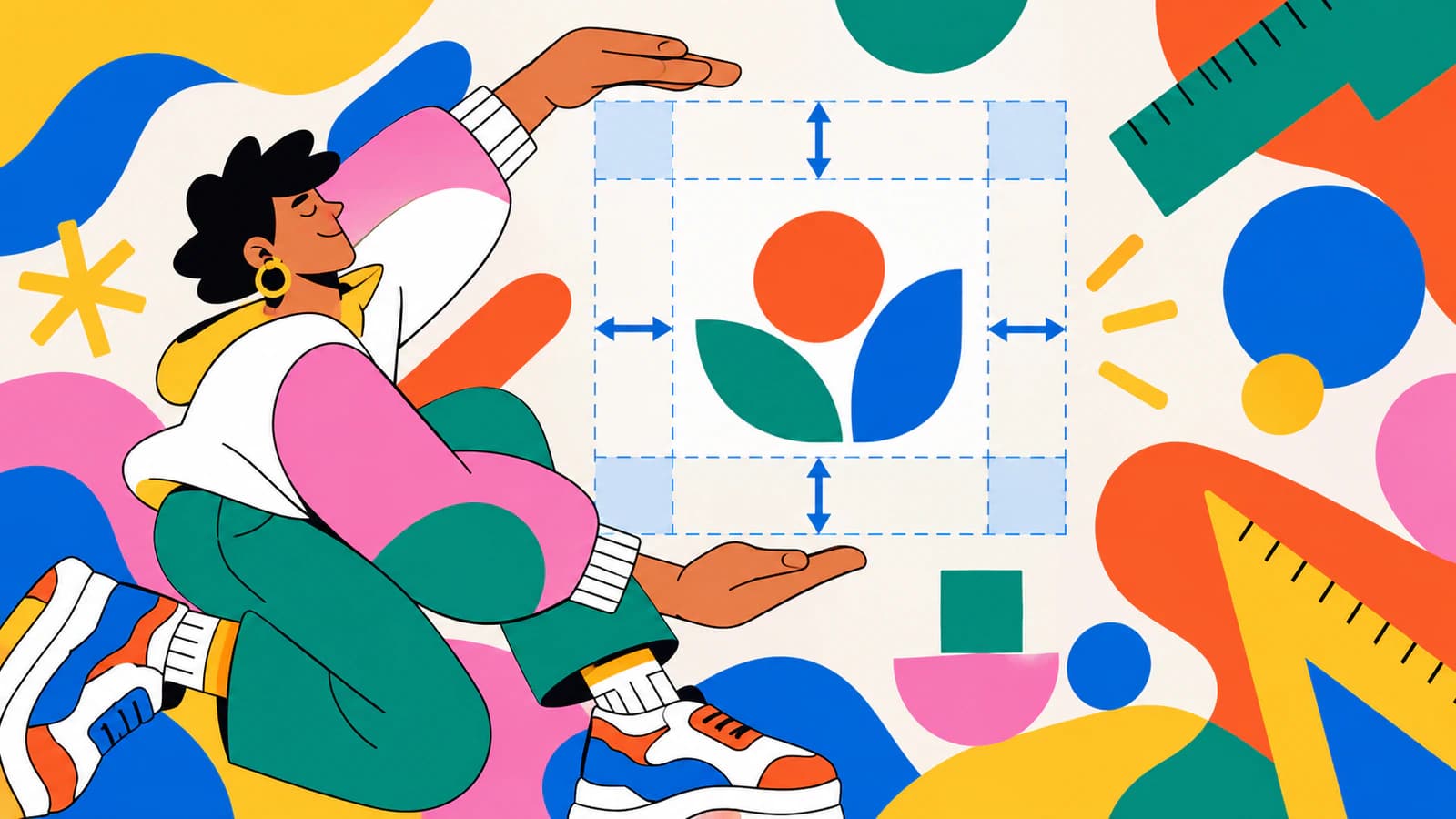
Logo Clear Space: Calculate and Preserve the Margin
Choose a clear-space unit for your logo, calculate the full exclusion zone, and preserve it in an SVG without confusing artwork size with the padded canvas.
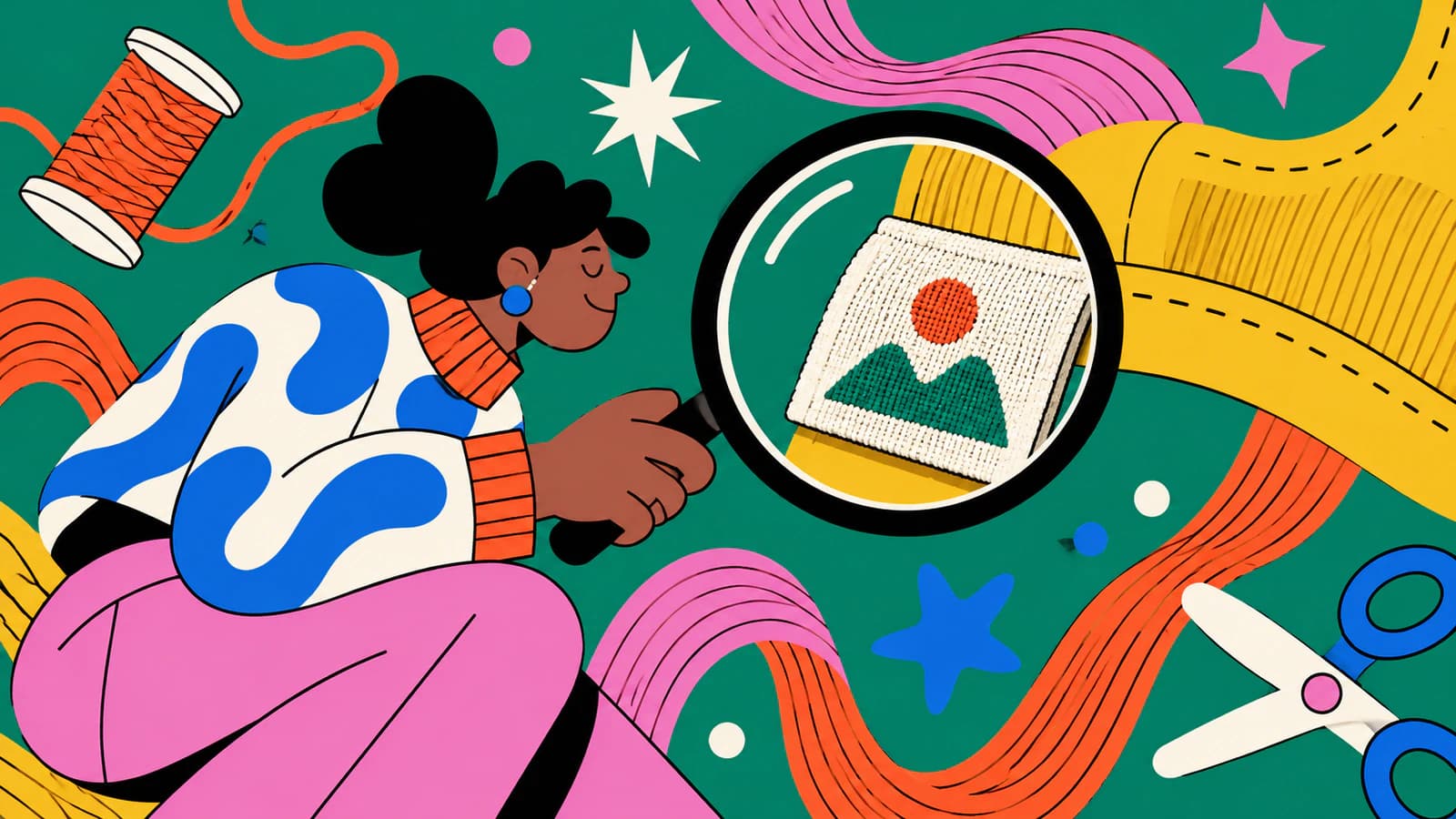
Woven Label Artwork: Keep a Logo Clear at Small Sizes
Prepare a logo for a woven clothing label: simplify detail at its intended size, separate folds and sewing space, and export the files your label maker requests.