How to Vectorize AI Art for Print
Prepare AI-generated art for sharp, scalable printing. Learn when to vectorize, when to upscale, how to inspect the result, and which print file to deliver.
On this page
You generated the perfect character, logo mark, or sticker design — then tried to put it on a t-shirt, a poster, or a Cricut cut, and ran into soft edges when scaling or no clean paths for a cutting machine to follow.
The art isn't necessarily the problem. The file format and destination workflow are. OpenAI's current image tools and Stability AI's API document raster outputs such as PNG, JPEG, and WebP, not traced SVG paths. Some print workflows accept those raster formats, while cutting workflows need vector paths. (OpenAI image generation; Stability AI API) Here's how to decide whether vectorization is the right fix.
Why AI art is raster (and when that matters)
Popular image-generation tools deliver raster files at fixed pixel dimensions. Enlarging a raster beyond the resolution available does not reveal new source detail, so edges can become soft or blocky.
Different production methods need different files. Many print-on-demand products accept high-resolution PNG or JPEG files; Printful, for example, recommends those raster formats for most print products. Cut workflows are different: Cricut Design Space can import SVG artwork as vector layers for cutting. (Printful file-preparation guidance; Cricut image-upload guidance) A vector stores curves and fills instead of a fixed pixel grid. (New to the distinction? See What Is Image Vectorization?)
So "vectorizing AI art" means rebuilding your raster generation as scalable shapes. Done well, you get a file you can recolor by region and resize without raster pixelation. Always check the receiving printer's or cutter's exact file requirements before exporting.
Which AI art vectorizes well — and which doesn't
This is the part most guides skip, and it's where you save yourself an hour of frustration. Vectorization turns regions of color into shapes, so it shines on art with clear shapes and a limited palette, and struggles on anything painterly or photographic.
| Vectorizes beautifully | Vectorizes poorly |
|---|---|
| Flat illustrations, stickers, mascots | Photorealistic renders |
| Logos, emblems, badges, monograms | Heavy gradients, soft glows, bokeh |
| Line art, tattoo-style, bold outlines | Painterly / textured brush styles |
| Cartoon characters, icons | Fine grain, noise, film texture |
If your generation is a flat vector-style illustration, you're in great shape. If it's a moody photoreal portrait, vectorizing will either posterize it into flat bands or explode into a massive file — keep that one as a raster.
Tip: you can steer the generator toward vector-friendly output. Prompt for "flat vector illustration, bold clean shapes, limited color palette, solid fills, no gradients, white background" and you'll get art that converts cleanly on the first try.
How to vectorize AI art for print, step by step
For Midjourney artwork, start with the focused Midjourney-to-vector workflow. The same preparation and inspection steps apply to raster art from other generators.
- Export the highest-resolution image you can. Upscale inside your AI tool first if it offers it — more clean pixels give the tracer more source detail to work with.
- Flatten the background. If you want a transparent or single-color background, generate on a plain white (or solid) backdrop. Busy backgrounds become busy vectors.
- Upload it. Drop the PNG or JPG on the converter, or paste straight from your clipboard with
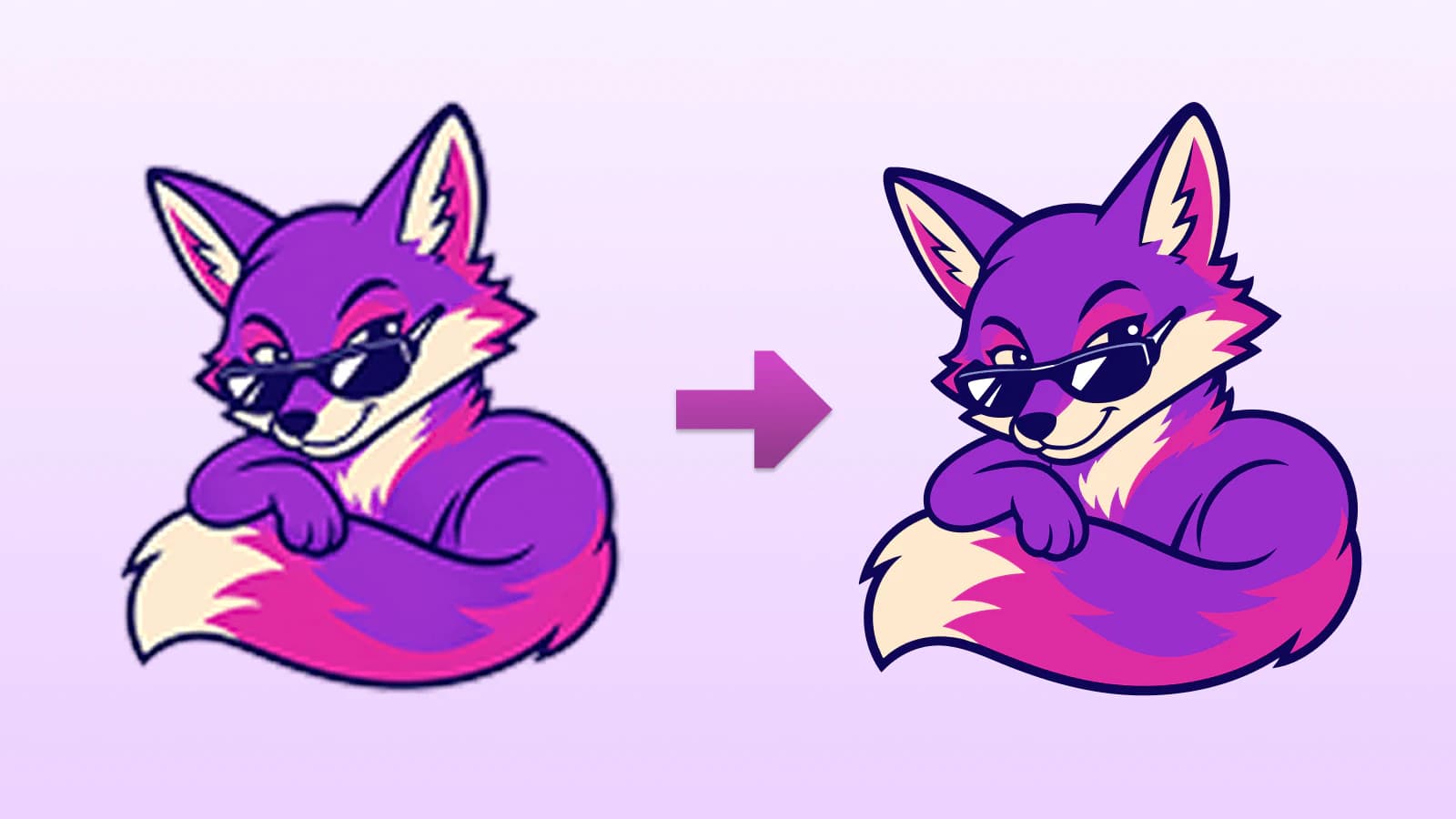
Ctrl/Cmd + V. - Let the AI trace it. Instead of transcribing every pixel, the model rebuilds the artwork as clean paths with smooth curves and a low node count — the kind of output a designer would have drawn by hand. (Why a low node count matters.)
- Simplify the colors. Diffusion output often has dozens of near-identical shades. In the built-in editor, merge them down to the handful of flat colors your design actually needs — this is the single biggest quality and print-readiness win.
- Download and inspect the SVG. Check its layers and paths in your editor, then verify the required format and import behavior for the exact print or cutting workflow you plan to use.
Prompt tips for AI art that vectorizes on the first try
- Ask for flat. Add "flat vector illustration, solid colors, bold outlines, no gradients" to your prompt.
- Limit the palette. "3-color palette" or "two-tone" gives clean, separable color layers.
- Plain background. "on a plain white background" keeps the subject easy to isolate.
- Avoid texture words. Drop "photorealistic," "cinematic," "grainy," "soft lighting" — they fight vectorization.
Using your vectorized AI art
Once you have the SVG, the print and maker workflows open up:
- Apparel & merch. Some providers accept or prefer high-resolution raster files, while others request vector or PDF artwork. Follow the product-specific template and file rules.
- Laser engraving. AI art on a laser is its own workflow: raster engraves need no vector, while cut and score lines do.
- Stickers & decals. A clean SVG cuts precisely on a vinyl cutter and scales to any sticker size. (For the cut-machine specifics, see How to Prepare SVG Files for Cricut.)
- Posters & large format. Vector paths remain resolution-independent, although embedded raster effects and the printer's production requirements still matter. See the SVG 2 standard.
- Logos & branding. If you generated a logo concept, vectorizing makes it editable and production-ready — recolor, resize, and export in any format. (Starting from a rough JPG instead? See how to convert without losing quality.)
And if you're second-guessing the whole step, whether your project needs a vector at all has its own honest answer.
FAQ
Can I vectorize Midjourney / DALL·E / Stable Diffusion images? Yes. If you have a raster export from one of these tools, you can trace it into vector paths. The source tool matters less than the style and quality of the input: flat, clearly separated shapes usually trace more cleanly than photorealistic detail.
Why does my AI art look blurry when I print it big? Because it's raster — a fixed grid of pixels. Enlarging it just stretches those pixels. Vectorizing rebuilds it as math-based shapes that stay sharp at any size.
Do I need to remove the background first? Not necessarily, but a plain or transparent background is easier to isolate than a busy scene. If your generator exports a true alpha channel, preserve it; otherwise remove the background before tracing or delete the traced background shape afterward.
Is it free to vectorize AI art? Vectorizing and previewing are free; one credit unlocks the finished SVG. Use the color editor before unlocking to check whether the palette and paths suit the print workflow.
Will it work for photorealistic AI images? Not well. Photoreal generations have too many subtle gradients to become clean shapes — you'll get a posterized look or a huge file. Vectorization is built for flat, illustrative art; keep photoreal work as a high-resolution raster.
Sources
- OpenAI Help Center — ChatGPT Images — Official workflow for generating, editing, and downloading ChatGPT images.
- Stability AI — API Reference — Current documented raster output formats for Stable Image generation.
- Printful — How should I prepare my print file? — Product-specific print guidance showing that many print workflows use PNG or JPEG.
- Cricut — How to upload images into Design Space — Official distinction between raster uploads and SVG vector layers in a cut workflow.
- W3C — Scalable Vector Graphics (SVG) 2 — Standard defining SVG paths, shapes, and scalable coordinate systems.
Got an AI generation you want to put on something physical? If it is flat artwork that benefits from paths, trace and inspect it with PerfectVector, simplify the colors, and test the unlocked file in the printer's required workflow. Keep detailed or photoreal work raster.
More from the blog
Vector Art for T-Shirts: Make a Print-Ready File
Your printer asked for vector art and all you have is a PNG. Here's why shirt printing wants vectors, where to get them, and how to turn your own design into one.
Convert an Image to SVG for Clean Laser Cutting
Laser cutters follow paths, not pixels. Here's how to turn a PNG or JPG into a clean, closed-path SVG your machine can cut, and when to engrave instead.