Why Your SVG Font Changes After Export or Import
An SVG font changes when the intended typeface is unavailable or text is interpreted differently. Diagnose live text, fallback fonts, and outlined paths.
On this page
- First, determine whether the SVG still contains text
- Cause 1: the intended font is not installed
- Cause 2: the SVG expects a web font that did not load
- Cause 3: the family or weight does not match exactly
- Cause 4: the export preserved text, but the importing app handles it differently
- Cause 5: you outlined the text and expected it to remain editable
- Which fix should you use?
- A safe outline workflow
- If the only surviving logo is a raster image
- FAQ
- Sources
Your SVG font changes because live SVG text usually names a font; it does not automatically carry that font's letter shapes inside the file. If the browser, editor, cutter software, or recipient's computer cannot use the named font, it chooses a fallback. Different glyph widths then change line breaks, alignment, and the position of nearby artwork.
There are two reliable delivery strategies. Keep live text when the destination needs selectable, searchable, or editable words and you can supply the font correctly. Convert text to vector outlines when appearance must remain fixed and editing the wording is no longer required. In both cases, keep a separate editable master.
For an automated PNG export, explicitly load font files in resvg and compare the rendered lettering with your source before handing it off.
For document figures, compare SVG illustrations and typeset labels in LaTeX. Separating drawing geometry from label text lets the document typeset the wording while you retain the SVG master.
The quick diagnosis
- Open the SVG in a text editor and search for
<text,<tspan, andfont-family. - If the file contains live text, confirm the exact font family and weight exist in the viewing environment.
- If a web page supplies the font, check that its
@font-faceresource actually loads. - If the file contains only
<path>elements for the letters, the font cannot be substituted; compare export geometry and app support instead. - For fixed logo or print artwork, outline a delivery copy and preserve live text in the master.
First, determine whether the SVG still contains text
The file extension alone does not answer this. SVG can represent lettering in at least two common ways:
<text font-family="Example Sans" font-weight="600">Sample</text>That is live text. The SVG stores characters and styling instructions. A renderer must find a matching font to turn those characters into visible glyphs.
Outlined text looks more like this:
<path d="M ... Z" />Here, each letter has been converted to vector geometry. The recipient does not need the font, but the word is no longer an ordinary editable text string.
You can check without understanding all the markup:
- make a copy of the SVG;
- open the copy in a plain text editor;
- search for
<textand<tspan; - search for the font's visible name;
- if those are absent, inspect whether the letters are built from
<path>elements.
In a vector editor, use the text tool and click a letter. A blinking text cursor indicates live text. Nodes around every glyph indicate outlines.
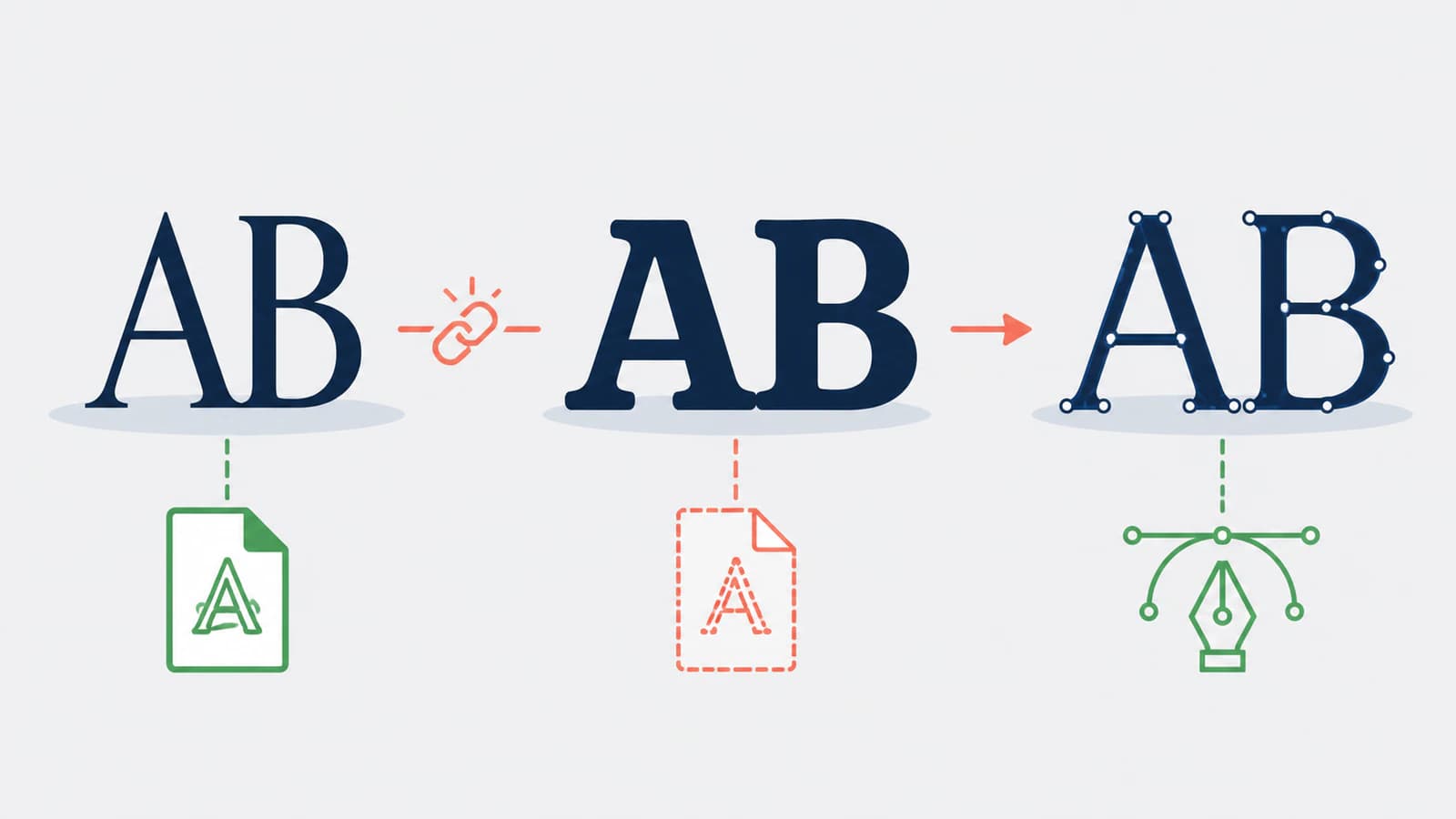
Cause 1: the intended font is not installed
The SVG font-family attribute is a prioritized list of family names. As MDN's SVG font-family reference explains, the renderer chooses from that list. If it cannot match the first family, it moves to the next and eventually to a generic family such as sans-serif or serif.
This commonly happens when:
- the designer used a local font the recipient does not own;
- a font was activated through a subscription service on one machine only;
- the SVG moved from a desktop editor to a phone, tablet, cutter app, or office suite;
- the family name inside the font differs from the filename or the name shown in a download folder;
- only one style is installed, while the SVG requests another weight or italic face.
Installing “something similar” does not restore the layout. Two sans-serif fonts can have different letter widths, ascenders, kerning, and baseline metrics. The replacement may look close while still pushing a centered word off its intended position. Once the intended font is available, the SVG text vertical-alignment example helps separate baseline placement from text-box and visual centering.
Cause 2: the SVG expects a web font that did not load
An SVG used inside a web page can receive fonts from the page's CSS. It can also include a style block with an @font-face rule; SVG 2 requires downloadable-font support through the CSS Fonts model. That arrangement fails when the font URL is wrong, the file is not deployed, access is blocked, the requested format is unsupported, or the SVG is opened alone instead of in the page that supplied its styles.
Use the browser's developer tools and reload the page. In the Network panel, filter for font files and look for a failed request. In the computed styles for the <text> element, confirm which font actually rendered rather than trusting the declared family name.
An SVG that works only when embedded in one website is not necessarily a self-contained delivery file. Test the exported SVG directly in a private browser window and on another device. That reveals hidden dependencies on a signed-in font service, cached font, or site stylesheet.
Embedding a font resource can make a web SVG more portable, but it increases file size, may face app-specific support limits, and must be permitted by the font license. Check the actual font license rather than assuming that a desktop license authorizes redistribution of the font data.
Cause 3: the family or weight does not match exactly
CSS font matching uses more than the visible family label. The SVG may request:
font-family: "Example Sans";
font-style: normal;
font-weight: 600;
If the available files contain only weight 400 and 700, the renderer may synthesize a weight or choose a nearby face. Variable fonts add axes and instance names that an importing application may interpret differently. Older design or cutting software may ignore some OpenType features, ligatures, or variation settings.
Check the original document and the SVG side by side:
- exact family name;
- style and numeric weight;
- letter spacing;
- capitalization and actual characters;
- OpenType features such as ligatures;
- variable-font axis values;
- text-on-path or vertical-text behavior.
Do not fix a family mismatch by manually scaling each word. That hides the symptom while keeping the wrong glyphs.
Cause 4: the export preserved text, but the importing app handles it differently
SVG text layout is not identical to a desktop publishing document. An exporter may use nested <tspan> elements, individual coordinates, a text-anchor, or a <textPath>. The importing app may flatten, regroup, or reinterpret those features. If you are rebuilding a badge, the editable SVG text-on-path walkthrough separates the emblem, guide curve, and live lettering so you can test each part.
For document placement, follow the SVG figures and inline artwork in Typst workflow. Keeping captions in native document text lets you check the illustration lettering separately from figure numbering and paragraph typography.
Adobe's current SVG export documentation notes that text-on-path output may not maintain visual parity in every SVG viewer. It also distinguishes live-font output from Convert To Outlines, which turns type into vector paths to preserve visual appearance.
If the correct font is present but placement still changes, inspect structure rather than switching typefaces:
- compare the browser render with the source editor;
- check whether every character has its own
xposition; - inspect nested transforms on the text group;
- see whether the importer removed
text-anchor, kerning, or baseline settings; - test a copy with plain horizontal text to isolate text-on-path behavior.
For a logo, badge, or one-line heading whose appearance matters more than editability, outlines are usually the safer delivery format.
Cause 5: you outlined the text and expected it to remain editable
Outlined text cannot suffer font substitution because it no longer references a font. It can still surprise you on import:
- letters may arrive as compound paths rather than one editable word;
- counters inside letters can fill if a compound path is released;
- many glyphs may be grouped together;
- a limited destination app may merge or simplify paths;
- the file can become larger than the live-text version.
Those are geometry and editability changes, not font changes. If the shapes themselves match the source, the outline export did its job.
Always keep two files:
- Editable master: live text, original font information, named layers, and the source application's format.
- Delivery copy: outlined SVG, EPS, or PDF for appearance-critical handoff.
Never outline the only master. A spelling change, translation, or new tagline becomes slow manual redrawing once the text is paths.
Which fix should you use?
| Destination | Recommended text strategy | Verification |
|---|---|---|
| Accessible web graphic with meaningful words | Live text with a properly deployed web font and fallback stack | Test direct SVG and embedded page with font requests visible |
| Logo, badge, or decorative lettering | Outlined delivery copy | Open in a browser and a second vector editor |
| Template the recipient must edit | Live text plus the licensed font or an agreed system-font substitute | Test on the recipient's environment |
| Print vendor or maker software | Outlines, unless the vendor specifically requests editable type | Inspect counters, compound paths, and physical size |
| Localization with changing strings | Live text and a font covering every required script | Test representative translations and fallback behavior |
The destination decides the trade-off. Live text preserves meaning and editing. Outlines preserve appearance. One file cannot maximize both without carrying extra dependencies or source data.
A safe outline workflow
For appearance-critical delivery:
- save the source document with live text;
- duplicate it and add
-outlinedor-deliveryto the filename; - select the text and use Create Outlines, Convert to Curves, Object to Path, or the equivalent command;
- inspect holes in letters and overlapping shapes;
- export SVG;
- open the SVG in a browser and a second editor;
- compare it at normal size and high zoom with the source;
- send the outlined file while archiving the live master and font-license information.
Do not rasterize the text merely to avoid a missing font. A PNG inside SVG prevents substitution but throws away scalable path geometry. Outlining retains real vectors.
If the only surviving logo is a raster image
Sometimes neither live text nor an outlined master survives. You may have only a small PNG, JPG, or screenshot of the logo. The logo vectorization decision guide explains when to trace that raster and when to redraw it. Installing fonts cannot repair a raster, and identifying a similar typeface may not reproduce custom letter modifications.
This is where PerfectVector can help conditionally: logo vectorization can rebuild visible raster lettering as vector shapes. The result is outlined artwork, not recovered live text. It does not identify the original font, restore kerning settings, or make the wording typeable again. Use it to recover the visible logo geometry, then keep that reconstruction separate from any newly typeset master.
For a broader handoff strategy, the logo file formats guide explains which master and delivery formats to retain.
FAQ
Why does my SVG use a different font on another computer? The SVG probably contains live text that names a font unavailable on the other computer. The renderer substitutes another family from the fallback list, changing glyph shapes, width, spacing, and sometimes alignment.
Does an SVG embed its font automatically? No. An SVG can name a font, receive one from page CSS, or include a font resource, but ordinary live text does not automatically package the desktop font file. Availability, browser support, and the font license still need to be handled.
Should I convert SVG text to outlines? Convert a delivery copy to outlines when appearance must stay fixed, especially for logos, decorative lettering, print, and maker software. Keep live text in the editable master when wording, accessibility, searchability, or localization matters.
Why did outlined text become uneditable after import? Outlining replaces characters with vector paths. The recipient can edit nodes and shapes but cannot place a text cursor or change the font. That is expected, so preserve and share a live-text master when future wording changes are required.
Can PerfectVector recover the original font from a raster logo? No. PerfectVector can rebuild visible raster lettering as vector outlines, but it does not identify the original font or restore editable characters, kerning, and font settings. Use it when recovering the logo's visible geometry is the goal.
Sources
- W3C — SVG Text — live
<text>and<tspan>content, font properties, layout, and downloadable-font support. - W3C — CSS Fonts Module Level 3 — font-family matching, face selection, missing families, and system fallback.
- MDN — SVG
font-family— prioritized family lists and generic fallbacks in SVG. - Adobe Illustrator — Create outline text — converting text to paths and the resulting loss of text editability.
- Adobe Illustrator — Save artwork — SVG text export, outlines, and text-on-path compatibility caveats.
When a missing master leaves you with only a raster logo, rebuild its visible lettering as vector outlines with PerfectVector, then verify the shapes in a second editor. If live text still exists, fix the font dependency or outline a delivery copy instead of retracing it.
More from the blog
SVG textLength: Fit a Label Without Distorting the Letters
Compare SVG textLength spacing and spacingAndGlyphs with real label examples. Preserve letter shapes, handle a maximum width, and keep your wording editable.

Matplotlib SVG: Keep Plot and Logo Artwork as Paths
Export your Matplotlib plot as SVG, compose separate logo paths with svgutils, and check the delivered file for embedded pixels, placement, and font changes.