
resvg SVG Fonts: Load the Typeface Your Artwork Needs
Fix missing or substituted SVG text in resvg with explicit font files. Run a small Node example, compare three outputs, and preserve an editable artwork master.
On this page
To render SVG fonts reliably with resvg, supply the font files to the renderer and use their family names in the SVG. For the native Node binding, @resvg/resvg-js, that means configuring fontFiles; set loadSystemFonts: false when you want to test exactly which fonts your job receives. The project's Node example demonstrates that configuration.
A PNG can look complete while using the wrong typeface. Check the letter shapes even when the export command succeeds.
Three font inputs, one SVG
We made a small mountain emblem from paths and placed the live text PINE & FIELD beside it. The SVG requests the Abel family at a regular weight. We rendered the same source three times with @resvg/resvg-js 2.6.2, Node 22.19.0, and macOS arm64. System font discovery was disabled in every case.
| Font files supplied | Observed result |
|---|---|
| None | The path emblem rendered; the label disappeared. |
| Anton only | The label rendered in a visibly different, heavier face. |
| Abel | The intended thin lettering rendered. |
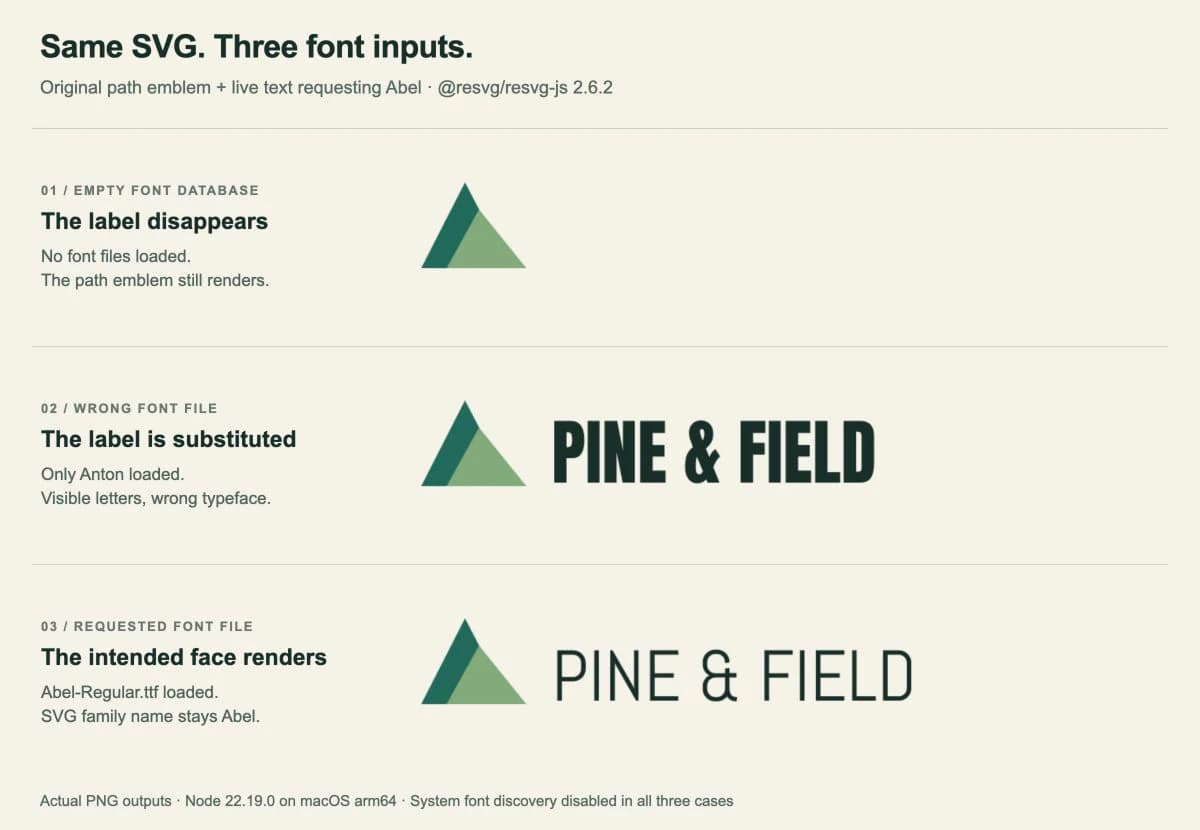
These observations describe this fixture and configuration. They do not establish which fallback another font collection, binding, or version will choose. The useful diagnostic is simpler: a missing requested family may produce absent text or plausible-looking replacement text.
Load a local font in resvg-js
This example uses the native Node package, not the separate WebAssembly package. The binding's versioned type definitions list fontFiles, fontDirs, and loadSystemFonts under the font option.
In a new working folder, install the version used here:
npm install --save-exact @resvg/resvg-js@2.6.2Download Abel-Regular.ttf and its accompanying OFL.txt from the Google Fonts Abel directory. Keep both in a fonts subfolder. Abel is supplied under the SIL Open Font License; keep the license with the font when you distribute this example.
Save this as label.svg:
<svg xmlns="http://www.w3.org/2000/svg"
width="880" height="240" viewBox="0 0 880 240">
<rect width="880" height="240" fill="#f6f2e8"/>
<path d="M46 155 L96 57 L147 155 Z" fill="#176b5b"/>
<path d="M75 155 L112 88 L166 155 Z" fill="#81ab78"/>
<text x="195" y="151" font-family="Abel"
font-size="82" font-weight="400" fill="#152e29">
PINE & FIELD
</text>
</svg>Then save render.mjs beside the SVG:
import { access, readFile, writeFile } from 'node:fs/promises';
import { fileURLToPath } from 'node:url';
import { Resvg } from '@resvg/resvg-js';

const fontFile = fileURLToPath(
  new URL('./fonts/Abel-Regular.ttf', import.meta.url)
);
await access(fontFile);

const svg = await readFile(new URL('./label.svg', import.meta.url));
const renderer = new Resvg(svg, {
  font: {
    loadSystemFonts: false,
    fontFiles: [fontFile],
  },
});

const png = renderer.render().asPng();
await writeFile(new URL('./label.png', import.meta.url), png);
Run node render.mjs. The file URLs make input and output paths relative to the script, so changing your terminal's working directory does not change which font it opens. access() gives you a direct filesystem error if the font is absent or inaccessible; it does not validate the font's contents.
To reproduce the controls, leave the SVG unchanged. Use an empty fontFiles array for the first row. For the second, download Anton-Regular.ttf from the Google Fonts Anton directory, retain its license, and supply that file instead of Abel. Inspect each PNG before changing anything else.
Match the family name, not the filename
Abel-Regular.ttf is a file path. Abel is the family requested by the SVG. Writing font-family="Abel-Regular.ttf" does not tell the renderer to open that file.
The SVG font-family attribute accepts family names or generic families, with a prioritized list when you provide several. It also has a CSS counterpart: a matching CSS font-family declaration takes precedence over the presentation attribute.
For your own artwork, check three things together:
- Family: the name recorded inside the font and requested by the SVG.
- Style and weight: whether the supplied face matches the lettering you intend.
- Characters: whether the font contains the letters and symbols in the actual label.
A successful readFile only proves that bytes were read. A visible word only proves that some lettering was rendered. Neither proves that the selected face is the one from your design.
For a broader live-text-versus-outlines diagnosis, see why SVG fonts change after export.
Check the same inputs in your export environment
Treat the font as an input to the artwork job. Include the required font file in your deployment or job bundle, then confirm that the resolved path points to it there. A typeface installed on your design laptop is easy to overlook when assembling a server job.
Start with system discovery disabled and the smallest explicit font list that covers your test label. Once that output is correct, test the real words, punctuation, weights, and languages your artwork uses. Our regular Latin label does not test other scripts or complex font families.
If lettering still looks wrong, inspect the source for CSS overrides and nested <tspan> styling. If the emblem and label are both clipped or scaled unexpectedly, investigate the SVG bounds and raster dimensions separately. Our CairoSVG sizing walkthrough covers that distinction in another renderer; its options are specific to CairoSVG.
When sharing a bug report or a reproducible export job, include the SVG, exact binding version, font filenames and versions, renderer options, and an expected image. Keep font redistribution permissions in mind when packaging the files.
Keep the editable source beside the PNG
The code above writes a PNG. That is a raster delivery file; its visible letters are no longer editable SVG text. Keep label.svg and the font inputs as the source for future wording changes.
If a recipient needs a vector logo with fixed lettering, prepare a separate outlined SVG delivery copy in your vector editor and inspect it there. Retain the live-text master. Our logo file format guide explains which source and delivery files serve different jobs.
If the emblem you need exists only in a PNG or JPG, PerfectVector's logo vectorizer can help recover vector artwork for that part of the design. Inspect the resulting paths, remove any unwanted traced lettering, and retype the label with a known font before running the resvg export. Vectorization does not identify the original font or restore live text. The image vectorization guide explains what that conversion changes.
FAQ
Why does text disappear when I disable system fonts? In our empty-font test, the renderer had no supplied face for the live label, so only the path artwork appeared. Load a suitable font explicitly and check its family, style, and character coverage.
Can I use the font filename as the SVG family name? Use the font's family name in the SVG. Pass the local filename separately through fontFiles. Renaming a font file does not change its internal family name.
Does resvg turn my PNG logo into editable SVG? The example here renders SVG into PNG. It does not vectorize a raster logo. Recover the emblem with a vectorization workflow if needed, then add editable text and keep that SVG as your master.
Sources
- resvg-js — Version 2.6.2 README — Native Node usage and explicit font loading.
- resvg-js — Version 2.6.2 type definitions — Font configuration and rendered-image API.
- MDN — SVG font-family — Family lists and CSS precedence.
- Google Fonts — Abel — The regular face and license used for the intended label.
- Google Fonts — Anton — The font and license used for the substitution control.
If a raster emblem is holding up the artwork, vectorize the logo artwork, check its edges in your editor, and add the label as live text. Then render with an explicit font file and compare the PNG with your master before handing it off.
More from the blog

SVG in WPF: Choose a Renderer or a XAML Drawing
Use SVG artwork in WPF with a renderer, a native DrawingImage, or a PNG export. Follow an original icon example and check bounds, colors, and dependencies.

SVG in LaTeX: Keep Shapes and Typeset Figure Labels
Choose a PDF or PDF plus LaTeX workflow for your SVG illustration. Keep labels editable, understand Inkscape dependencies, and check the final document PDF.