
SVG foreignObject Text: Fix Missing Export Labels
Fix SVG labels that appear in a browser but vanish on export. Compare foreignObject with native text, check namespaces, and preserve the existing artwork.
On this page
- Why the picture survives while its label disappears
- A small test: change only the label
- If the label is also missing in the browser
- For draw.io exports, convert the labels at the source
- Choose the text format for the next person
- Where PerfectVector fits in an illustrated card
- Before sending the repaired SVG
- FAQ
- Sources
If an SVG's shapes survive export but its labels disappear, inspect the missing label for <foreignObject>. It can contain HTML that a browser lays out successfully but the destination renderer does not support. Replace the affected label with native SVG <text> and <tspan>, or choose an export route that preserves its appearance.
First open the exact exported file in a browser. If the label is missing there too, check its namespace, bounds, and styles before blaming the importer. Keep the original artwork: tracing the whole image is unnecessary when only the text container has failed.
Why the picture survives while its label disappears
An SVG can mix ordinary shapes with content from another XML namespace. A mountain drawn with <path> and a sun drawn with <circle> are native SVG. A paragraph inside <foreignObject> may be HTML, with its own wrapping and layout rules. MDN's foreignObject reference describes that distinction.
The .svg extension therefore does not promise that every part uses the same rendering features. A destination can draw the mountain and sun while omitting the HTML paragraph. Changing the text color or increasing the export resolution will not add HTML support to that renderer.
| What you see | Check next | Likely repair |
|---|---|---|
| Shapes appear in both places; labels appear only in the browser | Does the missing label use foreignObject? | Replace that label or change the export route |
| HTML label is missing in the browser too | XHTML namespace, explicit bounds, visibility and styles | Repair the HTML container first |
| Native text appears with a different typeface or line length | Font availability and chosen line positions | Resolve fonts or outline the final lettering |
| Most of the drawing is missing | Viewport, clipping and document structure | Use the broader blank SVG checks |
A small test: change only the label
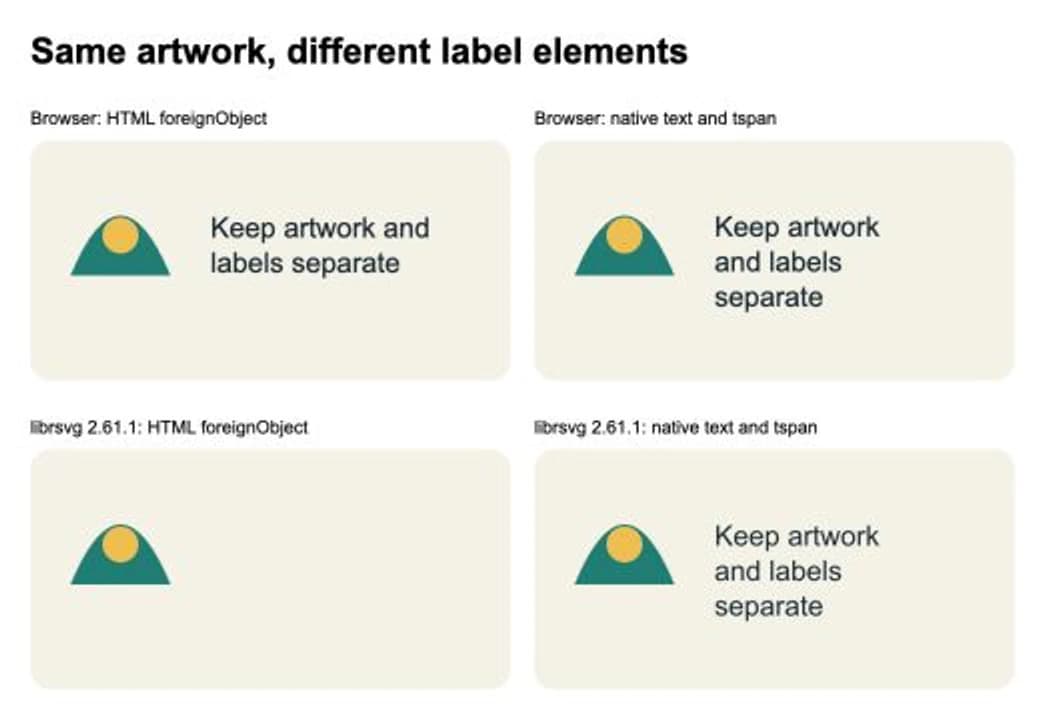
We made a 480 × 240 SVG card with a path, a circle, and the words "Keep artwork and labels separate." The first file uses an HTML label. The second keeps the same shapes and replaces only the label with native text and three explicit lines.
In our browser preview, both labels appeared. Rendering the same files to PNG with sharp 0.34.4, using its bundled librsvg 2.61.1, produced the result below: the HTML label vanished, while the native label remained. The HTML-label output was also pixel-identical to a control file with the label removed. This is a test of these files and this renderer version, not a compatibility verdict for every editor.
The original file is small enough to reproduce. Save this as html-label.svg and open it in a browser:
<svg xmlns="http://www.w3.org/2000/svg"
  width="480" height="240" viewBox="0 0 480 240">
  <rect width="480" height="240" rx="20" fill="#f5f1e7"/>
  <path d="M40 135Q90 15 140 135Z" fill="#087f75"/>
  <circle cx="90" cy="95" r="18" fill="#f4bc45"/>
  <foreignObject x="180" y="70" width="230" height="110">
    <div xmlns="http://www.w3.org/1999/xhtml"
      style="font: 28px/1.25 Arial, sans-serif; color: #172b34;">
      Keep artwork and labels separate
    </div>
  </foreignObject>
</svg>
For the second file, replace the entire foreignObject element with this label and save it as native-label.svg:
<text x="180" y="96" font-family="Arial, sans-serif"
  font-size="28" fill="#172b34">
  <tspan x="180" dy="0">Keep artwork</tspan>
  <tspan x="180" dy="35">and labels</tspan>
  <tspan x="180" dy="35">separate</tspan>
</text>
The x value starts each line at the same horizontal position. The dy values move the following lines down. This deliberately gives up automatic HTML wrapping: the author chooses the line breaks and verifies their fit. MDN documents tspan positioning, and librsvg lists its supported SVG elements, including text and tspan.
Open both files through the actual delivery route, such as your image converter or PDF generator. Compare the saved result, not just the source preview. Matching the example's dimensions does not guarantee matching fonts on another machine.
If the label is also missing in the browser
Check the serialized .svg file, rather than only the page that created it. Inline SVG inside HTML and a standalone SVG document are different parsing contexts.
The example explicitly puts the div in http://www.w3.org/1999/xhtml. MDN notes that this namespace declaration is required for the HTML content in a standalone SVG document, even when an inline HTML example can omit it. If you create elements in JavaScript, use the appropriate namespace for the HTML child; a div created in the SVG namespace is not an HTML paragraph container.
Then inspect these parts of the label:
- Give
foreignObjectexplicit, positivewidthandheightvalues for the intended label area. - Keep its
xandycoordinates inside the visible drawing, allowing room for all the lines. - Check
display,visibility, opacity, and text color on the container and its children. - Confirm that the exported file includes the styling it needs, rather than depending on the surrounding web page's stylesheet.
In the example, all label styling is inline and the box is 230 units wide by 110 high. That removes external CSS as a variable. It does not make foreignObject portable to a renderer that lacks the feature.
For draw.io exports, convert the labels at the source
If you still have the editable diagram, repair its label export there before editing XML by hand. The current draw.io export documentation offers Convert Labels to SVG for supported formatted labels: select the shapes or connectors, open the Text tab's Advanced section, and enable the checkbox.
That option has limits. The documentation excludes labels containing structures such as tables, lists, links, or background colors from this conversion. If the option is unavailable, disabling Formatted Text and Word Wrap is another documented route; you may need to insert manual line breaks and check the layout again.
Export a new copy and reopen it in the receiving application. Hiding a "Text is not SVG" warning does not convert the label. Embedding a font addresses a font dependency, not missing HTML-layout support.
For an illustrated diagram, keep the imported artwork separate from the labels. The draw.io custom SVG shape guide covers the artwork side of that workflow.
Choose the text format for the next person
Native text is a useful repair when the recipient needs to edit the words, but it still relies on usable fonts. If the label appears in the wrong typeface, follow the SVG font checks rather than treating it as the same missing-container problem.
| Delivery need | Practical choice | What to verify |
|---|---|---|
| Editable wording | Native text with deliberate line positions | Font, line lengths and receiving editor |
| Fixed letter shapes | Outline the final lettering in the source editor | Correct appearance; retain an editable master |
| Browser-only rich layout | Keep foreignObject when that browser route meets the requirement | The actual embedded or standalone file |
| Appearance only | Export a PNG from a renderer that shows the full design | Pixel dimensions and smallest text at delivery size |
Outlining works only when the source tool can see and convert the lettering. Opening an already incomplete export and converting its remaining objects cannot restore words that are absent from that imported document. A PNG preserves pixels, so it is unsuitable when the recipient needs editable words or vector cut paths.
Where PerfectVector fits in an illustrated card
If the card's illustration exists only as a PNG or JPG, PerfectVector's clipart-to-SVG workflow can prepare a vector candidate for that artwork. Keep the wording as a separate text element in your design editor. Check the illustration's edges and internal gaps, add the label, and test the assembled file in the destination renderer.
The image vectorization guide explains how pixels become paths. PerfectVector does not repair HTML labels in an SVG. When the illustration already has good paths, preserve them and change only the failing label. A screenshot of the missing label contains no lettering to recover, and tracing visible lettering would create shapes rather than editable words.
Before sending the repaired SVG
- Reopen the exported copy in a browser and the intended destination.
- Confirm every label, including its final line, is visible.
- Check that the artwork has not moved or changed size.
- Verify fonts, or inspect outlined lettering at the intended size.
- Keep the editable source alongside the delivery copy.
FAQ
Why does SVG text show in Chrome but disappear in a PNG export? The label may be HTML inside foreignObject, while the PNG renderer supports only a different subset of SVG. Check the missing label's markup and render a native text version through the same export route.
Does adding the XHTML namespace fix every foreignObject export? No. It fixes the namespace of the HTML content in a standalone SVG. The destination still needs to support that content, and the label still needs suitable dimensions and visible styling.
Can tspan wrap text like an HTML paragraph? The example uses explicit lines and vertical offsets. It does not reproduce HTML paragraph layout. Choose the line breaks for the available space and check them with the destination font.
Should I vectorize the entire card to recover its labels? Preserve existing paths and rebuild the label from its original text. Vectorize only artwork that exists as pixels. Traced lettering is geometry, so it does not preserve editable words.
Sources
- MDN — foreignObject — Defines foreign content, geometry attributes, and the XHTML namespace in standalone SVG.
- MDN — tspan — Explains positioning portions of native SVG text.
- draw.io — Exported SVG text problems — Documents native-label conversion, formatting limits, and alternate export settings.
- GNOME — Librsvg supported SVG and CSS features — Lists the renderer's supported elements and attributes.
If your illustration is still a bitmap, prepare the clipart as SVG, inspect its shapes, and add the text separately. Verify both in the exported file before you hand it over.
More from the blog

Graphviz SVG Images: Keep Node Artwork Portable
Add SVG artwork to a Graphviz node, inspect its image reference, and test a complete asset bundle against a moved diagram and a self-contained delivery copy.

Matplotlib SVG: Keep Plot and Logo Artwork as Paths
Export your Matplotlib plot as SVG, compose separate logo paths with svgutils, and check the delivered file for embedded pixels, placement, and font changes.