Custom SVG Shapes in draw.io: Images or Stencils?
Choose an embedded SVG image or a native XML stencil in draw.io. Check editable colours and connection points, then save the right object in a reusable library.
On this page
- Choose the behavior before converting the artwork
- Insert an SVG when its appearance is enough
- Recolouring an embedded SVG has its own requirements
- Use a native stencil for a deliberately defined shape
- Save a library after the item passes its checks
- Recover raster artwork only when you need a vector master
- FAQ
- Sources
For a custom SVG shape in draw.io, decide what you need to change after insertion. An embedded SVG image is useful when you want the artwork's appearance. A native XML stencil is the route for defining diagram geometry, styles, and specific connection points. A custom library can store either kind of item for reuse.
Those choices solve different problems. Saving an SVG in a library does not, by itself, turn its paths into a native diagram shape. The draw.io custom-shape reference distinguishes embedded images from shapes defined in its XML format.
If your diagrams are written in Mermaid, use the custom SVG icon-pack workflow to register the artwork while keeping labels and connectors in diagram source.
Choose the behavior before converting the artwork
Imagine a small device symbol: a rectangular body with one circular indicator. You want to reuse it in a few process diagrams.
In a presentation-style diagram, the device may only need to look consistent. In a connection diagram, you may want lines to attach at the midpoint of its left and right edges. Write that requirement down before preparing another file.
| What you need | Start with | Check afterward |
|---|---|---|
| Preserve the device illustration's appearance | Embedded SVG image | Artwork, proportions, and label readability |
| Change selected SVG colours inside draw.io | Embedded SVG with suitable CSS rules | Which fill and line controls are actually available |
| Define native geometry and fixed attachment points | Custom XML stencil | Style changes and connector placement |
| Reuse the item across diagrams | Custom library | The inserted copy retains the behavior you prepared |
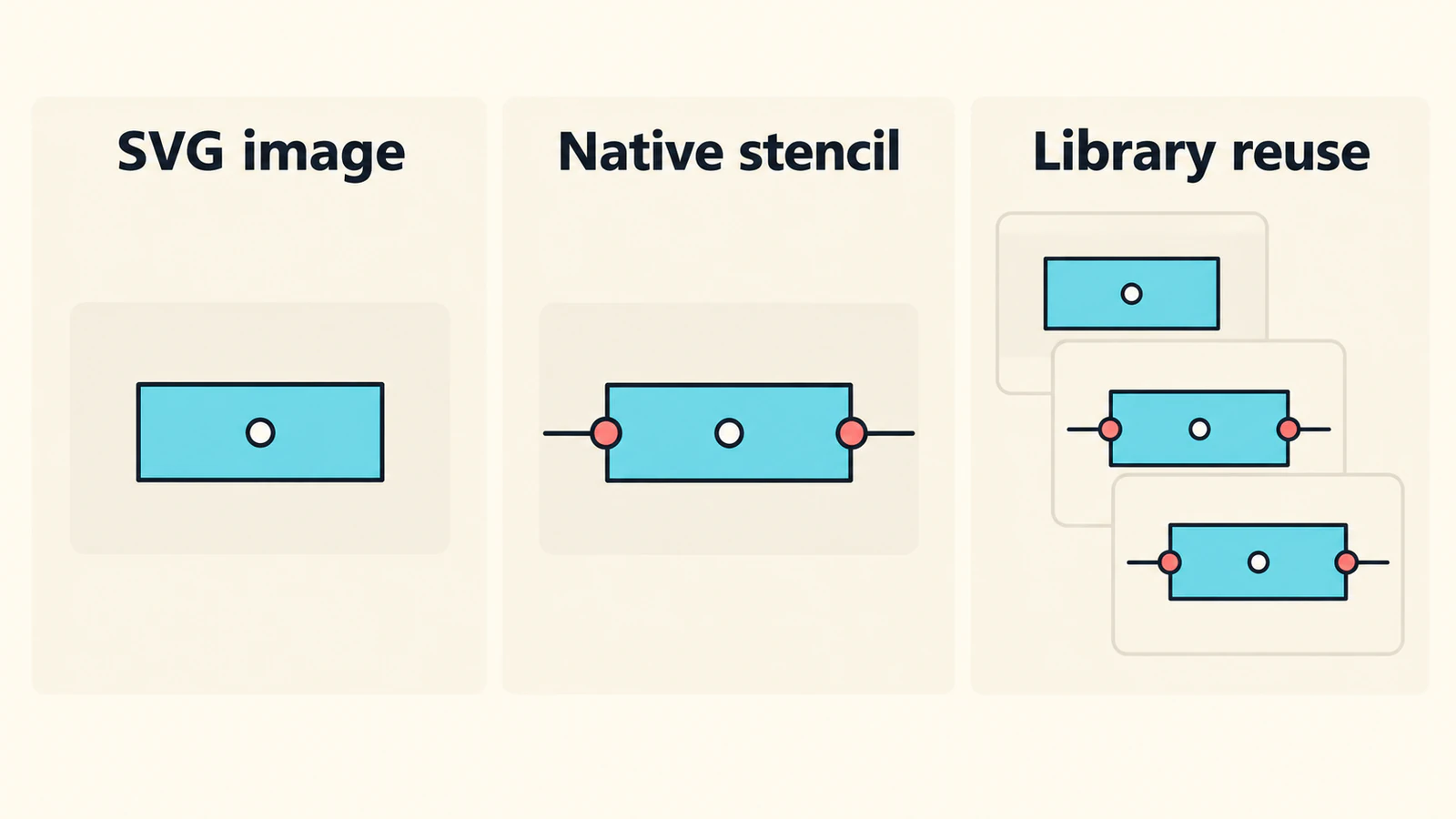
Insert an SVG when its appearance is enough
The official SVG insertion guide documents dragging an SVG file from your computer onto the canvas. You can also use Arrange → Insert → Image. Choose Actual Size when prompted, then resize the inserted artwork as needed.
For the device example, use a working copy and check the small circular indicator after resizing. A shape that reads clearly at full size may lose its useful detail in a compact diagram.
Keep the editable artwork source separately. If you need to move the circle within the device, make that change in the source editor and replace the delivery image. Do not spend time searching for an Ungroup command solely because the SVG contains several visible parts. Our SVG object and ungrouping guide explains how the file's structure affects that expectation.
A plain SVG drawing of a whole diagram also needs care. Draw.io's insertion guide explains that ordinary SVG does not carry the connector information needed to reconstruct an editable diagram. Keep the original diagram file when you have it.
Recolouring an embedded SVG has its own requirements
Draw.io provides a limited bridge between embedded SVG artwork and its colour controls. The embedded SVG colour guide uses CSS rules inside the SVG and an editableCssRules setting in the inserted object's style. This feature applies to embedded images, not images included by a link.
For an SVG already structured with CSS rules, select the inserted image, choose Edit Style, and add:
editableCssRules=.*;The documented pattern selects all eligible rules. It belongs in the draw.io object's style, not as a line pasted into the SVG's drawing markup.
Inspect the resulting controls before building a library around them. If no useful colour controls appear, compare the source with the official guide's CSS-class example. Do not assume the setting will reorganize arbitrary SVG paint attributes, separate the device's indicator, or create connection points.
For artwork that only needs one permanent colour change, editing the SVG source may be simpler. Save a copy and verify the imported appearance again.
Use a native stencil for a deliberately defined shape
A native stencil describes the shape in draw.io's own XML syntax. It is not the SVG file renamed to .xml. The custom-shape tutorial uses Arrange → Insert → Shape to open the shape editor and Preview to inspect the definition.
Here is a small original starting point for the device symbol:
<shape name="two-port-device" w="100" h="60" aspect="fixed" strokewidth="inherit">
  <connections>
    <constraint x="0" y="0.5" perimeter="0" name="left"/>
    <constraint x="1" y="0.5" perimeter="0" name="right"/>
  </connections>
  <background>
    <rect x="0" y="0" w="100" h="60"/>
  </background>
  <foreground>
    <fillstroke/>
    <ellipse x="40" y="20" w="20" h="20"/>
    <stroke/>
  </foreground>
</shape>
The outer rectangle and center circle are intentionally simple. The coordinate values define this illustration's drawing space; they are not physical device measurements.
The XML reference specifies relative connection coordinates. With perimeter="0", these two constraints place points at the left and right midpoints. It also requires the background geometry's paint operation at the start of the foreground, which is why fillstroke appears there.
Preview the shape, add it to a test diagram, and try the behavior you actually need:
- Change its fill and line colour.
- Attach a connector at each intended midpoint.
- Move the device and inspect both attachments.
- Resize it and check the circle, outline, and connector positions.
This is a small definition to adapt, not a general SVG-to-stencil converter. If your illustrated device includes many decorative details, decide which ones belong in the diagram symbol. Redrawing a few essential primitives can be easier to maintain than carrying every contour into a stencil.
Save a library after the item passes its checks
A library is the reuse step. The custom-library guide documents File → New Library, choosing a storage location, and adding images or dragging shapes from the canvas. Custom libraries use the .xml extension.
Save the device with a name that tells you what it contains, such as “Device artwork” or “Device with two ports.” Keep those as separate entries if both are useful.
Then open a fresh diagram and insert the saved item. Repeat one meaningful edit: recolour the artwork if that was configured, or attach a connector to the native stencil. This catches a library that contains an earlier version of your symbol.
An .xml filename alone does not tell you whether the item is native geometry. Both a library and a stencil definition involve XML, but a library can contain images, groups, custom shapes, or entire diagrams. Inspect the inserted item's behavior.
Recover raster artwork only when you need a vector master
If the original device illustration survives only as a PNG or a scan, PerfectVector's clipart-to-SVG workflow can help prepare an artwork candidate. Crop a copy to the motif, preview the vector result, and inspect the outside contour, circular detail, empty spaces, and unwanted background. Download the SVG and try it through the image-insertion route.
That gives you an appearance-focused source to review. It does not define the device's left and right ports, connector meaning, or native stencil XML. Create those deliberately if the diagram requires them.
A very simple rectangle-and-circle symbol may be quicker to draw directly. Tracing is more useful when the surviving illustration contains distinctive curves you want to retain. For hand-drawn motifs, the map illustration preparation guide discusses cleaning up drawn artwork before tracing.
If the SVG still becomes blocky when enlarged, check whether it contains an embedded bitmap using the SVG raster-image diagnosis. The image vectorization overview explains the broader difference between preserving pixels and recovering shapes.
FAQ
Does importing an SVG make it a native draw.io stencil? No. The image-insertion workflow embeds artwork. A native custom stencil uses draw.io's XML shape definition for geometry, styles, and connection points.
Can I change colours in an embedded SVG? Draw.io documents colour editing through suitable SVG CSS rules and the editableCssRules setting on the inserted object's style. Check the source structure and the controls exposed after insertion.
Does a custom library convert SVG paths into native shapes? A library stores reusable items, including images and native custom shapes. Saving an image in a library does not itself add native geometry or connector semantics.
Will vectorizing a PNG create connection points for my diagram? No. Vectorization can recover artwork contours. Define the connection points and native diagram behavior separately when those are required.
Sources
- draw.io — Insert SVG images into a diagram — Image insertion, sizing, and the limit of reconstructing diagram connectors from SVG.
- draw.io — Create and edit complex custom shapes — Native XML geometry, connection constraints, and drawing operations.
- draw.io — Edit colours in embedded SVG images — CSS-rule editing and embedded-versus-linked image requirements.
- draw.io — Create custom shapes — The stencil editor, preview workflow, and default styles.
- draw.io — Work with custom shape libraries — Creating, saving, and reusing mixed library items.
Choose the behavior you need, prepare one device symbol, and test it in a fresh diagram. If only raster artwork remains, prepare an SVG candidate, inspect its contours, and check the inserted image before saving it to your library.
More from the blog

Graphviz SVG Images: Keep Node Artwork Portable
Add SVG artwork to a Graphviz node, inspect its image reference, and test a complete asset bundle against a moved diagram and a self-contained delivery copy.

Fabric.js SVG Import: Keep Artwork Editable on Canvas
Import SVG into Fabric.js as editable objects, recolor one part, and export a checked SVG copy. Follow a tested example and separate source issues from API bugs.