SVG Won't Ungroup: Identify the Object and Fix It
If an SVG will not ungroup, it may be one path, a compound path, or an embedded image rather than a group. Identify the object first, then use the right fix.
On this page
- First, check what kind of object you selected
- A group is the only case Ungroup can solve
- A compound path looks separate but behaves as one object
- A single path has nothing inside to reveal
- The SVG may contain one raster image
- What about clipping paths, masks, and symbols?
- A safe repair order
- How to prevent the problem in files you deliver
- FAQ
- Sources
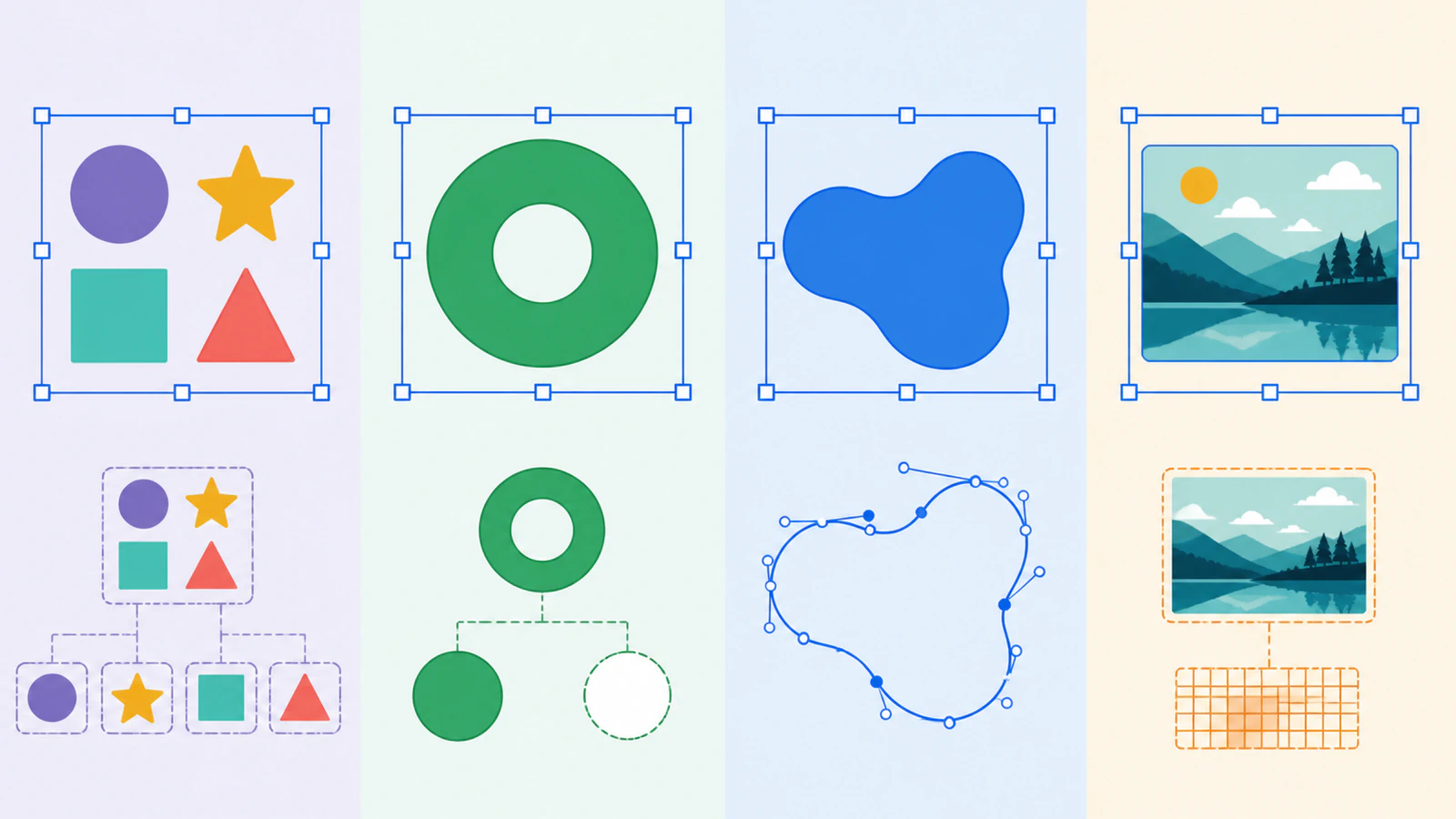
Ungroup only works when the selected object is actually a group. An SVG that looks like several pieces may instead be one compound path, one ordinary path, a clipped object, or a raster image sitting inside an SVG container. Clicking Ungroup again cannot change any of those structures.
The useful question is not “Where is the right Ungroup command?” It is “What did I select?” Once you identify that, the fix is usually straightforward: ungroup a real group, break apart a compound path, edit the nodes of a single path, or trace an embedded raster into real vector shapes.
The quick diagnosis
- If the object panel shows a group or the SVG source contains
<g>, use Ungroup. - If one selection has separate holes or islands, try Break Apart or Release Compound Path on a copy.
- If node editing reveals one outline, there is nothing to ungroup. Edit or split that path.
- If the object is one rectangle and gets blocky when enlarged, it is probably an embedded image. Recover the original raster and vectorize it properly.
First, check what kind of object you selected
SVG is a container format, not a promise that every visible piece is a separate layer. It can hold grouped vector elements, individual paths, compound paths, text, clipping structures, and raster images. If you are building a canvas editor, the Fabric.js SVG import walkthrough shows how to parse separate objects, recolor one named part, and inspect the exported SVG.
In diagrams.net, compare draw.io SVG images and native stencils before trying to ungroup imported artwork. A scalable image and a diagram shape with defined connection points have different editing workflows.
For the same image-versus-native-shape question in another diagram editor, see what becomes editable after Excalidraw SVG import.
That explains why the same symptom appears in Cricut Design Space, Silhouette Studio, LightBurn, Inkscape, Illustrator, and office apps. In PowerPoint, first distinguish an SVG graphic from Office shapes using the PowerPoint SVG conversion and part editing guide. Each program names its commands differently, but the file underneath still has one of a few common structures.
| What you see | What the file probably contains | What to try |
|---|---|---|
| Several objects select together, and the layer panel shows a group | A real SVG group | Ungroup |
| Several islands or holes select as one object | A compound path | Release or break apart on a duplicate |
| One outline shows editable anchor nodes | A single path | Edit nodes, cut the path, or divide it |
| One rectangular object selects; zooming reveals pixels | An embedded raster image | Extract or find the raster source, then vectorize it |
| Part of the art is hidden behind a boundary | A clip path or mask | Release the clip or edit its contents |
A group is the only case Ungroup can solve
In SVG markup, the <g> element is a container for other SVG elements, and the standard permits groups nested to arbitrary depth. A designer might group a circle, wordmark, and background so they move together. Ungrouping removes an editor's group container and exposes the children.
Try this:
- Duplicate the file or save a working copy.
- Select the object once.
- Look at the Layers or Objects panel rather than relying on the canvas.
- If the selected item is a group, run Ungroup once.
- Repeat only if the file contains nested groups.
Nested groups are common. A logo may have one group for the icon, another for the lettering, and a parent group around both. Two or three deliberate Ungroup operations are normal. Clicking until the artwork falls apart is not. Stop as soon as the pieces you need become selectable.
A compound path looks separate but behaves as one object
A letter “O,” a donut shape, and a logo with punched-out negative space are often compound paths. The visible hole is not a white object placed on top. It is created by multiple subpaths and the path's fill rule; the SVG path specification explicitly supports compound paths for structures such as donut holes.
That structure is useful. It keeps counters and cutouts intact when the art moves or changes color. Breaking it apart can fill holes, separate islands, or change what a cutter interprets as inside and outside. If the opening has already closed, use the filled-hole diagnosis before applying more path commands.
If you truly need the pieces:
- duplicate the object first;
- use Release Compound Path, Break Apart, or the equivalent command;
- inspect every hole and counter afterward;
- restore the compound structure if the destination needs one clean silhouette.
For a cut file, separating the pieces is not automatically an improvement. If the current compound path cuts correctly, leave it alone.
A single path has nothing inside to reveal
One path can bend around a complicated silhouette and still be one object. Switch to the node or direct-selection tool. If anchor points appear along the complete contour, you are already looking at the editable geometry.
Your options now are path operations, not grouping operations:
- move nodes to reshape the contour;
- cut the path at chosen nodes;
- divide the shape with another path;
- use Break Apart if the path contains disconnected subpaths;
- redraw a local section when the trace is too rough.
This distinction matters with auto-traced artwork. A converter may create one shape per color, not one shape per thing a person recognizes. A blue shirt and a blue eye can become one compound object because they share a fill. That file is vector, but its structure does not match the semantic layers you expected.
For animation in Rive, decide which parts need independent movement before releasing or merging paths. SVG import produces native Rive objects, so inspect the resulting Hierarchy and test one part's movement. The Rive SVG import preparation guide connects source grouping and paint settings to the imported parts, unsupported effects, and the pivots you need for animation.
The SVG may contain one raster image
An SVG is allowed to include an <image> element. The SVG Embedded Content specification says that element can reference raster PNG or JPEG content. The outer file ends in .svg, but the artwork inside is still pixels.
There are three quick checks:
- Zoom in. If the edges become blocky, the selected content is raster.
- Open the SVG in a text editor. Search for
<image,data:image,.png, or.jpg. - Inspect the object type. A rectangular image object with no editable nodes is not a group of vector shapes.
Do not trace a screenshot of the SVG if the original PNG, JPG, or artwork file still exists. Use the cleanest source you can find. Every export and screenshot can add scaling blur or compression artifacts.
This is the branch where PerfectVector can help: its image-to-vector conversion can rebuild suitable flat artwork as editable paths. If it is a photograph, keep it raster unless a deliberately simplified vector look is the goal. A photo does not become a clean set of semantic layers just because it sits inside SVG.
For more on this exact container trap, see the guide to an SVG that still looks pixelated.
What about clipping paths, masks, and symbols?
Some files are vector but still resist ordinary ungrouping:
- A clip path hides part of an object without deleting it. Release the clip to expose the full geometry, then decide whether the clipped pieces should remain.
- A mask controls visibility with light and dark values. Releasing it can reveal unexpected artwork or change transparency.
- A symbol or linked instance may need an Expand, Detach, or Convert to Paths command before direct editing.
- A locked layer is an editor state, not an SVG structure. Unlock it before diagnosing the file.
These cases should stay intact when the appearance already works and you only need to resize or place the file. Expanding everything can make a small, organized SVG much harder to maintain.
A safe repair order
Use the least destructive action first:
- Save a copy.
- Unlock the object or layer.
- Inspect the object type in the layer panel.
- Ungroup a confirmed group.
- Release a clip or mask only when hidden geometry is the problem.
- Break apart a compound path only when its pieces must be edited separately.
- Edit or divide a single path instead of trying to ungroup it.
- Retrace only when the file contains pixels or unusable geometry and the original raster is available.
This order keeps holes, overlaps, and layer relationships intact until you know they are the cause.
How to prevent the problem in files you deliver
Before sending an SVG to someone else:
- name important groups and layers in the source document;
- convert text to outlines only in a delivery copy, while preserving editable text in the master;
- avoid embedding a raster when the recipient expects editable vector shapes;
- include a preview PNG so appearance and editability are not confused;
- open the exported SVG in a second editor and select a few parts;
- tell the recipient whether the file is layered, flattened, or intentionally one compound shape.
If you bought the file, keep the download bundle. The creator may have included a layered SVG, DXF, EPS, or source file even when the first SVG you opened is flattened.
FAQ
Why is Ungroup grayed out for my SVG? The selected object is probably not a group. It may be one path, a compound path, an image, a clip, or a locked object. Check the Layers or Objects panel and use the command that matches the object type.
Why does my SVG import as one object? It may have been exported as one compound path, built as one shape per color, flattened by the source app, or saved with a raster image inside. One object does not automatically mean the file is broken; inspect its nodes and source markup before changing it.
How do I separate a single-layer SVG in Cricut Design Space? If it is one color and one path, Design Space has no hidden layers to reveal. Separate the artwork in a vector editor, return to the original layered source, or rebuild color regions before importing the SVG again.
Can I ungroup an SVG in Inkscape or Illustrator? Yes, when the selection is a real group. Inkscape and Illustrator also provide commands for compound paths, clipping structures, and path division. Those commands solve different structures and should not be treated as stronger versions of Ungroup.
Can PerfectVector make an embedded image editable? PerfectVector can trace the original raster artwork into vector paths when the source is suitable, such as a flat logo, icon, or illustration. It does not recover the original designer's named layers or live text, and photographs usually remain better as raster images.
Sources
- W3C — SVG Document Structure — the
<g>container and nested grouping model. - W3C — SVG Paths — paths, disconnected subpaths, and compound-path geometry.
- W3C — SVG Embedded Content — raster PNG and JPEG content inside SVG
<image>elements. - MDN — SVG clipping and masking — the behavioral difference between clips and masks.
- Cricut — Image uploads: unsupported items — how one destination app handles clipping paths, text, linked images, and embedded rasters.
Do not keep fighting the same disabled command. Identify the structure first. If the SVG turns out to be pixels in a container, rebuild the original artwork as editable vector paths, then inspect the result before continuing.
More from the blog

Paper.js SVG Booleans: Cut and Join Imported Artwork
Import SVG paths into Paper.js, join overlapping shapes, subtract a real opening, and check the exported file with a small, reproducible browser example.
Keynote SVG Break Apart: Edit Individual Shapes
Use Keynote's Break Apart command on Mac or iPad, separate editable SVG shapes, and work out whether a missing command means you need a different source file.