Why Your SVG Looks Pixelated and How to Fix It
A real SVG can still show pixels: an embedded image inside the file, a viewer that rasterizes, or icon-size softness. Here's the quick diagnosis and each fix.
On this page
An SVG is supposed to scale cleanly, so when one shows blocky edges anyway, start with three common causes. The file may contain actual pixels, an app may be rasterizing its preview or import, or a true vector may simply render soft on a tiny pixel grid. Each cause has a different fix, and a short diagnosis tells you which one you're looking at. One thing this post is not about: a PNG or JPG logo that pixelates when enlarged. That file was never an SVG, and that problem has its own fix.
The 30-second diagnosis
- Zoom way in (500%+) in two viewers. Blockiness in every viewer points to raster content. If only one app looks blocky, that app is probably rasterizing the preview.
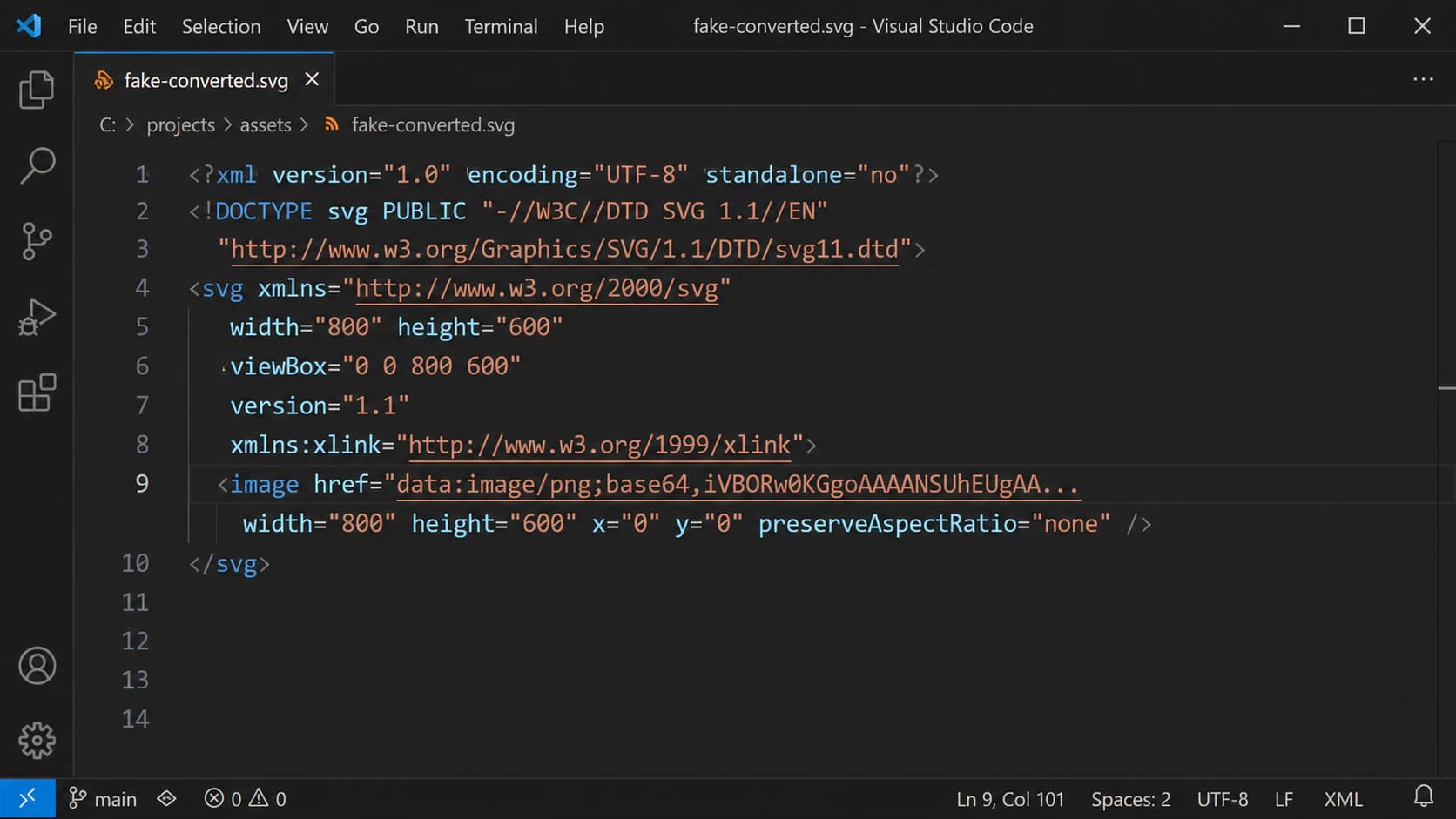
- Open the SVG in a text editor. An
<image>tag with a longdata:image/png;base64,…blob means your "vector" is a bitmap in a costume. - Use the file check to decide. Zooming raises the suspicion; an
<image>element or a rectangular image object confirms embedded pixels.
Cause 1: there are pixels inside your SVG
This is the embedded-image trap. SVG is a container format, and the SVG 2 specification allows an <image> element to embed or reference raster content. If you need to distinguish a linked PNG from embedded data or a nested SVG, use the mixed-content SVG audit. Tools can use that capability in several ways:
- Fake conversions. Some "PNG to SVG" tools don't trace anything. They wrap your bitmap in an
<image>tag and hand it back with an .svg extension. It scales exactly as badly as the original PNG, because it is the original PNG. - Exports that rasterize the hard parts. Design apps export what they can as paths and quietly rasterize what they can't: drop shadows, blurs, gradient meshes, image fills. That's how a logo ends up crisp everywhere except one bend or one effect, the exact "partly pixelated" mystery that fills design forums.
- Photo content. A photograph can't become clean paths, so tools that "convert" photos to SVG often embed them instead, or produce a posterized approximation. Map tools even do this deliberately for shading layers, which is legitimate, because shading is continuous-tone by nature.
- Format wrappers. A file can carry vector data one app reads and another can't. When an app hits a payload it doesn't understand, it falls back to the baked-in raster preview, and you see pixels in one program while another shows clean vectors.
How to confirm it: open the .svg in any text editor and search for <image. A base64 blob is your culprit. In Inkscape or Illustrator, click the blurry region: if the selection is one rectangular "image" object instead of paths, same answer. This is the same check that catches fake SVGs from AI tools and exporters, and it takes less than a minute.
The fix: the pixels need to become paths, which means actually vectorizing the raster content. Run the original image (or the embedded one) through a real image-to-vector conversion and replace the <image> element with the traced result. If the embedded content is a photograph, vectorizing has limits of its own; sometimes the honest fix is accepting a raster where a raster belongs.
Cause 2: the file is fine, the viewer is rasterizing
If a browser or Inkscape shows crisp paths while one app looks blocky, stop editing the file. That app's import or preview pipeline is the problem:
- Some app import pipelines rasterize an SVG at import or preview size. Scale that cached image up afterward and you're scaling a bitmap. The app-side fix is importing or rendering at the target resolution.
- After Effects can continuously rasterize vector layers as the layer transforms; Adobe documents the Continuously Rasterize switch for vector layers. If only the composition preview looks rough, inspect the preview resolution and layer switch before changing the SVG.
- Illustrator can deliberately show artwork through Pixel Preview. Turn off View > Pixel Preview before concluding that the path itself is pixelated.
- Thumbnails and previews. File-manager thumbnails and quick-look previews are low-res rasterizations. They tell you nothing about the file.
The universal test: open the same file in a browser or Inkscape. Crisp there means your SVG is healthy and the fix lives in the other app's import or preview settings.
For game assets, check Godot's SVG import and rasterization workflow or the Unity SVG import route for your editor and UI system before assuming the source lacks vector paths.
Cause 3: a real vector that's soft at small sizes
Icons live at 16 to 24 pixels, and at that size a mathematically perfect curve has to land on a coarse pixel grid. Anti-aliasing splits edge pixels into gray, and the result reads as "slightly blurry," especially for fine strokes and half-pixel positions. Zooming in shows perfectly crisp vector edges, which is how you know this isn't the embedded-image trap.
The fixes are design-side: align horizontal and vertical edges to whole pixels at the target size, keep stroke widths at whole-pixel values, and prefer icon sets drawn for the size you're using. Heavily precise path data from design-tool exports can make the softness worse at tiny sizes; simplified paths render more predictably.
Cause and fix, at a glance
| What you see | The cause | The fix |
|---|---|---|
Blocky in every viewer, with an <image> element in the file | Raster image embedded in the SVG | Actually vectorize the content, replace the <image> |
| Crisp in one bend, pixelated in another | Export rasterized an effect or fill | Rebuild that element as paths, or vectorize the whole graphic |
| Crisp in browser, pixelated in one app | That app rasterizes on import or preview | Fix the app's import/preview settings, not the file |
| Sharp at 100%, fuzzy as a small icon | Pixel-grid softness on a true vector | Pixel-align edges and strokes at the target size |
| "Pixelated" only in a thumbnail | Low-res preview rasterization | Ignore it; check the real render |
How to keep pixels out of your SVGs
Prevention is mostly about the moment of conversion or export. Before you rely on any SVG, run the text-editor check once: <path> elements, good; <image> blobs, not a vector. When you convert an image, use a converter that traces rather than wraps, and confirm the result by selecting individual shapes. When you export from a design tool, flatten or expand effects into paths first, since whatever the exporter can't express as vectors will ship as pixels. And keep what an SVG actually is in mind: the extension is a promise about the format, not about the contents.
What this looks like with PerfectVector
PerfectVector exists on the right side of this trap: it traces your image into genuine paths, never wraps it. Upload a PNG or JPG and the result is shapes you can select, recolor, and zoom into forever, with each color as its own editable object and no <image> element anywhere in the file. If you've just discovered your "SVG" was a bitmap in a costume, convert the original image properly and run the same text-editor check on the output. Seeing the difference once is the fastest way to never get caught again. The first conversions are free, no credit card required.


FAQ
Why does my SVG look pixelated when I zoom in?
Zooming alone does not prove the SVG contains pixels because some apps rasterize their previews. Open the file in a browser or Inkscape, then inspect its source for an <image> element or select the blurry area and check whether it is a rectangular image object. If those checks confirm embedded raster content, vectorize that content and replace the image element.
How do I know if my SVG has an embedded image?
Open it in any text editor and search for <image. A long data:image/png;base64 string is a bitmap embedded in the file. You can also click the blurry area in Inkscape or Illustrator: if it selects as one rectangular image object instead of paths, it's embedded.
Why is my SVG pixelated in one app but fine in the browser? The app is rasterizing it. Game engines rasterize SVGs at import size, After Effects previews rasterize at composition resolution, and some apps render embedded images with blocky interpolation by default. If a browser or Inkscape shows it crisp, the file is fine; adjust the app's settings.
Can I fix an SVG that contains an embedded image? Yes. Take the original raster (or extract the embedded one) and run it through a real vectorizer, then use the traced result in place of the image element. If the embedded content is a photo, expect a stylized vector approximation rather than a faithful copy, since photos don't reduce to clean paths.
Why do my SVG icons look blurry at small sizes? That's usually pixel-grid softness, not an embedded image. At 16 to 24 pixels, anti-aliasing turns misaligned edges into gray pixels. Align edges and stroke widths to whole pixels at the target size, and the icons sharpen up. Zoom in to confirm the paths themselves are crisp.
Does converting a PNG to SVG always produce real vectors? No. Some tools genuinely trace the image into paths, and some just wrap the PNG in an SVG container. The output scales cleanly only in the first case. Check any converted file for image tags, and prefer a converter that shows you editable shapes in the result.
Sources
- W3C: SVG 2 embedded content — Defines the SVG
<image>element and raster content inside an SVG document. - Adobe Illustrator: Viewing artwork — Documents Pixel Preview and other display modes.
- Adobe After Effects: Layers — Documents the Continuously Rasterize switch for vector layers.
- Adobe Illustrator: Create pixel-perfect art — Explains alignment to the pixel grid for small-size artwork.
Suspicious about a file you're working with? Run the zoom test, then convert the original image into a real, path-based SVG and compare. Pixels hide; paths don't.
More from the blog
PixiJS SVG Import: Choose Graphics or a Texture
Import an SVG into PixiJS as geometry or a texture. Test an icon at two sizes, check texture resolution, and catch missing group transforms before shipping it.

fpdf2 SVG Images: Keep Paths in Your Python PDF
Place an SVG logo in a Python PDF with fpdf2, control its size, inspect the saved paths, and diagnose missing text or shapes before using a raster fallback.