
fpdf2 SVG Images: Keep Paths in Your Python PDF
Place an SVG logo in a Python PDF with fpdf2, control its size, inspect the saved paths, and diagnose missing text or shapes before using a raster fallback.
On this page
Use pdf.image("logo.svg", x=20, y=20, w=60) to place an SVG in an fpdf2 document. Supported SVG geometry becomes PDF drawing paths. You do not need to render the logo to PNG first. The official SVG documentation describes this direct route and its limits.
If the format itself is new to you, the SVG file guide explains paths and image containers. A successful import still needs checking. The file can contain embedded pixels, depend on features the importer does not reproduce, or have empty space around its artwork. This guide builds a small original logo, places it at an explicit size, and checks the resulting PDF. Keep an existing vector master if you have one; recovering artwork from PNG or JPG is a separate step upstream.
Start with a known SVG and a pinned fpdf2 version
We ran the example with Python 3.12 and fpdf2 2.8.8. That is the tested version, not a promise that every later release behaves identically. The package's official PyPI page documents installation under the fpdf2 distribution name; the Python import is fpdf.
Use a fresh environment so the example is independent of another project's packages:
python3 -m venv .venv
source .venv/bin/activate
python -m pip install "fpdf2==2.8.8"
On Windows, activate the environment with .venv\Scripts\activate instead. Save this original rectangular emblem as logo.svg:
<svg xmlns="http://www.w3.org/2000/svg"
     width="120" height="80" viewBox="0 0 120 80">
  <path fill="#137d89" fill-rule="evenodd"
        d="M10 10H110V70H10Z M30 25H90V55H30Z"/>
</svg>
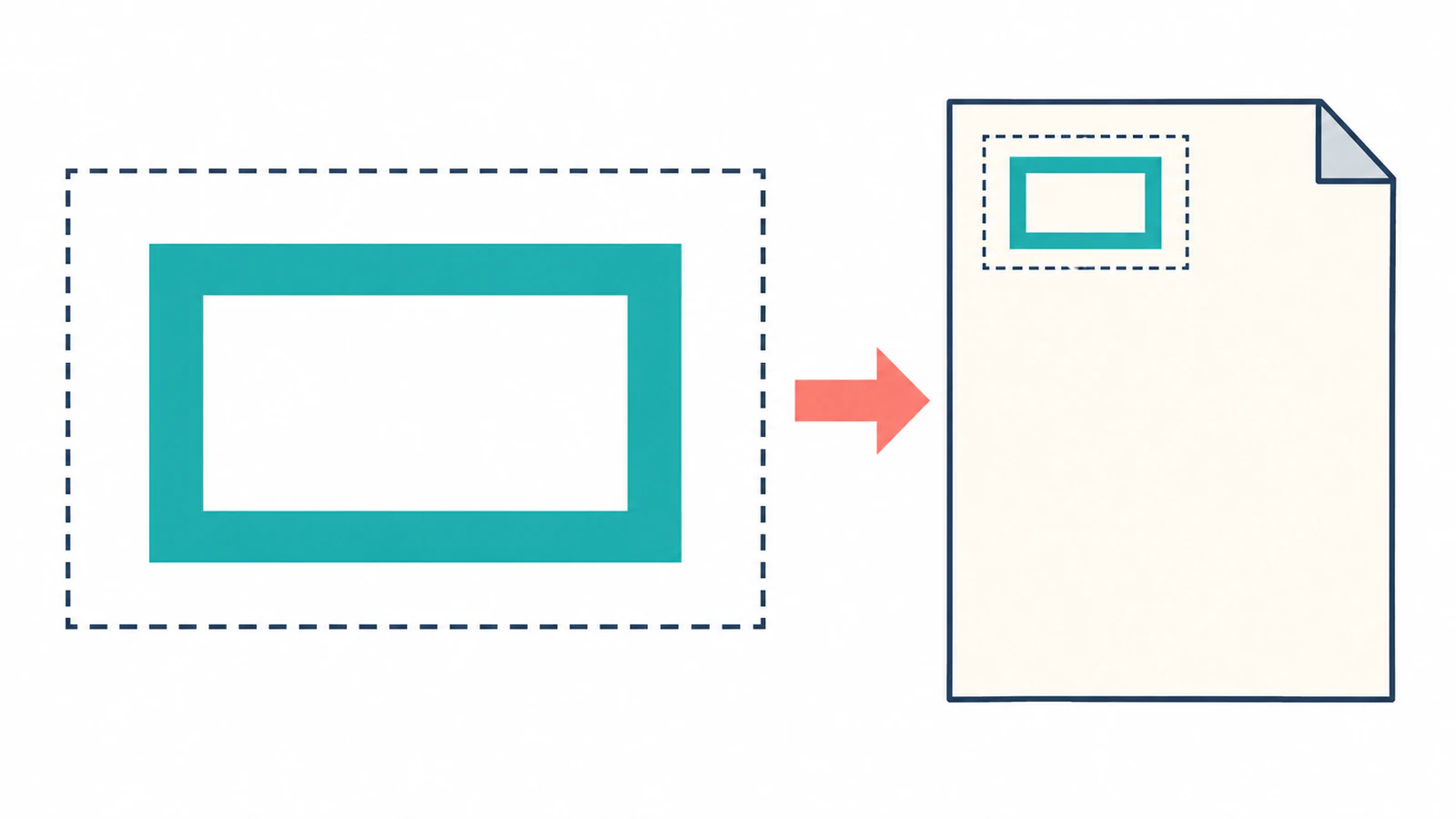
There are two closed subpaths. The outer rectangle is filled, and the inner rectangle becomes an opening through the evenodd fill rule. No font, image, or effect is involved, which keeps the first test easy to diagnose.
Save the following as place_logo.py beside the SVG:
from pathlib import Path
from fpdf import FPDF

folder = Path(__file__).resolve().parent
pdf = FPDF(unit="mm")
pdf.add_page()
pdf.image(str(folder / "logo.svg"), x=20, y=20, w=60)
pdf.output(str(folder / "logo.pdf"))
Run python place_logo.py. Open logo.pdf and check for a teal rectangular frame near the upper-left corner, with the page showing through its center.
Separate the SVG canvas from the painted logo
The source canvas has a 3:2 ratio: 120 units wide and 80 high. At w=60, this example occupies a 60 × 40 mm canvas. The artwork starts 10 source units inside that canvas, so its painted outer rectangle is 50 × 30 mm, beginning at 25, 25 mm on the page. Those are calculations from this fixture's coordinates and scale.
That margin explains why measuring the colored shape does not give the same answer as measuring the placement canvas. If a customer's logo appears too small, inspect the source margins before increasing its PDF width.
The fpdf2 image guide explains dimension handling and the option to retain proportions inside a specified box. For this first example, set only the width. If you later supply both dimensions, deliberately test the fit you want instead of assuming every source will have the same proportions.
Verify that the saved PDF contains paths
The PDF preview shows appearance, but an image can look crisp at a modest zoom. Inspect the file as well. We checked the isolated example with pypdf 6.1.1:
python -m pip install "pypdf==6.1.1"from pathlib import Path
from pypdf import PdfReader
folder = Path(__file__).resolve().parent
page = PdfReader(folder / "logo.pdf").pages[0]
print("Page images:", len(page.images))
print(page.get_contents().get_data().decode("latin-1"))Our output reported zero page images. The decoded content contained rectangle contours expressed through move, line, and close-path operations, followed by f*, the even-odd fill operation. Together with the rendered opening, that supports the conclusion that this image-free fixture remained drawing geometry in the saved PDF.
Do not apply that conclusion to a different input without checking it. A report can legitimately contain photos elsewhere; an SVG can itself contain an image. The embedded-raster diagnosis helps distinguish a path-based logo from a bitmap wrapped in SVG markup. More complicated PDFs can also put drawing content inside referenced objects, so the short script above is a starting point for this isolated fixture, not a universal PDF audit.
Diagnose missing artwork with your installed release
Start by running the small emblem above. If it works while your production logo fails, you have narrowed the problem to the source artwork or the features it uses. Preserve the original and simplify a copy one feature at a time.
| Symptom | First check | Useful next step |
|---|---|---|
| The page is blank | File path, placement, dimensions, and importer warnings | Test the simple emblem at explicit coordinates |
| The logo looks too small | Empty space inside the source canvas | Compare painted bounds with the viewBox |
| The center fills in | Compound-path structure and fill rule | Preserve the opening when editing or exporting |
| Lettering is missing or different | Installed release, font choice, and text features | Test a separate text sample or use approved outlined logo lettering |
| A decoration disappears | Unsupported SVG features | Remove that feature from a copy and compare the result |
| The PDF is sharp but might contain pixels | Embedded images in the source and PDF | Inspect the file structure as well as the preview |
Historical answers need care here. Our separate 2.8.8 probe containing a simple <text> element produced extractable HELLO text, and a basic linear-gradient rectangle exported successfully. These narrow checks do not establish complete SVG text, font, CSS, or gradient compatibility. They do show why an old statement that all SVG text or all gradients are unsupported can send you toward unnecessary rasterization.
The current SVG feature list still names limitations such as markers, patterns, text on a path, and complex or external CSS. Keep importer warnings visible during diagnosis and compare the saved page with the source. A clean log alone is not proof that every visual feature survived.
Use a raster fallback when the result calls for it
If an effect cannot be reproduced in your chosen pipeline, decide whether preserving its appearance matters more than retaining geometry. A rendered PNG may be appropriate for that part of a document. Check it at the final physical size and label the output accurately; embedding a raster rendering does not preserve the original paths.
For a brand logo, approved outlined lettering or a simpler vector export may be a better choice. For editable document text, keep font and text handling in the document workflow. Tracing a screenshot of a sentence does not recover its typography or make it selectable text.
If your existing PDF code uses another Python library, the ReportLab SVG workflow has its own import and sizing checks. Switching libraries is a separate implementation decision, so test the actual troublesome feature before rebuilding the document.
Prepare raster-only artwork before the PDF step
When only a PNG or JPG logo remains, PerfectVector's logo vectorizer can prepare an SVG candidate before you import it with fpdf2. Compare the contours, small openings, and color regions with the source, then run the candidate through the same placement and PDF checks.
Use the original vector if it is available. Exact brand lettering may need retyping or manual correction; the logo vectorization guide explains that choice. The emblem in this article is original hand-authored SVG, not a measured PerfectVector conversion result. PerfectVector prepares artwork, while fpdf2 controls its placement in the PDF.
FAQ
Can fpdf2 insert an SVG directly? Yes. Pass the SVG file to the image method and set its placement and size. Supported geometry can become PDF paths, but inspect the exported file and appearance for your own artwork.
Does fpdf2 support SVG text? Our basic text probe worked with fpdf2 2.8.8. That does not guarantee every font, layout feature, or text-on-path construct. Check your installed release and test the lettering your document actually uses.
Why does a 60 mm image look narrower than 60 mm? The requested size applies to the placement canvas. Empty margins inside the SVG remain part of that canvas, so the painted shape can be narrower.
Should I convert my PNG logo to SVG before adding it? Only if you need editable paths and the artwork suits tracing. Keep photographs as raster images, and use an original vector logo when one exists. Check a traced candidate before inserting it.
Sources
- fpdf2 — SVG — Documents direct SVG insertion, feature support, and warning logs.
- fpdf2 — Images — Explains image placement, dimensions, and aspect-ratio fitting.
- fpdf2 — PyPI package — Identifies the installable distribution and its Python import convention.
Only have a raster logo? Prepare an SVG candidate with PerfectVector, inspect its contours and openings, then place it at the required size with fpdf2 and check the saved PDF.
More from the blog

PDFKit SVG: Place a Vector Logo Without Flattening It
Insert a full SVG logo into a PDFKit document, set its size in points, and inspect the saved PDF for paths, open shapes, missing features, and embedded images.

CairoSVG: Export SVG to PDF and PNG at the Right Size
Convert SVG artwork with CairoSVG, choose output width or scale, understand DPI and parent dimensions, and verify your PNG pixels and PDF page size before delivery.