
PDFKit SVG: Place a Vector Logo Without Flattening It
Insert a full SVG logo into a PDFKit document, set its size in points, and inspect the saved PDF for paths, open shapes, missing features, and embedded images.
On this page
To place a complete SVG logo in a Node-generated PDF, use svg-to-pdfkit with PDFKit and pass the SVG markup to SVGtoPDF(doc, svg, x, y, options). PDFKit's built-in doc.path() accepts SVG path data, such as the value of a path's d attribute. It does not import the surrounding SVG document, its other shapes, or its styles.
The distinction matters for a logo with several colors and an opening through its center. Copying one path can leave part of the artwork behind. Turning the whole logo into a PNG preserves a raster rendering, but gives up the path-based PDF output you came for.
This guide uses an original emblem, a complete Node script, and inspection of the saved PDF. If you already have an editable vector logo, keep it as the source. Raster recovery belongs before this import step.
Choose full SVG insertion or a single path
PDFKit's vector documentation describes the path parser and the drawing methods around it. The separate SVG-to-PDFKit library handles full SVG markup.
| Input you have | Route | Work you still own |
|---|---|---|
| A complete SVG with several shapes | SVGtoPDF(doc, svgText, x, y, options) | Check sizing, imported features, and the finished PDF |
One path's d value | doc.path(pathData) followed by fill or stroke | Supply paint, transformations, and any other shapes yourself |
| A PNG or JPEG that should remain a bitmap | doc.image(...) | Set placement and verify effective image resolution |
The PDFKit image documentation lists PNG and JPEG for doc.image(). Do not treat that call as a full SVG importer.
For example, this is a valid use of the path API:
doc.save();
doc.fillColor('#eeaa42');
doc.path('M125 100L175 20L225 100Z').fill();
doc.restore();
It draws our emblem's triangle at its path coordinates. It does not recover the teal ring or bar from another part of the source file. Use the full-document route below when those pieces belong together.
If your PDF is assembled in a browser with jsPDF, follow the separate jsPDF SVG workflow. The Python equivalent has its own ReportLab import and sizing checks.
Run a small example with pinned packages
We executed this example with PDFKit 0.20.2 and SVG-to-PDFKit 0.1.8. These identify the tested dependency pair; check your own output after upgrading either package.
In a new Node project, install:
npm install --save-exact pdfkit@0.20.2 svg-to-pdfkit@0.1.8Save this as logo.svg. The ring and its opening share one path with fill-rule="evenodd"; the gold triangle and teal bar are separate shapes. The file contains no fonts, images, or effects.
<svg xmlns="http://www.w3.org/2000/svg" viewBox="0 0 240 120">
  <path fill="#147d78" fill-rule="evenodd"
    d="M110 60A50 50 0 1 1 10 60A50 50 0 1 1 110 60Z
       M85 60A25 25 0 1 1 35 60A25 25 0 1 1 85 60Z"/>
  <path fill="#eeaa42" d="M125 100L175 20L225 100Z"/>
  <rect x="227" y="20" width="8" height="80" fill="#147d78"/>
</svg>
Save the following as place-logo.cjs in the same directory, then run node place-logo.cjs:
const fs = require('node:fs');
const { finished } = require('node:stream/promises');
const PDFDocument = require('pdfkit');
const SVGtoPDF = require('svg-to-pdfkit');

async function main() {
  const svg = fs.readFileSync('logo.svg', 'utf8');
  const doc = new PDFDocument({ size: [800, 450], margin: 0 });
  const output = fs.createWriteStream('logo.pdf');
  doc.pipe(output);
  const warnings = [];
  SVGtoPDF(doc, svg, 72, 150, {
    width: 180, height: 90,
    preserveAspectRatio: 'xMinYMin meet',
    warningCallback: message => warnings.push(message),
  });
  SVGtoPDF(doc, svg, 432, 150, {
    width: 90, height: 45,
    preserveAspectRatio: 'xMinYMin meet',
    warningCallback: message => warnings.push(message),
  });
  doc.end();
  await finished(output);
  fs.writeFileSync('warnings.json', JSON.stringify(warnings, null, 2));
  if (warnings.length) process.stderr.write(warnings.join('\n') + '\n');
}
main().catch(error => {
  process.stderr.write(error.stack + '\n');
  process.exitCode = 1;
});
PDFKit produces a stream. Calling doc.end() finalizes the document; the script then waits for the output stream to finish before returning. The getting-started documentation explains the stream model and page dimensions in PDF points, with 72 points per inch.
Here, the two placement viewports are 180 × 90 pt and 90 × 45 pt, or 2.5 × 1.25 inches and 1.25 × 0.625 inches. Both match the source viewBox's 2:1 ratio. The drawn shapes have margins inside that viewBox, so their visible bounds are smaller than the viewport. Measure the canvas and the painted artwork separately when aligning a logo with nearby text.
The importer documents width and height as the initial viewport. Its preserveAspectRatio option controls fitting within it. This example uses matching proportions and explicit dimensions to avoid depending on a page-sized default. Do not use assumePt as a general fix for an unexpectedly small logo; first check the source dimensions, viewBox, and target viewport.
Inspect the PDF, then inspect its appearance
Our minimal logo.pdf had one 800 × 450 pt page. With pypdf 6.10.0, we found 24 cubic-curve operations, two even-odd fill operations, and zero page images. Its page resources contained no fonts or XObjects. The importer emitted no warning for this fixture.
Those results support a narrow conclusion: this original, image-free emblem was drawn with PDF geometry in the tested versions. They do not establish that arbitrary SVGs become entirely vector PDFs. A logo containing an embedded photograph still needs separate inspection.
We also rendered a labeled version with Poppler. It uses the same SVG and two viewport sizes, with the placements moved into comparison panels. The pale panel background remains visible through both rings, and the triangle and narrow bar remain separate from the ring.
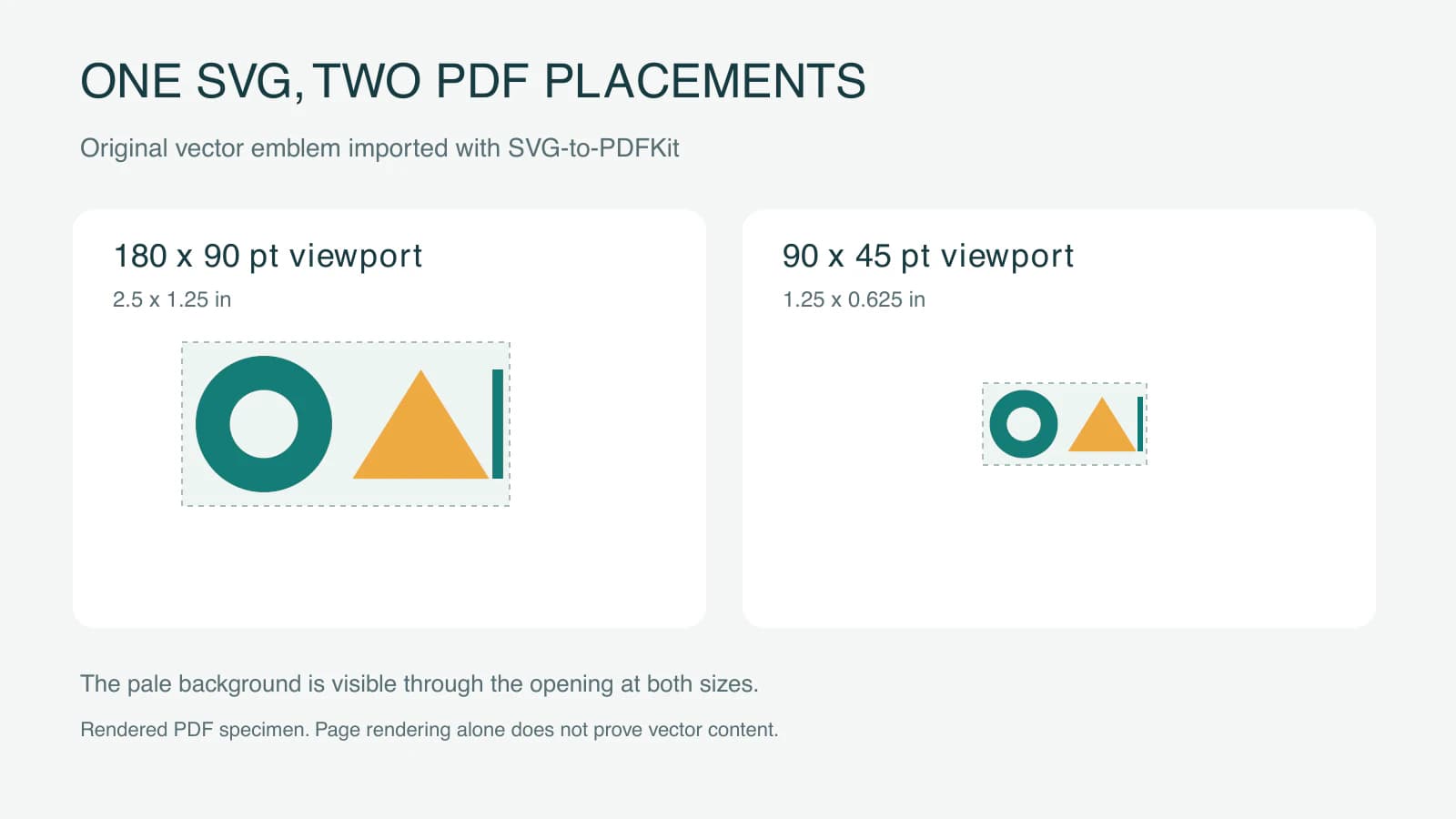
A crisp zoom alone is weak evidence: a sufficiently large bitmap can also look sharp. Conversely, finding a curve operation somewhere in a report says nothing about whether its logo was rasterized. Isolate the artwork in a small test PDF before inspecting a document that also contains photos and charts.
For your own logo, check both:
- Inspect the PDF's page content and referenced objects with a PDF inspection tool. Look for drawing instructions where the logo is painted and account for any image objects. More complex PDFs can place content inside Form XObjects, so a top-level count is not always enough.
- Open the saved PDF in its intended viewer and compare it with the source. Check the hole, separate colors, clipping, margins, and fine details at the actual delivery size.
Keep the original SVG beside the PDF-generation code. If the source only wraps pixels, use the embedded-image diagnosis before assuming an SVG extension proves anything about its geometry.
Keep fonts and effects within the tested workflow
SVG-to-PDFKit lists filters and foreignObject among its unsupported features. It also documents font-registration and callback requirements. Use explicit SVG presentation attributes for a small server-side logo, and review warnings together with the rendered result. Browser-computed CSS is a separate option for a supplied SVG element; it is not the same as passing markup to this Node script. See the library's feature and font documentation.
Our emblem avoids text deliberately. For real lettering, either supply and test the intended fonts or retain approved outlined lettering in the vector master. PDFKit's font documentation describes font embedding and registration. Document text and logo outlines have different editing needs; tracing a screenshot of lettering will not identify the original font.
If a brand mark depends on an effect this importer cannot reproduce, rebuild that effect as suitable geometry or choose another export workflow and verify it. A raster insertion is also a valid choice when appearance matters more than retaining paths. Do not describe that choice as a vector-preserving export.
The example uses RGB colors. Preserved paths alone do not establish a printer's color, PDF/X, or prepress requirements. Confirm those with the recipient; the logo-format guide helps separate an editable master from a delivery file.
Recover a raster-only logo before insertion
If the original logo exists only as a PNG or JPG, PerfectVector's logo vectorizer can prepare an SVG candidate before the PDFKit step. Compare the contours, small openings, and separate color regions with the source, then run that candidate through the same placement and PDF checks.
Use the original vector whenever it is available. For damaged lettering or exact brand geometry, retype or redraw the affected part in an editor. The logo vectorization guide explains that source decision. PerfectVector prepares artwork paths; PDFKit and its importer handle the document placement. This article's test emblem is hand-authored vector artwork, not a measured conversion result.
FAQ
Can PDFKit import a full SVG with doc.path()? No. The path method reads SVG path data. Use SVG-to-PDFKit for the complete document in this workflow, or draw and style each shape yourself.
Does SVG-to-PDFKit guarantee a PDF with no raster images? No. The tested image-free emblem produced drawing operations and zero page images. Inspect your own input and exported PDF, especially when the SVG contains embedded images or features outside the importer's supported set.
Why is the visible logo smaller than my width and height? Those options define the import viewport. Empty space inside the source viewBox remains part of the layout, and aspect-ratio fitting can leave additional space. Check the artwork bounds before changing the requested PDF size.
Sources
- PDFKit — Vector graphics — Documents SVG path-data parsing, paint operations, and the graphics state.
- SVG-to-PDFKit — Usage and limitations — Defines full-SVG insertion, viewport options, warnings, fonts, and supported features.
- PDFKit — Images — Lists the bitmap formats accepted by the image API.
- PDFKit — Getting started — Explains document streams, finalization, and page sizing in PDF points.
- PDFKit — Fonts — Describes font embedding and named font registration.
If your document's logo starts as a raster image, prepare an SVG candidate with PerfectVector, inspect its openings and contours, then place it at the required PDF size and check the saved file.
More from the blog

CairoSVG: Export SVG to PDF and PNG at the Right Size
Convert SVG artwork with CairoSVG, choose output width or scale, understand DPI and parent dimensions, and verify your PNG pixels and PDF page size before delivery.

EasyEDA SVG Logo Import: PCB Images or Panel Paths?
Import a logo into EasyEDA Standard or Pro without mixing PCB image tools with panel SVG paths. Check the editor, layer, size, and artwork before export.