Add an SVG Watermark to an Existing PDF with Python
Merge an SVG watermark into an existing PDF with svglib, ReportLab, and pypdf. Check opacity, cropped pages, rotation, retained text, and overlay order.
On this page
To add an SVG watermark to an existing PDF in Python, convert the SVG into a ReportLab drawing, render it onto a small PDF overlay, then merge that overlay into each original page with pypdf. Size and position the overlay from each page's visible crop box, and normalize page rotation before merging.
Use over=True when the mark must remain visible above an opaque page background. A translucent mark can still sit on top. With over=False, the same artwork goes underneath the existing content and may disappear behind a filled page.
The complete example below creates its own SVG and three-page source PDF. It includes different page sizes, a crop box with a nonzero origin, and a rotated page. The result is a new PDF; keep the original file separately.
Choose the document operation first
| Starting point | Useful workflow |
|---|---|
| An existing PDF needs an SVG emblem on every page | Render an SVG overlay and merge it into the existing pages, as below |
| A new PDF is being composed from scratch | Use the ReportLab SVG drawing workflow directly |
| An existing SVG already contains the right artwork | Keep that native vector source; tracing is unnecessary |
| A logo exists only as a raster image | Prepare suitable artwork first, then test the PDF merge separately |
pypdf's watermark guide distinguishes content placed above and below a page. Here, “watermark” means the visible emblem; over determines its actual stacking order. This is not a security mark, a tamper-proofing method, or a signed-document workflow.
1. Start with a small, supported SVG
This test uses two filled paths: a triangular frame with an open center and three bars. Both paths carry fill-opacity="0.25". It has no text, filters, embedded images, or external resources.
That narrow input matters. svglib supports a useful SVG subset, but its documented limitations include limited CSS support and unsupported features such as masks and foreignObject. An SVG that looks right in a browser still needs checking after conversion. If a file contains raster content, read how to find embedded images in SVG before treating the result as entirely vector.
An initial version of this fixture contained SVG text as well as the frame. In the tested stack, the converted text was painted at full opacity while the path retained 0.25 opacity. I replaced that text with original path artwork and tested the replacement. The final result establishes this path-only case; it does not establish correct opacity for every SVG text or style combination.
2. Run the complete example
The tested environment was Python 3.12.14, svglib 2.2.0, ReportLab 4.4.9, and pypdf 6.10.0. Current pypdf documentation describes newer releases too, so keep the tested versions distinct from the documentation version.
In a separate environment, install those versions:
python -m venv .venv
source .venv/bin/activate
python -m pip install svglib==2.2.0 reportlab==4.4.9 pypdf==6.10.0
Save the following as watermark_demo.py. It includes all the input artwork and creates all three PDF files, so there is no missing sample PDF or SVG to download.
from io import BytesIO
from pathlib import Path

from pypdf import PdfReader, PdfWriter, Transformation
from pypdf.generic import RectangleObject
from reportlab.graphics import renderPDF
from reportlab.lib.colors import HexColor
from reportlab.pdfgen import canvas
from svglib.svglib import svg2rlg

SVG = '''<svg xmlns="http://www.w3.org/2000/svg" width="240" height="80"
             viewBox="0 0 240 80">
  <path fill="#315d6f" fill-opacity="0.25" fill-rule="nonzero"
        d="M10 60 L45 8 L80 60 Z M31 48 L59 48 L45 27 Z"/>
  <path fill="#315d6f" fill-opacity="0.25"
        d="M95 23 H216 V31 H95 Z M95 39 H190 V47 H95 Z
           M95 55 H205 V63 H95 Z"/>
</svg>'''


def make_demo_source(destination):
    stream = BytesIO()
    document = canvas.Canvas(stream, pagesize=(420, 300))
    specifications = [
        (420, 300, '#f5eddb', 'SOURCE PAGE ONE'),
        (300, 420, '#ffffff', 'SOURCE PAGE TWO'),
        (360, 260, '#e8eef0', 'SOURCE PAGE THREE')
    ]
    for width, height, background, label in specifications:
        document.setPageSize((width, height))
        document.setFillColor(HexColor(background))
        document.rect(0, 0, width, height, fill=1, stroke=0)
        document.setFillColor(HexColor('#183a42'))
        document.setFont('Helvetica-Bold', 16)
        document.drawString(28, height - 40, label)
        document.setFont('Helvetica', 10)
        document.drawString(28, height - 62, 'Original text remains in the PDF content.')
        document.drawString(28, 28, 'Original vector line and opaque page background')
        document.setStrokeColor(HexColor('#c47b44'))
        document.setLineWidth(3)
        document.line(28, 48, width - 28, 48)
        document.showPage()
    document.save()
    reader = PdfReader(stream)
    reader.pages[1].cropbox = RectangleObject([10, 20, 290, 400])
    reader.pages[2].rotate(90)
    writer = PdfWriter()
    for page in reader.pages:
        writer.add_page(page)
    writer.write(destination)


def make_overlay(svg_path, width, height):
    drawing = svg2rlg(str(svg_path))
    if drawing is None or drawing.width <= 0 or drawing.height <= 0:
        raise ValueError('The SVG did not produce a usable drawing')
    scale = width * 0.65 / drawing.width
    left = (width - drawing.width * scale) / 2
    bottom = (height - drawing.height * scale) / 2
    drawing.scale(scale, scale)
    stream = BytesIO()
    overlay = canvas.Canvas(stream, pagesize=(width, height))
    renderPDF.draw(drawing, overlay, left, bottom)
    overlay.save()
    return PdfReader(stream).pages[0]


def add_artwork(source_path, svg_path, output_path, *, over):
    reader = PdfReader(source_path)
    if reader.is_encrypted:
        raise ValueError('Encrypted inputs are outside this example')
    if reader.get_fields():
        raise ValueError('Form handling is outside this example')
    writer = PdfWriter()
    writer.clone_document_from_reader(reader)
    # Cloning in pypdf 6.10.0 does not retain the source header version.
    # This overlay uses transparency, introduced in PDF 1.4.
    writer.pdf_header = max(reader.pdf_header, '%PDF-1.4')
    for page in writer.pages:
        if page.rotation:
            page.transfer_rotation_to_content()
        box = page.cropbox
        width, height = float(box.width), float(box.height)
        overlay = make_overlay(svg_path, width, height)
        page.merge_transformed_page(
            overlay,
            Transformation().translate(float(box.left), float(box.bottom)),
            over=over,
            expand=False
        )
    writer.write(output_path)


if __name__ == '__main__':
    output = Path('watermark-output')
    output.mkdir(exist_ok=True)
    artwork = output / 'emblem.svg'
    artwork.write_text(SVG)
    source = output / 'source.pdf'
    make_demo_source(source)
    add_artwork(source, artwork, output / 'overlay-top.pdf', over=True)
    add_artwork(source, artwork, output / 'underlay.pdf', over=False)
Run it:
python watermark_demo.pyOpen watermark-output/source.pdf, overlay-top.pdf, and underlay.pdf. Page one should show the emblem in the top-overlay output but hide it in the underlay output, because its original background is opaque. The other two pages exercise cropping and rotation rather than repeating the same page geometry.
For your own unsigned, ordinary PDF, keep make_overlay() and add_artwork(), then call:
add_artwork(
    Path("original.pdf"),
    Path("emblem.svg"),
    Path("watermarked.pdf"),
    over=True
)
The writer retains the source header version with a minimum of PDF 1.4, because the overlay uses transparency. In pypdf 6.10.0, cloning the document alone can leave the writer's default PDF 1.3 header, even when the source declares a later version. The explicit assignment avoids that downgrade; it is not a conformance validation. The writer's header documentation recommends a version that supports all features used in the file.
The guards reject encrypted inputs and detected form fields. They are not a complete compatibility or signature audit. Signed documents, forms, annotations, encryption, and document-specific requirements need a separate workflow and validation before replacing any working file.
3. Place artwork in the visible page coordinates
A PDF point is 1/72 inch. In this svglib version, the SVG's bare 240 × 80 dimensions produce a 180 × 60-point drawing: one CSS pixel maps to 0.75 point. The code reads drawing.width and drawing.height rather than assuming that SVG pixels already equal PDF points.
The example makes the SVG viewport 65% of each visible page's width, preserves its aspect ratio, and centers that viewport. It centers the declared drawing rectangle, not the visual mass of the emblem. The 65% value is an example layout choice, not a watermark standard. This width-only scale is suitable for the wide emblem shown here. A tall replacement can exceed the visible page height; when adapting the function, bound the scale by both the available width and height and inspect every page before using your own PDF.
| Page | Source condition | Output visible crop box, in points | Nominal SVG viewport width |
|---|---|---|---|
| 1 | 420 × 300 landscape page | 0, 0 to 420, 300 | 273pt |
| 2 | 300 × 420 page, cropped inward | 10, 20 to 290, 400 | 182pt |
| 3 | 360 × 260 page with 90° rotation | 0, 0 to 260, 360 after normalization | 169pt |
Calling transfer_rotation_to_content() moves the rotation into the content and page boxes. It does not straighten the original words relative to the viewer. The original page-three text remains oriented as it was in the source's displayed view, while the new emblem is placed in the normalized visible coordinates. The pypdf page API recommends transferring rotation before page merging.
The overlay starts at its own origin. Translating it by cropbox.left and cropbox.bottom places it within the target's visible region even when the crop box starts somewhere other than zero. expand=False keeps the merge from enlarging the page boxes.
4. Check the saved PDF, not just the SVG preview
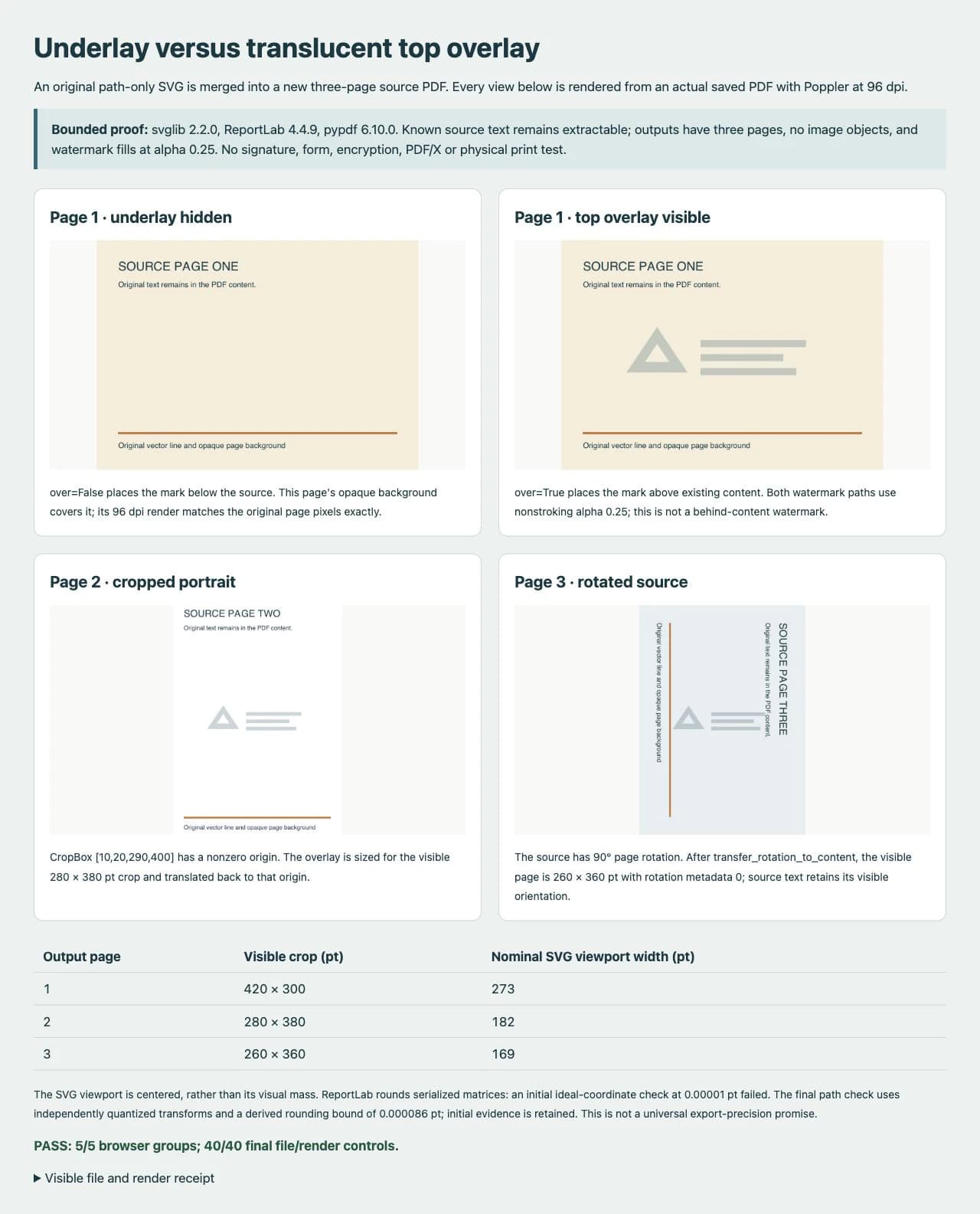
I reopened the saved PDFs and inspected their content streams, page boxes, rotation, extracted text, and image resources, then rendered the visible crop boxes with Poppler 26.02 at 96dpi. The final file inspection passed 40 checks. A browser comparison also verified the saved-file hashes, loaded renders, and 12 native-resolution pixel probes.
| Check on this fixture | Observed result |
|---|---|
| Page count and original known text | All three pages and their expected source text remained in both outputs |
| Overlay geometry | Two filled paths, 18 inspected vertices, nonstroking alpha 0.25 on each page |
| Added image resources | None in these original source and output pages |
| Placement and page boxes | Matched the declared crop boxes and serialized transform calculations; output rotation was zero |
| Frame and open-center probes | Top-overlay frame pixels matched the expected blend within ±2 RGB values; open centers retained the page background |
| Opaque-background underlay | Page one's source and underlay renders differed in zero pixels at 96dpi |
The placement audit initially failed a strict comparison with ideal floating-point coordinates at 0.00001pt tolerance. ReportLab serializes transform matrices at finite precision. I retained that failed result, independently calculated the expected serialized matrices and their rounding bound, and compared the saved vertices against those values. The largest observed ideal-coordinate difference was about 0.000054pt, within the derived 0.000086pt bound. This checks visually centered placement in these files; it is not a universal precision guarantee.
For a quick local visual check with Poppler installed:
pdftoppm -cropbox -r 96 -png watermark-output/overlay-top.pdf watermark-output/top
pdftoppm -cropbox -r 96 -png watermark-output/underlay.pdf watermark-output/below
Inspect every page at a useful zoom. Also select or extract expected original text, check page dimensions, and inspect whether the watermark remained paths or introduced images. A sharp-looking screenshot alone cannot establish those file properties. This test did not measure printing, viewer compatibility, file-size savings, or resistance to watermark removal.
Fix the failure at the right stage
| Symptom | Check or change |
|---|---|
| The mark disappears | Compare over=False with over=True; look for opaque original backgrounds |
| The mark is misplaced on a cropped page | Use the crop box's size and origin, not a hard-coded page size |
| Rotated pages put the mark in an unexpected direction | Normalize rotation before computing the visible dimensions; inspect the resulting view |
| Opacity or styling changes | Simplify the SVG, inspect the converted PDF's paint state, and retest that exact file |
| A photo-like or pixelated region remains | Inspect the SVG for embedded images; an SVG wrapper does not turn a bitmap into paths |
| Text, forms, or document behavior changes | Stop and validate the document's actual features rather than assuming a successful merge preserved everything |
The original PDF remains page content; the script does not rasterize whole pages. That does not prove every input PDF will survive an arbitrary merge unchanged. Use a copy, and define the content and document features that must still work before processing a larger batch.
Prepare missing artwork before the merge
If an existing logo is already a clean SVG, keep it. If only a suitable flat raster logo remains, PerfectVector's logo vectorizer can help prepare editable artwork before this Python step. Inspect the recovered silhouette, holes, and small details, then rerun the SVG conversion and saved-PDF checks. The example here used original native paths and did not run a PerfectVector conversion. Vectorization does not merge pages, validate signatures, or guarantee svglib compatibility.
FAQ
Can pypdf read an SVG watermark directly? This example first converts SVG through svglib and ReportLab into a PDF overlay. pypdf then merges PDF page content; it does not interpret the SVG source in this pipeline.
Why does a watermark disappear behind my PDF page?
An underlay can be covered by an existing opaque background. Use over=True for a visible top overlay and set the artwork's opacity separately. Check the actual result on every page.
Does this preserve vector artwork and original text? The tested path-only emblem remained filled paths, and expected original text remained extractable on all three pages. SVG features and PDF document features outside this fixture need separate validation.
Will rewriting the PDF preserve a digital signature? Do not use this example as a signed-document workflow. It rewrites the file and does not test signature preservation or validity. Keep the signed original and use a workflow appropriate to its signing requirements.
Sources
- pypdf: Adding a stamp or watermark — Overlay and underlay order, merging, and rotation guidance.
- pypdf: PageObject API — Page boxes, rotation transfer, and transformed merge behavior.
- svglib project documentation — SVG-to-ReportLab conversion, units, and supported-feature limitations.
- ReportLab graphics guide — Drawing objects and PDF rendering within the ReportLab graphics system.
- pypdf 6.10.0: PDF header version — Declares a PDF version supporting the features used in the output.
Keep native artwork when you have it. When only a suitable raster logo remains, prepare an editable SVG with PerfectVector, inspect that artwork, and then verify the newly merged PDF separately.
More from the blog
fpdf2 SVG Images: Keep Paths in Your Python PDF
Place an SVG logo in a Python PDF with fpdf2, control its size, inspect the saved paths, and diagnose missing text or shapes before using a raster fallback.
PDFKit SVG: Place a Vector Logo Without Flattening It
Insert a full SVG logo into a PDFKit document, set its size in points, and inspect the saved PDF for paths, open shapes, missing features, and embedded images.