jsPDF SVG: Keep Logo Paths in a Browser-Made PDF
Use svg2pdf.js with jsPDF to place an SVG logo, preserve supported paths, set its PDF size, and check the saved file against a rasterized export of that artwork.
On this page
To put SVG logo paths into a browser-generated PDF with jsPDF, load svg2pdf.js, pass an SVG element to await doc.svg(...), then save the document. Choose addSvgAsImage only when a raster image is acceptable. Its SVG input does not mean the resulting PDF contains SVG paths.
The svg2pdf.js usage example documents the element-based, asynchronous call. jsPDF's SVG module implementation shows the other route: render into a canvas, encode a JPEG, and add that image to the PDF.
For an invoice, ticket, or report logo, keep the original SVG as your editable master. This guide tests a simple two-color emblem, sets its placement in PDF points, and checks the saved objects. It does not assume that every SVG feature survives conversion.
Choose the output you need
| Route | What you supply | What to inspect |
|---|---|---|
await doc.svg(element, options) | An SVG DOM element, with svg2pdf.js loaded | Supported geometry, fills, holes, placement, and any embedded images |
await doc.addSvgAsImage(text, x, y, width, height) | SVG markup as a string | Raster resolution and background, as well as placement |
| Export PDF from the original design application | The editable design file | Export settings and the final PDF objects |
The third route is useful when you need a prepared logo PDF rather than a document assembled in JavaScript. For document workflows outside the browser, the SVG in LaTeX guide explains a separate export-and-include process. For a Node document pipeline, the PDFKit SVG example distinguishes full-document insertion from parsing one path.
When the deliverable is a slide deck, use the PptxGenJS SVG image guide. It checks the logo's aspect ratio, the exported PPTX media, and its appearance in the presentation app, rather than applying PDF export settings to a different document format.
Run a small, pinned example first
The example was executed in a browser with jsPDF 4.2.1 and svg2pdf.js 2.8.1. These are the tested versions, not a promise about future releases. The package is named svg2pdf.js, including the suffix; similarly named packages can serve different workflows.
In a small browser project with a JavaScript bundler, install:
npm install jspdf@4.2.1 svg2pdf.js@2.8.1Use this original emblem as the input. Its ring has an actual opening through the even-odd fill rule. The second path is a rounded peak. There are no fonts, linked files, filters, or embedded raster images.
import { jsPDF } from 'jspdf';
import 'svg2pdf.js';

const svgText = `<svg xmlns="http://www.w3.org/2000/svg"
  width="240" height="160" viewBox="0 0 240 160">
  <path fill="#174d64" fill-rule="evenodd"
    d="M20 80 C20 15 120 15 120 80 C120 145 20 145 20 80 Z
       M48 80 C48 111 92 111 92 80 C92 49 48 49 48 80 Z"/>
  <path fill="#e66d45"
    d="M130 120 L170 35 Q178 20 188 35 L225 120 Z"/>
</svg>`;

async function makeVectorPdf() {
  const svg = new DOMParser()
    .parseFromString(svgText, 'image/svg+xml')
    .documentElement;
  const doc = new jsPDF({
    unit: 'pt',
    format: [300, 220],
    orientation: 'landscape'
  });
  await doc.svg(svg, { x: 30, y: 30, width: 240, height: 160 });
  return doc;
}

const doc = await makeVectorPdf();
doc.save('logo-vector.pdf');
Run this in the browser, not directly in a Node.js script. The library's usage and scope notes require a functioning browser DOM and describe limited SVG support. In a server-rendered application, put this work in the client-side export handler.
The string here is trusted, fixed artwork. If your application accepts arbitrary SVG uploads, parsing XML alone is not sanitization. Follow the library's guidance for sanitizing user-provided SVG and isolating its execution before building an upload workflow.
Set placement separately from the viewBox
In this example, unit: 'pt' makes the PDF measurements points. The page is 300 by 220 points; the artwork viewport starts 30 points from the left and top and occupies 240 by 160 points. jsPDF's constructor documentation describes the document unit, format, and orientation options.
The SVG's viewBox="0 0 240 160" describes its internal coordinates. It is not a PDF page size. Keeping the destination width and height in the same 3:2 ratio makes the intended fit easy to check. To halve the placed artwork, use width: 120, height: 80; the source path coordinates can stay unchanged.
Give the exported SVG explicit dimensions and a sensible viewBox before debugging its PDF position. An unexpectedly large blank border can belong to the SVG canvas. Moving x and y moves the whole SVG viewport, including that empty space.
Inspect both saved PDFs
For comparison, the same browser run also created this deliberately rasterized version:
const raster = new jsPDF({
  unit: 'pt',
  format: [300, 220],
  orientation: 'landscape'
});
await raster.addSvgAsImage(svgText, 30, 30, 240, 160);
raster.save('logo-raster.pdf');
The test used jsPDF's installed canvg dependency, 3.0.11, for that route. Both PDFs were saved, reopened, and rendered at the same scale. PyMuPDF's drawing and image inspection reported:
| Saved file | Drawing paths reported | Embedded images reported |
|---|---|---|
logo-vector.pdf | 2 filled paths | 0 |
logo-raster.pdf | 0 | 1 JPEG, 240 × 160 pixels |
The vector file's content stream contained curve commands and an even-odd fill for the ring. The raster file placed an image object. These counts describe this small fixture; a more complex SVG can produce different objects or contain raster content of its own.
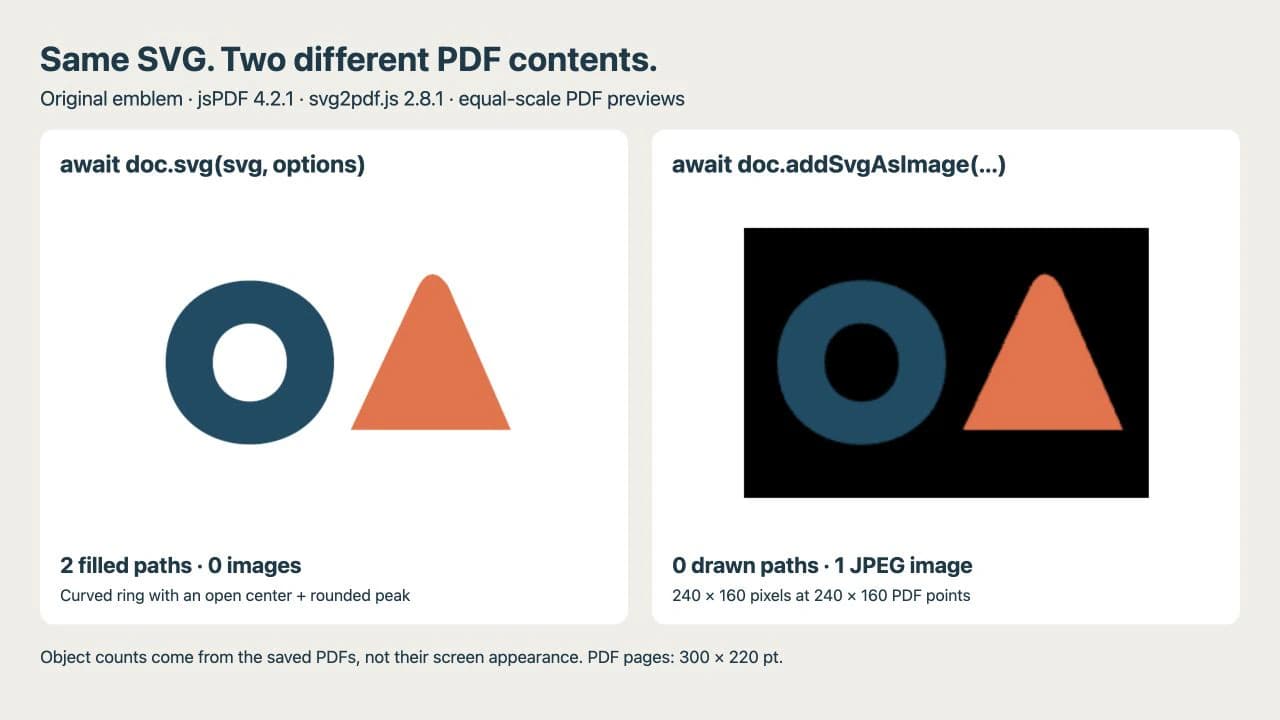
The black rectangle is an observed result of this raster export, including the ring's formerly transparent opening. JPEG does not preserve alpha transparency; do not assume that an SVG's transparent regions will survive that route. Check the background you actually need, especially when the logo will sit on a colored document panel.
Zooming alone is insufficient evidence. Every PDF viewer eventually draws pixels on your screen. Inspect the PDF's objects and compare the saved appearance with the SVG master. A command such as pdfimages -list logo-raster.pdf, from Poppler, can list embedded images. An empty image list alone does not prove that the intended shapes were exported correctly: the page might be blank. Check its drawing content and appearance too.
Fix the failing part of the export
| Symptom | Useful first check |
|---|---|
doc.svg is missing | Confirm the svg2pdf.js import runs before the export call |
| The file is saved before artwork appears | Await the SVG conversion before saving |
| The logo is displaced or unexpectedly small | Compare PDF units, destination dimensions, and the source viewBox |
| Some details disappear | Reduce a copy to the failing SVG feature and compare it with the supported workflow |
| A supposed vector logo contains pixels | Inspect the source SVG and the PDF's image objects |
An SVG can already wrap a bitmap. Passing that file through a vector-capable exporter does not trace its pixels into editable outlines. Use the embedded raster inspection guide before changing PDF settings.
This test does not cover text layout, filters, external images, or arbitrary CSS. svg2pdf.js explicitly limits its scope to a subset of SVG. For lettering, follow its font setup instructions before conversion, or prepare outlines in the design source when that tradeoff is appropriate. Keep a text-editable master if future wording changes matter.
Prepare the logo source with PerfectVector
If the logo is already clean vector artwork, use that source. If only a PNG or JPG remains, PerfectVector can help recover editable shapes before the PDF step. Vectorize the logo, then inspect its outer contour, small openings, and separate colors in an SVG editor. The logo preparation guide covers that inspection in more detail.
PerfectVector prepares the raster artwork for this workflow; it does not add SVG support to jsPDF or repair an exporter's unsupported features. Compare the recovered paths with your original image, simplify or redraw details that need it, then rerun the PDF check. Preserve a photograph as an image when tracing would discard the detail you need. The broader image vectorization guide explains that source choice.
FAQ
Does addSvgAsImage keep my SVG as vector paths? No. The tested jsPDF 4.2.1 implementation renders the SVG through a canvas and embeds a JPEG. Use svg2pdf.js with doc.svg when you need its supported geometry converted to PDF drawing content.
Does doc.svg accept an SVG filename? The demonstrated API takes an SVG DOM element. Load and parse a trusted file first, or select an existing SVG element, then pass that element to doc.svg and await the result.
Will every SVG look the same in the PDF? No. svg2pdf.js supports a limited part of SVG. Test your actual artwork, including its fonts, images, effects, dimensions, and backgrounds, and reopen the saved PDF before using it.
Sources
- yWorks — svg2pdf.js usage and scope — The SVG element API, asynchronous conversion, font setup, browser requirements, and supported-scope limitations.
- jsPDF — SVG module at version 4.2.1 — The canvas and JPEG implementation used by addSvgAsImage.
- jsPDF — Constructor reference — PDF document units, page format, and orientation options.
- PyMuPDF — Page inspection — Drawing and image inspection methods used to examine the saved test files.
Only have a raster logo? Prepare an editable SVG from your logo, check its contours and openings, then export it with the chosen PDF route and inspect the saved objects and background.
More from the blog

Illustrator Image Trace Greyed Out: Check the Object
Check whether Illustrator selected a raster image, a live trace, or expanded paths. Recover the right source before fixing an inactive Image Trace panel.

Matplotlib SVG: Keep Plot and Logo Artwork as Paths
Export your Matplotlib plot as SVG, compose separate logo paths with svgutils, and check the delivered file for embedded pixels, placement, and font changes.