
SVG in PptxGenJS: Keep a Logo Sharp on Slides
Add a real SVG logo with PptxGenJS, preserve its aspect ratio, inspect the PPTX media, and test the finished slide in the presentation app your audience uses.
On this page
Pass a genuine SVG to slide.addImage(), give it a box with the artwork's aspect ratio, and check the exported slide in the app that will present it. PptxGenJS's Images API accepts an image path or encoded data; its numeric x, y, w, and h values are in inches. An SVG inside the PPTX is useful, but successful file creation alone cannot tell you whether a particular viewer will show it correctly.
The example below uses an original two-color logo with a real opening. We generated a deck with PptxGenJS 4.0.1, inspected its media, and rendered the slides in LibreOffice. We did not test this deck in Microsoft PowerPoint. If your team distributes .pptx files, make the recipient's presentation app part of the test.
Start with a path SVG, not a renamed bitmap
Save this as logo.svg. It has a 2:1 viewBox, two colored paths, and a transparent circular opening formed with fill-rule="evenodd". There are no linked images or fonts to fetch when the deck opens.
<svg xmlns="http://www.w3.org/2000/svg" width="240" height="120" viewBox="0 0 240 120">
  <path fill="#176B68" fill-rule="evenodd" d="M24 10h104a14 14 0 0 1 14 14v72a14 14 0 0 1-14 14H24a14 14 0 0 1-14-14V24a14 14 0 0 1 14-14zm52 25a25 25 0 1 0 0 50 25 25 0 0 0 0-50z"/>
  <path fill="#E5A83D" d="M157 10h17l55 100h-21l-42-77-42 77h-19z"/>
</svg>
An .svg filename alone proves little. A file can contain an embedded raster image, so inspect the artwork if the only version you have came from a PNG export. The logo format guide helps you keep a reusable vector master rather than circulating presentation-only copies.
Add the logo without changing its proportions
Install the version used for this check with npm install pptxgenjs@4.0.1. Save this Node script as make-deck.cjs beside logo.svg, then run node make-deck.cjs.
const pptxgen = require("pptxgenjs");
const path = require("node:path");

const pptx = new pptxgen();
pptx.layout = "LAYOUT_WIDE";
const slide = pptx.addSlide();
const logo = path.join(__dirname, "logo.svg");

slide.addImage({ path: logo, x: 1.1, y: 1.3, w: 2.4, h: 1.2 });
slide.addImage({ path: logo, x: 6.3, y: 1.1, w: 4.8, h: 2.4 });

pptx.writeFile({ fileName: "logo-demo.pptx" });
Both boxes are 2:1, like the SVG. The second placement doubles each dimension. In our render, the hole, colors, and outline remained recognizable at both sizes. That observation applies to this simple fixture and this renderer; it is not a guarantee for every SVG effect or presentation app.
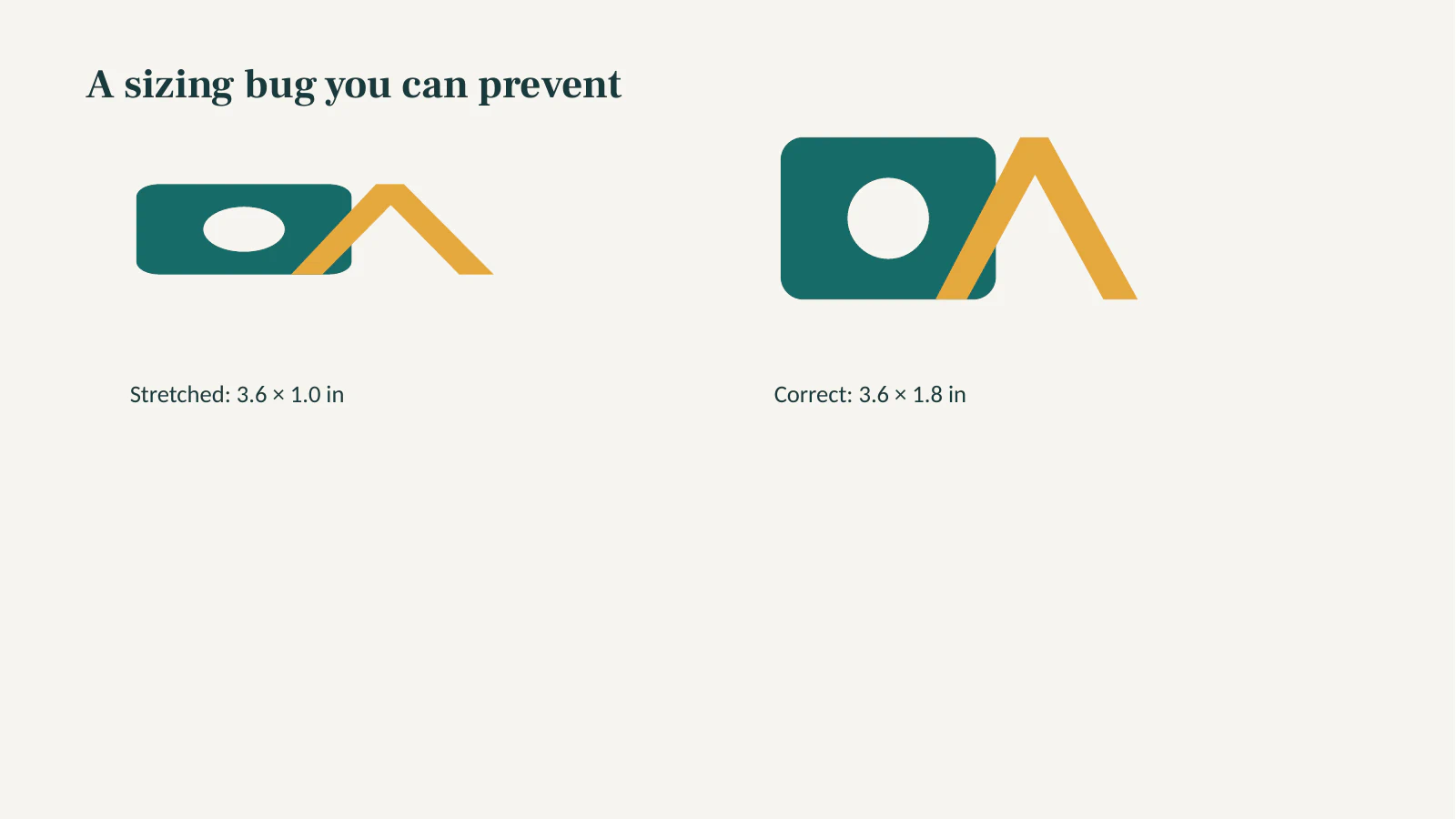
For a deliberate failure, we placed the same logo in a 3.6 × 1.0 inch box. Its circular hole became an oval. A 3.6 × 1.8 inch box restored the 2:1 proportion. Changing the SVG's pixel width alone would not fix a slide placement whose w and h disagree with the artwork's ratio.
Check the PPTX package and the rendered slide
A .pptx is a ZIP package. Look in ppt/media/ to confirm the SVG entered the file, then open the deck in the target viewer. These are separate tests: the archive may contain the artwork while the presentation app displays something else.
unzip -l logo-demo.pptx | grep 'ppt/media/'Our two-slide, four-placement test contained four .svg media entries. It also contained four files named .png whose first bytes were SVG XML, rather than PNG signatures. A .png suffix in this package therefore did not prove there was a raster fallback. PptxGenJS's Node SVG issue discussion records earlier preview and viewer problems; check your own installed version and exported file instead of assuming that thread describes every build.
The actual LibreOffice render showed both correctly sized logos and the deliberately compressed one. We checked the visible colors, the transparent opening, and the circle-versus-oval difference. We cannot infer from this render how Microsoft PowerPoint or another viewer will handle the same deck.
If the SVG is missing or looks wrong
| Symptom | First check | Next move |
|---|---|---|
| The script cannot read the image | Is path absolute or relative to the running script as intended? | Log the resolved local path during development and confirm the source file opens on its own. |
| The deck exists but the logo is blank | Is the SVG actually present in ppt/media/? Which app and version opened the deck? | Try a simple path-only SVG, then test the delivered deck in the audience's app. |
| The logo is stretched | Does the w:h ratio match the SVG viewBox? | Set slide w and h from one target dimension and the source ratio. |
| The logo looks fine but cannot be edited part by part | Is it an inserted graphic rather than Office shapes? | Keep the SVG master; use a separate editing workflow if native shape editing is required. |
For a file-specific blank render, test a copy containing only one plain filled path. If that works, add the remaining paths and effects in stages. Do not use a forum report as proof that all SVGs fail in one viewer. If the recipient's app cannot display your SVG reliably, a tested PNG copy may be a pragmatic appearance fallback, though it gives up scalable path media in that deck.
An imported SVG graphic is also different from native Office shapes. Microsoft's SVG editing instructions describe Convert to Shape for changing individual parts in supported PowerPoint workflows. PptxGenJS addImage() does not perform that conversion. For manual edits after delivery, use the PowerPoint SVG shape guide and verify the selected parts in the destination app.
What this looks like with PerfectVector
If the approved logo master is already SVG, use it. If all you have is a small flat PNG or JPG logo, PerfectVector's logo vectorizer can reconstruct candidate paths before the PptxGenJS step. Inspect the colors, small lettering, background, and openings in the preview; correct anything that matters to the brand before you place the downloaded SVG on slides. The generated deck still needs the package and viewer checks above. PerfectVector prepares artwork; it does not generate or validate the presentation.
A photograph or a complex shaded image may be better left as a raster. For a very simple mark, manually redrawing the approved geometry in a vector editor may be faster and more predictable than tracing. When the audience needs editable Office objects rather than a scalable inserted logo, make those objects in the slide workflow and test the editing requirement directly.
FAQ
Does addImage() turn an SVG into editable PowerPoint shapes?
No. It inserts an image graphic. If you need to recolor or move individual parts in PowerPoint, test the separate Convert to Shape workflow on a copy in a supported app.
Why does my SVG look squeezed in the generated slide?
Compare the SVG viewBox ratio with the slide w:h ratio. A 240 × 120 logo is 2:1, so a 3.6-inch-wide placement needs a 1.8-inch height to keep its proportions.
Is finding an SVG in ppt/media/ enough to approve the deck?
No. It confirms that SVG media was packaged, but it does not prove the target presentation app displays the logo correctly. Open the finished deck there and inspect its size, colors, openings, and any effects.
Sources
- PptxGenJS — Images API — Documents
addImageinput, sizing units, and SVG viewer support. - PptxGenJS — SVG in Node.js issue — Records historical SVG preview and viewer behavior that motivates checking the actual package and render.
- Microsoft — Edit SVG images in Microsoft 365 — Distinguishes inserting an SVG graphic from converting it into editable Office shapes.
Have only a raster logo? Make an SVG candidate, inspect its paths and openings, then build a small test deck and verify the result in the app your audience uses.
More from the blog
resvg SVG Fonts: Load the Typeface Your Artwork Needs
Fix missing or substituted SVG text in resvg with explicit font files. Run a small Node example, compare three outputs, and preserve an editable artwork master.

PDFKit SVG: Place a Vector Logo Without Flattening It
Insert a full SVG logo into a PDFKit document, set its size in points, and inspect the saved PDF for paths, open shapes, missing features, and embedded images.