SVG in LaTeX: Keep Shapes and Typeset Figure Labels
Choose a PDF or PDF plus LaTeX workflow for your SVG illustration. Keep labels editable, understand Inkscape dependencies, and check the final document PDF.
On this page
- Choose the files your document will use
- Route 1: export a normal PDF
- Route 2: export graphics and LaTeX text together
- Route 3: let the svg package export during compilation
- Diagnose the missing part before changing formats
- Recover only the illustration that needs recovery
- Check the assembled document, then keep its sources
- FAQ
- Sources
To use an SVG illustration in LaTeX, choose who should render its labels. Export a normal PDF when the illustration's existing typography is suitable. Use a PDF plus LaTeX workflow when LaTeX should typeset the labels alongside the document text.
The svg package can automate the export through Inkscape and then include the resulting files. It does not make the conversion disappear; it manages that step for you. CTAN's package overview describes the split between exported graphics and text rendered by LaTeX.
For a prepared illustration, the useful question is whether its shapes and wording will survive the next revision. Keep the SVG master, decide how to handle the labels, and check the assembled document at its intended size. If your document is generated in Python, follow the separate workflow for placing SVG artwork in ReportLab PDFs, including explicit sizing and a finished-file check.
Choose the files your document will use
| Your requirement | Delivery route | What you maintain |
|---|---|---|
| Keep the illustration's existing appearance | Export a normal PDF and use graphicx | SVG master and exported PDF |
| Let LaTeX typeset the figure labels | Export PDF plus LaTeX | SVG master and the matching PDF/LaTeX pair |
| Refresh exports during document compilation | Use the svg package with Inkscape | SVG source and the compilation environment |
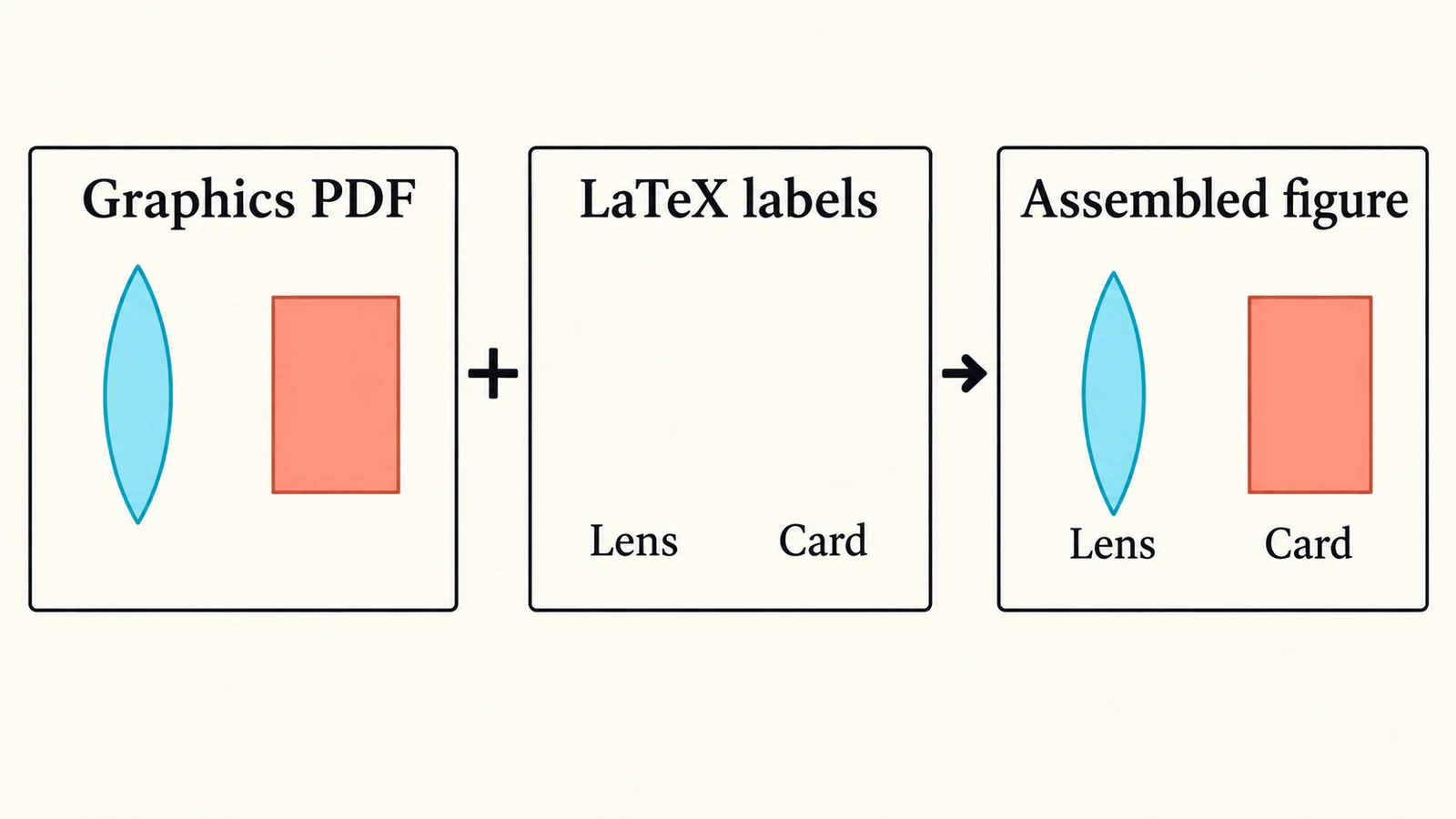
For example, consider a small illustration of a lens beside a card. Its two labels are simply “Lens” and “Card.” There are no dimensions, measured rays, or plotted results in this example.
A reviewer asks you to change “Card” to “Target card.” The artwork need not be redrawn, but the longer label needs room. This is a useful revision test: can you change the words without tracing letter shapes, and does the new label still fit?
Route 1: export a normal PDF
Use this route when the labels already look right and do not need to inherit the document's typography.
Inkscape's PDF export guide describes File → Save a Copy, choosing PDF, and selecting text output options. Keep the original SVG. For ordinary searchable text, review font embedding; outlining letters fixes their shapes but removes their role as editable text.
Save this example as lens-card.pdf beside the main .tex file. In a PDF-producing LaTeX project, the basic inclusion pattern is:
\documentclass{article}
\usepackage{graphicx}
\begin{document}
\includegraphics[width=0.7\linewidth]{lens-card.pdf}
\end{document}
The graphicx package and \includegraphics are the documented image inclusion route in Overleaf's image guide. The width here is a layout example, not a required figure size.
Open the exported PDF before adding it to the document. Confirm that both objects and labels are present. After compilation, inspect the figure again: a label that is readable in a full-page illustration may be too small in a narrow column.
If you change the label in the SVG, export the PDF again. Keep the names unambiguous so the document does not continue using an older delivery copy.
Route 2: export graphics and LaTeX text together
Use this route when the figure labels should be typeset by LaTeX. The PDF plus LaTeX overview explains that the drawing and text are handled separately so figure text can use the document's typography.
In Inkscape's PDF export dialog, choose Omit text in PDF and create LaTeX file, as documented in the export guide. Keep the resulting lens-card.pdf and lens-card.pdf_tex together. Opening the PDF alone will not show the omitted labels.
The svg package's manual, section 2.5, documents \includeinkscape for files already exported by Inkscape. With the pair beside your main .tex file, the inclusion pattern is:
\documentclass{article}
\usepackage{svg}
\begin{document}
\includeinkscape[width=0.7\linewidth]{lens-card.pdf_tex}
\end{document}
This uses the prepared pair rather than asking the document build to export the SVG. Keep both files when moving the project.
For the lens-and-card example, compare the assembled label positions with the illustration master. A wider document font can push “Target card” toward the lens even though the exported geometry has not changed. Leave enough space around labels and test a longer wording before finishing the layout.
If the letters were already converted to paths, they are artwork geometry. Retain or recreate the intended label as real text in the editable master if you want LaTeX to typeset it. The SVG font guide explains how to distinguish live text from outlined letters.
Route 3: let the svg package export during compilation
For repeated illustration edits, the automated route can be convenient:
\documentclass{article}
\usepackage{svg}
\begin{document}
\includesvg[width=0.7\linewidth]{lens-card}
\end{document}
Here the source is lens-card.svg. The package manual requires a working Inkscape executable for automated export and documents shell escape for invoking it. For a trusted local project, a documented invocation is:
pdflatex --shell-escape main.texShell escape permits external commands; use it only for trusted project sources. If your environment does not permit it, prepare the exports outside the build and use one of the preceding routes.
The package's inkscapelatex=true setting separates text for LaTeX rendering and is the default. Set inkscapelatex=false on \includesvg when you want Inkscape's exported text instead. Choose that behavior deliberately before adjusting label sizes.
These are documented inclusion patterns. Test the selected route in a small copy of your own project before applying it to a long document or a shared template.
Diagnose the missing part before changing formats
| What you see | Check first |
|---|---|
| The SVG exists but the generated PDF is missing | Whether the export ran, Inkscape is available, and the output path is correct |
| Artwork appears but labels are absent | Whether you included only the PDF from a PDF/LaTeX pair |
| Labels overlap or use unexpected spacing | The chosen text workflow, document font, and available label space |
| A PDF produces text-like errors | Whether it was passed to \input instead of an image inclusion command |
| The figure has unexpected empty space or clipping | The export area and the artwork's page bounds |
Follow the first relevant compiler error before changing several settings at once. For a missing exported file, inspect that file on disk. For a misplaced label, inspect the assembled figure. Those checks concern different parts of the workflow.
In an Overleaf project, upload the files needed by your chosen route. A prepared PDF or matching export pair avoids requiring SVG export during compilation. Do not assume that a local installation, a self-hosted server, and a hosted project have identical external tools available.
Recover only the illustration that needs recovery
If you already have an editable SVG, use it. If the source is a numerical plot, regenerate the figure from the plotting data and source code. Preserve equations and scientific labels as text; tracing their pixels does not recover their meaning. For a Python-generated figure, follow the Matplotlib plot and SVG artwork composition workflow to keep a separate logo as paths before document export.
Vectorization is useful for a narrower case: the original drawing is missing and you only have a raster copy of a simple illustrative object. Crop a copy to the artwork, keeping labels and data out of the trace. With PerfectVector's scientific illustration vectorizer, preview that artwork as vector shapes and inspect thin outlines, empty openings, and unwanted background regions. Download the SVG, add the original labels separately in your editor, and use the chosen LaTeX delivery route.
For the lens-and-card example, recovery would concern the drawn lens or card outline. The wording belongs in the label source. A vector candidate still needs inspection after PDF export and document inclusion; it supplies no measured geometry or publication-policy approval.
The line-art preparation guide covers raster source cleanup. If the only surviving file is a PDF, the PDF-to-SVG guide helps distinguish existing vector content from a scanned page before you trace anything. For the broader source choice, see what image vectorization recovers.
Check the assembled document, then keep its sources
Run the label-only revision test in a copy. Change “Card” to “Target card,” refresh the export if needed, and compile the document. Check the text for correct spelling and placement at the final figure width. Restore the intended wording afterward. Use the final-size font and line audit to calculate what that placement does to the smallest label and thinnest outline.
Also inspect the drawing's openings, thin lines, and export bounds. Inkscape's PDF export guide explains that filter effects may be rasterized, so a PDF filename alone does not establish that every visible part is vector geometry.
Keep the editable SVG and the files used by the document together. For a PDF/LaTeX pair, deliver both members. Reopen the exact project copy you intend to share and repeat the figure check there.
FAQ
Can I put an SVG directly into includegraphics? For the workflows here, export a supported graphics file such as PDF first, or use the svg package to manage the Inkscape export. The package still includes exported graphics.
Why does my exported PDF have no labels? A PDF plus LaTeX export omits label text from the PDF. Include the matching LaTeX component to assemble the figure, or export a normal PDF if you want one self-contained image file.
Do I need Inkscape during every document build? Automated SVG export needs it in the build environment. A previously exported PDF or PDF/LaTeX pair can be included without running that export during compilation.
Should I trace a screenshot of a graph for LaTeX? Regenerate numerical plots from their data and plotting source. Reserve tracing for suitable illustrative artwork whose editable source is missing, and maintain labels separately.
Sources
- CTAN — SVG package — Automated Inkscape export and separate LaTeX-rendered text.
- Inkscape — Exporting a PDF File — PDF copies, text output choices, filter effects, and export area.
- Overleaf — LaTeX code for including images — The graphicx package and graphics inclusion commands.
- CTAN — SVG and Inkscape workflow overview — The PDF plus LaTeX approach to document typography.
- Falk Hanisch and Philip Ilten — The svg package manual — Pre-exported inclusion, automatic export requirements, and text-rendering options.
Choose how the labels will be typeset, then verify one complete figure in your document. If only a raster illustration remains, prepare a vector artwork candidate, inspect its shapes, restore the labels separately, and check the assembled PDF.
More from the blog

SVG in Typst: Place Artwork and Check the Figure
Place an SVG in Typst with native image and figure functions. Check sizing, captions, inline alignment, and the exported PDF before delivering your document.

SVG Scatter Markers in Matplotlib: Check the Path
Use a simple SVG path as a Matplotlib scatter marker. Reproduce centering, orientation, holes, and size checks in actual SVG and PDF exports.