SVG in Typst: Place Artwork and Check the Figure
Place an SVG in Typst with native image and figure functions. Check sizing, captions, inline alignment, and the exported PDF before delivering your document.
On this page
- Keep artwork and document text separate
- Place the SVG in a native figure
- Set a size that preserves the whole drawing
- Treat the inline version as a separate design check
- Check lettering independently from captions
- Export and inspect the actual document
- When the illustrative source exists only as pixels
- FAQ
- Sources
To include an SVG in Typst, pass its file path to image. Wrap it in figure when it needs a caption and number, or in box when it belongs inside a sentence. SVG is a supported input format; you do not need to convert a simple SVG to PDF just to place it. The official image reference documents these options.
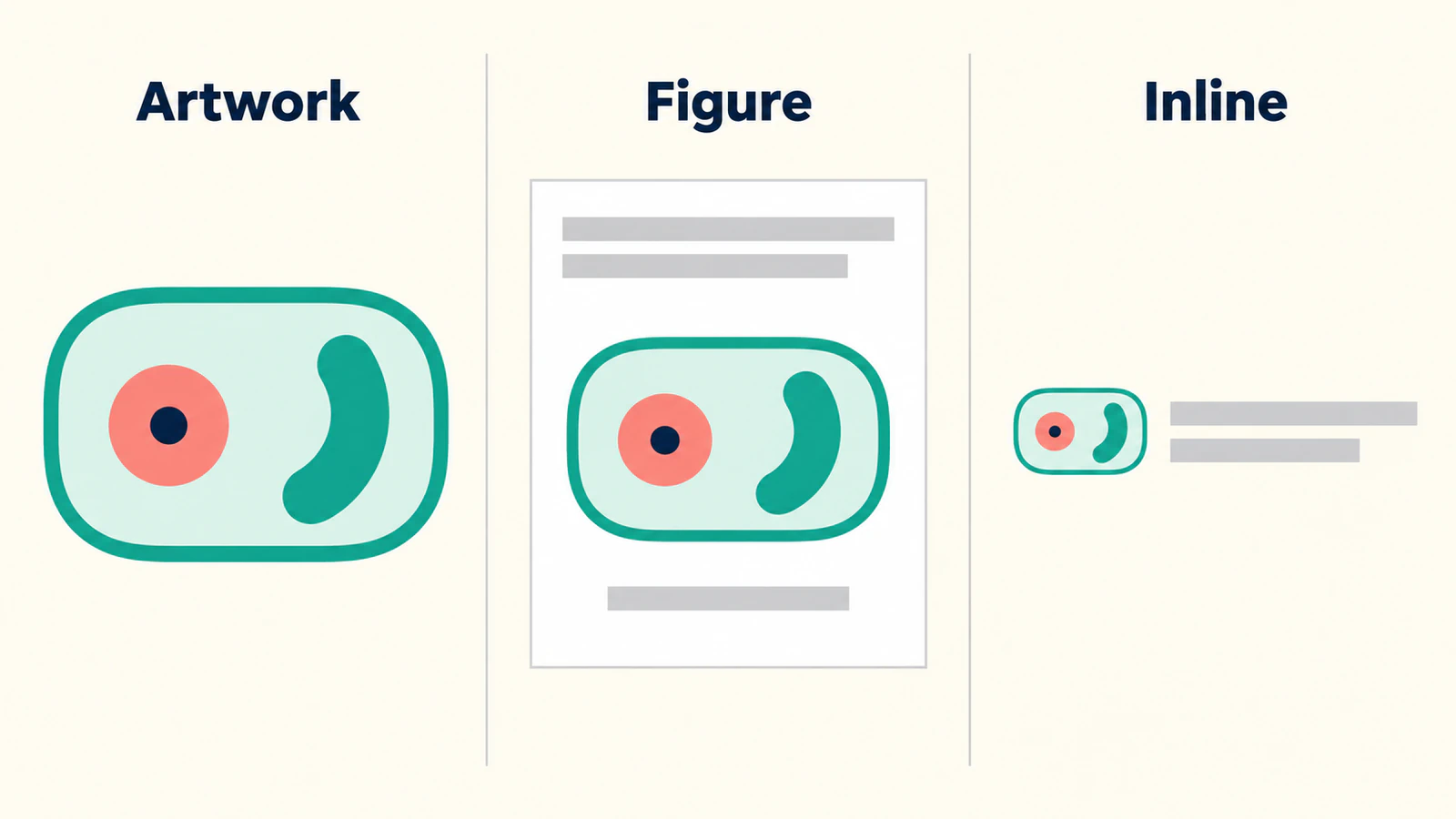
The useful check comes after it appears: is the artwork complete, is the caption native document text, and does the small version still communicate its shape? This walkthrough uses an original cell-like motif to separate those questions. It is an illustration, not a biological model or measured specimen.
Keep artwork and document text separate
Start with a text-free SVG and a short Typst file in the same folder. That removes one source of confusion: a change to document typography cannot be mistaken for a change to lettering baked into the artwork.
Save this motif as cell.svg:
<svg xmlns="http://www.w3.org/2000/svg" viewBox="0 0 240 160">
  <rect x="20" y="20" width="200" height="120" rx="40"
    fill="#e5f5ed" stroke="#197c70" stroke-width="6"/>
  <circle cx="100" cy="80" r="27" fill="#e89173"/>
  <circle cx="100" cy="80" r="9" fill="#263b60"/>
  <path d="M150 52C172 42 193 62 178 76C164 91 146 72 150 52Z"
    fill="#197c70"/>
</svg>
The file has a rounded outer boundary, a coral circle with a dark center, and one separate green shape. Those are the features to compare after placement. There are no axis values, labels, scale bars, or embedded photographs to reconstruct.
For an existing scientific illustration, keep an editable master and a delivery copy. If the master is a numerical plot, regenerate its export from the plotting tool and source data. Do not trace the plotted pixels to recover research values. For a simple sketch that needs shape cleanup, the line-art preparation guide covers that earlier task.
Place the SVG in a native figure
Save this as main.typ beside the SVG:
#set page(paper: "a5", margin: 18mm)
#set text(size: 11pt)

= A schematic cell

The drawing in @fig-cell is an illustrative motif, not a measured specimen.

#figure(
  image(
    "cell.svg",
    width: 70%,
    alt: "Rounded cell outline with a circular center and a separate curved interior shape.",
  ),
  caption: [A simplified cell motif, not drawn to scale.],
) <fig-cell>

Inline marker: #box(
  baseline: 20%,
  image("cell.svg", height: 1em, alt: "Cell motif"),
) next to the word cell.
The figure groups the image with its caption. The <fig-cell> label names that figure, and @fig-cell refers to it from the paragraph. Keep that identifier unique within your document. Typst's figure documentation explains captions and numbering; the reference documentation explains label-based references.
This arrangement lets you revise the caption without reopening the illustration. It also avoids typing a figure number into the SVG and then discovering that the document has renumbered its figures.
The image's alt describes its visible content. For this single-image figure, put that description on the image, as the image documentation recommends. The caption has a different job: it tells the reader how to interpret the motif. Neither field makes an incomplete scientific explanation complete; write the description appropriate to the actual illustration.
Set a size that preserves the whole drawing
The main example sets one dimension, width: 70%. Begin with a width that fits the surrounding text area, then inspect the result inside your actual template. A narrow column and a full page give the same artwork different amounts of space.
If you must specify both width and height, make the fit behavior explicit. Typst defines three choices in its image fit reference: contain keeps the whole image without changing its aspect ratio, cover fills the area by cropping, and stretch changes the proportions to fill it.
For this motif, an 8 cm by 3 cm area is deliberately wider than the original canvas. This comparison makes the choice visible:
#set page(paper: "a5", margin: 18mm)

= Fixed-area comparison

Contain:
#image("cell.svg", width: 8cm, height: 3cm, fit: "contain")

Cover:
#image("cell.svg", width: 8cm, height: 3cm, fit: "cover")

Stretch:
#image("cell.svg", width: 8cm, height: 3cm, fit: "stretch")
Use the rounded boundary and central circle as visual checks. A cut boundary tells you something was cropped. An oval where the source had a circle tells you the proportions changed. Extra room around a complete drawing may be acceptable; missing artwork usually needs a deliberate editorial decision.
Do not compensate for a poor source canvas by repeatedly changing page dimensions. If the SVG has excessive empty space, correct its canvas in the master first, then replace the delivery copy and repeat the placement check.
Treat the inline version as a separate design check
The last line of main.typ places the motif beside words. Its 1em height follows the surrounding text size. The box's baseline: 20% is a starting adjustment for this example, not a universal icon-alignment value. Typst's box reference explains how the baseline controls alignment with nearby text.
Inspect the marker at normal reading size. The large illustration's dark central dot may be clear, while the same detail is barely visible inline. That is a reason to simplify the marker deliberately or choose a different symbol, rather than enlarge every paragraph to accommodate it.
Check a real sentence with ascenders and descenders, such as the words “cell biology,” and then a wrapped line. Look for an icon that appears to float, sinks below the text, or makes the line spacing look uneven. Keep any optical adjustment local to the marker component so that ordinary document text is unaffected.
Check lettering independently from captions
Our source SVG contains no text. If yours does, first establish whether its letters are live text or outlined shapes. The SVG font-change guide provides that inspection workflow.
Typst's text settings control the document text you author in Typst. Do not assume a body-font choice also rewrites the internals of an imported image. Check a label with unusual glyphs, a subscript, or a long word in the delivered file, especially when another machine will compile it.
If lettering must remain editable as document content, author that content in Typst or retain a suitable source workflow. Outlining lettering can preserve a drawn shape, but it is a different deliverable from searchable text. Test the property you need instead of judging it only by appearance.
Export and inspect the actual document
Including an SVG and exporting a whole Typst document as SVG are different operations. Typst's SVG export documentation says document text is exported as glyph shapes, which prevents ordinary text extraction from that SVG. Choose the output format for the document's purpose; the PDF documentation describes Typst's PDF export and standards options.
For the local command-line workflow, compile from the example folder with typst compile main.typ main.pdf. Open that PDF in the viewer your recipient is likely to use.
We compiled these original examples with Typst 0.15.1 and inspected the PDFs: the figure reference and caption matched, the inline marker appeared beside the text, and the three fit modes showed the expected proportional, cropped, and stretched results. Test the exported file after changes to the source or document template.
Before handoff, check:
- The outer boundary and each separate interior shape are present.
- The central circle stays circular at the chosen figure size.
- The caption and cross-reference show the intended figure number.
- The inline marker is legible beside ordinary text.
- Important document text can be selected or searched as required.
- The exported document still behaves correctly in the destination viewer and template.
A crisp preview does not establish journal compliance, accessibility conformance, or preservation of every SVG feature. If the source is already a PDF, consider its intended destination before adding another conversion; the PDF-to-SVG guide explains when extracting artwork is useful. If an SVG looks pixelated, inspect for an embedded raster image rather than changing its extension again.
When the illustrative source exists only as pixels
If a simple illustrative motif survives only as a PNG or scan, PerfectVector's scientific diagram to SVG workflow can help recover an editable artwork candidate. Crop to the motif, inspect the preview for lost openings and extra background shapes, and compare the result with the source. Then place the accepted SVG in Typst and repeat the figure-size and inline checks.
Use that route for illustrative geometry. Keep measurements, numerical plots, scale bars, and scientific interpretation tied to their original data and authoring tools. A vectorizer does not restore missing research information or supply submission approval. If the original vector exists, use it directly.
The blog's SVG preparation guides cover the source-file checks that come before document layout.
FAQ
Does Typst accept SVG images directly? Yes. Use image with the SVG file path. Add a figure wrapper for a numbered caption, or a box wrapper for inline placement.
Why is part of my SVG cropped? Check whether you supplied both width and height with a mismatched aspect ratio. The cover fit mode crops to fill the area. Try contain when the whole drawing must remain visible, then inspect the source canvas too.
How do I align an SVG with text in Typst? Place the image inside a box, choose an image height appropriate to the surrounding text, and adjust the box baseline. Inspect the actual line; one percentage is not suitable for every icon and font.
Will an SVG export preserve selectable document text? Typst's SVG output represents text as glyph shapes. Use a suitable document output such as PDF when text extraction matters, and verify the exported result rather than assuming visual sharpness proves text behavior.
Sources
- Typst — Image — SVG input, dimensions, fit modes, and image descriptions.
- Typst — Figure — caption and numbering behavior.
- Typst — Reference — labels and automatic references.
- Typst — Box — inline placement and baseline adjustment.
- Typst — Text — settings for native document text.
- Typst — SVG — SVG output and glyph-shape text.
- Typst — PDF — the document export route and output-standard options.
Start with one figure and one inline instance. If a lost illustrative source needs recovery, prepare an SVG candidate, compare its shapes, and check the accepted artwork in the document before preparing the rest of the set.
More from the blog

SVG in LaTeX: Keep Shapes and Typeset Figure Labels
Choose a PDF or PDF plus LaTeX workflow for your SVG illustration. Keep labels editable, understand Inkscape dependencies, and check the final document PDF.

SVG Edge Detection: A feConvolveMatrix Preview
Build an SVG feConvolveMatrix edge preview, diagnose alpha and border artifacts, compare a sharpening kernel, and check whether the source contains real paths.