SVG Edge Detection: A feConvolveMatrix Preview
Build an SVG feConvolveMatrix edge preview, diagnose alpha and border artifacts, compare a sharpening kernel, and check whether the source contains real paths.
On this page
SVG feConvolveMatrix edge detection changes the rendered pixels around color boundaries. It can produce an edge preview from a PNG inside an SVG, but it does not create editable path contours. Keep that distinction clear when the next job is editing a logo, preparing line art, or building web artwork.
A useful first test is a small grayscale image with a known shape. Apply a symmetric edge kernel, preserve its alpha, and compare it with the unchanged source. Then inspect the SVG elements. A sharper-looking boundary does not establish that the image has become vector geometry.
Start with a controlled edge preview
The feConvolveMatrix reference describes convolution as a calculation involving an input pixel and its neighbors. This 3 × 3 kernel subtracts the eight neighbors from eight times the center:
-1 -1 -1
-1  8 -1
-1 -1 -1
Its coefficients sum to zero. In a uniform area, the response is zero; at a change in brightness, it can be positive or negative. With bias="0", negative results are clipped at the lower color limit. The preview therefore does not show both sides of every boundary equally.
The example uses explicit divisor="1". The divisor reference documents normalization by that value and the default of 1 for a zero-sum kernel. It also sets color-interpolation-filters="sRGB" so the example uses sRGB channel values rather than the primitive's default linearRGB processing.
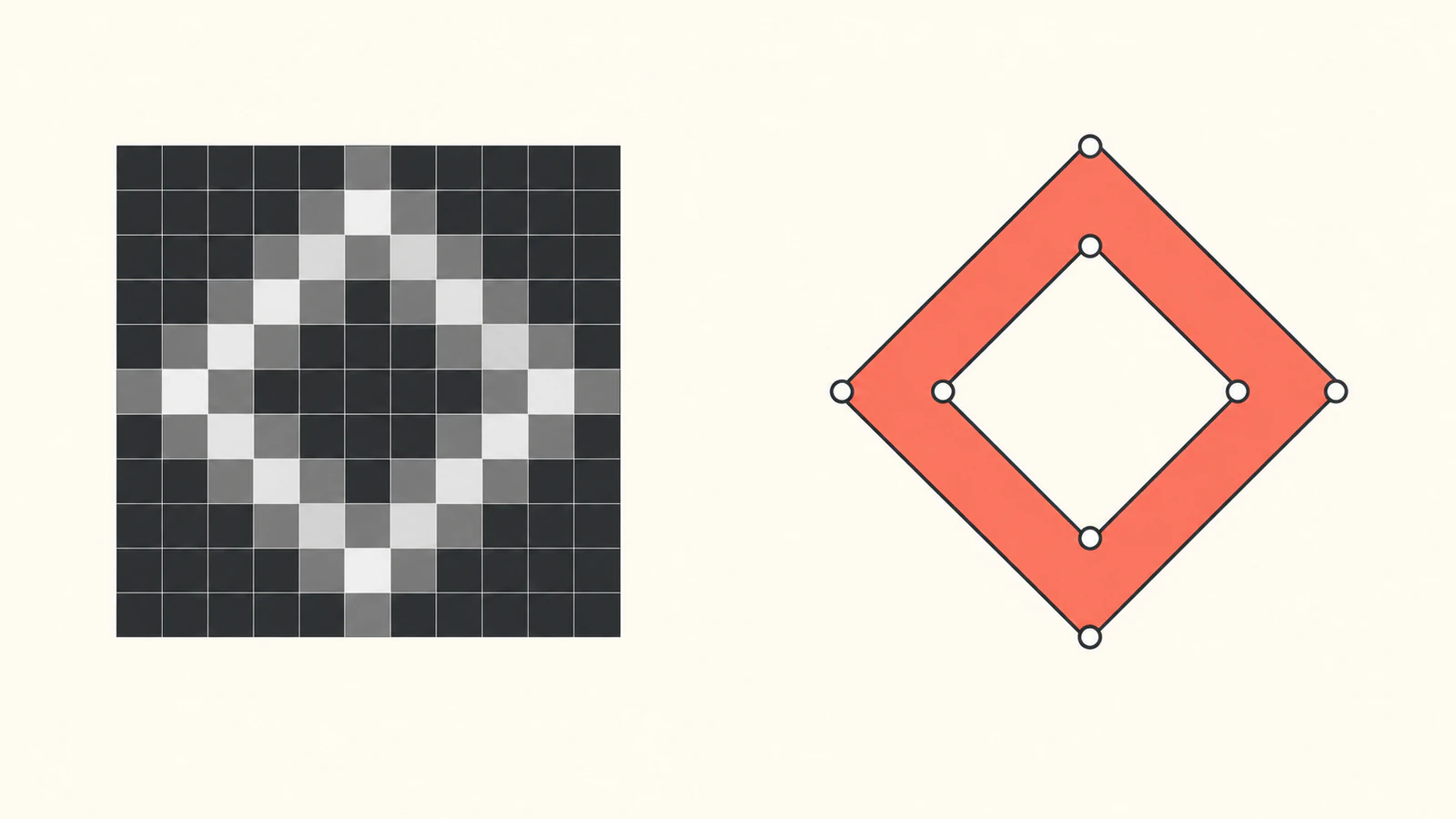
Save this complete, self-contained file as edge-preview.svg and open it in a browser. Its embedded PNG is an original 48 × 48 grayscale diamond on opaque white paper. The center is white, not transparent.
<svg xmlns="http://www.w3.org/2000/svg" width="48" height="48" viewBox="0 0 48 48">
  <defs>
    <filter id="effect" filterUnits="userSpaceOnUse" x="0" y="0" width="48" height="48" color-interpolation-filters="sRGB">
      <feConvolveMatrix in="SourceGraphic" order="3" kernelMatrix="-1 -1 -1 -1 8 -1 -1 -1 -1" divisor="1" bias="0" targetX="1" targetY="1" edgeMode="duplicate" preserveAlpha="true"/>
    </filter>
  </defs>
  <image width="48" height="48" href="data:image/png;base64,iVBORw0KGgoAAAANSUhEUgAAADAAAAAwCAYAAABXAvmHAAABOklEQVR4nNWZQQ7EIAwDU7+seTlPo1ppTyvRhcQGxYeeGuNpEZT06r13KyxYccGKC1ZcsOKCFRfUA7h7XQD/hldCQGX8G1oFAYXpKKwCAmzDfyHZEGCazYZjQoBltBqKBQGGSTSMEyDSANkQnqxPAbCmgSd8wgDs1cSDflAP1lqT+IYBIuGVENj15FUQUJiOwiogwDSbCcmGAMNkNRwTApniaKjV+/0lB06Ej9T5IA9Ord+rdW2Q53UKKSFYbxiZ4mgo5vQEw0R1ImsT405vZAwIxcKAacckhGpVw/SdAfNIX6gtLslX9P+AokXSAvtJ+EAT3bzYfjgxKNMHJwdn1FPaKju+heSNLeXX6LbWouI8sL25yzyRHWuvM87Ex39wZLoSS+pi3fct9b8+FyssWHHBigtWXDgdIKsHsU1cbk4FPAgAAAAASUVORK5CYII=" filter="url(#effect)"/>
</svg>
The filter definition only takes effect because the image references it with filter="url(#effect)". The SVG filter reference explains that the definition itself is not drawn. The explicit region covers this 48 × 48 source; other artwork needs its own region check.
What changed in the browser test
We inspected six original specimens in Chrome at 48 and 192 CSS pixels. Five files contain one embedded PNG image and no paths. The sixth is an independently hand-authored vector counterpart. It is a geometry control, not the result of applying the filter or tracing the PNG.
| Specimen | Observed appearance | Readback at a uniform sample |
|---|---|---|
| Original PNG in SVG | Gray diamond with white center and paper | Solid gray: RGBA 64, 64, 64, 255 |
| Edge kernel, preserved alpha | Black field with edge response; outline faint at the larger display | Center and corner: RGBA 0, 0, 0, 255 |
| Edge kernel, alpha also filtered | Transparent result in this fixture | Center, corner, and solid sample: RGBA 0, 0, 0, 0 |
| Sharpening control | Filled diamond retained, with changed boundary pixels | Solid gray remained RGBA 64, 64, 64, 255 |
| Edge kernel, zero-valued border | Bright outer frame appeared | Corner: RGBA 255, 255, 255, 255 |
| Hand-authored path control | Clean geometric diamond and inner opening over white paper | One path element, no image elements |
The RGBA samples came from a 48 × 48 Canvas readback of each rendered SVG. The displayed specimens were checked separately at both sizes. These are observations for this source and browser, not a compatibility or readability guarantee. Enlarging the raster-based preview did not recover a cleaner contour.
Fix a disappearing result without erasing the paper
preserveAlpha defaults to false. With that setting, the kernel also processes alpha. Our opaque input has alpha 1 everywhere, so the zero-sum edge kernel cancels its uniform alpha along with uniform color. The result disappeared in the inspected fixture.
Setting preserveAlpha="true" retains the source alpha while processing color. The preserveAlpha reference documents that distinction. For this test it restores an opaque edge preview. It also keeps the opaque paper and white center opaque, even though their filtered color becomes black. Preserving alpha does not remove a background or find holes in a logo.
If the preview is mostly black, first compare a known uniform area with a known boundary. Black can be a valid zero response. To inspect signed brightness changes around a middle tone, try bias="0.5"; the bias reference explains the offset added after division. That changes the display range, not the SVG's geometry.
Check borders separately from the artwork
Keep edgeMode="duplicate" for the initial comparison. It extends the edge pixel values when neighboring samples fall outside the input. none uses zero-valued RGBA samples; wrap takes samples from the opposite edge. These are distinct rules in the edgeMode reference.
In our opaque white card, changing only duplicate to none produced a bright frame at the outside of the card. That boundary belongs to the image rectangle, not the diamond. Compare the unfiltered file before treating a frame as an artwork contour.
The Filter Effects specification defines the kernel target and sampling behavior. Here targetX="1" and targetY="1" center the 3 × 3 kernel. This starter leaves kernelUnitLength unset. Do not assume a neighbor sample always spans one SVG user unit at every display size; inspect the delivered rendering.
Use sharpening as a control, not blur recovery
To retain the filled artwork while emphasizing local changes, replace only kernelMatrix with:
0 -1  0
-1 5 -1
0 -1  0
The sum is 1. A uniform channel value c returns 5c - 4c = c with divisor 1 and bias 0. In our fixture the solid gray sample stayed at 64, while boundary pixels changed. Keep preserveAlpha="true" and edgeMode="duplicate" for this comparison.
Sharpening can emphasize noise and halos along with useful boundaries. It does not recover the source detail lost before the image reached the filter. If an enlarged preview looks poor, return to the original image rather than treating a stronger kernel as a replacement for source resolution.
Inspect the file before calling it a vector trace
The published starter contains an <image> whose href begins with data:image/png. The image element reference describes raster and SVG resources that this element can display. Here the media type identifies the embedded raster; the edge filter leaves that element in place.
For comparison, the independently authored master uses this compound path over a white rectangle:
<svg xmlns="http://www.w3.org/2000/svg" width="48" height="48" viewBox="0 0 48 48">
  <rect width="48" height="48" fill="white"/>
  <path d="M24 6 L42 24 L24 42 L6 24 Z M24 17 L31 24 L24 31 L17 24 Z"
        fill="#404040" fill-rule="evenodd"/>
</svg>
Those coordinates were written separately. They are not recovered from the filtered image, and the pixel drawing and geometric control need not match at every boundary sample. The embedded-raster inspection guide explains how to check a mixed SVG without relying on zoom alone.
For web artwork, keep the unfiltered SVG master and use a filtered display copy when the effect serves the design. For editing or production paths, inspect actual source contours and the inner opening. The line-art-to-SVG guide covers that geometry task.
PerfectVector fits when your starting artwork is a flat PNG or JPG and you need editable source shapes. Convert the original image to SVG, inspect the contour and inner opening, and keep the clean result as the master. A successful edge preview does not replace that check. The vectorization guide explains how reconstructing paths differs from applying an image effect.
FAQ
Does SVG feConvolveMatrix edge detection create vector paths? No. It computes a rendered pixel effect. The embedded PNG in this example remains an image element; editable contours require separately drawn or traced geometry.
Why does my edge filter make the artwork disappear? Check preserveAlpha. Its default false setting also filters alpha. In this opaque fixture, the zero-sum kernel made the inspected result transparent. Preserving alpha restored an opaque preview.
Does preserveAlpha remove the white background? No. It keeps source alpha. An opaque white background remains opaque even when its filtered color becomes black. Background removal and path reconstruction are separate tasks.
Why does an edge filter draw a frame around the image? Inspect edgeMode and the input rectangle. Using zero-valued samples outside our opaque white card created a bright outer border. Duplicate edge handling avoided that border in this fixture.
Sources
- MDN: feConvolveMatrix — pixel-neighborhood convolution and default color processing.
- MDN: divisor — normalization and the zero-sum default.
- MDN: filter — defining and applying a filter effect.
- MDN: preserveAlpha — color-only versus alpha-inclusive processing.
- MDN: bias — shifting the response after division.
- MDN: edgeMode — duplicate, wrap, and zero border handling.
- W3C: Filter Effects, feConvolveMatrix — target and sampling rules.
- MDN: image — referenced raster and SVG image content.
More from the blog

MapLibre SVG Icons: Check Pixels and Symbol Size
Decode custom SVG artwork for a MapLibre symbol layer, control image density and icon size, and keep an editable master. Verify the displayed shape and opening.

Satori SVG Logos: Keep Artwork in a Branded Card
Embed an SVG logo in a Satori card with explicit dimensions and self-contained image data. Inspect the nested artwork, then render a separate PNG delivery file.