MapLibre SVG Icons: Check Pixels and Symbol Size
Decode custom SVG artwork for a MapLibre symbol layer, control image density and icon size, and keep an editable master. Verify the displayed shape and opening.
On this page
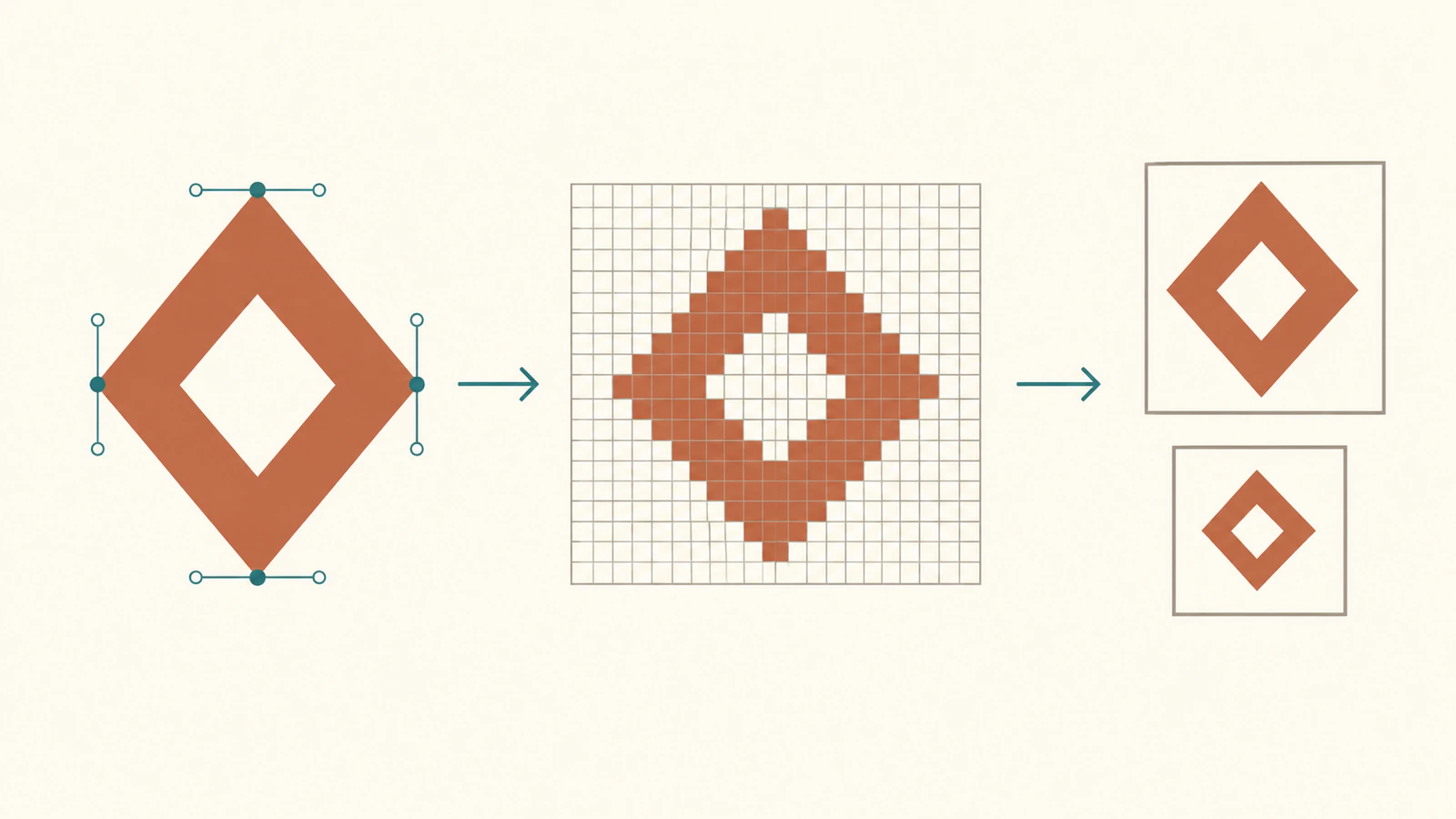
To use an SVG icon image in MapLibre GL JS, decode the SVG with a browser Image, pass that image to addImage, and reference its ID in a symbol layer's icon-image. Keep the source SVG separately: the registered style image supplies pixels for rendering, rather than editable SVG path objects.
The current official SVG symbol example demonstrates this decoding route. A blanket claim that MapLibre cannot display SVG artwork would miss it. Our example pins 6.12.0 and tests an original hollow emblem in a blank, token-free map.
Keep the source and the registered image separate
The retained source contains one compound diamond path with an inner opening. Its viewBox stays 0 0 64 64. We produce two copies with explicit width and height of 64 or 128; the path data stays identical.
Browser decoding turns each copy into an image at its declared dimensions. MapLibre's addImage API accepts image objects such as HTMLImageElement and ImageData. It does not accept an SVG path as a symbol geometry instruction.
That distinction matters when you change a color or contour. Edit the SVG master, decode the revised image, and update your map's image through the appropriate API. Inspecting the registered pixels will not recover the original path construction. Our embedded-raster SVG guide explains the broader difference between an SVG container and editable geometry.
Choose image density and icon size together
Two settings affect our symbol's nominal image frame. The image's pixelRatio describes its density; the layer's icon-size scales the resulting icon. See the current style-image metadata and symbol layout specification.
For our centered, unrotated symbol without text fitting, the nominal frame is:
logical width = decoded width / image pixelRatio * icon-size
logical height = decoded height / image pixelRatio * icon-size
A 128×128 image registered at ratio 2 gives the same 64×64 nominal frame as a 64×64 image at ratio 1 when icon-size is 1. Changing the first ratio to 1 doubles its frame. Increasing icon-size to 1.5 makes a 64×64 logical image frame 96×96.
This frame includes source whitespace. If the emblem looks too small inside it, inspect the SVG bounds before increasing every symbol's size. A larger decoded image with the same ratio also makes the symbol larger; input dimensions alone are not a density strategy.
The map canvas has its own pixel ratio. It is separate from the ratio passed to addImage. Our measurement fixture explicitly sets the canvas ratio to 1 using the documented Map options; the browser's device pixel ratio was 2. This isolates the following comparisons instead of treating a screenshot's device pixels as CSS dimensions.
Compare the actual painted footprint
We rendered five symbol cases in Chrome with WebGL 2. Each map had one point, the same light background, no tiles, and no token. Both SVG sources had one identical path and no embedded image.
To measure the terracotta artwork, our readback scanned the actual WebGL pixels for red-dominant color: red greater than 1.35 times green and 1.6 times blue. We divided the detected bounding-box dimensions by the canvas's backing-to-CSS ratio. This measures a thresholded painted region, not the entire image frame.
| Decoded image | Image ratio | icon-size | Nominal frame | Observed painted bounds |
|---|---|---|---|---|
| 64×64 | 1 | 1 | 64×64 | 62×62 CSS px |
| 128×128 | 1 | 1 | 128×128 | 126×126 CSS px |
| 128×128 | 2 | 1 | 64×64 | 62×62 CSS px |
| 64×64 | 1 | 1.5 | 96×96 | 94×94 CSS px |
| 128×128 | 2 | 1.5 | 96×96 | 94×94 CSS px |
The edge pixels do not all pass that color threshold, which explains why the measured painted bounds are smaller than the nominal frames. The pairs show the intended size relationship in this fixture; they do not prove identical pixel quality at every density or zoom.
The registered image's center alpha was zero in every case. In the rendered map, that location showed the background color (244, 242, 232) with alpha 255, because the background layer itself was opaque. Seeing opaque map pixels through the opening does not mean the icon has lost its transparency.
These are bounded observations of our source, browser, canvas settings, and threshold. Test your delivered artwork at its intended display sizes, especially when it contains thin strokes or small openings.
Copy a token-free symbol starter
Save this complete HTML and serve it from a local web server. Internet access is required for the pinned library and CSS; the map uses no tile service or API key. The SVG is embedded as text and encoded into a data URL.
The example awaits image.decode(), so registration follows successful decoding. It registers the known image after the style loads; it does not need the official example's missing-image resolver for this single fixed emblem.
<!doctype html>
<html lang="en">
<meta charset="utf-8">
<title>MapLibre decoded SVG symbol</title>
<link rel="stylesheet"
      href="https://unpkg.com/maplibre-gl@6.12.0/dist/maplibre-gl.css">
<style>#map { width: 360px; height: 280px; }</style>
<div id="map"></div>
<pre id="status">Loading…</pre>
<script type="module">
import * as ml from
  'https://unpkg.com/maplibre-gl@6.12.0/dist/maplibre-gl.mjs';
const svg = `<svg xmlns="http://www.w3.org/2000/svg" width="128" height="128" viewBox="0 0 64 64"><path fill="#c45b39" fill-rule="evenodd" d="M32 0 L64 32 L32 64 L0 32 Z M32 16 L16 32 L32 48 L48 32 Z"/></svg>`;
const image = new Image();
image.src = 'data:image/svg+xml;charset=utf-8,' + encodeURIComponent(svg);
try {
  await image.decode();
  const ratio = 2;
  const iconSize = 1;
  const map = new ml.Map({
    container: 'map', center: [0, 0], zoom: 2, interactive: false,
    attributionControl: false, fadeDuration: 0,
    style: { version: 8, sources: {}, layers: [{
      id: 'background', type: 'background',
      paint: { 'background-color': '#f4f2e8' }
    }] }
  });
  map.on('error', e => {
    document.querySelector('#status').textContent = e.error.message;
  });
  await map.once('load');
  map.addImage('emblem', image, { pixelRatio: ratio });
  map.addSource('point', { type: 'geojson', data: {
    type: 'Feature', geometry: { type: 'Point', coordinates: [0, 0] },
    properties: {}
  } });
  map.addLayer({ id: 'emblem', type: 'symbol', source: 'point', layout: {
    'icon-image': 'emblem', 'icon-size': iconSize, 'icon-overlap': 'always'
  } });
  await map.once('idle');
  const registered = map.getImage('emblem');
  document.querySelector('#status').textContent = JSON.stringify({
    version: ml.getVersion(),
    decoded: [image.naturalWidth, image.naturalHeight],
    registered: [registered.data.width, registered.data.height],
    imagePixelRatio: registered.pixelRatio,
    logicalFrame: [image.naturalWidth / ratio * iconSize,
                   image.naturalHeight / ratio * iconSize]
  }, null, 2);
} catch (error) {
  document.querySelector('#status').textContent = String(error);
}
</script>
</html>
The status should show decoded and registered dimensions of [128, 128], image ratio 2, and logical frame [64, 64]. This status reports the nominal frame, not a measured painted bounding box. Change iconSize to 1.5 for a 96×96 frame. To compare the low-density input, change the SVG's width and height to 64 and ratio to 1 while retaining the same path and viewBox.
Keep icon-image equal to the registered ID. If an icon does not appear, confirm successful decoding and registration, then inspect the source, layer, visibility, and placement settings. Our single-point example uses icon-overlap: 'always' to make this comparison independent of collisions with other symbols. Your production style may need different collision behavior.
Use a DOM marker when that is the delivery model
MapLibre also documents custom icons with DOM Markers. That route wraps an HTML element instead of registering a style image. Choose it when the element-based marker workflow fits the application, then inspect its browser styling and placement separately.
Do not transfer claims from Mapbox Studio's vector-icon features or a MapTiler SDK example to this MapLibre style-image pipeline. An ordinary full-color SVG image also does not become a signed distance field merely by changing the sdf flag. Density settings control how this image is interpreted and displayed; they do not turn its pixels into editable contours.
If a destination needs a PNG file, our Sharp SVG rendering guide covers preparing a raster delivery copy. Keep the ordinary SVG master for edits; inline SVG and image delivery have different interaction models too.
If your icon exists only as a PNG or JPG and you need editable artwork, recover SVG contours with PerfectVector, inspect the outer shape and opening, and keep that master before decoding your map image. The map code still controls density, symbol size, and geographic position. A clean existing SVG can go directly through the decoding workflow; the vectorization guide explains when a raster conversion is useful.
FAQ
Can MapLibre GL JS display SVG artwork as a symbol? Yes. Its current official example decodes SVG text with a browser Image and registers that image for a symbol layer. Keep the original SVG separate from the registered image.
Why did a larger input make my icon larger? Increasing decoded dimensions while retaining the same image pixel ratio and icon-size increases the nominal frame. Pair image density and display scaling deliberately.
Does pixelRatio preserve editable SVG paths in the symbol? No. It describes image density. Retain and edit the source SVG, then decode the revised artwork for the map.
Why is the map pixel inside my icon's hole opaque? An opaque background layer can show through a transparent icon opening. Inspect the registered image's alpha separately from the fully composited map canvas.
Sources
- MapLibre — Display a remote SVG symbol — The current SVG-text, browser-image, and addImage route.
- MapLibre — Map API — Accepted image objects and runtime image registration.
- MapLibre — StyleImageMetadata — Image density and SDF interpretation metadata.
- MapLibre — Symbol layout specification — Icon scaling and collision behavior.
- MapLibre — MapOptions — Canvas options used to control the measurement fixture.
- MDN — HTMLImageElement.decode — Waiting for browser image decoding and handling failures.
- MapLibre — Add custom icons with Markers — The separate HTML-element marker workflow.
More from the blog

Satori SVG Logos: Keep Artwork in a Branded Card
Embed an SVG logo in a Satori card with explicit dimensions and self-contained image data. Inspect the nested artwork, then render a separate PNG delivery file.

SVG to Canvas: Load the Artwork Before Exporting PNG
Load a whole SVG through Image.decode, draw it at a chosen bitmap size, test CORS and PNG readback, and keep the editable source separate from exported pixels.