
Sharp SVG to PNG: Size, Density, and Crisp Exports
Render SVGs to transparent PNGs at the final pixel size with Sharp. See a reproducible 1x and 2x test, when input density matters, and why upscaling a PNG fails.
On this page
For a current Sharp pipeline, start from the SVG on every export and call resize() with the pixel width you actually need. If you need a 2x asset, request twice as many output pixels. Do not make a small PNG first and enlarge that file. Also, do not copy an old density fix into every pipeline: our Sharp 0.34.4 test rendered the same pixels with and without a higher input density.
The short answer
- Keep the original SVG as the master.
- Render each PNG size directly from that SVG with Sharp.
- Inspect the output dimensions and alpha channel, then view the file at its intended display size.
- Change the SVG or investigate the renderer if the result still differs from the source. A density setting cannot create detail inside an embedded bitmap.
Render a 1x and 2x PNG from the SVG
The Sharp constructor accepts an SVG file or buffer, and its resize API sets the output dimensions. For a square 64-unit icon that will appear at 256 CSS pixels, export a 256-pixel PNG for 1x use and a 512-pixel PNG for a 2x use case:
import sharp from "sharp";

const source = "icon.svg";

await Promise.all([
  sharp(source).resize({ width: 256 }).png().toFile("icon-1x.png"),
  sharp(source).resize({ width: 512 }).png().toFile("icon-2x.png"),
]);
Omitting height preserves the source aspect ratio under Sharp's usual resize behavior. Choose actual output widths for your destination; “2x” refers to pixel dimensions relative to the intended CSS display size, not an SVG attribute or a promise about every screen. If you want to see the icon at 256 CSS pixels, compare the 256- and 512-pixel PNGs at that displayed size and decide whether the larger file earns its weight.
Our original test icon declared width="64" height="64" viewBox="0 0 64 64". We rendered it to 64, 512, and 1,024 pixels with the repository's pinned Sharp 0.34.4. The 512- and 1,024-pixel outputs were generated from the SVG, had transparent corners and opaque painted centers, and reported the requested dimensions. Those are observations for this fixture and version, not a benchmark of all SVG artwork.
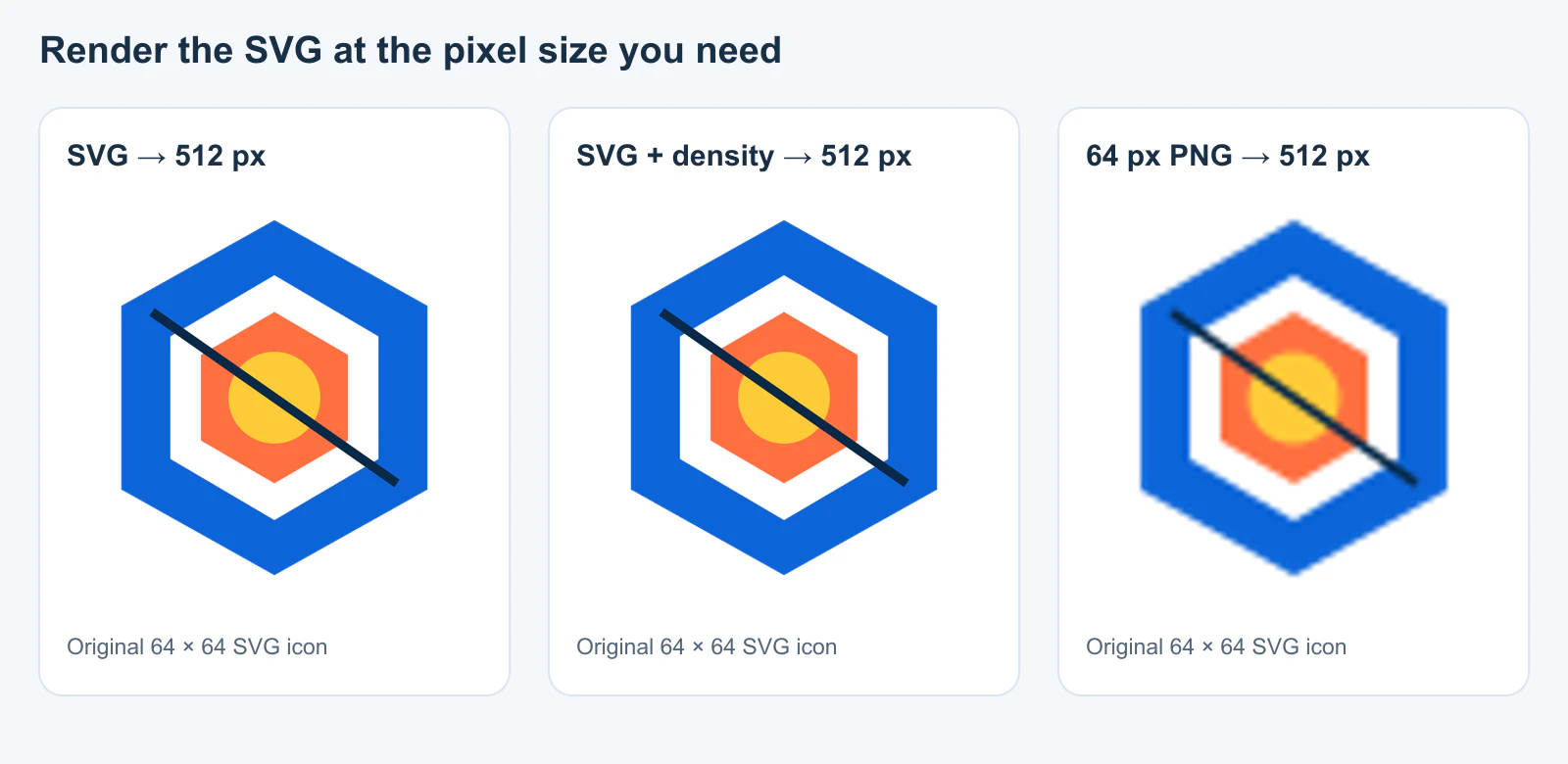
The figure makes the failure mode concrete: once the first output is a 64-pixel PNG, a later resize interpolates those pixels. It no longer has paths to redraw. Our direct and density-adjusted 512-pixel results were identical across the raw RGBA channels in this test. The source SVG, render script, and result metadata are retained with the article's research packet.
Do you need density in Sharp?
Sharp's density constructor option controls the DPI used when reading SVG or PDF input; its documented default is 72. It is distinct from asking for a final width in resize(). You may encounter older Sharp examples that raise input density to avoid soft enlargement. Those examples describe a real historical symptom: Sharp issue #1421 reports a 32-pixel SVG becoming pixelated when enlarged to 512 pixels in 2018. They are not proof that the workaround is still needed for a current installation.
We tested this exact pair on Sharp 0.34.4:
const direct = await sharp("icon.svg")
  .resize({ width: 512 })
  .png()
  .toBuffer();

const densityFirst = await sharp("icon.svg", { density: 576 })
  .resize({ width: 512 })
  .png()
  .toBuffer();
For our 64-pixel vector icon, both pipelines yielded the same 512 × 512 RGBA pixels. Set input density only when a specific file and installed Sharp version demonstrate a need, then repeat the comparison after upgrades. Do not treat a higher DPI number as a universal sharpness switch. The useful first question is whether you still have vector geometry at the moment Sharp renders the final PNG.
If you also work with PDFs, test that input separately: this SVG experiment does not establish PDF behavior. Likewise, withDensity() in newer Sharp documentation describes output DPI metadata; that is a different operation from the constructor's SVG input-render density.
Check dimensions, transparency, and the source content
Use Sharp's metadata API on the output rather than guessing from how a preview zooms:
const oneX = await sharp("icon-1x.png").metadata();
const twoX = await sharp("icon-2x.png").metadata();

console.log({
  oneX: [oneX.width, oneX.height, oneX.hasAlpha],
  twoX: [twoX.width, twoX.height, twoX.hasAlpha],
});
For the square fixture here, the expected dimensions are 256 × 256 and 512 × 512. hasAlpha indicates an alpha channel, but it does not prove that a specific corner is transparent; inspect the file or sample pixels if transparency matters to your handoff. Our fixture's corner alpha was zero and center alpha was 255 in all tested outputs. A white rectangle inside the SVG would instead be painted into every PNG, regardless of the PNG format.
If a fresh large render is still pixelated, inspect the SVG's contents. The SVG standard permits an <image> element that embeds or links a raster image. A file can therefore have an .svg extension while the artwork inside is still a low-resolution PNG. Our guide to finding raster images inside SVGs shows how to check the objects and XML. Raising Sharp's output width cannot turn those embedded pixels into paths.
Also check the destination. A 512-pixel file displayed at 1,024 pixels can look soft. A viewer zoomed far beyond 100% reveals the PNG grid even when the export is correct. Compare at the actual rendered size and background, then decide whether to ship a bigger PNG or the SVG itself. For web delivery, inline SVG and SVG in an image element offer different integration choices; neither requires a PNG when the target supports SVG.
Where PerfectVector fits
Sharp rasterizes an SVG; it does not recover editable paths from a PNG. If your master artwork is only a raster icon or logo, create and inspect an SVG before this export pipeline. The PNG icon to SVG UI-kit guide covers consistent geometry and delivery checks across a set. PerfectVector's image-to-vector workflow can make an SVG candidate from raster-only artwork. Open that result, check its silhouette, small details, and whether it contains actual paths, then render your 1x and 2x PNGs from the approved SVG. If you already own a clean original SVG, keep it and use Sharp directly.
FAQ
Why does my Sharp SVG-to-PNG output look blurry? Check whether the pipeline first made a small PNG and then enlarged it. Next inspect the SVG for embedded raster content and compare the delivered PNG at its real display size. On a current Sharp version, test direct SVG-to-final-size rendering before adding an input-density workaround.
Is density: 576 required for an eightfold enlargement?
It was not required for our 64-to-512-pixel SVG fixture on Sharp 0.34.4: direct resize and density-adjusted resize produced identical RGBA pixels. Your SVG and installed renderer may behave differently, so test those exact inputs rather than adopting the number as a rule.
How do I make a transparent 2x PNG? Render from the SVG at twice the intended CSS dimensions and export as PNG. Confirm the resulting width and height, then inspect an unpainted area for transparency. A transparent canvas does not remove a background shape already present in the SVG.
Sources
- Sharp — Constructor — SVG input support and the input
densityoption. - Sharp — Resizing images — Output sizing behavior used in the examples.
- Sharp — Input metadata — Dimensions and alpha metadata checks.
- Sharp GitHub — SVG to PNG pixelation issue #1421 — Historical reported symptom, explicitly separated from the pinned current-version test.
- Sharp — Output options — Distinguishes newer output-density metadata from input render density.
- W3C — SVG 2 embedded content — Why an SVG can contain raster pixels.
If the master is raster-only, create an SVG candidate with PerfectVector, inspect its paths, and use Sharp to render the approved file at each required PNG size.
More from the blog

Unity SVG Import: Prepare Art for UI Toolkit or Sprites
Choose a Unity SVG import route by editor version and destination. Prepare paths, handle unsupported effects, and check UI Toolkit images or sprites in context.

Canvas Path2D SVG: Reuse Paths at the Right Size
Reuse SVG path data on canvas with the right viewBox transform, colors, holes, and pixel density. Follow an original example and keep the editable SVG master.