Inline SVG vs img: Choose How Your Artwork Behaves
Compare the same SVG as an image and inline markup. Test CSS color control, sizing, accessible names, and reuse before choosing how to embed your artwork.
On this page
- Choose the behavior you need
- Test the same artwork in both forms
- 1. Save the separate SVG file
- 2. Add the image and the inline copy
- 3. Change one variable at a time
- Keep sizing and accessible names explicit
- Treat performance as a measurement
- When your starting artwork is only a PNG
- Check the final page
- FAQ
- Sources
Use an SVG in an <img> element when you want to display a finished graphic. Put the SVG inline when the page needs to change individual shapes with CSS or JavaScript. Both approaches can display the same vector artwork at different sizes; putting it inline does not improve its geometry.
This distinction matters when a logo looks correct in a browser tab but ignores your website's color rule. The file may be fine. The rule may simply have no path into it. Below, the same mountain illustration appears in both forms so you can check the difference before changing your asset pipeline.
Choose the behavior you need
| Your requirement | Start with | What to check |
|---|---|---|
| Display a finished logo or illustration | An external SVG in <img> | Its own colors, dimensions, and alternative text |
| Change one shape when the interface state changes | Inline SVG | A scoped selector that reaches that shape |
| Reuse one unchanged graphic across pages | An external SVG in <img> | The asset URL and server cache policy |
| Make a whole illustration a link | Either, inside an HTML link | The link's accessible name and focus behavior |
| Recover editable shapes from a PNG | Vectorization first | The resulting paths before choosing either embedding method |
An external SVG remains a vector file when displayed through <img>. The boundary is between the page and the file's internal elements. For theme-dependent artwork, choose what controls a dark-mode logo: the page’s manual theme, the embedding scheme or a fixed approved asset. Page CSS can resize, rotate, or fade the image element, but a selector such as .logo path cannot reach paths inside its src resource. Inline shapes become part of the page's document tree. MDN's SVG embedding guide describes these two approaches.
If you are still checking what the file contains, start with what an SVG file is. An .svg extension alone does not mean every visible detail is a path. For a storefront handoff, follow the Shopify custom SVG icon guide after verifying the file contents.
Test the same artwork in both forms
For this demonstration, we hand-authored two mountain paths and one sun circle. We loaded that artwork from a separate file and pasted the same shapes into the HTML. This is an embedding test, not a PerfectVector conversion result.
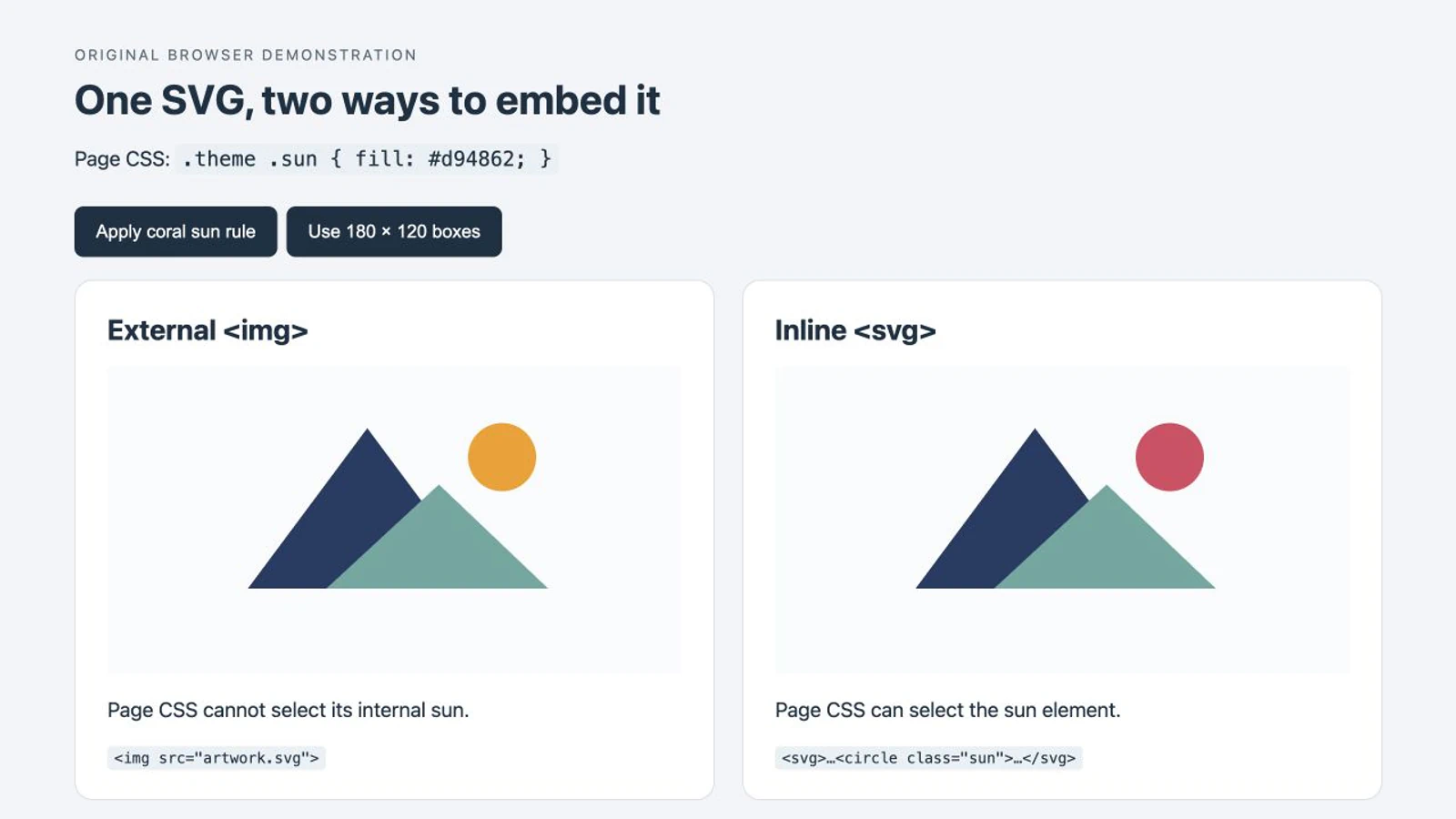
In our Chromium browser test, both versions initially occupied 360 × 240 CSS pixels and showed an amber sun. We then enabled a page rule targeting .sun. The inline sun changed to coral; the external image's sun stayed amber. Reducing both boxes to 180 × 120 changed their display size without changing that difference.
1. Save the separate SVG file
Create artwork.svg with this complete source. The viewBox defines the drawing's coordinate space. The width and height give it explicit starting dimensions.
<svg xmlns="http://www.w3.org/2000/svg"
     width="240" height="160" viewBox="0 0 240 160">
  <path d="M34 120 104 26 174 120Z" fill="#233b63" />
  <circle class="sun" cx="183" cy="43" r="20" fill="#f59e0b" />
  <path d="M80 120 146 59 210 120Z" fill="#65a7a0" />
</svg>
2. Add the image and the inline copy
Save the following as index.html beside artwork.svg, then open it in a browser. The two graphics have the same geometry and paint attributes. The inline version also has a name for assistive technology.
<!doctype html>
<html lang="en">
<meta charset="utf-8">
<title>SVG embedding test</title>
<style>
  .artwork {
    display: block;
    width: 360px;
    max-width: 100%;
    height: auto;
  }
  .theme .sun { fill: #d94862; }
</style>
<body class="theme">
  <h1>External image</h1>
  <img class="artwork" src="artwork.svg"
       width="240" height="160"
       alt="Mountain and sun illustration">

  <h2>Inline SVG</h2>
  <svg class="artwork" xmlns="http://www.w3.org/2000/svg"
       width="240" height="160" viewBox="0 0 240 160"
       role="img" aria-labelledby="mountain-title">
    <title id="mountain-title">Mountain and sun illustration</title>
    <path d="M34 120 104 26 174 120Z" fill="#233b63" />
    <circle class="sun" cx="183" cy="43" r="20" fill="#f59e0b" />
    <path d="M80 120 146 59 210 120Z" fill="#65a7a0" />
  </svg>
</body>
</html>
The screenshot uses a styled comparison layout around these same shapes. The smaller example above keeps the behavior easy to reproduce.
3. Change one variable at a time
Remove class="theme" from the body and reload. Both suns should now be amber. Restore the class, and only the inline sun should turn coral. Change .artwork from width: 360px to width: 180px; with room in the container, both graphics should shrink to 180 × 120.
If you want the external image's sun to change permanently, edit its fill in artwork.svg. If you want it to respond to page state, choose inline markup or another deliberate delivery method. Our guide to changing SVG colors covers editing the file itself.
The name .sun was added for this example. A converted or exported file will not necessarily contain a useful class for each meaningful part. Inspect and name the shapes you intend to control rather than assuming that a visible object is one selectable path.
Keep sizing and accessible names explicit
Retain the viewBox when moving artwork into HTML. Set width and height attributes as a sensible baseline, then apply responsive CSS. To reduce movement when the file appears, reserve space for an external SVG logo and compare the final component’s dimensions. For this 3:2 illustration, width: 180px; height: auto preserves its proportions. A large empty margin inside the viewBox remains part of the drawing area in either method; changing the embedding cannot remove it. If the extra space sits outside the element, diagnose the gap below the SVG before changing the drawing’s canvas.
When the layout box has a different ratio, the preserveAspectRatio fitting guide compares full-artwork fitting, cropping, and distortion.
For a meaningful external image, write alt on the HTML <img>. For a meaningful inline image, the example uses role="img" and aria-labelledby pointing to its <title>. Inline SVG does not use the HTML image's alt attribute. These naming options are documented in MDN's SVG in HTML guide.
If you repeat the inline example, give every title ID a unique value and update its matching aria-labelledby. The same discipline applies to IDs used by gradients, masks, or clipping paths. For decorative artwork beside equivalent visible text, use an empty alt on <img> or hide the inline SVG from assistive technology with aria-hidden="true". Test the complete link or button in context so its purpose is still named.
For many reusable icons, an SVG symbol sprite introduces a separate definition-and-instance approach. Decide whether you need that reuse before pasting a large set of copies into every page.
Treat performance as a measurement
Inline markup puts the shapes in the document rather than fetching that artwork as a separate image resource. It also increases the document's markup. An external file can be reused from the browser cache, subject to its URL, response headers, and cache state. MDN's HTTP caching guide explains those conditions.
Neither fact establishes which version will make your page faster. Compare the actual page on an initial visit and a repeat visit, with its real number of copies and real SVG complexity. The demonstration here tests paint access and sizing; it is not a loading-speed benchmark.
External image mode also has restrictions beyond CSS. MDN documents that SVG used as an image disables JavaScript and restricts external resources. Do not move an unfamiliar SVG inline merely to make a missing feature work. Review and sanitize untrusted markup before incorporating it into a page.
When your starting artwork is only a PNG
Vectorization belongs before this embedding choice if the source lacks the shapes you need. For a suitable raster logo or illustration, convert the PNG to SVG with PerfectVector, inspect the result against the source, and keep the accepted SVG as your artwork master. Check silhouette, holes, and small color regions before adding classes or preparing a web copy.
PerfectVector supplies the vector artwork. You still choose which parts should respond to CSS, add meaningful names, and test the final page. Converting an image does not automatically produce a component with semantic class names. If an existing SVG already contains usable paths, work with those paths instead of tracing a rendered copy.
Also check for an SVG containing an embedded raster image. Pasting such a file inline exposes its <image> element; it does not turn the pixels inside that element into separately recolorable shapes. For a photograph that should remain photographic, keep an appropriate raster delivery format.
Check the final page
- Confirm that the standalone artwork looks correct before testing page CSS.
- Choose
<img>for finished display, or inline SVG for direct control of its elements. - Verify the rendered size and the proportions at the narrowest supported layout.
- Test the exact shape you intend to recolor; do not rely on a broad
pathrule. - Check image names, duplicate IDs, and the surrounding link or button.
- Measure loading behavior if it affects the decision; do not infer a speed result from this example.
FAQ
Does an SVG become a bitmap when I use an img tag? No. An SVG loaded through img can still render vector geometry. The image element prevents the host page from directly selecting its internal shapes; it does not convert those shapes into a PNG.
Why does currentColor not follow my page text color? An external SVG image has its own styling context. The page's color does not automatically become the currentColor used inside that file. Use inline SVG when its paint should inherit from the page, and author the relevant fill or stroke to use currentColor.
Should I convert my existing SVG before putting it inline? No conversion is needed if it already contains the vector shapes you want. Review its markup, preserve required references, add appropriate naming, and test it in the page. Raster-to-vector conversion is only relevant when you need to recover shapes from a raster source.
Sources
- MDN — Including vector graphics in HTML — External image and inline embedding behavior.
- MDN — SVG in HTML introduction — Inline markup, viewBox, and accessible naming.
- MDN — HTTP caching — Cache reuse depends on response policy and resource identity.
- MDN — SVG as an image — Script and resource restrictions in image contexts.
Choose the embedding that matches the artwork's job, then test it with the page's real styles. If your only source is a suitable PNG, recover its vector shapes first, inspect the result, and prepare the accepted artwork for that embedding.
More from the blog

SVG to Canvas: Load the Artwork Before Exporting PNG
Load a whole SVG through Image.decode, draw it at a chosen bitmap size, test CORS and PNG readback, and keep the editable source separate from exported pixels.

MapLibre SVG Icons: Check Pixels and Symbol Size
Decode custom SVG artwork for a MapLibre symbol layer, control image density and icon size, and keep an editable master. Verify the displayed shape and opening.