Fix the Gap Below an Inline SVG with CSS Layout
Find whether the space below your SVG belongs to the HTML line box or the artwork, then choose block display or inline alignment and verify the result.
On this page
- Find which box contains the space
- Why the baseline can leave room underneath
- A measured example with no empty SVG canvas
- Use block display for a standalone graphic
- Keep text-row graphics inline and choose alignment
- Verify the correction without changing the artwork
- When vectorization helps this workflow
- FAQ
- Sources
A narrow gap below an SVG can come from the HTML line containing it. An inline graphic participates in text layout, where the baseline and line height can leave room below its box. For a standalone image, try display: block. For a graphic that must stay beside text, choose its inline alignment deliberately.
First locate the gap. Space outside the SVG element's box needs a page-layout check. Space inside that box may belong to the SVG's canvas or fitting rules. Re-tracing a logo will not repair the first problem. This guide helps you distinguish the two and verify a small, local CSS correction.
Find which box contains the space
Give the SVG and its immediate wrapper contrasting backgrounds in your browser's developer tools. Inspect their element outlines too. The background is a temporary diagnostic aid; it does not need to become part of the delivered artwork.
.logo-wrap {
  background: peachpuff;
}

.logo-wrap > svg {
  background: lightgreen;
}
If the peach color continues below the green SVG box, inspect the wrapper's line layout, padding, border, height and neighboring elements. If green continues below the visible drawing, inspect the artwork's viewBox, its painted bounds and how it fits the viewport.
Both can happen together. Fixing the line box may remove a thin strip while leaving a larger transparent margin inside the image. The SVG fitting guide explains how the source rectangle and destination viewport interact. Do not tighten a viewBox until you know the unwanted space is inside it.
The embedding method also matters. An inline <svg> is part of the HTML document; an <img src="logo.svg"> loads an external image. Their styling boundaries differ, as the inline SVG versus image guide explains. For this diagnosis, inspect the element placed in the HTML row, rather than assuming every SVG file is embedded the same way.
Why the baseline can leave room underneath
Text lines need room for letters that descend below the baseline, such as g and p. An inline graphic can align with that baseline while the containing line still extends below it. This is why resetting the image's margin to zero may change nothing.
The CSS line-height calculation rules determine a line box from its participating boxes and their alignment. The parent's font and line height contribute even when the visible content is a graphic. The exact strip is therefore a result of the surrounding styles, rather than a fixed SVG margin.
Do not confuse this baseline with the baseline of lettering drawn inside the SVG. Changing dominant-baseline on an SVG text element addresses that inner lettering. It does not choose how the entire graphic sits in its HTML line.
A measured example with no empty SVG canvas
We made an original HTML page containing three copies of the same SVG. Each SVG has a 240 × 100 viewBox filled edge to edge by a rectangle and renders at 240 × 100 CSS pixels. The rows use Arial at 40px with a 48px line height. Only the SVG's display or alignment changes.
The browser returned these element measurements:
| SVG treatment | SVG height | Row height | Space below SVG box |
|---|---|---|---|
| Inline, baseline aligned | 100px | 110.5px | 10.5px |
| Block display | 100px | 100px | 0px |
| Inline, bottom aligned | 100px | 100px | 0px |
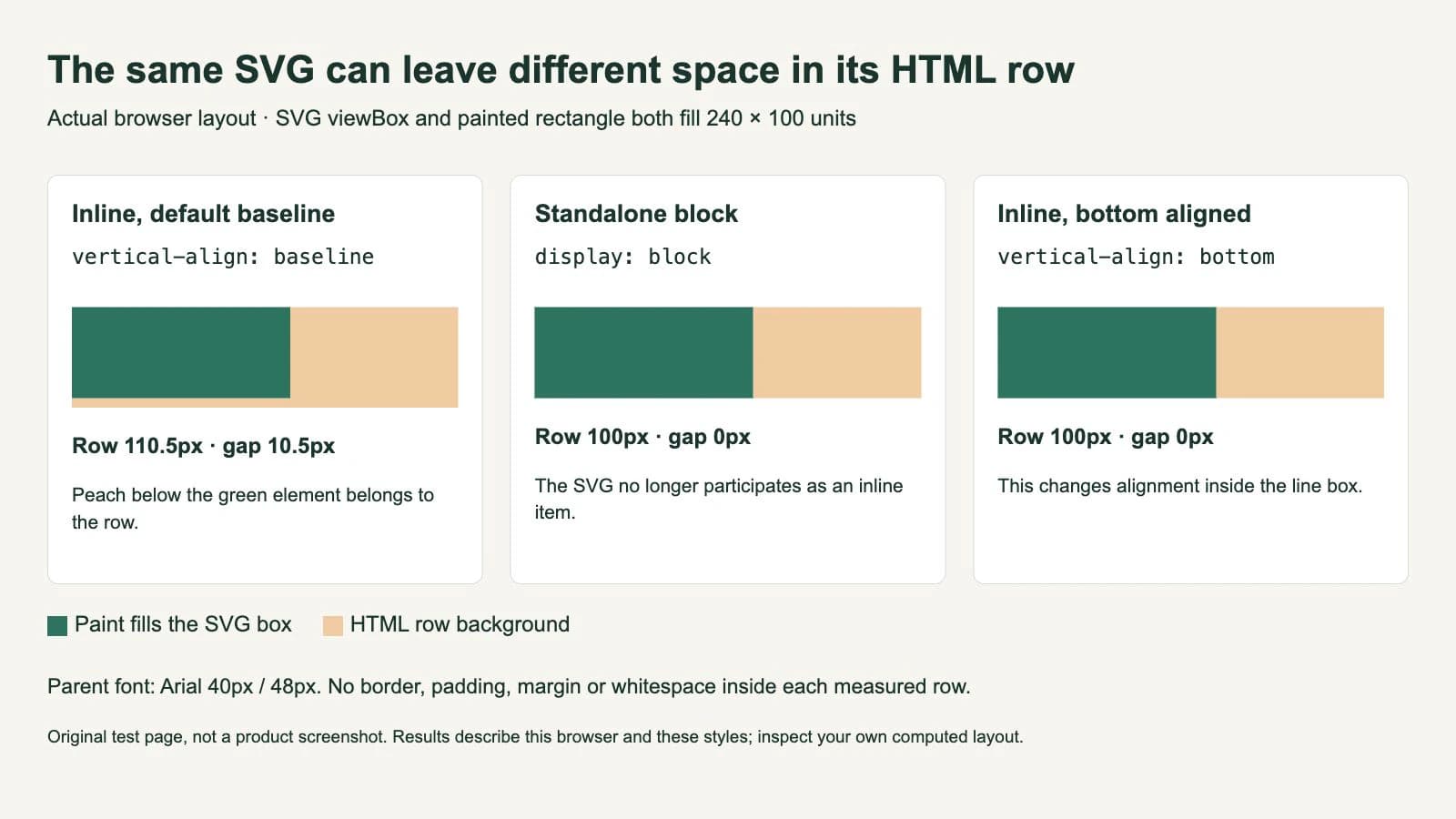
These are measurements from this page in one browser, not a promise of a 10.5px gap in every layout. We compared the wrapper's bottom coordinate with the SVG's bottom coordinate. The SVG height stayed at 100px in all three cases, so the correction did not shrink or crop the drawing.
Use block display for a standalone graphic
When the logo should occupy its own row, put the layout rule on that particular image:
.brand-mark {
  display: block;
  width: 240px;
  height: auto;
}
The MDN display reference distinguishes block and inline participation in flow layout. Making the SVG a block removes its role as an inline item in the surrounding text line. It does not edit the source paths or remove transparent artwork margins.
Recheck the wrapper after applying the rule. If it still extends below the image, look for an explicit height, padding, another child, a pseudo-element or an additional line. A line break or text node after a block graphic can introduce content of its own. An ancestor may also be responsible for the visible space.
Keep the selector narrow. Applying svg { display: block; } across an entire site can move icons that intentionally belong inside labels or sentences. Choose the component that needs a standalone graphic, then inspect its other uses.
Keep text-row graphics inline and choose alignment
For an icon or small mark beside words, keeping it inline may be the intended layout. vertical-align: bottom aligns its bottom margin edge with the bottom of the line. vertical-align: middle uses the parent's baseline and x-height; it is not a command to geometrically center every image in every container. See the MDN vertical-align definitions.
.label-icon {
  width: 1em;
  height: 1em;
  vertical-align: middle;
}
Choose between these values by inspecting the actual label and font. An icon that touches the bottom of a line can look too low beside capital letters. A mark aligned with middle can still need an optical adjustment because its visible artwork is unevenly distributed inside its own box.
The bottom-aligned case in our example contained only the graphic. It proves that this alignment removed the strip in that specific row. It does not establish that every mixed text-and-icon row will have the same height or appearance.
Avoid using line-height: 0 on a shared text container as a first fix. That changes text layout as well as image spacing. It can hide the immediate symptom while leaving the component dependent on later overrides when someone adds a label. Select the intended display or alignment before changing a parent's typography.
Verify the correction without changing the artwork
Make one change at a time, then check:
- Element boundary: does the visible gap sit inside or outside the SVG box now?
- Dimensions: did the SVG keep its intended width, height and proportions?
- Neighbors: do labels, links and icons still sit where they should?
- Responsive layout: does the component behave at its narrow and wide sizes?
- Computed styles: is the intended declaration winning, or does a more specific rule override it?
For a simple wrapper without borders or padding, comparing its bottom coordinate with the image's bottom coordinate is a useful check. On a real component, account for intentional padding and other content before calling the difference an error.
If the page needs a different arrangement on smaller screens, verify that arrangement too. A correction that works for one isolated logo may not suit a navigation row with wrapping text. Remove the temporary background colors once the boundary is clear.
When vectorization helps this workflow
An existing, editable SVG usually needs a CSS or canvas correction here. Keep that file and diagnose its placement before reconstructing it.
If the mark itself exists only as a PNG or JPG and needs editable contours, use PerfectVector to convert the source image to vector artwork, then inspect the outline, openings and source canvas before placing the result on the page. The trace-quality scorecard helps with that separate geometry check. Vectorization prepares shapes; the page's CSS still controls the HTML line box.
FAQ
Why does margin: 0 not remove the gap below my SVG? The space may belong to the containing text line rather than the SVG's margins. Inspect the SVG and wrapper boundaries, then test block display for a standalone image or an appropriate vertical alignment for an inline graphic.
Does display: block crop whitespace from the SVG? No. It changes the element's participation in HTML layout. Empty space inside the viewBox remains and needs a separate artwork or fitting check.
Should I use vertical-align: bottom or middle? Use the value that suits the actual row. Bottom aligns with the line's bottom; middle uses the parent's baseline and x-height. Inspect the result with its final font and neighboring text rather than treating either value as universal centering.
Sources
- W3C — CSS line-height and vertical alignment — How participating boxes, alignment and parent typography contribute to line height.
- MDN — display — The distinction between block and inline participation in flow layout.
- MDN — vertical-align — Baseline, bottom and middle alignment and the boxes to which the property applies.
Starting with a raster-only mark? Prepare editable SVG shapes, compare their contours and canvas with the source, then verify the SVG's placement in the actual page component.
More from the blog

Stop SVG Logo Layout Shifts by Reserving Space
Reserve room for SVG logos with width and height or a CSS aspect ratio. Compare actual browser movement, then check the delivered image and responsive layout.

Dark-Mode SVG Logos: Choose What Controls Color
Choose whether an SVG logo follows user preference or your page theme. Compare inline CSS, an adaptive external file and fixed artwork in a browser test.