Stop SVG Logo Layout Shifts by Reserving Space
Reserve room for SVG logos with width and height or a CSS aspect ratio. Compare actual browser movement, then check the delivered image and responsive layout.
On this page
An SVG logo can stay sharp while still pushing nearby content out of place when it appears. For an external SVG loaded through an HTML image element, give the browser enough sizing information to reserve its box before the file's intrinsic dimensions are available. Matching width and height attributes are a useful starting point; CSS can then make that box responsive.
This fixes a page-layout problem. It does not change the logo's paths or remove empty space inside its canvas. Keep a usable vector original. If the only source is a PNG or JPG, recover the editable artwork separately, then give the delivered SVG an intentional place in the page.
Separate the drawing from its reserved box
There are three related dimensions to check:
| Item | What it describes | Where to inspect it |
|---|---|---|
| SVG artwork and viewBox | The source coordinate rectangle and drawing within it | The SVG source or vector editor |
| Loaded image's natural dimensions or ratio | Information the browser obtains from the image | The loaded image element |
| HTML layout box | Space the page gives the image | Computed styles and element bounds |
A viewBox="0 0 300 100" describes a 3:1 source rectangle. For an external file, that information is inside the resource the page must fetch. It is different from putting a matching ratio in the surrounding HTML before that resource is available.
The MDN image-element reference recommends using both width and height attributes to provide space before an image loads. Google's layout-shift guidance likewise identifies missing image dimensions as a common cause of movement and describes reserving space with dimensions or a CSS ratio.
If your problem is how the drawing fits an already established viewport, use the separate SVG aspect-ratio fitting guide. Reserving the box and fitting artwork into it are different checks.
Start with matching width and height attributes
For a 3:1 mark, a simple delivery can look like this:
<img
  class="brand-logo"
  src="/assets/brand-logo.svg"
  width="300"
  height="100"
  alt="Example brand"
>
.brand-logo {
display: block;
width: 300px;
max-width: 100%;
height: auto;
}The attributes supply the intended ratio. The CSS sets the displayed width and allows proportional shrinking when its container becomes narrower. They do not require the logo to occupy 300 physical screen pixels on every device.
Use the dimensions of the actual image canvas, including any intentional clear space. Do not enter the bounds of the visible letterforms if the delivered SVG has a wider source rectangle. That mismatch makes the early reservation disagree with the loaded resource.
Matching values matter because an image's natural ratio can take over once it is available. A wrong initial ratio can still produce a size correction later. Recheck both the markup and the delivered file after replacing a logo, rather than assuming that keeping the filename also keeps its geometry.
Use a CSS ratio when the layout owns the slot
A CSS ratio is useful when a component defines a particular box shape. For a proportional 3:1 image:
.brand-logo {
  display: block;
  width: 300px;
  max-width: 100%;
  height: auto;
  aspect-ratio: 3 / 1;
}
The MDN aspect-ratio reference explains that the property participates in automatic sizing. At least one dimension must remain automatic for the preferred ratio to affect those calculations. Setting both a fixed width and a fixed height makes those explicit sizes the first thing to inspect.
Choose the intended behavior when the source ratio differs. A permanently shaped slot may need its own wrapper and a deliberate image-fitting rule. A proportional logo should normally use the correct source ratio. Avoid forcing a square logo into the previous wordmark's 3:1 geometry just to preserve the old CSS.
The auto 3 / 1 form has another meaning: it can provide a provisional ratio for a replaced element, then use its natural ratio when available. That is useful when the provisional and final ratios agree; it is not a guarantee that conflicting dimensions will never move anything.
What our controlled browser example showed
We created an original 300 × 100 SVG containing an F-shaped mark, a dot and an arrow. Three HTML image elements initially had no source URL. A button then assigned that same local SVG to all three after the first layout. This made the before-and-after state observable without pretending to measure a slow network.
All three used a CSS width of 300px and an automatic height. One had no reserved ratio, one had width="300" height="100", and one had aspect-ratio: 3 / 1.
| Case | Image height before | Image height after | Following text moved |
|---|---|---|---|
| No reserved ratio | 0px | 100px | 100px downward |
| Matching HTML dimensions | 100px | 100px | 0px |
| Matching CSS ratio | 100px | 100px | 0px |
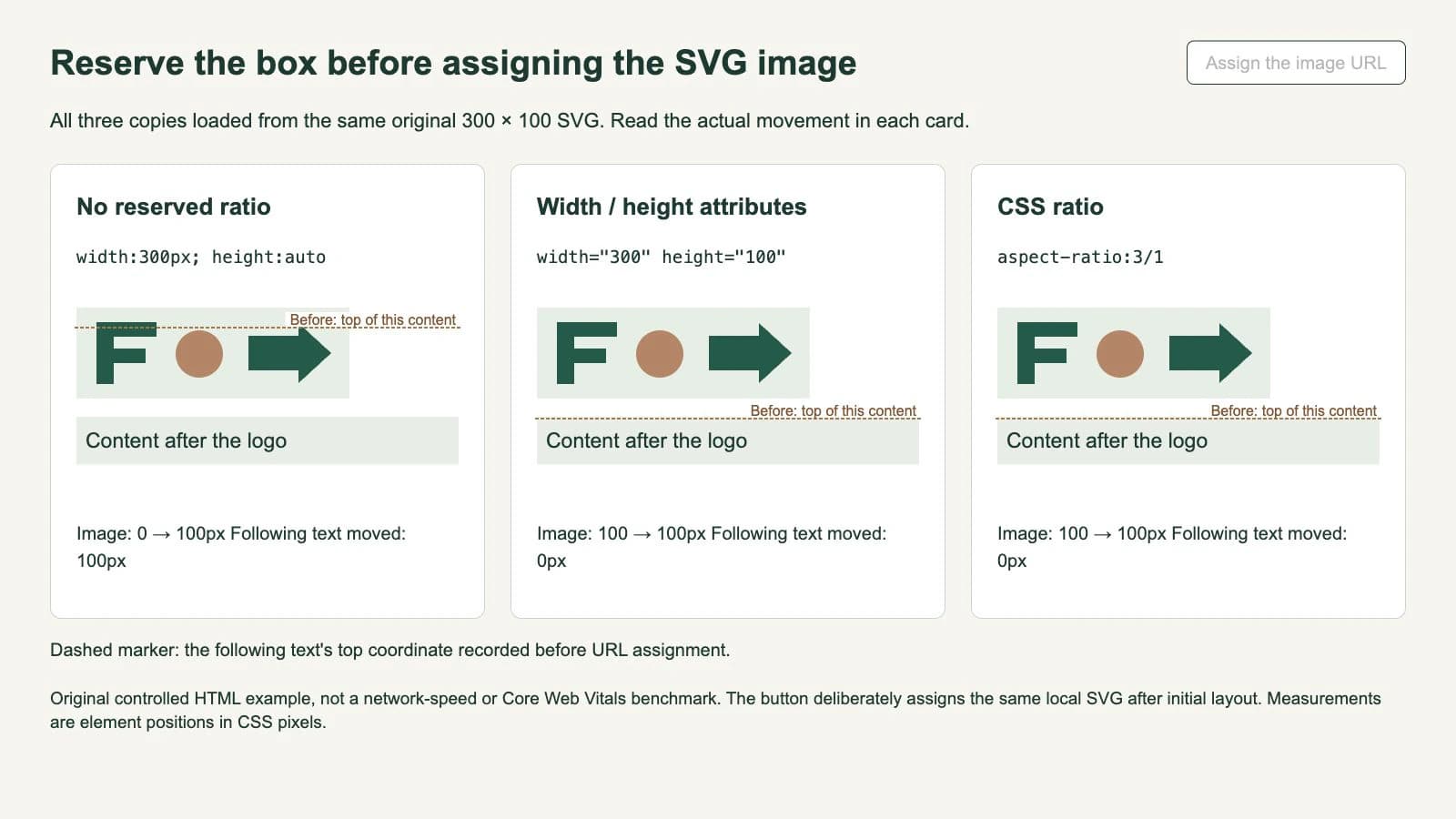
The text's top coordinate changed from 358.1875 to 458.1875 in the unreserved case. It stayed at 458.1875 in the two reserved cases. Each loaded image reported natural dimensions of 300 × 100, and its displayed width and height also remained 300 × 100.
These are actual element-position measurements from one controlled page in one browser. The experiment used a manual URL assignment. It did not record a network-throttling trace, a Core Web Vitals score or cross-browser behavior. In particular, 100px of movement is a distance, not a CLS score.
Check the delivered component, not just the file
Use the real logo placement when verifying your correction:
- Confirm the source. Open the delivered SVG and check its canvas ratio. Keep an unchanged master for comparison.
- Inspect early sizing. Check that the HTML or CSS supplies the intended box before the image's dimensions become available.
- Compare element positions. Watch a nearby heading or navigation item, not only the logo's sharpness.
- Check after loading. Verify the final width, height and proportions against the reservation.
- Try narrow and wide containers. Ensure the responsive rules shrink the mark proportionally and leave surrounding controls usable.
For a browser loading check, reload the actual page with cache disabled and an appropriate network setting in developer tools. That checks a different condition from our button-driven example. If the page uses a lazy-loaded image, scroll through that placement too.
If movement remains, identify what changed at that moment. A font swap, inserted banner, expanding navigation row or another image can move the logo even when its own box is stable. The web.dev guide distinguishes image sizing from other layout-shift causes; reserving one logo's space is not a complete site performance audit.
Keep nearby SVG problems separate
An unchanged image box with a small strip underneath can be an inline text-line issue. Inspect display and vertical alignment separately from the image's reserved dimensions. Moving an element within a text line and allocating space for an unavailable image address different moments in the layout.
An SVG that stays in place but shows broad empty margins needs a canvas or fitting check. Cropping the source to remove those margins changes its ratio, so update the page's reservation afterward. The inline SVG versus image explanation also helps you identify whether you are styling document elements or an external image.
If the original mark exists only as pixels, use PerfectVector's logo vectorizer to prepare editable candidate shapes. Compare the silhouette and openings with the source before choosing the delivery canvas; the trace-quality scorecard covers that geometry check. Vectorization does not set the website's HTML dimensions, CSS ratio or loading behavior.
FAQ
Does an SVG viewBox prevent layout shift by itself? For an external image, the viewBox is inside the fetched resource. Give the HTML layout matching sizing information so it can reserve space before the image's intrinsic dimensions are available, then verify the final component.
Can an SVG logo be responsive while keeping width and height attributes? Yes. Matching attributes can provide the intended ratio while CSS controls the displayed width and keeps the height automatic. Check that the delivered file and responsive rules preserve those proportions.
Does a sharp SVG guarantee a good CLS score? No. Sharpness describes the artwork's rendering. CLS concerns layout instability across the page, which can also involve fonts, inserted content and other media. A movement distance from a controlled example is not a CLS score.
Sources
- web.dev — Optimize Cumulative Layout Shift — Missing image dimensions, space reservation, other movement causes and the distinction between movement and the CLS metric.
- MDN — The HTML image element — Width and height attributes, natural image dimensions and image layout.
- MDN — aspect-ratio — Automatic sizing and the difference between a specified ratio and the auto-plus-ratio form.
Only have a raster logo? Prepare an editable SVG with PerfectVector, verify the contours and canvas, then reserve the matching space in the page that will display it.
More from the blog
Fix the Gap Below an Inline SVG with CSS Layout
Find whether the space below your SVG belongs to the HTML line box or the artwork, then choose block display or inline alignment and verify the result.

Dark-Mode SVG Logos: Choose What Controls Color
Choose whether an SVG logo follows user preference or your page theme. Compare inline CSS, an adaptive external file and fixed artwork in a browser test.