How to Change SVG Colors and Fix Common Issues
Three free ways to change an SVG file's colors, online, in a design app, or in the code, plus fixes for the SVG that stays black no matter what you try.
On this page
- Where an SVG keeps its colors
- Pick your method
- Method 1: an online SVG color changer
- Method 2: a vector design app
- Method 3: a text editor
- If your SVG lives on a website
- Why your SVG won't change color
- The background-box surprise
- The SVG that isn't a vector
- Recoloring a cut file: every color is a layer
- What this looks like with PerfectVector
- What a recolor can't do
- Before you save
- FAQ
- Sources
There are three real ways to change the color of an SVG file, and all of them are free. Upload it to an online SVG color changer and click the swatch you want to replace. Open it in a vector app like Inkscape, select the shape, and pick a new fill. Or open the file in a text editor and swap the hex code, because an SVG is just text. Recoloring a vector is also lossless: you're rewriting an instruction, not repainting pixels, so nothing blurs or degrades.
Which method to pick depends on what's inside your file. And when an SVG refuses to change color, what's inside the file is almost always the reason, not the tool you're using. This guide covers the three methods first, then the diagnosis: the six common reasons a recolor doesn't take, including the one no color tool can fix.
The quick version
- Fastest, no software: an online SVG color changer. Upload, click a swatch, download.
- Most control: Inkscape (free) or Illustrator. Use Select Same → Fill Color to grab every shape in one color at once.
- One-color icon: open the file in any text editor and change the hex after
fill=. - SVG on a website: CSS only reaches inline SVG. A file loaded through
<img>keeps its own colors. - Refuses to change at all? It may be a raster image wrapped in an .svg shell. There are no shapes to recolor; convert the source image into a real vector first.
Where an SVG keeps its colors
An SVG file is a list of shapes written as text. Each shape can carry a fill for the inside and a stroke for the outline, as described in MDN's SVG fill-and-stroke guide. There is no single "image color" you can swap in one place. A design that reads as one color on screen may be a single tidy path, or it may be forty separate paths that all happen to share the same fill.
That's the whole game. Every recoloring method below is just a different way of finding shapes and rewriting their fill or stroke. It's also why results vary so much between files: the fewer, cleaner the shapes, the easier the recolor.
Pick your method
| What you're holding | Use | Why |
|---|---|---|
| Any SVG, quick color swap | Online color changer | No install, groups matching colors for you |
| Multi-color artwork you want precise control over | Inkscape or Illustrator | Select by shape or by shared color, see everything |
| A one-color icon (or a whole folder of them) | Text editor | Find and replace one hex value |
| An SVG embedded in a website | CSS | The color belongs in the stylesheet, not the file |
| A traced or converted SVG that fights you | Reconvert and recolor at the source | Messy files make every other method painful |
Method 1: an online SVG color changer
- Open a free SVG color tool in your browser and upload the file (good ones also accept pasted SVG code).
- The tool lists the colors it finds. The useful ones group identical fills, so "the blue" is one swatch even if it covers dozens of shapes.
- Click a swatch, pick the replacement, and watch the preview.
- Download the result and open it once in a browser tab to confirm.
This is the right method for most people, most of the time. Two things to check before you trust a tool with real work: whether it also lists stroke colors, and how it handles gradients. If a tool shows fewer colors than you can see on screen, part of the file is a gradient or an embedded image, and a plain swatch swap won't reach it.
Method 2: a vector design app
Inkscape is free and does everything this job needs; Illustrator and Figma work the same way.
- Open the SVG and click the part you want to change. If the whole design selects as one block, it's grouped: double-click to enter the group, or ungroup it.
- Change the fill in the Fill & Stroke panel (Inkscape) or the fill swatch (Illustrator, Figma).
- When one visual color is split across many shapes, don't click them one by one. Right-click a shape and use Select Same → Fill Color in Inkscape, or use Illustrator's documented Select → Same → Fill Color. Every shape sharing that fill is now selected, and one change recolors them all.
- Export or save as plain SVG.
A design app is also where you'd go beyond color, like moving shapes or reworking curves. For that bigger toolbox, see our guide to editing an SVG.
Method 3: a text editor
Because an SVG is text, any editor works: Notepad, TextEdit, VS Code.
- Open the .svg file and search for
fill=. - Change the value, for example
fill="#1e3a5f"tofill="#c2410c", and save. - Refresh the file in a browser tab to check the result.
Three caveats. Colors can be written as names (fill="black") as well as hex. Outlines live in stroke=, not fill=. And many exported files don't put the color on the shape at all: they use classes, with the actual hex sitting in a <style> block near the top (.st0{fill:#1e3a5f;}). Edit the hex in the style block and every shape with that class follows.
This method shines for one-color icons, where a single find-and-replace does the job, and for batch work across a folder. For a forty-color illustration, it's the slow way.
If your SVG lives on a website
Can you change an SVG's color with CSS? The most direct route is inline SVG markup in the HTML. Then fill works like a CSS property, and setting fills to currentColor lets the icon inherit surrounding text color. An SVG loaded as an external <img> is treated as an image; MDN notes that JavaScript cannot manipulate the SVG structure in that setup, and page styles do not directly select its internal paths.
If you can't inline the file, you're back to the file-editing methods above: change the color inside the SVG itself and reload it. For the delivery choice, compare inline SVG with an external image using the same artwork and a page CSS test.
For a one-colour interface silhouette, SVG CSS masks and transparent icon shapes provide another route: paint the icon element with CSS while leaving the source image's path colours alone.
For a reversible color effect, compare feColorMatrix with direct fill edits. A filter changes the rendered colors while leaving the source paints intact, which matters when delivering editable artwork.
Why your SVG won't change color
This is the part the tutorials skip, and it's where most recolors actually fail. Work down the table.
| Symptom | Likely cause | Fix |
|---|---|---|
| CSS has no effect on the page | File is loaded via <img> | Inline the SVG, or edit the file itself |
| The whole design selects as one block | Everything is grouped | Double-click into the group, or ungroup |
| Fill changes but the visible color doesn't | You changed the fill; the color you see is a stroke | Change stroke too |
| Swatch edits do nothing in a text editor | Colors live in a <style> block as classes | Edit the hex in the style block |
| A colored box appears behind the design | A background rectangle is its own shape | Select and delete or recolor it separately |
| Nothing is selectable, zooming shows pixels | It's a raster image wrapped in an .svg | There are no shapes; convert the source image |
Two of these deserve a closer look.
The background-box surprise
Some SVGs carry a full-size background rectangle you can't see against a white page. Recolor "everything" and the box shows up as a colored block behind your design; some apps also select it when you click. It's a normal shape, so select it and delete it, or give it the color you actually want. If the box turns up white in other software, that's a related but different problem, covered in our guide to keeping a transparent background.
The SVG that isn't a vector
The stubborn case looks like this: no shape is selectable, every fill edit does nothing, and when you zoom in, the edges pixelate. Open the file in a text editor and instead of <path> elements you'll find one <image> tag holding a wall of base64 text. That's a raster picture wrapped in an .svg shell. Converters that don't actually trace produce these, and no color tool can help, because there are no shapes to repaint. Filters that "colorize" it just tint the pixels, usually badly. The two files look identical on screen, but in the code the difference is obvious:
<!-- A real vector: a shape with a fill you can change -->
<path fill="#1e3a5f" d="M12 2 L22 20 H2 Z" />

<!-- A raster in an .svg shell: one sealed picture, no shapes -->
<image href="data:image/png;base64,iVBORw0KGgoAAAANSUhEUg..." />
The fix is to go back to the picture itself, ideally the original PNG or JPG, and convert it into a real vector with real paths. Our guide to SVGs that still look pixelated digs into how these fakes happen and how to spot one before you rely on it. Once actual shapes exist, every method in this guide starts working.
Recoloring a cut file: every color is a layer
A Cricut or Silhouette treats each color in your SVG as a layer, and each layer means another pass, another sheet of material, and more weeding. So recoloring a cut file is really layer planning: giving two elements the same fill merges them into one cut, and splitting a color creates a new layer.
That makes one editing move unusually valuable for crafters: merging near-duplicate colors. Traced artwork often carries three almost-identical blues that add layers without adding anything you can see. Collapse them into one and the file cuts faster and weeds far more easily. The SVG palette-reduction workflow shows how to merge by visual role without erasing contrast or operation meaning. If you're building multi-layer designs deliberately, our layered SVG guide covers the full workflow, and the Cricut SVG page covers preparing artwork for cutting machines end to end.
If you need separate downloads after recoloring, save each exact color as an aligned SVG file.
What this looks like with PerfectVector
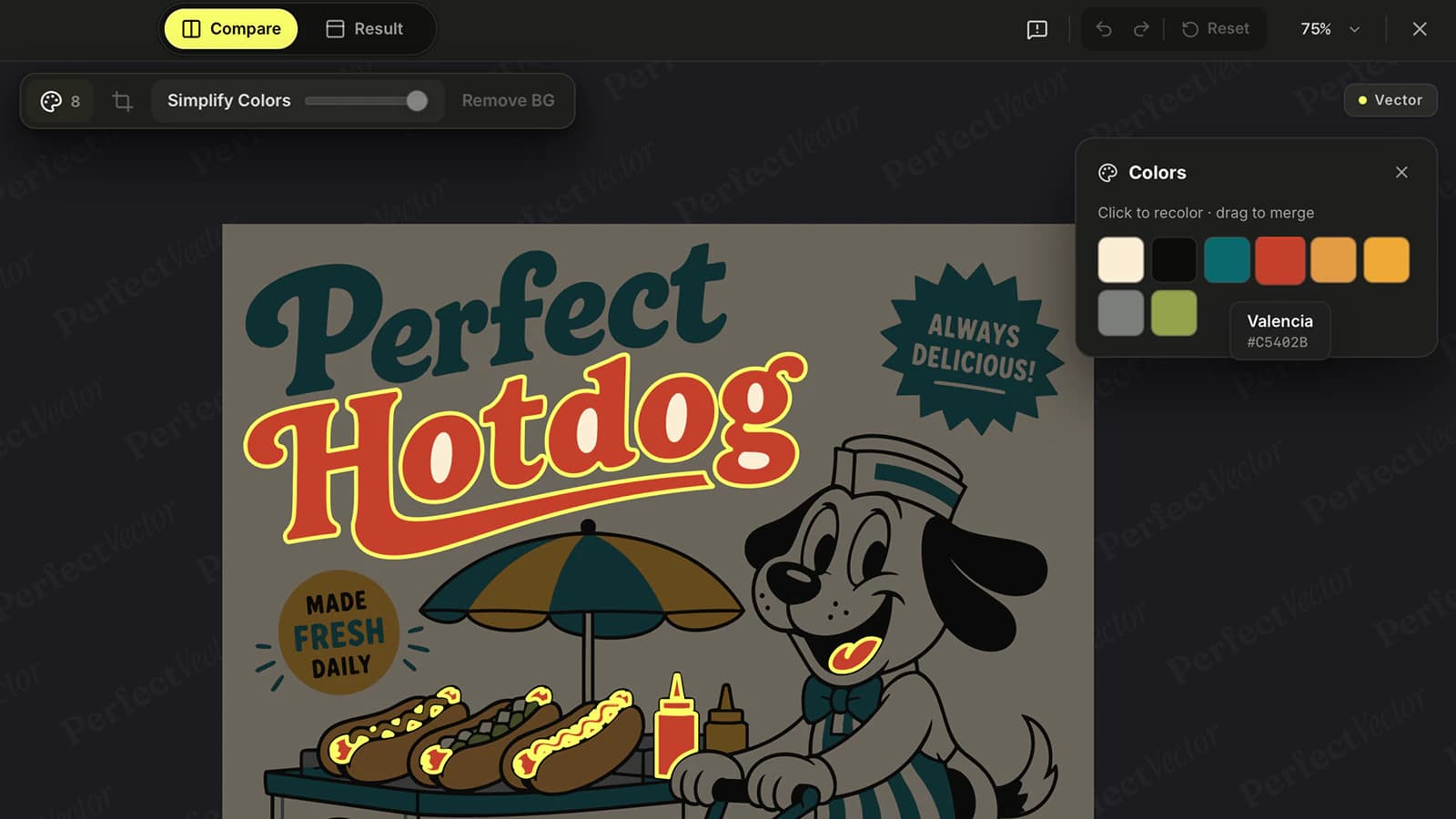
One honest limitation first: PerfectVector doesn't edit SVG files you already have. It converts images (PNG, JPG, WebP) into SVGs. But a surprising amount of "how do I recolor this SVG" pain traces back to that conversion step: the file that fights you is usually a messy trace, or not a real vector at all.
So when the SVG came from an image, or you still have the original picture, the cleanest recolor happens at the source. Convert the image to an SVG that's built to be edited: clean paths, a low node count, and each color kept as its own editable shape. Then use the built-in color editor before you download, to swap any color or merge similar ones, by color rather than by hunting paths. You get the palette you want and a simpler file in the same move, and your first conversions are free, no credit card required.
What a recolor can't do
- Gradients aren't one swatch. A gradient is a ramp between color stops. You can edit the stops, but a plain "replace this color" pass may only move part of the ramp, which is why gradient art looks odd after a naive swap.
- Screen colors aren't print colors. SVG stores screen-oriented color instructions, while a print job may need an exact brand, spot, or black build. If an export changes what you see, diagnose the SVG color shift before replacing the palette; the print shop's requested production format remains the color authority.
- Recoloring doesn't clean geometry. New fills won't merge slivers, close gaps, or reduce nodes. A messy trace with new colors is still a messy trace.
Before you save
- Open the recolored file fresh in a browser tab and compare it against the original.
- Check outlines: did strokes change along with fills where they should?
- Look for a stray background rectangle you may have accidentally recolored.
- For cut files, count the layers after merging colors; fewer is almost always better.
- Keep an untouched copy of the original file.
FAQ
How do I change the color of an SVG file without Illustrator or Photoshop? Use a free online SVG color changer (upload, click a swatch, download), or Inkscape, a free desktop vector editor. For a one-color icon, opening the file in any text editor and changing the hex value after fill= also works. None of these cost anything.
Why does my SVG stay black no matter what I try? If it's on a website, CSS can't restyle an SVG loaded through an img tag; inline it or edit the file. If it's in an editor, check for a group in the way, a stroke doing the coloring, or colors defined in a style block. If nothing selects and zooming shows pixels, the file is a raster wrapped in an .svg and has no shapes to recolor.
Can you recolor an SVG in Canva? Canva's dedicated SVG editor says you can upload, recolor, and download an SVG for free without a watermark. Complex SVG features can still render differently across editors, so inspect the downloaded file before replacing the original.
Can one SVG file use more than one color? Yes. Every shape in the file carries its own fill and stroke, so an SVG can hold as many colors as it has shapes, plus gradients. That's also why recoloring multi-color art means changing several fills, not one global setting.
How do I change SVG colors for a Cricut project? You can recolor layers inside Cricut Design Space, but it recolors per layer, not per shape. To restructure which parts share a color, and so which parts cut together, edit the SVG before uploading: merge colors you want on one layer, and give a separate fill to anything that should cut separately.
Does changing an SVG's color reduce quality? No. A vector's color is an instruction in text, so changing it rewrites the instruction without touching the geometry. Unlike editing a PNG, you can recolor an SVG as many times as you like with zero quality loss.
Sources
- MDN: SVG fills and strokes — Explains
fill,stroke, opacity, and related SVG paint properties. - MDN: Adding vector graphics to the web — Compares inline SVG with SVG loaded through
<img>. - Adobe Illustrator: Select objects with the same fill and stroke — Documents selecting artwork by shared paint attributes.
- W3C: SVG 2 embedded content — Defines raster
<image>content inside SVG documents. - Canva: SVG editor — Current source for Canva's SVG upload, recolor, and download claims.
Recoloring an SVG is quick once the file cooperates: pick the method that fits what you're holding, and diagnose before you fight your tools. And if the file itself is the problem, skip the fight. Convert the original image into a clean, editable SVG and choose your colors while it's still easy.
More from the blog
How to Check an SVG File Before You Cut It (or Buy It)
The five-minute preflight for cut files: spot fake vectors, doubled paths, node bloat, and stray boxes before you waste vinyl, plus what to check before buying.
SVG Gradient Units: Share One Blend Across Logo Paths
Make a gradient flow across separate SVG logo paths. Compare gradientUnits, set shared endpoints, and fix a translated group's unexpected color shift.