How to Separate SVG Colors Into Individual Files
Split a multicolor SVG into one aligned file per exact color, preserve its viewBox and size, and avoid layer shifts, gradients, text, and cut-file traps.
On this page
- Why every color file should keep the full artboard
- Exact colors are not the same as visual colors
- Method 1: use the free browser separator
- 1. Choose the SVG
- 2. Review compatibility and size
- 3. Inspect each exact-color preview
- 4. Download the files
- Method 2: separate colors in a vector editor
- Prepare the files for Cricut
- Common separation mistakes
- The layers no longer line up
- One “color” became several files
- A gradient disappeared or was rejected
- Text or strokes are missing
- Cricut rejects the file
- FAQ
- Sources
To separate SVG colors into individual files, group shapes by exact fill color and export each group on the same full-size artboard as the original. Do not crop every color to its own bounds. The empty space is what keeps the pieces aligned when you import, cut, screen-print, or reassemble them.
For a supported solid-fill SVG, PerfectVector's free SVG Color Separator does this locally in your browser. For complex artwork, you can select objects by fill in a vector editor and export each color manually.
The safe separation rule
- Make an untouched copy of the source SVG.
- Decide whether near-duplicate colors should be merged before separation.
- Group by exact fill color; do not treat gradients, patterns, or images as simple colors.
- Keep the original width, height, and viewBox in every output.
- Preserve each shape's original position and same-color paint order.
- Import all files together and verify their size and alignment before cutting material.
Why every color file should keep the full artboard
Imagine a flower with a blue petal near the top-left and a red petal near the bottom-right. If both files are tightly cropped, each petal moves to the top-left corner of its new document. The two SVGs no longer share a coordinate system, so reassembly becomes guesswork.
When every file retains the original artboard, each color stays at the coordinate where it belonged. The blue-only file may contain a lot of empty canvas. That is intentional alignment data, not waste.
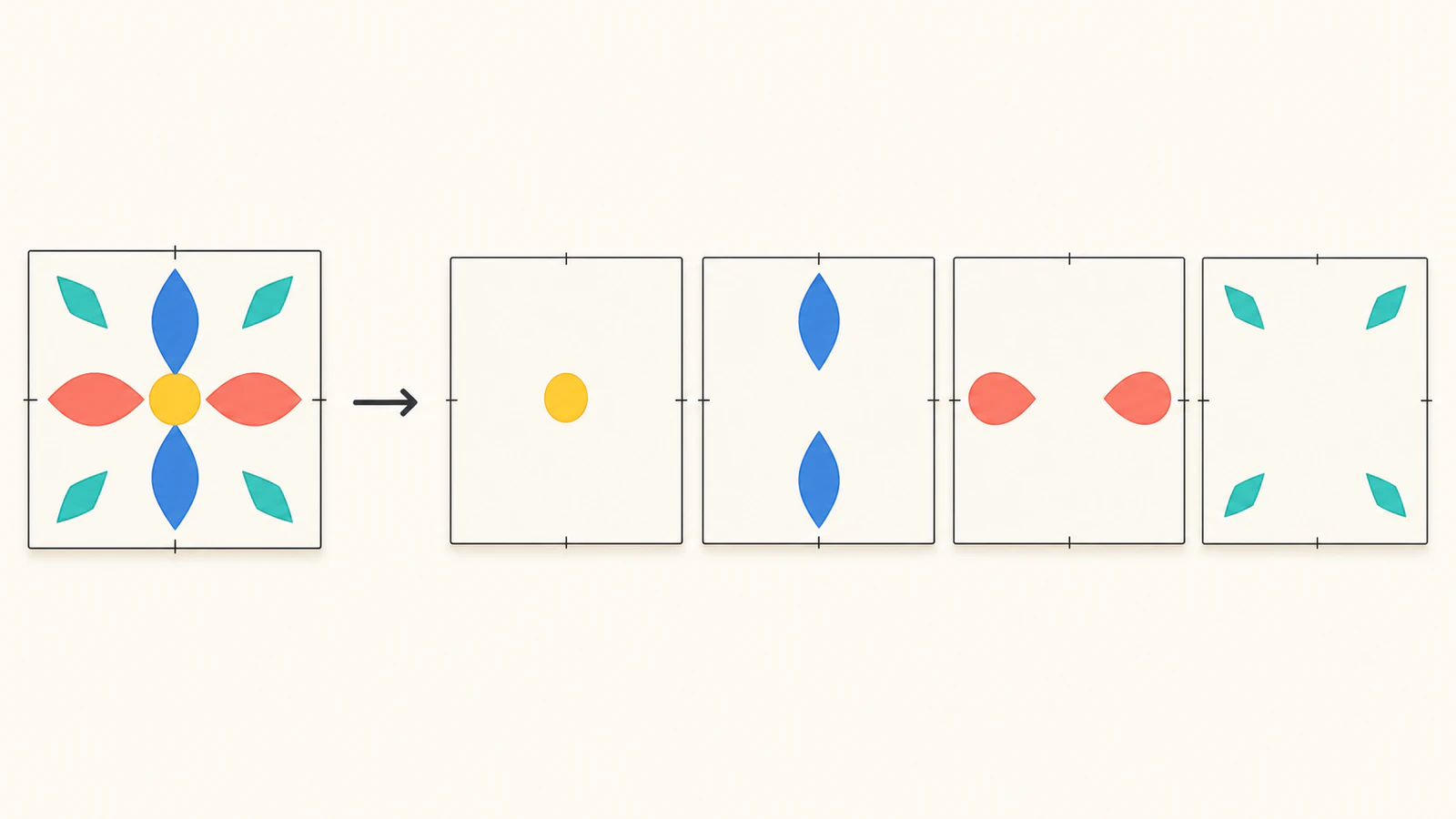
The SVG viewBox defines the internal coordinate space. Preserve it along with a reliable physical width and height when your cutter, printer, or production partner cares about real dimensions.
Exact colors are not the same as visual colors
An SVG can contain #ff0000 and #fe0000. They look almost identical, but they are two exact values and will produce two files in an exact-color workflow. That is safer than silently guessing that the designer intended them to be one production color.
Before separating, inspect the palette:
| Situation | What to do |
|---|---|
| Two values are accidental near-duplicates from a noisy trace | Merge them deliberately, then separate |
| Similar colors represent highlight and shadow | Keep them separate |
| Colors represent different cut, score, or print operations | Keep them separate and label the files |
| Artwork uses a gradient | Flatten it intentionally, replace it with chosen solids, or keep the original workflow |
| The SVG contains a raster image | Separate the source image before vectorization, or rebuild it as paths |
The palette-reduction workflow explains how to merge near-colors by visual and production role. Run that decision first. A separator should not make it for you.
Method 1: use the free browser separator
The SVG Color Separator accepts a deliberately narrow SVG subset so it can preserve the file rather than return plausible-but-wrong layers.
1. Choose the SVG
Select an SVG up to 5 MiB. The document is checked inside a disposable browser worker before a safe preview or download is created. The SVG content, filename, paths, colors, previews, and generated files are not sent to PerfectVector.
The current version is designed for opaque solid-fill vector artwork: paths, rectangles, circles, ellipses, polygons, and supported polylines with common transforms. It handles supported inline and inherited solid fills.
2. Review compatibility and size
Check the accepted composite, physical dimensions, viewBox, path count, exact-color palette, and warnings. If the file has a viewBox but no reliable physical width and height, confirm one dimension; the other remains proportional.
Processing stops rather than stripping unsupported content. Current stop conditions include visible strokes, gradients, patterns, filters, clipping paths, masks, editable text, embedded images, reusable references, nested SVGs, external resources, stylesheets or classes, scripts, event handlers, and transparent cut colors.
That boundary follows the SVG model itself. The SVG 2 painting specification distinguishes solid colors from gradients, patterns, fill opacity, and stroke behavior. A visible “color” is not always one flat value that can be moved safely into a file.
3. Inspect each exact-color preview
The tool creates one preview per exact opaque color. Verify that:
- the expected shapes appear in the correct color file;
- no intended stroke, text, or image content is missing;
- the composite dimensions match the source;
- each layer remains in its original position;
- the palette contains the number of production colors you intended.
A one-color SVG is still valid; it is already separated. Files with two to 24 exact colors receive the normal layer view. Higher supported counts remain eligible up to the safety boundary, but dozens of colors usually signal that palette cleanup should happen first. More than 256 exact colors are refused.
4. Download the files
Download the color files you need individually or use the local archive. Each output keeps the same width, height, viewBox, and coordinate system. Filenames and layer order are deterministic, so the handoff is repeatable.
No sign-up or credits are required for the separator or its layer downloads. This is separate from PerfectVector's paid raster-to-vector download flow.
Method 2: separate colors in a vector editor
Use Illustrator, Inkscape, Affinity, or another vector editor when the SVG needs repairs before it can be separated.
- Open a copy and record the document width, height, and viewBox or artboard.
- Convert editable text to outlines if the destination requires shapes.
- Expand or intentionally replace unsupported strokes, gradients, patterns, masks, and clipping structures.
- Select one representative shape, then use the editor's Select Same Fill Color command.
- Copy the selected shapes to a duplicate artboard with the same dimensions and origin.
- Delete or hide the other colors without moving the selected shapes.
- Export the color file as SVG and repeat.
- Reimport every file together to verify that they stack exactly.
Do not create a fresh tightly fitted document for each selection. Duplicate the original artboard or use an export setting that preserves its bounds.
Manual editing also lets you combine same-color shapes when that helps production. Do not unite them automatically if holes, overlaps, source paint order, or later editing depend on separate objects. Compare grouping by color with Union in Inkscape before deciding which objects should share a container or merged outline.
Prepare the files for Cricut
Cricut's current image upload guide says layered SVGs upload as designed and appear as a grouped image whose layers can be moved and sized separately after ungrouping. It also documents a 5,000-path SVG limit.
Before cutting:
- Upload all separated files.
- Add them to the same Canvas without changing dimensions.
- Confirm each reports the same width and height.
- Use the position controls or a shared registration method if the workflow needs exact stacking.
- Assign the correct operation and material color to each layer.
- Run a small test with inexpensive material.
Cricut's unsupported-items guide specifically calls out pattern fills, gradients, clipping paths, editable text, linked images, and embedded unsupported images as problems for layered vector uploads. Convert text to shapes and simplify those features deliberately before export.
For a broader check, run through how to inspect an SVG before cutting. If the separated files import at an unexpected size, use the wrong-size SVG diagnosis before resizing individual layers.
Common separation mistakes
The layers no longer line up
Each color was probably cropped to its own bounds or pasted into a document with a different origin. Export again with the original artboard, width, height, and viewBox.
One “color” became several files
The SVG contains near-duplicate values. Decide which values play the same role, merge them intentionally, and rerun the split.
A gradient disappeared or was rejected
A gradient is a paint server, not one exact solid fill. Replace it with deliberate solid regions, keep the original gradient workflow, or use a raster production method when tonal fidelity matters.
Text or strokes are missing
Editable text and visible strokes are different structures from filled outline paths. Convert them to shapes in a vector editor only when that matches the destination's requirements.
Cricut rejects the file
Check for unsupported features and path count first. A file can be valid SVG and still sit outside Design Space's accepted subset.
FAQ
Can an SVG contain multiple colors? Yes. SVG shapes can use different fills and strokes, and SVG also supports gradients, patterns, opacity, and referenced paint. Exact-color separation is simplest for opaque solid fills.
Why do the separated files have so much empty space? The empty space preserves the original artboard and coordinates. It lets every color remain aligned when the files are imported or reassembled.
Will similar SVG colors be merged automatically? No. PerfectVector's separator groups exact colors only. Merge near-duplicates deliberately before separation if they should become one production color.
Can I separate gradients into color files? Not as exact solid-color layers without changing the artwork. Replace the gradient with chosen solid regions, retain the original gradient workflow, or use a raster output when smooth tonal detail matters.
Is the SVG Color Separator free? Yes. Supported SVGs are checked, previewed, separated, and downloaded locally without an account or credits. Static page assets load normally, but the document data stays in the browser.
Sources
- PerfectVector — SVG Color Separator — Current local-processing, exact-color, alignment, compatibility, and download contract.
- W3C — SVG 2 painting — Defines fills, strokes, solid paint, gradients, patterns, opacity, and referenced paint.
- Cricut — How to upload images into Design Space — Current layered-SVG import behavior and path limit.
- Cricut — Image uploads: unsupported items — Current gradient, pattern, clip, text, and image limitations for layered vector uploads.
Ready to keep every color aligned? Open the free SVG Color Separator, review the exact-color previews and dimensions, then download only after the shared artboard passes your check.
More from the blog
How to Change SVG Colors and Fix Common Issues
Recolor SVG fills and strokes in an editor or code, diagnose CSS and embedded-image issues, and keep color changes separate from Cricut cut geometry.

Graphviz SVG Images: Keep Node Artwork Portable
Add SVG artwork to a Graphviz node, inspect its image reference, and test a complete asset bundle against a moved diagram and a self-contained delivery copy.