SVG Imports at the Wrong Size: Diagnose and Fix It
An SVG can import too small or too large when two apps interpret its units differently. Diagnose the scale with a reference square before editing the art.
On this page
When an SVG imports at the wrong size, the paths are usually not damaged. The exporting app and the importing app disagree about how the SVG's coordinate units map to pixels, inches, or millimetres. That is why the same file can look correct in a browser, arrive tiny in Figma, and land at another scale in CAD or cutter software.
Do not redraw or resize individual parts yet. Add a known-size reference square, import the whole file, and measure that square. One measurement tells you whether the document scale changed or the artwork itself is wrong.
The five-minute diagnosis
- Keep an untouched copy of the SVG.
- Add a 10 mm, 1 inch, or 100 px reference square beside the artwork.
- Import the file and measure the square.
- If every dimension changed by the same factor, fix the document scale once.
- If the square is correct but the artwork is not, inspect groups, transforms, strokes, and clipping instead.
The three sizes inside an SVG
An SVG can describe three related things that people casually call its "size." The SVG 2 coordinate-system specification defines the relationship between user coordinates, the viewport, and viewBox.
- The geometry is the coordinates inside paths and shapes. A rectangle might run from 0 to 100 in the file's own coordinate system.
- The
viewBoxstates which rectangle of that coordinate system should be visible.viewBox="0 0 100 100"means the visible drawing area spans 100 user units in each direction. - The viewport is the displayed or imported size. The root element may declare
width="100mm",width="400", or no width at all. The receiving app then decides how to turn that value into its own document units.
Here is a complete 100-unit square with an explicit physical output size:
<svg xmlns="http://www.w3.org/2000/svg"
  width="25mm" height="25mm" viewBox="0 0 100 100">
  <rect x="0" y="0" width="100" height="100" fill="#2563eb" />
</svg>
The geometry is 100 by 100 user units, while the intended viewport is 25 by 25 mm. The viewBox maps one coordinate space into the other. Remove width and height, or change them to unitless numbers, and an importer has more room to choose its own displayed size.
The longer guide to editing an SVG covers safe code changes. For this problem, keep the path data untouched while you inspect the root <svg> element.
Why DPI gets blamed
SVG paths do not have a pixel resolution like a PNG or JPG. DPI enters the conversation when software converts between CSS pixels and physical units, or when a design app attaches its own export convention to those units.
The CSS Values specification defines 1in as 96 CSS pixels and 1pt as 1/72 of an inch. A workflow that mistakenly treats CSS pixels as points produces the familiar 96-to-72, or 1.333, scale mismatch. Other factors can appear when an importer ignores physical width and height, uses only the viewBox, or applies its own document-unit setting.
That makes "change the DPI" incomplete advice. There may be no raster DPI value to change. First calculate the scale factor:
scale factor = intended size / imported sizeIf a 100 mm square imports as 75 mm, the correction factor is 100 / 75 = 1.3333. Scale the whole imported sketch or document by that factor, then verify the square again.
The reference square separates two problems that can look identical on first import. If the square and artwork miss by the same proportion, correct the whole document. If the square is right but the artwork is not, leave the document units alone and inspect the artwork's bounds or transforms.
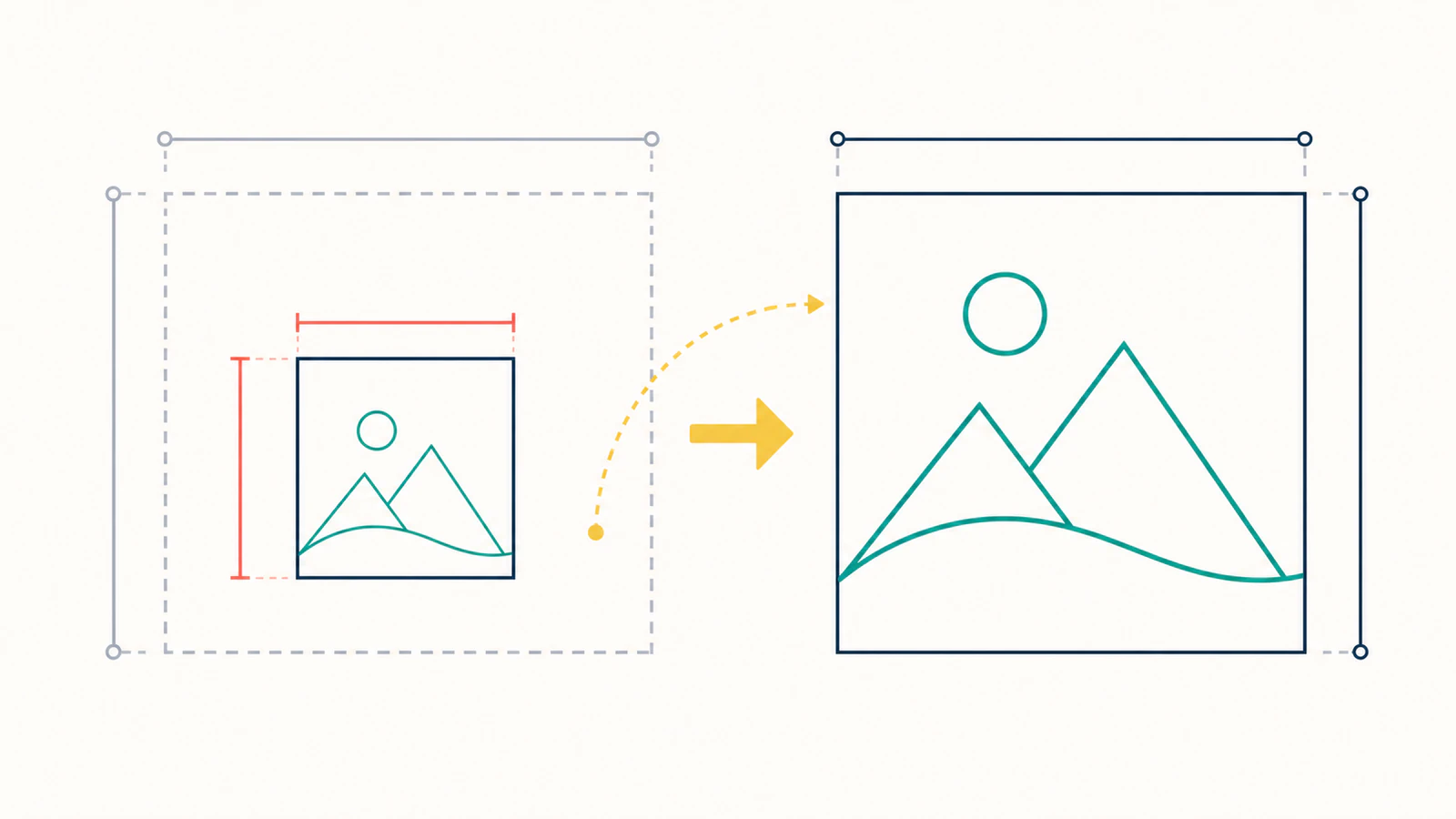
Run the reference-square test
Use a square large enough to measure comfortably but small enough to fit beside the artwork.
- In the source editor, draw a square that is exactly 10 mm, 1 inch, or another known size.
- Give it a distinct fill or stroke and place it outside the finished design.
- Export the artwork and square together as one SVG.
- Import the file into the destination app without dragging a resize handle.
- Measure the square with the destination app's dimension tool.
- Divide the intended dimension by the imported dimension.
- Scale the entire import once. Do not resize separate shapes.
- Delete the square only after the final measurement passes.
This test also catches a false diagnosis. If the reference square imports correctly, the document units are probably fine. Look instead for a transformed group, a stroke whose visual width was included in the bounds, an off-canvas object, or an importer that fits content to a page. If one sharp stroked corner changes the visible bounds, follow the miter-spike diagnosis before changing the document's physical scale.
For CNC, laser, and 3D work, use a physical-unit square. A pixel square can confirm proportional scaling, but it does not prove the millimetres that a machine workflow needs.
Rhinestone templates need a separate layout check. Keep hole diameters fixed when resizing the pattern after restoring the intended import scale; enlarging the finished design changes the stone openings too.
Fix the file or fix the import?
| Situation | Best correction |
|---|---|
| One destination app imports every SVG at the same wrong factor | Save an import preset or scale once in that app |
The file has a viewBox but no physical width and height | Add explicit physical dimensions if the workflow requires them |
| Every element, including the reference square, changes by one factor | Scale the whole document or imported sketch |
| The square is correct but one group is wrong | Inspect that group's transform instead of changing global units |
| Visible bounds are larger than the design | Remove off-canvas objects, masks, or stray points |
| Stroke widths change unexpectedly | Decide whether the app scales strokes with objects, then expand strokes only if the production workflow needs outlines |
Editing the file is useful when you control the master and repeatedly send it to the same kind of workflow. Correcting the import is safer when a CAD or cutter app has a known scale convention and the SVG already behaves correctly everywhere else.
CAD and cutter software need an extra check
A browser only needs to draw the image. CNC, laser, and 3D workflows need an exact physical result. After the scale passes, check geometry separately:
- Confirm the machine document is using the expected units.
- Measure a real feature, not only the overall bounding box.
- Check that closed profiles remain closed.
- Look for a hidden background rectangle that enlarged the bounds.
- Confirm the toolpath, sketch, or extrusion preview before producing material.
The image-to-SVG for CNC guide covers path cleanup and CAM handoff. If the next step is extrusion, use the 3D-printing SVG workflow after the scale is correct.
For Shaper Origin, continue with the physical-size and cut-type checklist. Confirming scale is one step; the imported paths also need the intended cut assignments before routing.
After confirming the intended dimensions, check the size against a cutting mat before your cutter's final preparation screen.
For printed picture cards, the visual schedule card layout guide checks artwork fit, PDF page dimensions, and print scaling. An SVG at the right size can still end up on a page that the printer shrinks.
Where PerfectVector fits
PerfectVector converts raster artwork into editable SVG paths. The SVG and DXF for CNC workflow is useful when the only source is a PNG or JPG and you need vector geometry for CAM. It does not know the final physical size of your part, so you still need to set and verify dimensions in the destination software.
That division is important. Vectorization recovers scalable shapes. A known-size square and a CAM measurement establish physical scale. Treating those as two checks prevents a clean trace from becoming a wrongly sized cut.
FAQ
Why does my SVG import smaller than it was exported? The exporting and importing apps may be mapping SVG user units, CSS pixels, points, or physical units differently. Add a known-size square and compare its intended and imported dimensions. If the whole file changed by one factor, scale the document once rather than editing individual paths.
Does an SVG have DPI? SVG geometry is resolution independent, so it does not have a fixed pixel density like a raster image. DPI-like conversions matter when software maps CSS pixels or design units to inches or millimetres. The importer's convention, not hidden image resolution, is often the source of the mismatch.
What does viewBox do to SVG size?
The viewBox defines the visible coordinate rectangle and lets the renderer map those user units into the viewport. It does not by itself declare a physical size. Root width and height, CSS, or the receiving application determine how large that viewport becomes.
Why is my SVG the right size in a browser but wrong in Fusion or LightBurn? A browser can render the SVG in a CSS viewport, while CAD and laser software must map it to physical document units. Those importers may use a different convention or ignore part of the SVG's sizing metadata. Measure a reference square and correct the full import by the resulting scale factor.
Should I convert the SVG to DXF to fix its size? Not as the first step. Format conversion can carry the same scale ambiguity or introduce another one. Diagnose the factor with a reference square first. Use DXF when the destination workflow prefers it, then verify dimensions again after import.
Sources
- W3C — SVG 2 Coordinate Systems — Defines user units, viewports,
viewBox, and transforms. - W3C — CSS Values and Units Level 4 — Defines the reference conversions among CSS pixels, inches, and points.
- Autodesk Fusion — Insert SVG — Documents SVG placement and scale controls in Fusion sketches.
Before a toolpath or cut, prepare the SVG or DXF for CNC and inspect the result. Measure the reference square, a real feature, and the final CAM preview before removing the square from the production file.
More from the blog
SVG Bounding Boxes: Measure the Right Coordinates
Compare getBBox and getBoundingClientRect on transformed SVG artwork. Place overlays correctly, test stroke bounds, and fit a viewBox with an explicit margin.

SVG Pattern Units: Keep Repeated Motifs the Right Size
Control SVG pattern spacing and motif size with patternUnits, patternContentUnits, and viewBox. Compare resizing a shape with scaling its entire group.