Round SVG Path Corners by Changing the Filled Shape
Round one filled SVG corner with a tangent arc, check whether the radius fits its edges, and see why a round stroke join leaves the original fill unchanged.
On this page
- Choose the change your artwork needs
- Save the angular original
- Replace that corner with a 20-unit arc
- Check that the radius fits the available edges
- Verify the changed silhouette, then keep the source
- Where PerfectVector fits before corner editing
- FAQ
- Why does a round stroke join leave my fill corner sharp?
- Can I use the function on any SVG path?
- Will this make a file ready for cutting?
- Sources
To round an SVG path's filled corner, change the path geometry. Stop each adjoining straight segment before the vertex, then connect those new endpoints with a curve. stroke-linejoin="round" changes the painted stroke at a join; it leaves the original filled outline in place.
This tutorial rounds one right-angle corner of an original filled emblem. You need a plain-text editor and a browser. By the end, you will have a complete SVG with a 20-unit circular fillet, a check that the chosen radius fits, and the original angular file to compare or restore.
A fillet is a curve that replaces a sharp corner and meets its adjoining edges tangentially. The example uses a circular quarter-arc between straight horizontal and vertical edges. It does not automatically round arbitrary traced Bézier paths.
Choose the change your artwork needs
The stroke-linejoin reference defines how a stroke is drawn at path corners. Use a round join when that painted border is the part you want to change. To change a filled silhouette, edit its actual path.
| Your object or requirement | Appropriate starting point | What changes |
|---|---|---|
| Plain SVG rectangle | Set rx or ry on the rectangle | The rectangle's corner geometry |
| Stroked angular path | Set a round stroke join | The paint around the existing path |
| Filled polygon or emblem | Replace a chosen corner with a curve | The filled silhouette |
| Complex traced path with curves | Inspect and edit the selected junction | Depends on its actual segments |
For a plain rectangle, the SVG rect reference documents rx and ry. Our emblem also has a diagonal edge, so converting it to a rounded rectangle would change more than the chosen corner.
If the problem is only a long spike on a stroke, start with the miter-spike diagnostic. This article changes the filled geometry instead.
Save the angular original
Copy this complete file into emblem-original.svg and open it in a browser. The upper-right vertex is (170, 30). Its incoming edge is horizontal; its outgoing edge continues down to (170, 100).
<svg xmlns="http://www.w3.org/2000/svg"
     width="200" height="190" viewBox="0 0 200 190">
  <path fill="#174f68"
        d="M30 30H170V100L110 160H30Z"/>
</svg>
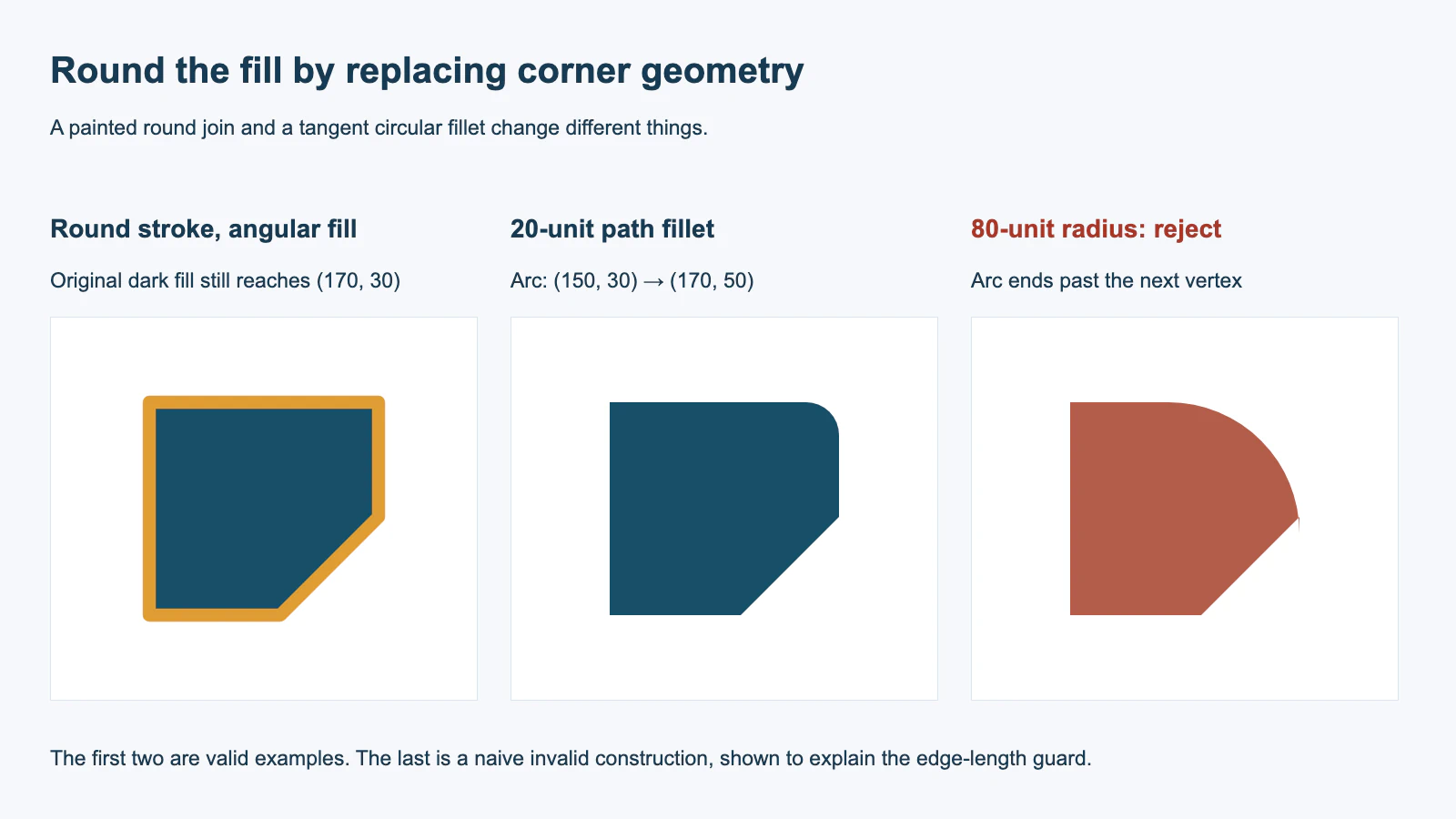
Keep this file as the comparison master. Adding stroke="#df9d34", stroke-width="8", and stroke-linejoin="round" to this path gives it a rounded painted border, while its dark fill still reaches the original sharp corner.
Replace that corner with a 20-unit arc
Move the end of the incoming line 20 units left of the vertex, to (150, 30). Move the start of the outgoing line 20 units down, to (170, 50). A circle centered at (150, 50) with radius 20 joins those points as a quarter-arc.
Save this second complete file as emblem-rounded.svg:
<svg xmlns="http://www.w3.org/2000/svg"
     width="200" height="190" viewBox="0 0 200 190">
  <path fill="#174f68"
        d="M30 30H150A20 20 0 0 1 170 50V100L110 160H30Z"/>
</svg>
A20 20 0 0 1 170 50 means a circular arc with horizontal and vertical radii of 20, zero rotation, the small arc, and sweep flag 1, ending at (170, 50). The SVG path specification defines those parameters. For this clockwise corner, they select the intended quarter-circle. The arc-flags guide helps diagnose an arc that bends along the wrong route.
The circle's radius is vertical at the first endpoint and horizontal at the second. Its tangent therefore follows the horizontal incoming line and the vertical outgoing line. A curve can look rounded while still making a kink at a join; this construction gives those specific edges matching tangent directions.
Check that the radius fits the available edges
At this 90-degree corner, a circular fillet consumes a distance equal to its radius along each adjacent edge. The incoming run is 140 units long, but the outgoing run is only 70. For this single-corner construction, a positive radius must be no larger than 70; choose a smaller radius when you want to retain a straight portion of that outgoing edge.
The following function is deliberately limited to this exact emblem and corner. Run it in a JavaScript console or Node.js to generate the replacement d value.
function roundEmblemCorner(radius) {
  const incomingLength = 170 - 30;
  const outgoingLength = 100 - 30;
  if (!Number.isFinite(radius) || radius <= 0 ||
      radius > Math.min(incomingLength, outgoingLength)) {
    throw new Error('Radius must be positive and fit both adjacent edges.');
  }
  return `M30 30H${170 - radius}` +
    `A${radius} ${radius} 0 0 1 170 ${30 + radius}` +
    'V100L110 160H30Z';
}

roundEmblemCorner(20);
// M30 30H150A20 20 0 0 1 170 50V100L110 160H30Z
With radius 80, a naive construction would end the arc at (170, 110), past the next vertex (170, 100). The subsequent V100 would reverse direction. Reject that radius rather than accepting whatever the browser happens to draw.
For other straight-edge angles, tangent distance depends on the angle. For an ordinary convex corner with interior angle θ, that distance is r / tan(θ / 2). If you round both ends of a shared edge, their two consumed distances must fit together on that edge. Concave corners, existing curves, and compound shapes need additional geometry decisions; this function does not handle them.
Verify the changed silhouette, then keep the source
- Open both complete SVG files at the same size and background.
- Temporarily remove the stroke from the painted-join version. Its fill should match the angular original.
- Compare the rounded version's upper-right contour. The remaining sides, diagonal edge, and overall placement should match the original.
- Run the radius guard with 20 and then 80. The first produces the shown path; the second throws the radius error.
- Inspect the saved SVG in the destination where it will be used. Restore the original if the rounding removes a deliberate feature or the destination changes its appearance.
Method note: We rendered the original, round-stroke, and filleted paths in Chromium. A fill probe at (169, 31) was inside the first two shapes and outside the filleted shape. The exact function above accepted 20 and rejected 80. We also checked both arc endpoints against the radius and adjoining tangent directions. This verifies the supplied straight-edge example, not a general fillet algorithm or a cutter's output.
If the curve bulges outward, inspect the arc endpoint and sweep flag. If a kink remains, check that the curve's tangent matches the neighboring segment; the Bézier smooth-join guide explains that separate repair task. The SVG editing guide covers opening, inspecting, and retaining a usable master.
Where PerfectVector fits before corner editing
PerfectVector can recover vector paths when the artwork exists only as a raster image. Inspect the recovered outline first, then decide which corners should change in a copy. The image-to-vector workflow supplies the recovery step; it does not automatically apply this fillet construction.
Use the original vector file when it is available. A traced contour can contain Bézier segments and small irregularities that do not match this straight-edge example. Redrawing a simple intended emblem may be easier than rounding every traced junction. Keep the approved shape before any intentional redesign, and use the blog workflow guides for the next delivery check.
FAQ
Why does a round stroke join leave my fill corner sharp?
The join controls the painted stroke around the path. The fill follows the existing path geometry, so it retains the original corner until you replace that geometry with a curve.
Can I use the function on any SVG path?
No. It handles one specified right-angle corner of the shown straight-edge emblem. Other angles, concave corners, existing curves, and shared-edge constraints need their own construction.
Will this make a file ready for cutting?
It changes one filled outline in the example. Inspect the saved geometry and perform the checks required by your actual cutter or production process; this browser test does not establish a physical cutting result.
Sources
- MDN — SVG stroke-linejoin — Defines the stroke-paint setting distinguished from fill geometry in the comparison.
- MDN — SVG rect — Documents the simpler radius controls available for plain rectangles.
- W3C — SVG elliptical arc commands — Defines the arc radii, flags, and endpoint used in the complete rounded path.
If the original paths are missing, recover your artwork with PerfectVector. Inspect its outline against the reference, save the recovered master, and test any intentional corner edits in a separate copy at the intended size.
More from the blog

SVG Relative Path Commands: Track the Current Point
Read absolute and relative SVG paths by tracking the current point. Test moveto pairs, closepath resets and cubic coordinates with an original matched example.

SVG Imports at the Wrong Size: Diagnose and Fix It
An SVG can import too small or too large when two apps interpret its units differently. Diagnose the scale with a reference square before editing the art.