
SVG Miter Spikes: Fix Sharp Corners Without Clipping
An SVG miter join can make a narrow corner spike or clip at the page edge. Compare miter limits, bevels, round joins, and viewport space before editing paths.
On this page
- Why a narrow corner grows a spike
- Is it a spike, a bevel, or a clipped point?
- Fix the corner without changing the wrong thing
- 1. Find the path and its effective join
- 2. Change one join setting on a duplicate
- 3. Give a wanted point enough canvas
- 4. Reopen the delivered file
- When a raster logo needs a new path first
- Final corner check
- FAQ
- Sources
A needle-like point on an SVG outline usually comes from a miter join at an acute corner. If you do not want the point, lower stroke-miterlimit or choose a bevel or round join. If the point is part of the design but its tip disappears, give the painted stroke more room inside the viewBox. Those are different repairs: one changes the corner's shape; the other changes what the file can display.
Keep a copy of the original SVG while testing. A logo with a deliberate sharp tip may need its miter preserved, while a stray spike on an imported outline may need a flatter join. First decide which corner is meant to survive.
The short diagnosis
- Unexpected spike: inspect
stroke-linejoinandstroke-miterlimiton the affected path and any parent style. - Flat corner where you wanted a point: the miter may have exceeded its limit and switched to a bevel.
- Point cut off at the page edge: test a larger
viewBoxmargin before changing the join. - Shape already filled, with no live stroke: edit the path geometry; miter settings cannot repair a filled silhouette.
Why a narrow corner grows a spike
A stroked path has width on both sides of its centerline. With stroke-linejoin="miter", the outer stroke edges continue until they meet. The sharper the turn, the farther away that meeting point can be. SVG uses miter as the initial join style, and the initial stroke-miterlimit is 4, according to the SVG 2 painting definition.
The limit is a ratio, not a distance in pixels or SVG units. If the miter length divided by stroke-width exceeds the limit, an ordinary miter join becomes a bevel. A higher limit permits a longer point; a lower one makes more acute corners go flat. MDN's miter-limit reference shows the relationship to corner angle and notes that a CSS property can override the SVG presentation attribute.
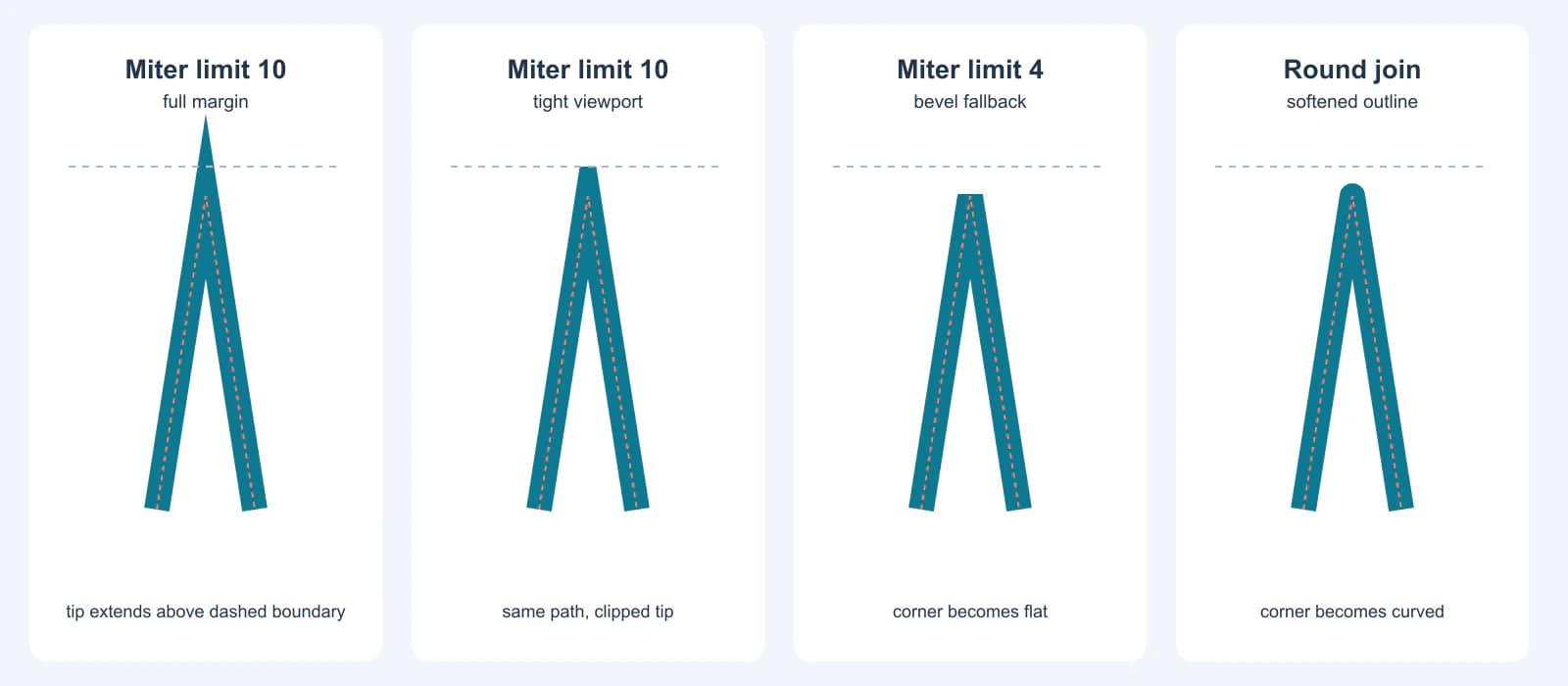
For this test, we drew one open, angular emblem segment with d="M130 520 L180 200 L230 520" and a 26-unit stroke. The first two panels use a miter limit of 10. The second applies a tight visible boundary at y=170, which cuts off the tip. The third uses a limit of 4, so this corner becomes a bevel. The fourth uses round. This is a controlled illustration of that path and renderer, not a promise that every imported SVG will have the same corner shape.
The red dashed center path is unchanged in all four panels. That matters: changing the stroke join can repair a painted outline without reconstructing the underlying vector path.
Is it a spike, a bevel, or a clipped point?
| What you see | Likely cause | Test before editing |
|---|---|---|
| A long point appears outside an angular outline | Miter join and a sufficiently high miter limit | Temporarily set stroke-linejoin="bevel" on a copy. If the point vanishes, the join made it. |
A tip looks blunt despite stroke-linejoin="miter" | The miter exceeds its limit and falls back to bevel | Raise the limit on a copy, then check whether the new tip is desirable and stays on the canvas. |
| A point ends exactly at a straight page boundary | The visible viewport or a clip cuts the painted stroke | Expand the viewBox on a copy while leaving the path unchanged. |
| Changing the miter limit has no effect | The join is round or bevel, CSS overrides the attribute, or the shape is already a fill | Inspect the computed style and whether the object has a live stroke. |
A cropped point can resemble an intentional bevel at first glance. Zoom in and check whether its end aligns with the file boundary. The disappearing SVG stroke diagnosis covers other paint and clipping causes; this test isolates the miter corner.
Fix the corner without changing the wrong thing
1. Find the path and its effective join
Select the corner in a vector editor, or inspect the SVG text for stroke, stroke-width, stroke-linejoin, and stroke-miterlimit. Check parent groups and CSS rules as well as the path's own attributes. An inline or stylesheet stroke-miterlimit property can take precedence over the same presentation attribute on the element, as MDN documents.
If the selected object is a filled outline instead of a live stroke, stop adjusting miter settings. You must change that fill's path or return to the unexpanded stroke master. If the whole import is the wrong size, run the known-size SVG import test before compensating with a stroke width change.
2. Change one join setting on a duplicate
Try a bevel first when a mechanical flat corner is acceptable. Try round when the design permits a softened edge. Keep miter when the precise point is part of the mark, and choose a limit that preserves only the intended points. The SVG stroke-linejoin reference defines how the common join shapes differ.
Here is a small test copy of the path used above:
<svg xmlns="http://www.w3.org/2000/svg" viewBox="0 0 360 590">
  <path d="M130 520 L180 200 L230 520"
    fill="none" stroke="#0d7991" stroke-width="26"
    stroke-linejoin="miter" stroke-miterlimit="10" />
</svg>
Change stroke-miterlimit to 4 to see the bevel fallback on this particular angle. Then restore 10 and switch stroke-linejoin to round or bevel. The stroke-miterlimit value is irrelevant for those latter two join styles. Do not lower it throughout a whole logo merely because one corner misbehaves; other points may be deliberate.
3. Give a wanted point enough canvas
If the miter is correct but disappears at the edge, enlarge or reposition the viewBox around the painted result, not only the path coordinates. The SVG 2 coordinate-system definition explains the visible rectangle; the stroke can extend beyond the coordinates of its center path. Check nested SVG viewports and clip paths too. A parent clip can keep cutting the point even after the root viewBox expands.
Do not treat a larger canvas as a cure for an accidental needle. It only reveals more of that needle. Conversely, changing the join to bevel merely to fit a tight artboard may erase a designed corner. Compare the delivered file with the original mark at its actual display or print size. If a vendor measures a physical SVG size, preserve the intended width and height while changing the viewBox mapping deliberately.
4. Reopen the delivered file
Inspect the result in a browser and the target editor or production app. Check the point at 100% and at the intended final size. If the handoff requires filled contours rather than editable live strokes, keep your original master, outline a delivery copy in an editor, and inspect the new filled boundary. Outlining changes the geometry; it is not a reversible miter setting. For a wider check of fills and outlines, see the SVG paint-order guide.
When a raster logo needs a new path first
Miter controls only work on a live vector stroke. If your only surviving logo is a PNG or JPG, PerfectVector's logo vectorization workflow can create an SVG candidate before you edit its corners. Compare the recovered silhouette, small gaps, and path structure against the source. A trace may represent a thick raster line as a filled outline, not the original editable centerline, so do not expect stroke-miterlimit to repair that result automatically. Redraw a critical geometric point when it must match a brand master exactly.
If the original SVG exists, repair that file instead of vectorizing a screenshot. The logo vectorization guide helps when you truly have to rebuild artwork from pixels; this article begins after a suitable live stroke already exists.
Final corner check
- Save the untouched vector master.
- Confirm whether the corner is a live stroke or a filled contour.
- Compare
miter,bevel, androundon the one affected path. - If preserving a miter, test its limit and leave enough visible space for the full painted tip.
- Reopen the SVG in its actual destination and check at the final size.
FAQ
Why does my SVG have spikes at sharp corners? A miter join extends the outer stroke edges until they meet. On an acute angle that meeting point can be far from the center path. Lower the miter limit or use bevel or round when the point is unintended.
Why does lowering stroke-miterlimit make a corner flat? When the miter-length-to-stroke-width ratio exceeds the limit, an ordinary miter join falls back to bevel. Lower values trigger that fallback on more corners. Keep a higher limit if the sharp point is intentional, then check its bounds.
Why is my SVG point still cut off after I increase the miter limit? The higher limit may make the point longer while the viewBox or a clip still cuts it. Expand the visible region around the painted stroke or reposition the mark, then reopen the delivered SVG in the destination.
Sources
- W3C — SVG 2 Painting — Defines stroke joins, the initial values, and miter fallback behavior.
- MDN — stroke-miterlimit — Explains the limit ratio and its relationship to sharp corner angles.
- MDN — stroke-linejoin — Defines common corner shapes for stroked paths.
- MDN — CSS stroke-miterlimit — Documents CSS property precedence over the SVG presentation attribute.
- W3C — SVG 2 Coordinate Systems — Defines the viewBox and viewport relationship used for the boundary check.
If a raster-only mark needs usable paths before this repair, make an SVG candidate from the logo, inspect its geometry, and then adjust or redraw the corners that matter.
More from the blog

SVG Stroke Alignment: Place Outlines Inside or Outside
SVG strokes sit on a path by default. Use a clip for an inner outline or a mask for an outer one, then check the visible bounds and importer before delivery.

SVG Opens Blank: Seven Checks Before You Rebuild It
A blank SVG may be off-canvas, invisible, clipped, unsupported, malformed, or only a raster wrapper. Preserve it and run seven checks before rebuilding.