SVG Opens Blank: Seven Checks Before You Rebuild It
A blank SVG may be off-canvas, invisible, clipped, unsupported, malformed, or only a raster wrapper. Preserve it and run seven checks before rebuilding.
On this page
- 1. Preserve the file and check whether it contains data
- 2. Compare a browser and a vector editor
- 3. Select all and inspect the bounds
- 4. Compare the artwork with the viewBox
- 5. Check paint and visibility
- 6. Inspect features the destination may not support
- 7. Validate or re-export the file
- When to rebuild or re-vectorize
- Where PerfectVector fits
- FAQ
- Sources
If an SVG opens blank, duplicate the file before you save or export anything. The artwork may still be present but outside the visible viewBox, painted transparent or white, hidden by a clip or mask, or built with a feature that one app does not support. Re-saving a blank document can turn a recoverable file into a genuinely empty one.
Open the copy in a browser and a vector editor. That comparison is the first branch: visible in one but blank in the other usually means application support or document structure; blank everywhere points more strongly to viewport, paint, clipping, invalid markup, or missing content.
The seven checks
- Preserve the original and inspect the file size.
- Compare a browser with a vector editor.
- Select all and inspect the object bounds.
- Compare the bounds with
viewBox,width, andheight. - Check fill, stroke, opacity, display, and visibility.
- Inspect clips, masks, patterns, filters,
<image>, and<foreignObject>. - Validate or re-export the markup before deciding to re-vectorize.
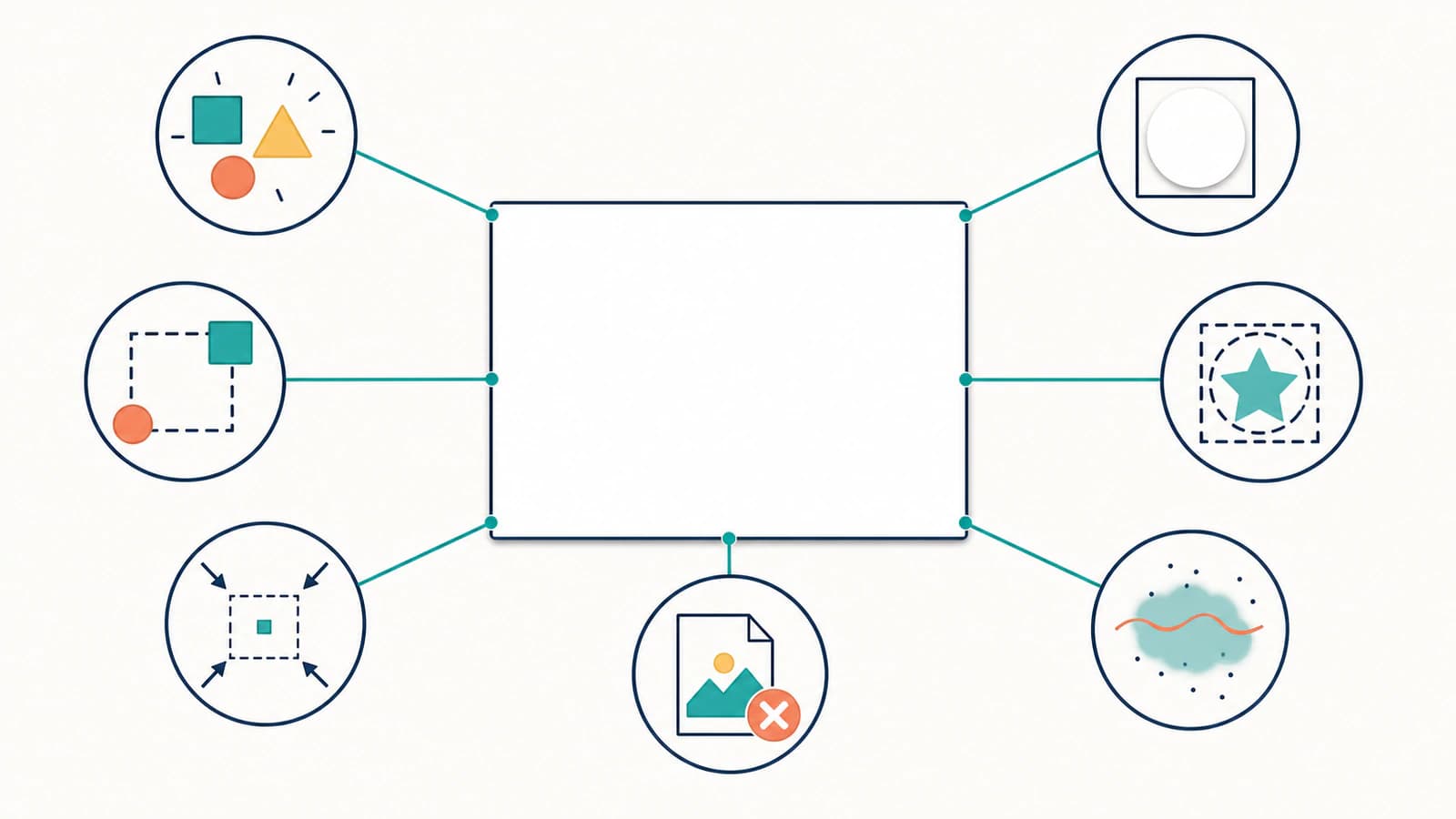
The checks are a diagnosis map, not seven unrelated repairs. Confirm that geometry exists, then test its bounds, scale, paint, clipping, supported effects, and dependencies before replacing anything.
1. Preserve the file and check whether it contains data
Make a copy with a new name. Then check its file size and open it in a plain text editor.
A zero-byte file or a document with only an empty root <svg> element has little to recover from that copy. A file containing paths, groups, styles, or a large block of encoded data is not empty just because the canvas looks empty.
Do not infer too much from a large size. The file could contain a high-resolution embedded image, repeated styles, or malformed data. Size only tells you that further inspection is worthwhile.
2. Compare a browser and a vector editor
Drag the SVG into a current browser, then open the same copy in Inkscape, Illustrator, Figma, or another vector editor.
| Browser | Editor | Likely branch |
|---|---|---|
| Visible | Blank | Unsupported feature, embedded web content, pattern, filter, mask, or importer limitation |
| Blank | Visible | Browser-facing markup, CSS, resource, or security issue |
| Blank | Blank | Viewport, paint, clipping, malformed markup, or missing content |
| Visible | Visible | The original symptom may belong to thumbnails, import method, or one specific app |
A browser displaying the file does not prove that it contains portable vector paths. Browsers can render embedded raster images and web content that CAD or vector editors ignore.
3. Select all and inspect the bounds
In the vector editor, use Select All. Look for a selection box, coordinates, width, and height.
- A selection box far outside the page means the artwork is off-canvas.
- A huge selection may indicate a stray point, clipping object, or background rectangle.
- A normal selection box with invisible art points toward paint, opacity, or clipping.
- No selectable objects suggests unsupported content, an empty document, or a failed import.
If the objects are off-canvas, move the selection to the page or resize the page to the drawing. Avoid scaling the paths unless their actual dimensions are also wrong.
4. Compare the artwork with the viewBox
Open the SVG as text and inspect the root element:
<svg xmlns="http://www.w3.org/2000/svg"
  width="800" height="600" viewBox="0 0 800 600">
The four viewBox numbers are minimum x, minimum y, width, and height, as defined by the SVG coordinate-system specification. Artwork at coordinates around 10000,10000 will not appear inside viewBox="0 0 800 600". A zero or negative viewBox dimension disables rendering of that element.
Correct the visible bounds based on the actual geometry. Do not paste in a random viewBox from another file. The wrong-size SVG guide explains how viewBox and viewport dimensions interact when the art is visible but scaled incorrectly.
5. Check paint and visibility
Select an object and inspect both fill and stroke. Common invisible states include:
fill="none"with no stroke;- white fill on a white canvas;
opacity="0",fill-opacity="0", orstroke-opacity="0";display="none"orvisibility="hidden";- a class whose stylesheet applies one of those values;
- an extremely thin stroke at the current scale.
Temporarily place a colored rectangle behind the artwork or assign a loud test fill to a copy of one path. If it appears, restore the intended styles rather than leaving the diagnostic color in the final file.
If fills remain visible but individual lines vanish after export, use the disappearing SVG strokes guide to test stroke paint, clipping, scale, and unsupported appearances without retracing good geometry.
6. Inspect features the destination may not support
Search the markup for clipPath, mask, pattern, filter, <image>, and <foreignObject>.
Clips and masks can hide everything when their coordinate systems or references break; the SVG rendering model places clipping, masking, filtering, and compositing in the rendering pipeline. Patterns and filters may render differently across importers. An <image> element embeds image content inside the SVG container, while <foreignObject> can contain content from another XML namespace, as described by the SVG embedded-content specification.
If the shapes survive but HTML labels disappear, compare foreignObject with native SVG text and replace only the failing label.
If the paths are visible but a shadow is cut off, diagnose a clipped SVG shadow by testing the filter region and outer viewport separately.
References can fail too. Check that IDs used by url(#name) actually exist and are unique. If the SVG relies on an external image, font, stylesheet, or linked file, moving the SVG may have broken that resource.
For a Qt application, the SVG in Qt renderer guide separates module and loading checks from supported-feature limits. Compare a small source first, then inspect the artwork in the chosen rendering route.
When a browser shows the design but CAD imports nothing, look for ordinary <path>, <rect>, <circle>, and similar vector geometry. A visible embedded PNG has no curves for CAD to use.
7. Validate or re-export the file
Malformed XML, invalid attributes, and exporter-specific structures may be tolerated by one renderer and rejected by another. If you have the source design, reopen it in the creating application and export a plain or simplified SVG copy. Expand only the features the destination cannot handle, and compare the new file against the source.
If you do not have the source, use an SVG/XML validator or a text editor that reports syntax errors. Work on a copy and fix the first structural error first because later messages may be consequences of it.
Do not run an optimizer on the only copy. Optimization rewrites structure and can make recovery harder when the problem is not understood.
When to rebuild or re-vectorize
Re-vectorization is appropriate when the file contains only an embedded raster image, the generated SVG structure is unusable outside a browser, or no editable source survives. Extract or locate the highest-quality raster, then trace it into real paths.
It is not the right fix for off-canvas paths, a broken viewBox, white fills, or one unsupported mask. Those files already have geometry, and preserving it avoids an unnecessary quality loss.
If the whole design selects as one pixel image or becomes blocky at deep zoom, use the hidden-pixels diagnosis before rebuilding.
Where PerfectVector fits
PerfectVector's image-to-vector workflow is for the raster-only branch. Upload the best PNG, JPG, or other supported image and inspect the vector preview for real shapes, clean edges, negative space, and manageable paths.
It does not repair arbitrary SVG markup or recover external resources. If the file already contains good paths, fix the viewport, styles, or unsupported feature in a vector editor. If it is only a raster in an SVG shell, rebuilding the visible artwork as paths gives you a portable vector instead of another wrapper.
FAQ
Why is my SVG blank in Illustrator but visible in Chrome? The file may use a feature the browser supports but Illustrator does not import, such as embedded web content, a complex pattern, filter, mask, or raster wrapper. Inspect the markup and check whether it contains ordinary vector paths before re-exporting a simpler SVG copy.
How do I find SVG artwork that is off the canvas?
Use Select All and inspect the selection bounds or coordinates. If a box appears far from the page, move it to the page or resize the page to the drawing. Then update the viewBox to match the intended visible geometry.
Can an SVG be white and look blank?
Yes. White fills or strokes disappear on a white canvas. The file may also use zero opacity, display="none", or visibility="hidden". Test on a colored background and inspect computed styles.
Why does my SVG import blank into Fusion or another CAD app?
The file may contain an embedded bitmap or unsupported web content rather than vector curves. CAD needs path geometry it can import. Search for <path> and related shapes, and check whether the visible content instead sits inside <image> or <foreignObject>.
Should I convert a blank SVG to PNG and back to SVG? Only if the SVG has no recoverable vector geometry and the raster appearance is the best surviving source. A PNG round trip destroys existing path structure. Diagnose viewport, visibility, clipping, and support problems first.
Sources
- W3C — SVG 2 Coordinate Systems — Defines viewports,
viewBox, units, and transforms. - W3C — SVG 2 Rendering Model — Documents clipping, masking, filtering, compositing, and rendering order.
- W3C — SVG 2 Embedded Content — Defines embedded images and foreign content in SVG.
- W3C — Markup Validation Service — Provides standards-based document validation for markup debugging.
When the surviving file is only pixels inside an SVG container, rebuild the artwork as editable vector paths and inspect the preview. When good paths are already present, preserve them and repair the smallest failing part of the document.
More from the blog

SVG Miter Spikes: Fix Sharp Corners Without Clipping
An SVG miter join can make a narrow corner spike or clip at the page edge. Compare miter limits, bevels, round joins, and viewport space before editing paths.

SVG Symbol Sprites: Keep IDs, ViewBoxes, and Colors
Build an SVG symbol sprite with two icons. Preserve IDs and viewBoxes, set color behavior, and check external references and accessible names in context.