SVG in Qt: Choose the Renderer, Then Check the File
Use QSvgWidget or QSvgRenderer for SVG in Qt, check current feature support, and avoid confusing a scalable source with a fixed raster image in your app.
On this page
- Choose a display route before editing the SVG
- Try a small source before the full illustration
- A minimal Qt 6 Widgets example
- Check current support instead of assuming browser parity
- Notice when your pipeline turns the SVG into pixels
- Inspect the result before simplifying everything
- Recover a source master when only a raster remains
- FAQ
- Sources
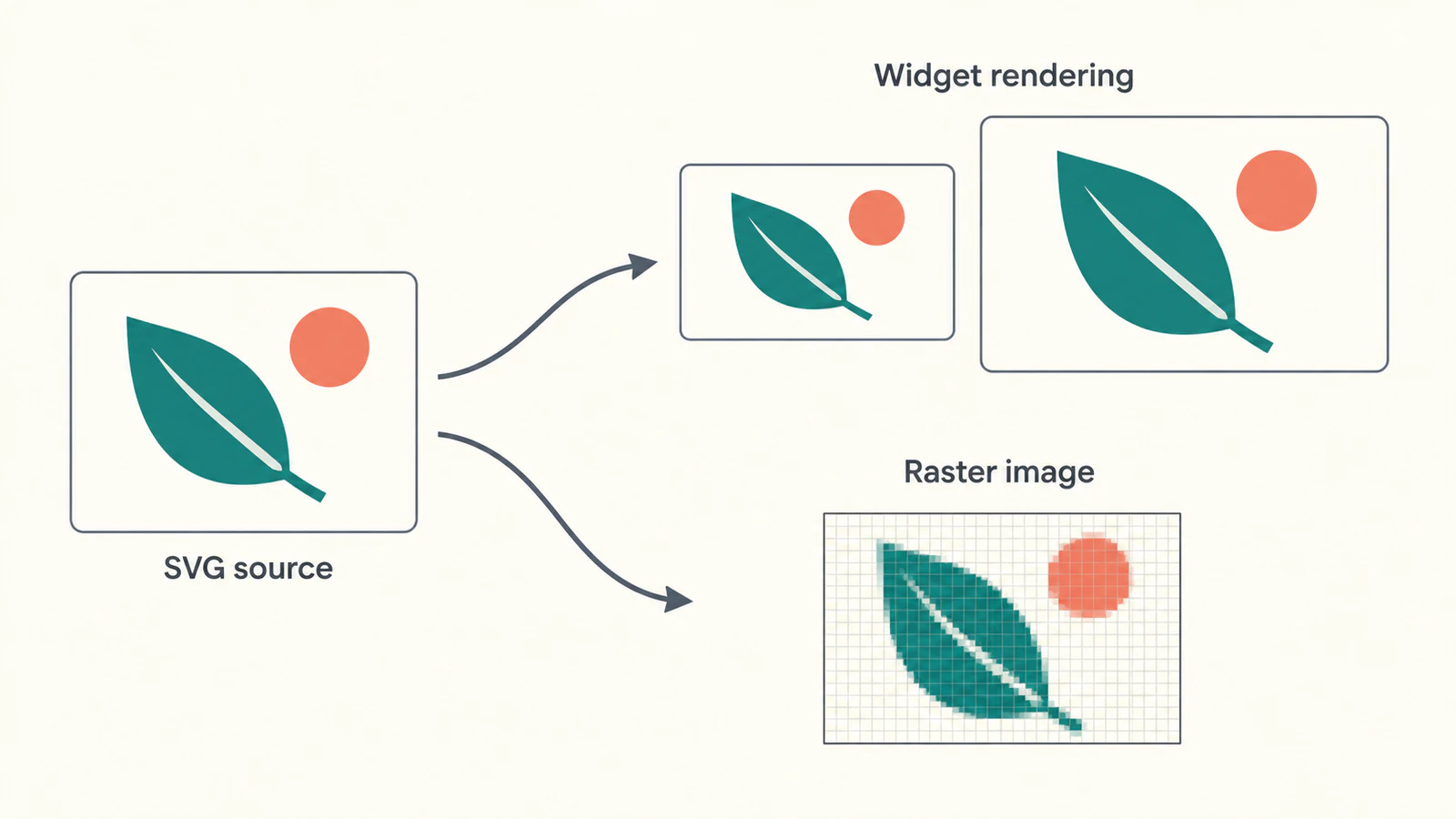
For SVG in a Qt Widgets app, start with QSvgWidget when you want to display a drawing. Use QSvgRenderer when you need to paint the drawing onto a chosen target. The distinction matters: painting once into a fixed-size QImage leaves you with pixels to display, while retaining the SVG lets you render it again for another size. Qt's rendering guide describes both routes.
Choose the route first, then check the artwork. A browser preview can show your intended design, but it cannot prove that Qt supports every feature used by the file.
Choose a display route before editing the SVG
| Your task | Starting point | What to check |
|---|---|---|
| Show a static SVG beside other widgets | QSvgWidget | File loading, drawing bounds and proportions |
| Paint into your own widget or image | QSvgRenderer with a painter | Target size and when rendering happens |
| Edit individual vector points | An artwork editor or a separate editing implementation | Editable source geometry and selection behavior |
Qt documents QSvgWidget as an SVG display widget and exposes its renderer through renderer(). The widget belongs to SvgWidgets; its CMake dependency is Qt6::SvgWidgets. The class reference is more useful here than an old example that only adds the general SVG module.
Displaying an SVG does not create an illustration editor. Keep a separate source master if someone will need to move a leaf, reshape a corner, or recolor a detached detail.
Try a small source before the full illustration
Save this original drawing as leaf.svg. It uses a filled leaf, a light vein and a separate coral circle:
<svg xmlns="http://www.w3.org/2000/svg" width="160" height="100" viewBox="0 0 160 100">
  <path d="M24 78C20 34 56 18 98 26C90 62 58 86 24 78Z" fill="#176b64"/>
  <path d="M28 74L78 38" fill="none" stroke="#fff6e8" stroke-width="5"/>
  <circle cx="126" cy="26" r="10" fill="#ec785e"/>
</svg>
The wide canvas is deliberate. If the leaf becomes tall and narrow, investigate aspect handling before editing its curves. If the circle disappears, check the visible bounds and compare the loaded file with the source. This small example gives you recognizable details without relying on clipping or effects.
For background on the file itself, the SVG format guide explains the difference between vector shapes and an SVG wrapper containing a bitmap.
A minimal Qt 6 Widgets example
Create main.cpp:
#include <QApplication>
#include <QSvgRenderer>
#include <QSvgWidget>

int main(int argc, char *argv[])
{
    QApplication app(argc, argv);
    if (argc != 2)
        return 1;

    QSvgWidget view;
    view.load(QString::fromLocal8Bit(argv[1]));
    if (!view.renderer()->isValid())
        return 2;

    view.renderer()->setAspectRatioMode(Qt::KeepAspectRatio);
    view.resize(400, 240);
    view.show();
    return app.exec();
}
Pass the SVG filename as the program's argument, preferably an absolute path while testing. Exit code 1 means this example did not receive one filename; 2 means the renderer did not report a valid document. Those codes are choices in this sample, not Qt's own error-code API.
isValid() checks the loaded document. It is not a visual approval test. The explicit KeepAspectRatio setting asks the renderer to preserve proportions; the QSvgRenderer reference documents the validity check and aspect-ratio modes.
Use this CMakeLists.txt beside the source:
cmake_minimum_required(VERSION 3.16)
project(LeafPreview LANGUAGES CXX)
set(CMAKE_CXX_STANDARD 17)
set(CMAKE_CXX_STANDARD_REQUIRED ON)

find_package(Qt6 REQUIRED COMPONENTS Widgets Svg SvgWidgets)
add_executable(leaf_preview main.cpp)
target_link_libraries(leaf_preview PRIVATE Qt6::Widgets Qt6::Svg Qt6::SvgWidgets)
The example links Widgets for the application, SvgWidgets for the display widget, and Svg for its renderer calls. Qt lists the renderer's Svg component separately from the SvgWidgets component.
Configure and build it with your installed Qt 6 development kit, then run leaf_preview with the path to leaf.svg. This is a documented source example; we have not compiled or run it in a native Qt environment. Test the actual build and artwork on your target system before adopting it.
Check current support instead of assuming browser parity
Modern Qt SVG is not restricted to the static SVG Tiny features alone. Qt documents extra elements starting with Qt 6.7, parsed by default, with an option to restrict parsing to Tiny features. Its extended-feature reference lists the supported additions and their limits.
One concrete boundary is clipPath: the same page marks it unsupported. A file that relies on clipping therefore deserves a source inspection even if it looks right in a browser. Selected masks and filters have documented support, but that does not establish support for every effect or export setting.
When the simple leaf works but a larger illustration differs, make a copy and remove one suspect feature at a time. For clipped artwork, consider producing the intended visible geometry in an editor rather than depending on the clipping operation. Compare the resulting silhouette with the original before replacing your master.
Text needs its own check. If the lettering changes, follow the SVG font troubleshooting guide. Turning lettering into shapes is a design tradeoff; it should not be the first repair for an incorrect filename or missing module.
Notice when your pipeline turns the SVG into pixels
Suppose your code renders the leaf once into a small QImage, creates a pixmap from that image, and later enlarges the pixmap. The enlargement acts on the raster result. The SVG source has not disappeared, but that later display operation is no longer asking it for a fresh rendering.
Qt's rendering guide distinguishes painting into an image from painting in a widget's paint event. If your display changes size, decide where the SVG should be rendered again. Avoid treating a cached bitmap as evidence that the source itself cannot scale.
The same distinction matters when preparing an SVG icon set. Keep consistent source bounds, then judge each icon at its actual use size. A recognizable large leaf can still lose its vein or detached circle when the display is small.
Inspect the result before simplifying everything
Start with the file you actually load, not another export with a similar name. Confirm that the simple example appears, then compare the production artwork at the intended size and after a resize.
For the leaf, check that the circle stays separate, the vein remains visible, and the wide canvas does not stretch the drawing. These are acceptance checks for your own run, not reported outcomes from ours. If the whole view is empty, the blank SVG checklist helps separate invisible artwork and drawing bounds from application setup.
Keep photos or textured illustrations as raster assets when that suits the design. Choosing SVG should solve an artwork requirement; it does not by itself establish smaller files, faster rendering, or identical output across engines.
Recover a source master when only a raster remains
If the icon survives only as a PNG or JPG, PerfectVector's image-to-vector workflow can help prepare editable SVG artwork before the Qt handoff. Inspect the silhouette, gaps, and detached details after conversion, then test that SVG through your chosen Qt route. Vectorization prepares geometry; it does not add renderer features or turn a display widget into a path editor.
If you already have a clean vector master, adjust that file directly. Simplify a copy only when a specific feature or small-size detail needs attention, and retain the richer source for future edits.
FAQ
Should I use QSvgWidget or QSvgRenderer? Use QSvgWidget to display an SVG in a Widgets interface. Use QSvgRenderer when you need control over painting onto a chosen target, such as a custom widget or image.
Does current Qt support only SVG Tiny? Qt documents static SVG Tiny support plus selected extensions introduced in Qt 6.7. Check the current feature reference and your configured options rather than assuming either Tiny-only support or browser parity.
Why can an SVG look blurry after I put it in a pixmap? If you first rendered it into a fixed-size raster image, enlarging that result scales pixels. Revisit the render target and whether the SVG is rendered again at the required size.
Does a valid SVG load prove every detail rendered correctly? No. A validity check does not replace visual inspection. Compare bounds, proportions, small details and supported features in the actual target application.
Sources
- Qt — Rendering SVG Files — Display widgets, painter targets, and the distinction between widget rendering and raster intermediates.
- Qt — QSvgWidget Class — The display widget, renderer access, and SvgWidgets dependency.
- Qt — QSvgRenderer Class — The Svg dependency, document validity, and aspect-ratio settings.
- Qt — Extended Features — Modern extensions and explicit feature limits, including unsupported clipping paths.
Start with one small file and inspect it in your chosen Qt route. If raster artwork needs recovery, prepare an editable SVG candidate, check the shapes against the source, and repeat the application-level checks before replacing your asset.
More from the blog

SVG foreignObject Text: Fix Missing Export Labels
Fix SVG labels that appear in a browser but vanish on export. Compare foreignObject with native text, check namespaces, and preserve the existing artwork.

QGIS SVG Markers: Prepare Symbols With Editable Colors
Prepare a custom QGIS SVG marker with fill and outline parameters, a real cutout, and a fixed accent. Keep a plain SVG master and inspect the destination copy.