SVG Not Printing in a Browser? Check the Print Layout
Find why an SVG appears on screen but disappears from browser print output. Test print CSS, background settings, and the actual PDF before changing the artwork.
On this page
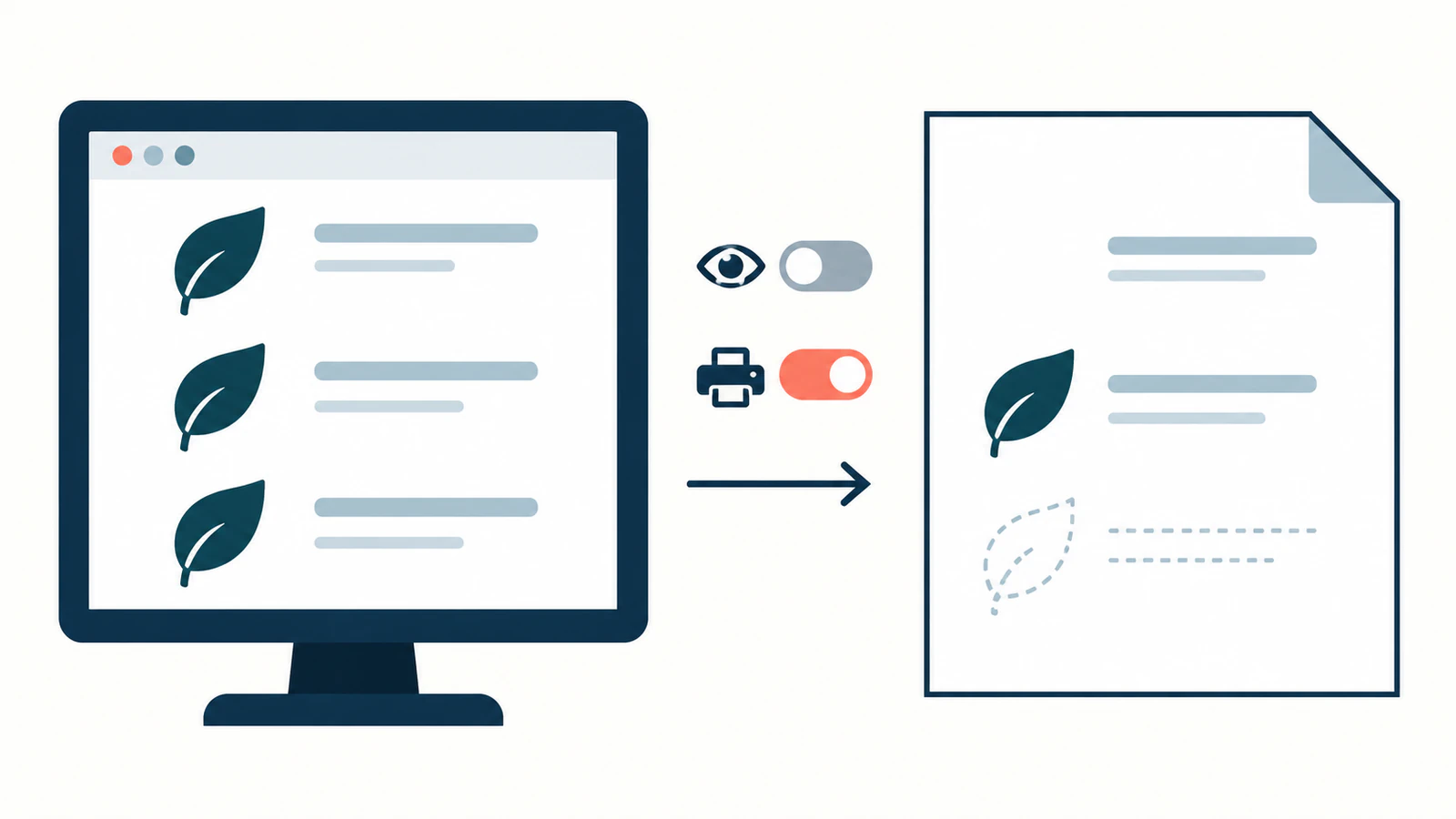
If an SVG appears on screen but disappears when you print a web page, first check the page's print CSS and whether the graphic is a CSS background. The same SVG can survive as an image element while a print rule hides an inline copy or a background setting omits a decorative copy. Rebuilding the artwork does not repair either cause.
Work on a copy of the page and its SVG. You need access to the HTML and styles, the intended browser's print settings, and the saved PDF or print preview. If you cannot edit the site, the useful evidence to send its owner is the page URL, browser version, missing graphic, and whether enabling backgrounds changes the result.
Separate a print failure from a blank SVG
First confirm that the artwork appears on the ordinary page. If the source is blank there too, start with the blank SVG diagnosis. That guide covers missing geometry, paint, clipping, and viewport problems.
For a screen-to-print failure, identify how the page places the graphic:
| What you find | Check next |
|---|---|
Inline <svg> in the page | Print rules on the SVG, its shapes, and its ancestors |
<img src="artwork.svg"> | Image loading, the image element's print styles, and its layout box |
background-image: url(...) | Background printing settings as well as the element's print styles |
| Artwork is present but cut off | Printed dimensions, container clipping, and page layout |
These are separate rendering paths, not different kinds of vector quality. The inline SVG versus img guide explains which page styles can reach the artwork in each form.
Inspect the rule used during printing
A print stylesheet or @media print block can change the page for paper or PDF output. MDN's printing guide documents both approaches and notes that CSS specificity still applies.
In developer tools, inspect the graphic while emulating print media if your browser provides that option. Look at the matched rules and computed display, visibility, opacity, dimensions, and paint. Inspect the containing elements too: display: none removes descendants from rendering. Setting the child SVG to display: block cannot restore an ancestor that remains hidden.
Record the rule that changes the output before modifying it. A print stylesheet may intentionally remove navigation icons while accidentally matching a document logo. Narrow that selector or change the affected component's print rule. Avoid a global override that exposes every hidden element.
Print-media emulation helps locate CSS behavior. It does not replace opening the actual exported PDF.
Reproduce two causes with the same original SVG
This small example keeps the artwork constant and varies two independent controls: a print-only visibility rule and background printing. Save this original mark as mark.svg:
<svg xmlns="http://www.w3.org/2000/svg" width="120" height="80" viewBox="0 0 120 80">
  <circle cx="60" cy="40" r="28" fill="#087f8c"/>
  <path d="M60 18L82 54H38Z" fill="#f28e2b"/>
</svg>
Save the following complete page as broken.html in the same folder. The inline copy contains the same circle and triangle. The image and background both load mark.svg.
<!doctype html>
<html lang="en">
<meta charset="utf-8">
<title>SVG print check</title>
<style>
  @page { size: A4; margin: 12mm; }
  body { margin: 0; font: 16px/1.4 sans-serif; color: #111; }
  h1 { margin: 0 0 12px; font-size: 22px; }
  p { margin: 0 0 16px; }
  .row { display: grid; grid-template-columns: 160px 120px;
         gap: 16px; align-items: center; height: 100px;
         border-bottom: 1px solid #ccc; }
  .slot, .slot svg, .slot img { width: 120px; height: 80px; }
  .slot svg, .slot img { display: block; }
  .background { background: url("mark.svg") center / contain no-repeat; }
  @media print { .inline svg { display: none; } }
</style>
<h1>SVG print check</h1>
<p>The same original SVG in three placements.</p>
<div class="row"><span>Inline SVG</span><div class="slot inline">
<svg xmlns="http://www.w3.org/2000/svg" width="120" height="80" viewBox="0 0 120 80">
  <circle cx="60" cy="40" r="28" fill="#087f8c"/>
  <path d="M60 18L82 54H38Z" fill="#f28e2b"/>
</svg>
</div></div>
<div class="row"><span>Image element</span><div class="slot image">
  <img src="mark.svg" width="120" height="80" alt="Original geometric mark">
</div></div>
<div class="row"><span>CSS background</span><div class="slot background"></div></div>
</html>
Open the page through a local preview server. If you have Python 3 installed, run this command from the folder containing both files, using an available port:
python3 -m http.server 8000 --bind 127.0.0.1Visit http://127.0.0.1:8000/broken.html. All three marks should appear on screen. Open the browser's print preview and save a PDF with background graphics disabled, then another with them enabled. The setting's name and location depend on the browser.
Next, copy the page to fixed.html. Change only this rule:
@media print { .inline svg { display: block; } }Reload the fixed page and repeat both PDF exports. The change reverses the deliberate display: none in the example. On a real page, remove or narrow the offending rule based on that component's intended print layout.
What the actual PDF exports showed
We ran these files in headless Chromium 141.0.7390.37 using Playwright 1.56.1. We waited for the local image to load, exported four one-page A4 PDFs, and rendered those PDFs with Poppler for inspection. Both screen captures showed all three marks.
| Source | Background printing | Inline SVG | Image element | CSS background |
|---|---|---|---|---|
broken.html | Off | Missing | Visible | Missing |
broken.html | On | Missing | Visible | Visible |
fixed.html | Off | Visible | Visible | Missing |
fixed.html | On | Visible | Visible | Visible |
The exports used print media, scale 1, the page's CSS paper size, and no headers or footers. We changed Playwright's printBackground between false and true; its PDF documentation describes that option and the default print-media behavior. Neither file contains print-color-adjust.
Enabling backgrounds restored the background copy but did not restore the hidden inline SVG. Fixing the print rule restored the inline SVG but did not enable background printing. The source artwork never changed.
This test establishes those results for the stated Chromium environment and simple original geometry. It does not establish identical behavior in every browser, physical printer output, or exact color matching.
Fix the cause, then check the saved file
When a print rule hides the artwork: correct that rule at the element or ancestor where the problem starts. Retest both screen and print views so a document repair does not unintentionally expose interface controls.
When only the CSS background is missing: compare output with background printing enabled. If the graphic is essential content, consider placing it as a meaningful image or inline SVG in the print layout instead of depending solely on a decorative background. In the controlled example, the image element remained visible with backgrounds off; your page still needs its own check.
When the image itself fails to load: check the requested URL and resource errors before changing its paths. MDN documents restrictions for SVG used as an image, including scripting and external-resource limitations. A standalone SVG tab and an image embedded in a page are not equivalent dependency tests. For server-generated WeasyPrint output, use the separate SVG resource-resolution guide.
When the result is clipped or partly missing: reduce the page to the failing graphic and its container. Compare their printed boxes, overflow, and SVG bounds, then return to the existing blank-SVG guide for geometry checks. Do not use the background toggle as a general repair for clipping.
After each change, reopen a newly saved PDF and inspect the graphic at its intended size. Check nearby content, page breaks, and meaningful labels. Keep a record of the browser version and relevant export settings. A PDF file existing on disk is not proof that its artwork is present.
Use vectorization only for a separate source problem
An existing SVG with usable paths should keep those paths while you fix the page. If the only source is raster clipart and you need editable shapes, convert the clipart to SVG with PerfectVector. Inspect the preview, then unlock the result for SVG editing and export. Compare the silhouette, holes, and small details with the raster before embedding it.
PerfectVector does not repair the surrounding print stylesheet or choose the browser's background setting. After replacing any artwork asset, repeat the same page-to-PDF test.
Finish when the necessary artwork is visible and unclipped in the saved output under the intended settings. If you also need to recover editable shapes from raster art, prepare the SVG with PerfectVector, then verify it in the final page. Use a physical proof when paper output is the deliverable; this example tested digital PDFs only.
FAQ
Does print-color-adjust: exact guarantee that my SVG background prints? No. It asks the browser to preserve the intended appearance, but user options can override it. MDN's print-color-adjust reference explicitly notes those limits. It also does not undo a display rule that hides the element.
Should I convert the SVG to PNG to fix printing? First identify the cause. Changing the file format does not remove a print-media rule or enable background printing. Preserve usable SVG geometry while checking the page and output settings.
Why does the image version print when the inline version does not? The page may apply different selectors to them. In the controlled example, a print-only rule hides the inline SVG while the image element remains visible. Inspect the actual rules rather than assuming one embedding method always prints better.
Sources
- MDN: Printing — Explains print stylesheets, print media, and the continuing CSS cascade.
- MDN: display — Defines how display suppression affects an element and its descendants.
- Playwright: page.pdf — Documents the actual test's print-media and background-export controls.
- MDN: SVG as an image — Describes restrictions that distinguish image embedding from a standalone SVG document.
- MDN: print-color-adjust — Explains appearance requests and the priority of user print preferences.
More from the blog

SVG to Canvas: Load the Artwork Before Exporting PNG
Load a whole SVG through Image.decode, draw it at a chosen bitmap size, test CORS and PNG readback, and keep the editable source separate from exported pixels.

SVG.js: Import Artwork, Edit a Path, and Export SVG
Import trusted SVG markup into SVG.js, recolor a named path, and check full-root versus children-only exports. Keep original geometry and inspect saved files.