SVG Strokes Disappear After Export: Find the Cause
SVG strokes can vanish because of paint, scale, clipping, or unsupported effects. Diagnose the path first, then apply the smallest reliable fix.
On this page
- First, check whether the path is still there
- Cause 1: the stroke has no visible paint
- Cause 2: the line is clipped at the page or frame edge
- Cause 3: scaling or transforms made the stroke misleading
- Cause 4: the destination cannot reproduce the appearance
- Live stroke or outlined path?
- Choose the fix for the destination
- A safe repair order
- Where PerfectVector fits
- FAQ
- Sources
When an SVG stroke disappears after export, first determine whether the path geometry still exists. A missing-looking line may have no stroke paint, match the background, become too thin at the new scale, sit outside the viewBox, or be clipped at the page edge. It may also use a brush, variable-width profile, filter, or CSS rule that the destination application does not understand.
Do not immediately retrace the artwork or expand every object. Preserve the editable source, make a test copy, and isolate one failing line. The smallest repair usually keeps more of the original structure intact.
The quick diagnosis
- Open the same SVG in a current browser and one vector editor.
- Select the missing line and confirm that its path and nodes still exist.
- Give the test copy a loud stroke color, full opacity, and a temporarily wider stroke.
- Move it away from the page edge and disable clips, masks, and filters one at a time.
- Remove transforms or inspect how they affect stroke width.
- If only one destination fails, replace the unsupported appearance in a delivery copy.
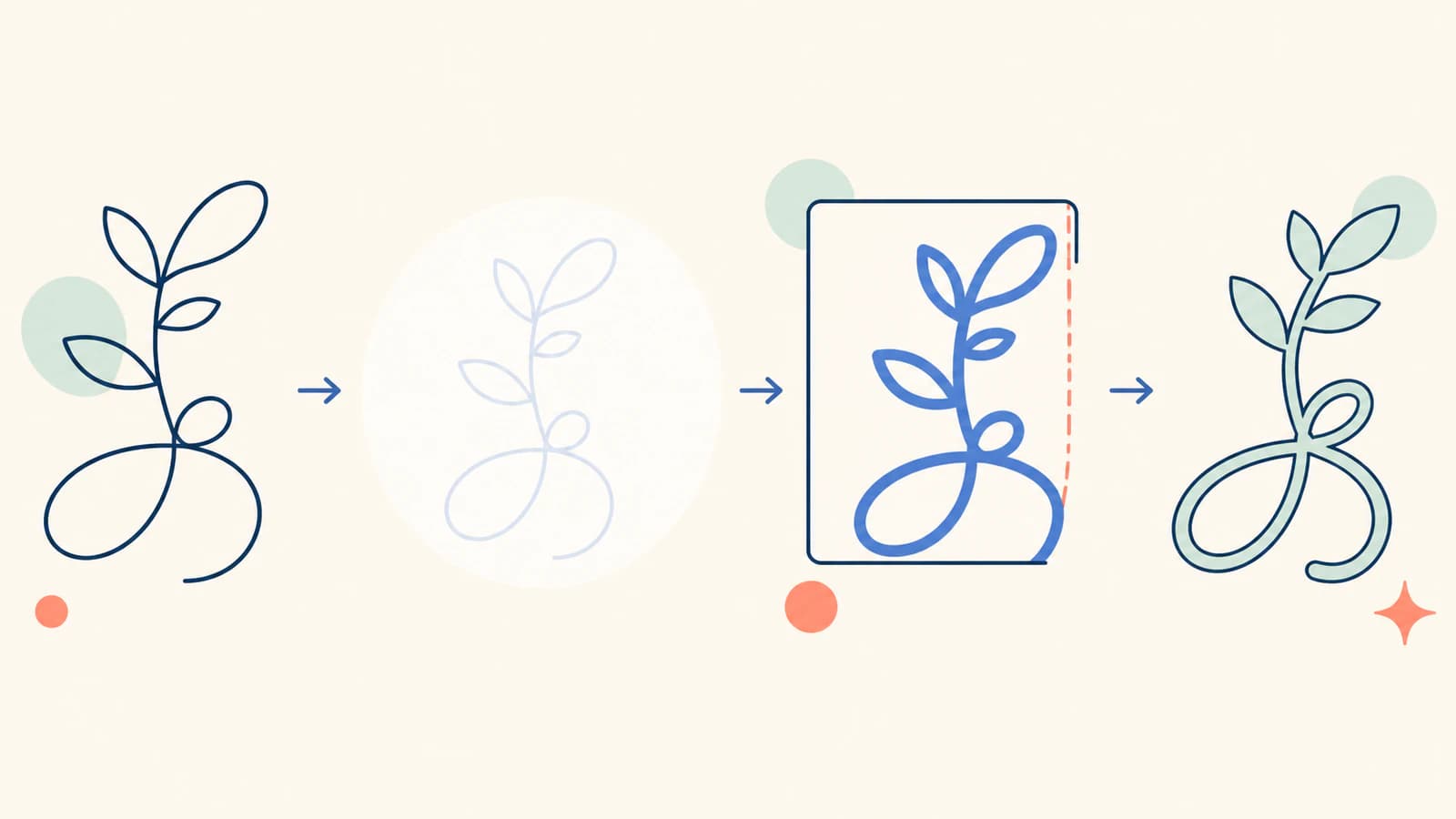
First, check whether the path is still there
Open a copy of the SVG in a text editor and search for ordinary shape elements such as <path>, <line>, <polyline>, <circle>, or <rect>. Then select the missing object in a vector editor and switch to outline or wireframe view.
- If nodes and a path are visible in outline view, the geometry survived. Investigate paint, clipping, transforms, and application support.
- If the object exists but its bounds are far outside the page, move it back or correct the
viewBox. - If the intended line has become a filled closed shape, it may already have been expanded to an outline.
- If no corresponding geometry exists, inspect the source document and export settings. The exporter may have omitted an unsupported object.
Compare two renderers before editing. A stroke visible in Chrome but missing in a desktop editor points toward an import limitation or a dependency on CSS. A line missing everywhere is more likely to have invalid paint, clipping, bad bounds, or absent geometry. If the whole document is empty rather than just its lines, follow the broader blank SVG diagnosis.
If the stroke disappears specifically in Penpot, use the Penpot SVG import checks to isolate the handoff.
Cause 1: the stroke has no visible paint
SVG treats fill and stroke as separate paint properties. A path can exist without displaying a line. MDN's fills and strokes guide covers the core properties, including stroke, stroke-width, and opacity.
Inspect the selected object and its inherited styles for:
stroke="none";- a missing
strokecombined withfill="none"; stroke-width="0"or an extremely small width;opacity="0"orstroke-opacity="0";- a stroke color that matches the page or surrounding shape;
display="none"orvisibility="hidden"on the object or a parent group;- a CSS class that overrides the presentation attributes.
On a test copy, assign a saturated color, set opacity to 100%, and make the stroke several times wider. If a thick outline covers the face of filled lettering, compare SVG paint order for stroke and fill before changing the paths. Put a contrasting rectangle behind it. If the line appears, restore the intended color and choose a width that remains legible at the delivery size.
Remember that a style declared on the element can still be overridden by a more specific stylesheet rule. Inspect the computed style in browser developer tools when the markup says one thing but the browser draws another.
Cause 2: the line is clipped at the page or frame edge
A stroke extends to both sides of its center path. If that center lies on the viewBox boundary, half the stroke can fall outside the viewport. A thick line, square cap, miter join, blur, or shadow needs more room than the path's bare coordinates suggest; the SVG painting specification defines how stroke width, caps, joins, and miter limits extend the painted result around a path. If a closed shape needs the line entirely inside or outside its path, use the inside or outside stroke alignment guide to compare its painted footprint before resizing the artboard.
Test this by moving the object inward or temporarily enlarging the viewBox. If the missing portion returns, add a deliberate margin around the visible artwork. Do not keep expanding the canvas blindly; calculate enough room for the maximum stroke width, caps, joins, and effects.
Also inspect clipPath and mask references. A clip sized to the fill bounds may cut off a stroke that extends beyond them. Nested SVG elements can create their own viewports, and overflow behavior can differ between a browser and a design-tool importer.
When only one corner disappears, look for a high stroke-miterlimit interaction. A sharp miter can extend far beyond the path. Changing the join to round or bevel may be more appropriate than enlarging the viewport, but only if it preserves the intended design.
Cause 3: scaling or transforms made the stroke misleading
A transformation can change both an object's geometry and its apparent stroke. A line that was comfortable at the authoring size may become hairline-thin after import, especially when the receiving application interprets units or nested transforms differently.
Inspect the SVG for transform="scale(...)" on the path and its parent groups. Compare the document's viewBox, width, and height, then test at 100% zoom and at the final physical size. If the entire design imports at the wrong dimensions, correct the document mapping using the known-size SVG scale test rather than compensating with arbitrary stroke widths.
SVG also supports vector-effect="non-scaling-stroke". As the MDN vector-effect reference explains, its common non-scaling-stroke value keeps the rendered stroke width from following the element's transformations. That can be useful for interface diagrams and maps; verify the result in the intended importer because support outside browsers varies by application.
Do not add non-scaling-stroke as a universal fix. Decide whether the line should scale with the artwork. If a logo is enlarged for print, its strokes usually should grow with it. If a map line must remain one screen pixel while zooming, a non-scaling stroke may be intentional.
Cause 4: the destination cannot reproduce the appearance
Not every line shown in a design application is a plain SVG stroke. It may be a pressure-sensitive brush, variable-width profile, pattern brush, live effect, blend, filter, or proprietary appearance stack. An exporter may approximate that construction, and a second application may ignore the approximation.
Use a reduction test on a duplicate:
- remove the filter while keeping the basic stroke;
- replace a pattern or brush with a plain solid stroke;
- remove variable width;
- flatten nested transforms;
- export the single object as a minimal SVG;
- open that file in the destination.
The first simplification that restores the line identifies the unsupported feature. You can then choose a portable replacement instead of flattening the entire document.
External CSS and resources are another portability risk. An SVG embedded in a website may inherit a class rule or custom property from the page, while the same file opened alone does not. Conversely, a desktop editor may discard selectors it does not map to its object model. For a standalone delivery file, use self-contained styles that the target application demonstrably imports.
Live stroke or outlined path?
A live stroke keeps an editable center path plus width, cap, join, dash, and paint settings. It is compact and easy to adjust. An outlined stroke converts the visible band into filled path geometry. That fixes the appearance but sacrifices the original centerline and stroke controls. In Inkscape, compare Object to Path and Stroke to Path before choosing which representation to change.
Outline a delivery copy when the destination cannot preserve an essential brush or variable-width appearance, or when a vendor explicitly requires filled geometry. Adobe's Expand objects documentation describes expanding strokes into their component objects.
Keep the live-stroke master because expansion can:
- increase node count and file size;
- make width changes slower;
- turn overlaps into complicated geometry;
- create separate pieces that need uniting;
- change the meaning of open paths for plotting, engraving, or animation.
Expanding is particularly dangerous when a pen plotter or engraving workflow expects the tool to follow the center path once. An outlined stroke gives the machine two boundaries. For that workflow, use the single-line SVG guide instead.
Choose the fix for the destination
| Destination | Prefer | Verify |
|---|---|---|
| Browser or website | Live SVG strokes and self-contained CSS | Computed style, responsive scale, clip bounds |
| Vector editor | Live strokes when supported | Width profile, transforms, caps, joins |
| Print vendor | Portable live strokes or outlined delivery copy | Proof at final size, color mode, crop bounds |
| Cricut or laser software | Simple paths matched to the operation | No hairlines, duplicates, or unintended outlines |
| Pen plotter | Center paths, usually with no fill | One intended route per mark, pen lifts |
| CAD importer | Simple supported geometry | Units, closed profiles, and import preview |
Test the exact destination, not just another editor made by the same vendor. A browser, design canvas, print pipeline, cutter, and CAD importer can all support different subsets of SVG.
A safe repair order
Work from reversible checks toward structural conversion:
- preserve the editable source and create a duplicate;
- confirm the geometry exists;
- compare two renderers;
- test explicit stroke paint, width, and opacity;
- check background contrast and inherited CSS;
- inspect page bounds, clips, masks, and nested viewports;
- inspect transforms and final-size rendering;
- simplify one unsupported appearance at a time;
- outline only the necessary strokes in a delivery copy;
- reopen the delivered SVG and compare it with the source.
Do not use rasterization as an intermediate fix when good paths survive. It removes the geometry you are trying to preserve and adds a tracing step that can soften corners, change curves, and create unnecessary nodes.
Where PerfectVector fits
PerfectVector is useful only when the original vector geometry is gone or unusable and the best surviving source is a raster image. It can rebuild a suitable flat logo, icon, or illustration as editable vector shapes.
It does not repair CSS, restore an omitted live stroke, or convert an unsupported brush while preserving its editable centerline. If the path still exists, fix its paint, bounds, transforms, or appearance in a vector editor. That preserves more information than tracing a screenshot.
FAQ
Why do SVG strokes disappear after export? The path may still exist but have no visible stroke, zero opacity, a background-matching color, an extremely thin width, clipping, a scale problem, or an appearance the destination cannot import. Confirm the geometry first, then isolate paint, bounds, transforms, and support.
How do I tell whether the path still exists? Select the missing object in a vector editor and switch to outline or wireframe view. You can also open the SVG as text and look for the corresponding path or shape element. Existing nodes with no visible line point to a rendering or styling problem rather than missing geometry.
Why is a stroke clipped at the edge of an SVG?
A stroke extends beyond the center path, so a path on the viewBox boundary can lose half its width. Caps, joins, filters, clips, and masks may need additional margin too. Move the path inward or size the viewport and clip deliberately around the complete appearance.
Should I expand SVG strokes before export? Only when the destination cannot preserve an essential stroke appearance or explicitly requires filled geometry. Expand a delivery copy and keep the editable live-stroke master. Expansion adds geometry and is unsuitable when a plotter or engraving tool should follow one centerline.
Can PerfectVector restore a missing SVG stroke? Not from an SVG whose path or style merely needs repair. PerfectVector can rebuild visible artwork from the best surviving raster when the original vector geometry is unavailable, but it does not recover CSS, brush settings, or the original editable center path.
Sources
- W3C — SVG 2 Painting — Defines fill, stroke, stroke width, caps, joins, and vector effects.
- W3C — SVG 2 Coordinate Systems — Documents viewports,
viewBox, units, and transforms. - MDN —
vector-effect— Explainsnon-scaling-strokebehavior. - Adobe Illustrator — Group and expand objects — Documents expanding strokes into editable component objects.
When the original vector geometry is gone and the best surviving source is raster, rebuild the artwork as clean vector paths with PerfectVector, then verify it in the destination app. If the paths still exist, repair the SVG instead of retracing it.
More from the blog

SVG Miter Spikes: Fix Sharp Corners Without Clipping
An SVG miter join can make a narrow corner spike or clip at the page edge. Compare miter limits, bevels, round joins, and viewport space before editing paths.

SVG feMorphology: Add an Outline Without New Paths
Build an SVG outline from SourceAlpha with feMorphology. Compare dilation, erosion, holes and unequal radii while keeping the original path geometry intact.