
SVG Arc Flags: Draw the Right Curve with A Commands
See how SVG large-arc and sweep flags choose one of four curves between the same points. Copy a working A command, then fix radii, rotation, and traced artwork.
On this page
The two flags in an SVG A command choose which arc connects its start and end points. Set large-arc-flag to 0 for the shorter route or 1 for the longer route. Set sweep-flag to 0 or 1 to choose the direction around the ellipse. Keep the endpoints and radii fixed, change only those two digits, and you can see all four possibilities. The SVG 2 path specification defines this four-arc choice.
This is useful when a curved logo edge, badge ring, or interface ornament bends the wrong way after a code edit. If the source is a PNG, vectorization can give you editable shapes first; the A command is a separate, deliberate geometry edit.
Read the seven values after A
An absolute arc command has this order:
A rx ry x-axis-rotation large-arc-flag sweep-flag x yrx and ry are the ellipse's radii. x-axis-rotation turns that ellipse in the current coordinate system. The two flags are each 0 or 1. Finally, x y is the endpoint. The start is the current point left by the preceding command, often M x y. Lowercase a uses a relative endpoint instead of an absolute one; MDN's path tutorial explains the command forms.
For example, M70 370 A140 110 0 0 1 280 420 starts at (70, 370), uses radii of 140 and 110, leaves the ellipse unrotated, chooses the shorter route with sweep 1, and ends at (280, 420). The numbers are in the SVG's user coordinate system. They are not automatically a promise about physical print size.
See the four possible arcs
We rendered this original fixture from one SVG file. Every panel uses the same start (70, 370), end (280, 420), radii 140 110, and rotation 0. Only the flags change. Orange marks the start and green marks the end. This is a browser-style render of our own path commands, not PerfectVector conversion output.
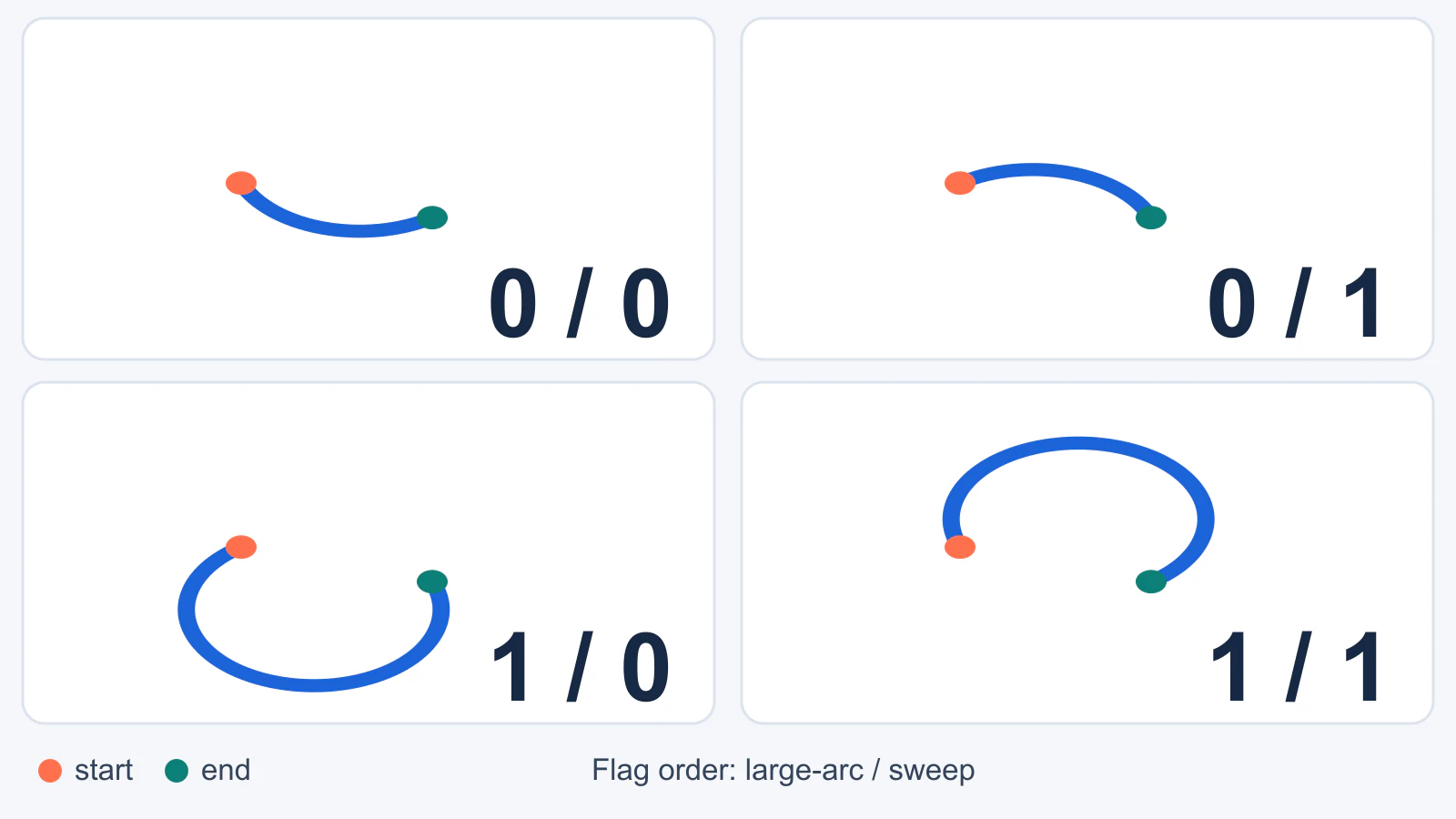
| Flag pair | What it selects in this fixture | Path segment |
|---|---|---|
0 0 | Shorter route below the endpoints | A140 110 0 0 0 280 420 |
0 1 | Shorter route above the endpoints | A140 110 0 0 1 280 420 |
1 0 | Longer route below and around | A140 110 0 1 0 280 420 |
1 1 | Longer route above and around | A140 110 0 1 1 280 420 |
The labels "above" and "below" describe this start, end, and coordinate layout. They are not universal meanings of 0 and 1. A different endpoint placement or a transformed group can move the visible arc elsewhere. The sweep flag selects the direction of increasing or decreasing angle along the chosen ellipse; in a typical SVG viewBox with its y axis pointing down, sweep 1 commonly appears clockwise. The SVG tutorial's interactive arc editor is useful for watching the direction change while keeping the other inputs fixed.
To reproduce one panel, save this as arc.svg and open it in a browser:
<svg xmlns="http://www.w3.org/2000/svg"
     width="380" height="600" viewBox="0 0 380 600">
  <path d="M70 370 A140 110 0 0 1 280 420"
        fill="none" stroke="#1b64d8"
        stroke-width="12" stroke-linecap="round" />
  <circle cx="70" cy="370" r="9" fill="#ff704e" />
  <circle cx="280" cy="420" r="9" fill="#0c8078" />
</svg>
Change only the two digits after rotation 0, using the table above. If you change a radius or endpoint at the same time, you can no longer tell which edit changed the route.
Fix a curve that went the wrong way
- Locate the segment. In the path's
dvalue, identify its preceding start point, theAcommand, and its endpoint. A path can contain several arc segments; edit only the one that is wrong. - Check the long-versus-short decision. If a small curve suddenly loops around most of the ellipse, switch
large-arc-flagfrom1to0. If a planned ring segment collapses to a short connector, try1. - Check the side or travel direction. Keep everything else fixed and toggle
sweep-flag. This often moves the arc to the other side of the chord between the endpoints. - Inspect the whole artwork. A corrected segment can still meet its neighboring segment at an awkward angle or extend outside the
viewBox. Reopen the file at its intended display size, then adjust adjacent geometry or the canvas as needed.
If neither flag pair matches the desired silhouette, the problem is probably not a flag. The radii and endpoints determine the candidate ellipses; the flags only select from them. The NaN arc guide illustrates how changing a radius or endpoint changes the underlying ellipse.
Rotation and radius limits
x-axis-rotation matters when rx and ry differ: it rotates the ellipse before the arc is chosen. With equal radii, rotating a circle does not change its outline. For a logo with a tilted oval edge, try the intended radii and rotation first, then choose the flags. Otherwise you may pick the correct side of the wrong ellipse.
The SVG 2 implementation notes define special cases. If either radius is zero, the segment is treated as a straight line. If the radii are too small to connect the endpoints, the renderer scales them up enough to make the arc possible. If start and end are identical, the arc segment is omitted. These rules explain why a flag change sometimes appears to do nothing. They also mean that a render alone may not prove the radii you typed were actually used without correction.
Why do both large-arc values sometimes look identical?
When the chosen endpoints cut the ellipse into exactly two half turns, neither route is longer than the other. The large-arc choice has no visible distinction in that special case. Move one endpoint away from the opposite point to test all four outcomes.
Use a traced curve as a starting point, not an arc formula
A raster logo may show a clean circular border, but the recovered SVG can describe it with Bézier segments and anchors rather than an explicit A command. An image vectorizer reconstructs visible shapes; it does not necessarily infer the designer's original circle center, radii, or arc flags. If the original vector master exists, edit that file instead of retracing it.
When only a PNG or JPG exists, turn the image into editable vector paths with PerfectVector, inspect the recovered contour, then decide whether it needs a precise geometric redraw. For a badge ring, measure the intended center and radii in a vector editor and replace just that curved section if consistent geometry matters. Keep the accepted trace for irregular artwork that an exact ellipse would distort. Our SVG editing guide covers choosing a visual editor or a surgical code edit; the node cleanup guide helps when a traced curve is hard to reshape.
This division of work matters: PerfectVector can help recover a raster-only source as paths, while setting exact arc parameters and checking joins remains a design decision. Do not convert an already clean SVG to PNG and trace it again simply to change a flag.
Before you deliver the SVG
- Keep a copy of the original or accepted traced master.
- Confirm the start point, end point, radii, rotation, and the two flag values in that order.
- Compare the chosen route at both close zoom and the actual use size.
- Inspect the joins and whether the long route crosses the
viewBoxedge. - Reopen the delivered SVG in the target editor or browser. A visually correct screenshot does not prove the receiver can edit the path as intended.
FAQ
What do the large-arc and sweep flags mean in SVG? The large-arc flag selects the shorter or longer candidate arc between two endpoints. The sweep flag selects which direction around the ellipse the segment travels. Together they choose among four candidates when the geometry is not degenerate.
Why does changing the SVG large-arc flag have no visible effect? Check whether the endpoints are opposite points of the ellipse, making both routes half turns. Also check for identical endpoints, a zero radius, or radii that the renderer has adjusted to connect the points. Change one parameter at a time and compare the rendered path.
Can image vectorization automatically recover my original arc command? Do not assume that. A tracer can recover editable vector shapes from raster artwork, but the result may use Bézier curves or many anchors. Rebuild a precise circle or ellipse in a vector editor when the original geometry is required.
Sources
- W3C — SVG 2 Paths — Arc syntax, flag combinations, and path geometry.
- W3C — SVG 2 Implementation Notes — Radius correction and degenerate arc handling.
- MDN — SVG Paths — Absolute and relative path commands and the arc tutorial.
- SVG Tutorial — Arc — Interactive demonstrations of radii, rotation, and flags.
- NaN — SVG Path Commands: Arcs — Interactive explanation of ellipse fitting and flag outcomes.
Need an editable source before shaping a raster-only emblem? Convert the image to vector paths, inspect the result, and redraw any arc whose exact radius or sweep is important.
More from the blog
SVG Morph Animation: Match Paths Before You Animate
Prepare SVG paths for a shape morph by checking command structure, corner order, and holes. Test an original example at the start, midpoint, and finish.
Inkscape Pattern Along Path: Build a Border from a Motif
Repeat a leaf motif with Inkscape's Pattern Along Path effect. Choose copy settings, handle distortion, keep an editable master, and check the final SVG.