Inkscape Group by Color: Keep Paths or Merge Them?
Select matching fills in Inkscape, choose Group or Union, and check overlapping colors before merging. Keep editable paths or export aligned color files safely.
On this page
To group objects by color in Inkscape, select one filled shape, choose Edit > Select Same > Fill Color, then choose Object > Group. Stop after the selection if you only want to recolor the matching objects. Use Path > Union when you deliberately want to merge their geometry into one path.
The decision matters when a multicolor illustration contains overlapping pieces. A group keeps its children editable, but placing every red piece in one group can change which pieces sit above the blue ones. Before grouping a whole palette, save a copy and inspect those overlaps. Color matching, organizing objects, merging outlines, and exporting separate files are four different jobs.
Choose the operation by the next edit
- Recolor matching fills: select them and change the fill.
- Move or resize several pieces together: group them.
- Remove internal overlap boundaries: use Union on a delivery copy.
- Deliver one file per color: preserve the shared canvas during separation.
- Keep a red piece both behind and in front of blue artwork: preserve the separate stacking positions.
Select the matching fill first
Inkscape's Basic tutorial documents Edit > Select Same > Fill Color. It also distinguishes selection by stroke color, stroke style, fill and stroke, and object type. Choose the criterion that matches the property you intend to edit.
- Open a working copy of the SVG.
- Select one actual filled object with the Selector tool. If the selection is a group, enter it to select a child.
- Choose Edit > Select Same > Fill Color.
- Inspect the selected objects before changing anything. Look for unrelated pieces that happen to share the fill.
- Apply a new fill if recoloring is the complete job. Otherwise, choose the operation below.
Selecting matching fills does not mean selecting every object that looks red. A gradient, a red stroke, a translucent shape, and a flat red fill can look similar while using different paint settings. If a trace contains near-duplicate shades, decide whether they should become one color using the SVG palette-reduction workflow before organizing them.
If nothing useful becomes selected, check what you clicked. A group container and its child shape are different objects. The Inkscape grouping guide describes entering a group and editing its members. An embedded bitmap has no separate filled vector pieces to select; the SVG object-type diagnosis helps identify that case.
Group, Union, Combine, or separate files?
| Operation | What it changes | Use it when | Check afterward |
|---|---|---|---|
| Select Same Fill Color | Current selection | Matching pieces need the same color edit | Unrelated pieces did not join the selection |
| Object > Group | Object organization | Pieces should move together and remain individually editable | Overlaps still match the master |
| Path > Union | Path geometry | Overlapping filled regions should become one outline | Holes, islands, and intended boundaries survive |
| Path > Combine | Path structure | Multiple subpaths should belong to one path object | The fill rule and overlapping regions give the intended result |
| Separate color files | Document delivery | A recipient needs a file for each color | Every file retains the original canvas and alignment |
The Inkscape Boolean operations guide distinguishes Union, which keeps the common outer outline, from Combine, which keeps the component parts inside one path object. Combine is not an interchangeable shortcut for Union. Overlapping subpaths and their fill rule can produce a different visible result.
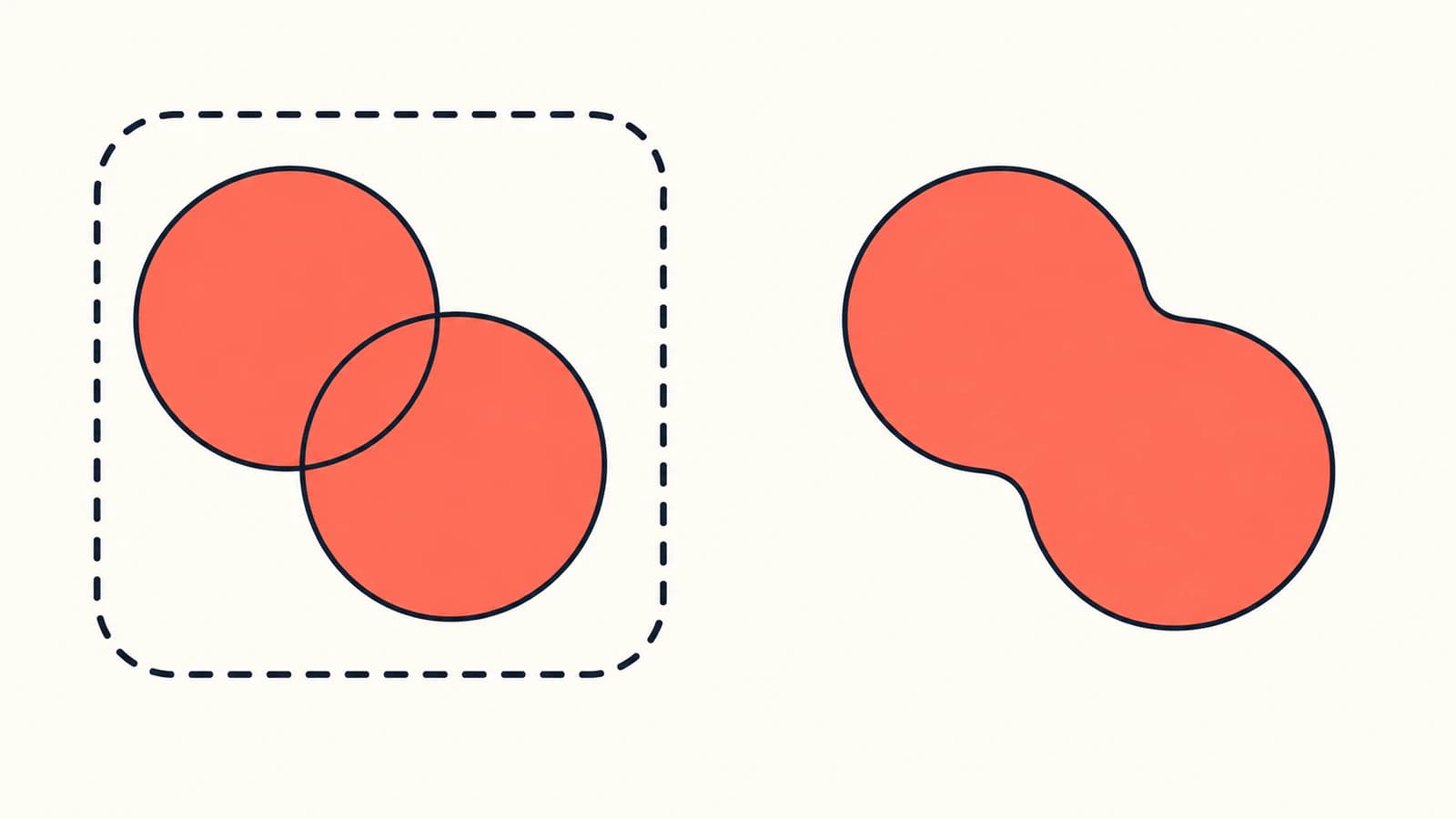
Grouping is the useful default when the design is still being edited. The children remain available, and you can ungroup the container later. Union removes the original overlap boundaries. Ungroup cannot recreate those boundaries from the merged path; keep a master if you may need them again.
Union also does not mean that separated islands become one continuous shape. One path can contain disconnected subpaths. A group and a path with several islands can look alike while supporting different edits.
Why one color may need more than one group
Consider a badge with a red block behind a blue bar and a second red stripe in front of that bar. Both red pieces have the same fill, but they occupy different positions in the paint order.
This small SVG reproduces the arrangement. Save it as an .svg file and open it in a browser or editor:
<svg xmlns="http://www.w3.org/2000/svg"
     width="240" height="180" viewBox="0 0 240 180">
  <path id="red-back" fill="#ea5d52" d="M20 20H145V90H20Z"/>
  <path id="blue-middle" fill="#376aa7" d="M90 40H165V155H90Z"/>
  <path id="red-front" fill="#ea5d52" d="M65 105H200V140H65Z"/>
  <path id="gold-accent" fill="#dba83a" d="M185 35L215 75H170Z"/>
</svg>
In this plain SVG, later shapes paint over earlier ones. The SVG rendering model explains document order and how groups are rendered.
We authored four versions of this example and inspected them in a browser. Each retained the same four path definitions and coordinates. Only their placement inside group containers changed:
| Document arrangement | Visible result |
|---|---|
| Red back, blue middle, red front, gold accent | Blue covers the red block; the red stripe covers blue |
| Both red paths in one group before blue | Blue also covers the red stripe |
| Both red paths in one group after blue | The red block also covers blue |
| One red group before blue and another after it | The original overlaps remain intact |
Method: these were manually constructed SVG document trees, not output captured from Inkscape. The example demonstrates the paint-order constraint; it does not predict which stacking position a particular Inkscape grouping action will choose.
A single group cannot place one child before a blue sibling and another child after that same sibling. For this design, retain two red groups or leave the objects separate. If your goal is recoloring, use the matching-fill selection without grouping at all. The SVG stacking-order guide covers the broader diagnosis when an exported overlap changes.
Group safely while keeping an editable master
- Save an untouched master and a working copy.
- Select the matching fill and note which objects were selected.
- Check where other colors cross those objects. If matching pieces occupy both sides of another object in the stack, avoid one global group.
- Group a subset that can share one stacking position with Object > Group. Repeat for another subset when necessary.
- Compare the artwork against the master at normal size and at each overlap.
- Enter a group and select one child to confirm that individual editing remains available.
- Save, reopen, and inspect the destination application before delivery.
For a simple collection of nonoverlapping shapes, one group per color may be convenient. For interwoven lettering, badges, or layered illustrations, groups organized by design part may be easier to maintain than groups organized by palette.
Choose Union only after the design calls for merged geometry. On a duplicate, select the intended filled paths, choose Path > Union, and inspect the resulting contour and holes. Do not select every matching fill merely because it is available: a small accent and a large background may share a color while needing independent editing.
When the deliverable is a file per color
Separate files solve a delivery requirement; they do not preserve the editable organization of a complete master. Keep the original width, height, viewBox, and object positions in each output. Tight cropping discards the common registration reference.
Follow the aligned SVG color-separation guide for that workflow. Before separating this badge, also decide what should happen to hidden geometry. The red block extends underneath blue in the master. A red-only file can reveal that full block because the blue covering object is absent. Grouping alone does not subtract the hidden area or create production-ready color separations.
If the artwork starts as PNG or JPG
PerfectVector fits before this editing step when the source is a raster logo or flat illustration. Its image-to-vector workflow can turn suitable artwork into SVG paths that you can inspect and organize in Inkscape. Vectorization recovers geometry from the visible image; it does not reconstruct the designer's named groups or decide which same-color pieces should merge.
For an existing editable SVG, stay in the editor. Re-tracing a screenshot can lose useful paths, holes, and stacking information. If you are unsure whether tracing is needed, the image-vectorization explainer describes what the conversion changes.
Before handing off the file, verify three things: the overlaps match the master, one member of each editable group can still be selected, and any unioned delivery shape has the intended holes and islands. Check the imported file rather than assuming every application interprets the editor's organization the same way.
FAQ
How do I select all objects with the same fill in Inkscape? Select one filled object, then choose Edit > Select Same > Fill Color. Inspect the selection before editing; a matching fill can also belong to an unrelated part of the design.
Does grouping by color merge the paths? No. Object > Group retains the member objects inside a container. Path > Union merges their geometry into one path and can remove overlap boundaries.
Why did the overlap change after I grouped matching colors? Matching pieces may have occupied different positions around another color in the stack. Putting them in one group gives that container one stacking position. Preserve multiple groups or recolor the selection without grouping.
Can I undo Union with Ungroup? No. Ungroup removes a group container; it does not restore the original objects from a unioned path. Use Undo or return to an editable master when those boundaries matter.
Sources
- Inkscape — Basic tutorial — Documents selecting objects by fill color and distinguishes other matching properties.
- Inkscape — Grouping Objects — Explains groups, nested groups, individual member editing, and ungrouping.
- Inkscape — Boolean Operations — Distinguishes Union, Combine, and separate subpaths.
- W3C — SVG 2 Rendering Model — Defines document paint order and group rendering used by the badge example.
If your starting artwork is a PNG or JPG, convert your own image to SVG with PerfectVector, then inspect one color selection and every overlap in Inkscape before deciding what to group or merge.
More from the blog
Paper.js SVG Booleans: Cut and Join Imported Artwork
Import SVG paths into Paper.js, join overlapping shapes, subtract a real opening, and check the exported file with a small, reproducible browser example.
Fabric.js SVG Import: Keep Artwork Editable on Canvas
Import SVG into Fabric.js as editable objects, recolor one part, and export a checked SVG copy. Follow a tested example and separate source issues from API bugs.