Paper.js SVG Booleans: Cut and Join Imported Artwork
Import SVG paths into Paper.js, join overlapping shapes, subtract a real opening, and check the exported file with a small, reproducible browser example.
On this page
Import the SVG, find the intended path objects, then call unite() to join filled regions or subtract() to remove one region from another. Keep the operands until you have checked the result, and reopen the exported SVG before using it elsewhere.
The important decision happens before the Boolean operation: which shapes belong together? An imported group can contain background rectangles, clipping paths, lettering, and decorative parts. Combining every child can erase the separations you meant to preserve. This walkthrough uses three named, closed paths so you can see exactly what changes.
Start with filled geometry you can identify
Paper.js's SVG importer accepts SVG markup, an SVG element, or a URL. Those routes need different loading treatment: this example imports an inline string; a remote file should be processed in the import callback after loading.
For this task, the operands must be Path or CompoundPath objects. A group is a container, and a raster image does not provide the boundary needed for a path Boolean. If a file only behaves as a single picture, first check why an SVG will not ungroup.
Use IDs for parts you control. Do not assume that children[0] means “the logo” across arbitrary exports. Inspect unknown artwork and assign the parts deliberately. Keep an existing compound path intact when its subpaths already define the intended holes.
Run a small import, union, and subtraction
We tested the following code with Paper.js 0.12.18 in a browser. The artwork is an original hand-authored SVG: a square body, an overlapping tab, and a white square marking the intended opening. It is not a PerfectVector conversion sample.
In an empty folder, install the pinned library:
npm install --save-exact paper@0.12.18Save this as index.html:
<!doctype html>
<meta charset="utf-8">
<title>SVG Boolean example</title>
<canvas id="work" width="300" height="220" hidden></canvas>
<div id="result" style="background:#d8e8e0; width:300px"></div>
<pre id="svg-output"></pre>
<script src="node_modules/paper/dist/paper-full.min.js"></script>
<script src="example.js"></script>
Save this as example.js, then open the HTML in a browser:
paper.setup(document.getElementById('work'));
const source = `<svg xmlns="http://www.w3.org/2000/svg" width="300" height="220" viewBox="0 0 300 220">
  <path id="body" fill="#176b62" d="M40 40H180V180H40Z"/>
  <path id="tab" fill="#ee9852" d="M160 80H260V140H160Z"/>
  <path id="hole" fill="#ffffff" d="M80 80H130V130H80Z"/>
</svg>`;
const imported = paper.project.importSVG(source, { insert: false, expandShapes: true });
function operand(name) {
  const item = imported.getItem({ name });
  if (!(item instanceof paper.Path || item instanceof paper.CompoundPath)) {
    throw new Error(`Expected path geometry for ${name}`);
  }
  return item;
}
const joined = operand('body').unite(operand('tab'), { insert: false });
const cut = joined.subtract(operand('hole'), { insert: false });
cut.fillColor = '#176b62';
cut.strokeColor = null;
paper.project.activeLayer.addChild(cut);
const output = paper.project.exportSVG({ asString: true, bounds: new paper.Rectangle(0, 0, 300, 220) });
document.getElementById('result').innerHTML = output;
document.getElementById('svg-output').textContent = output;
The import stays outside the scene with insert: false. expandShapes: true asks the importer to turn supported primitive shapes into paths; our fixture already contains path elements. The explicit class check still matters because an imported ID can identify a container or another item type.
The Boolean API returns a new path item. Here, the result is kept out of the scene until the final cut shape is added. The original parts remain available under imported, so a failed operation does not require reconstructing the source.
joined.subtract(hole) removes the hole from the joined silhouette. Reversing the operands asks a different question and can give an empty or unexpected result. Paper.js's default subtraction mode treats the operands as areas. Its trace option concerns Boolean geometry; it is unrelated to tracing a PNG into vectors.
Check the result as geometry and as a file
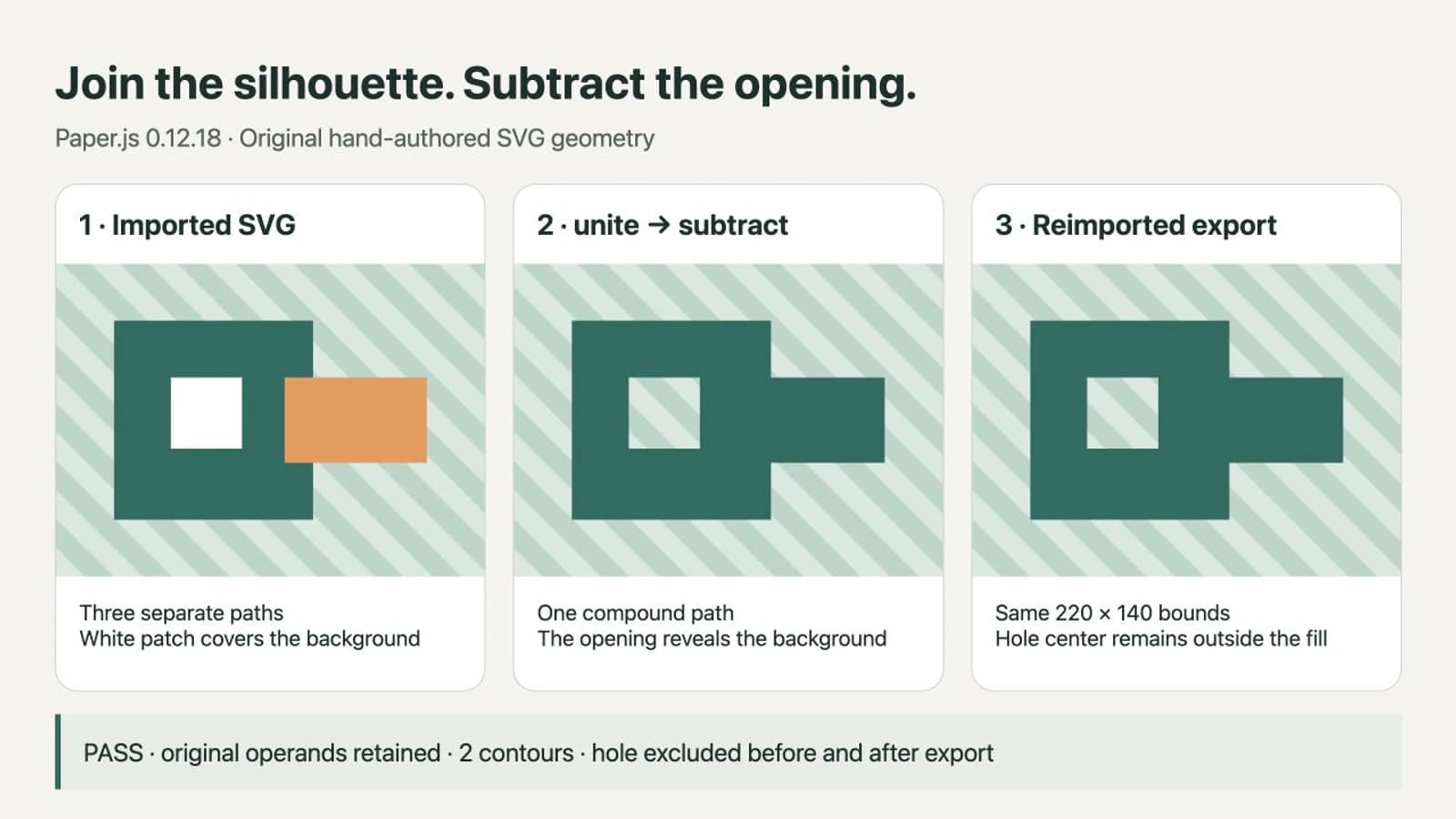
In this example, union returned a Path; subtraction returned a CompoundPath with two contours. The final bounds were x = 40, y = 40, width = 220, height = 140 in SVG units. The artwork sits inside a 300 × 220 export viewport, so bounds and document size are intentionally different.
We checked the center of the opening at (105, 105): it was inside the joined silhouette and outside the subtracted result. A point in the solid body at (60, 60) remained inside. Reimporting the exported SVG preserved the bounds and excluded the hole center again. These are results for this simple fixture, not a guarantee for every imported file.
The export API can return an SVG string and take explicit bounds. Copy the markup displayed under the result into result.svg, then open that file independently. Our saved export contained one path element with two closed subpaths; it also rendered correctly when opened directly in the browser.
For your own artwork, check:
- the silhouette and each opening against the original;
- whether any background or hidden helper shape was accidentally included;
- the intended fill, since one joined shape cannot preserve two independently editable flat fills;
- the exported viewport, especially when artwork reaches the document edge;
- the file in the application that will actually use it.
A white overlay can look like an opening on white paper. Put the result over a contrasting background to check transparency. The filled SVG holes guide explains the related compound-path and fill-rule problems.
When the operation gives the wrong shape
A method is missing. Inspect the selected item's class. Find the intended path inside a group, or convert supported primitive shapes during import. Do not solve this by combining every descendant: compound paths contain children too, and their hole relationships matter.
The result looks unchanged. Make sure you display the returned item. Leaving the originals visible can cover a successful subtraction. In the example, only the final result enters the active layer.
A stroke disappears or changes meaning. This example operates on closed filled regions. A visible thick line is not automatically the same shape as the area swept by its stroke. If you need that outline as a filled operand, prepare an outlined copy in a vector editor and inspect it before import. Keep the editable original.
Detailed artwork behaves poorly. Isolate two operands and inspect their contours before applying a sequence across a whole illustration. Duplicates, self-intersections, and tiny fragments need case-specific checks. This small example measures neither performance nor broad SVG compatibility. For a one-off repair, the selection and node tools in a vector editor may be easier than writing a geometry pipeline.
When your source is still a PNG or JPG
If the editable original is missing, PerfectVector's image-to-vector workflow can help you prepare an SVG from suitable raster artwork. Preview the result, inspect the contours and negative spaces, and download a candidate to test in Paper.js.
Vectorization does not identify which parts your program should unite or subtract. You still need to inspect the imported structure, select the right operands, and check the exported result. Use the original vector when you have it; draw a simple square or circle directly instead of tracing it. The image vectorization overview covers that source-file decision.
FAQ
Can I call unite on an imported SVG group? Select the intended Path or CompoundPath operands inside the group first. A group describes organization, and combining every child can include backgrounds or destroy intended separations.
Does subtract remove the original paths? It returns a new path item. This example uses insert: false for the import and Boolean results, then inserts only the final result. The source operands remain available under the imported container.
Why does a hole still look white? Check it against a colored background. A white filled object covers what is behind it; a subtracted opening reveals that background. Reopen the exported file to confirm the relationship survives.
Will vectorization perform the Boolean cleanup for me? No. It can recover path artwork from a suitable raster source, but your application still has to choose which geometry to join, which area to remove, and how to validate the result.
Sources
- Paper.js — Project reference — Documents SVG import, export, bounds, and project contents.
- Paper.js — Path reference — Defines union and subtraction, returned path items, and Boolean options.
- Paper.js — CompoundPath reference — Describes compound geometry and its constituent paths.
If a raster image is your only source, prepare an SVG candidate, inspect its parts, then test the smallest useful Boolean operation before processing the rest of the artwork.
More from the blog

SVG ClipPath Units: Fit a Custom Shape to Its Target
Choose SVG clipPath units, normalize a silhouette, and preserve its proportions. Test wide and tall targets while keeping holes and source geometry intact.
PowerPoint SVG: Convert to Shape and Edit Parts
Convert an SVG to editable PowerPoint shapes, change individual parts, and diagnose missing commands. Check platform support and preserve the original artwork.