Why SVG Holes Fill In (and How to Restore Them)
SVG holes can fill when a cutout is no longer a compound subpath, the fill rule changes, or an importer drops the relationship. Diagnose and restore it.
On this page
An SVG hole fills in when the file or destination stops treating the inner contour as outside the filled shape. The usual causes are a released compound path, an inner contour stored as a separate filled object, a changed fill rule or path direction, an importer that drops the relationship, or a raster trace that closed the opening before the SVG was made.
Start by opening the SVG in a browser. If the hole is already filled there, repair the file. If the browser looks right but another app fills the hole, the import step is the likely fault.
The quick diagnosis
- Put the artwork over a contrasting background. A white object is not a transparent hole.
- Inspect the target in a Layers or Objects panel. The outer and inner contours usually need to belong to one compound path.
- If the file uses
fill-rule="nonzero", contour direction matters. If it usesevenodd, nested contours alternate between filled and unfilled. - If only one destination fails, simplify a copy or rebuild the subtraction there.
- If the original raster already has a closed counter, clean that source before retracing.
First find where the hole disappeared
Use two renderers before changing the geometry:
- Save a duplicate of the SVG.
- Open the duplicate directly in Chrome, Safari, Firefox, or another browser.
- Place it over both a light and dark background.
- Open the same file in the destination app.
- Compare the exact hole, not just the overall silhouette.
| What you see | Likely cause | Next move |
|---|---|---|
| The hole is filled in the browser and editor | The SVG structure or fill behavior is wrong | Inspect compound paths, fill rule, and contour direction |
| The hole is white on a dark background | A white shape is covering the artwork | Subtract it or rebuild a true transparent hole |
| The browser is correct, but the destination is wrong | The importer changed or ignored the compound relationship | Simplify a copy or subtract the inner profile after import |
| The hole vanished immediately after Break Apart or Release | The inner contour became an ordinary filled path | Undo or recombine the correct contours |
| The hole was already closed in the raster trace | The source gap was too small or smoothing joined it | Clean the source and retrace, or cut the opening manually |
This comparison separates a bad SVG from a destination-specific import problem. It also prevents random path operations from damaging a file that was correct before import.
A white shape is not a hole
A real hole shows whatever sits behind the SVG. A white shape only looks empty on a white canvas. For artwork used in a web interface, the SVG pointer-events guide shows how a hole, a painted region, and a separate hit target respond to clicks.
To test it, add a temporary dark rectangle behind the artwork. If the supposed hole remains white, select that inner object. You can keep it as a deliberate white design element, but do not expect a cutter, engraving tool, browser overlay, or 3D importer to interpret it as empty space.
For a transparent opening, use a compound path or subtract the inner shape from the outer one. A mask can also create transparency, but many production apps handle simple path geometry more reliably than masks. For a scripted workflow, try cutting and joining imported paths with Paper.js, then reopen the exported SVG to check the opening. For a deliberate crossing-name layout, Cricut knockout base-and-name planning keeps the upper name separate while a clearance shape changes the base.
For gobo artwork, a correct transparent opening still leaves a separate material decision. The steel versus glass gobo comparison follows the same letter O through a steel bridge layout and a glass-supported design, and explains why reversing the projected light and dark regions changes what must stay attached.
Compound paths carry the hole relationship
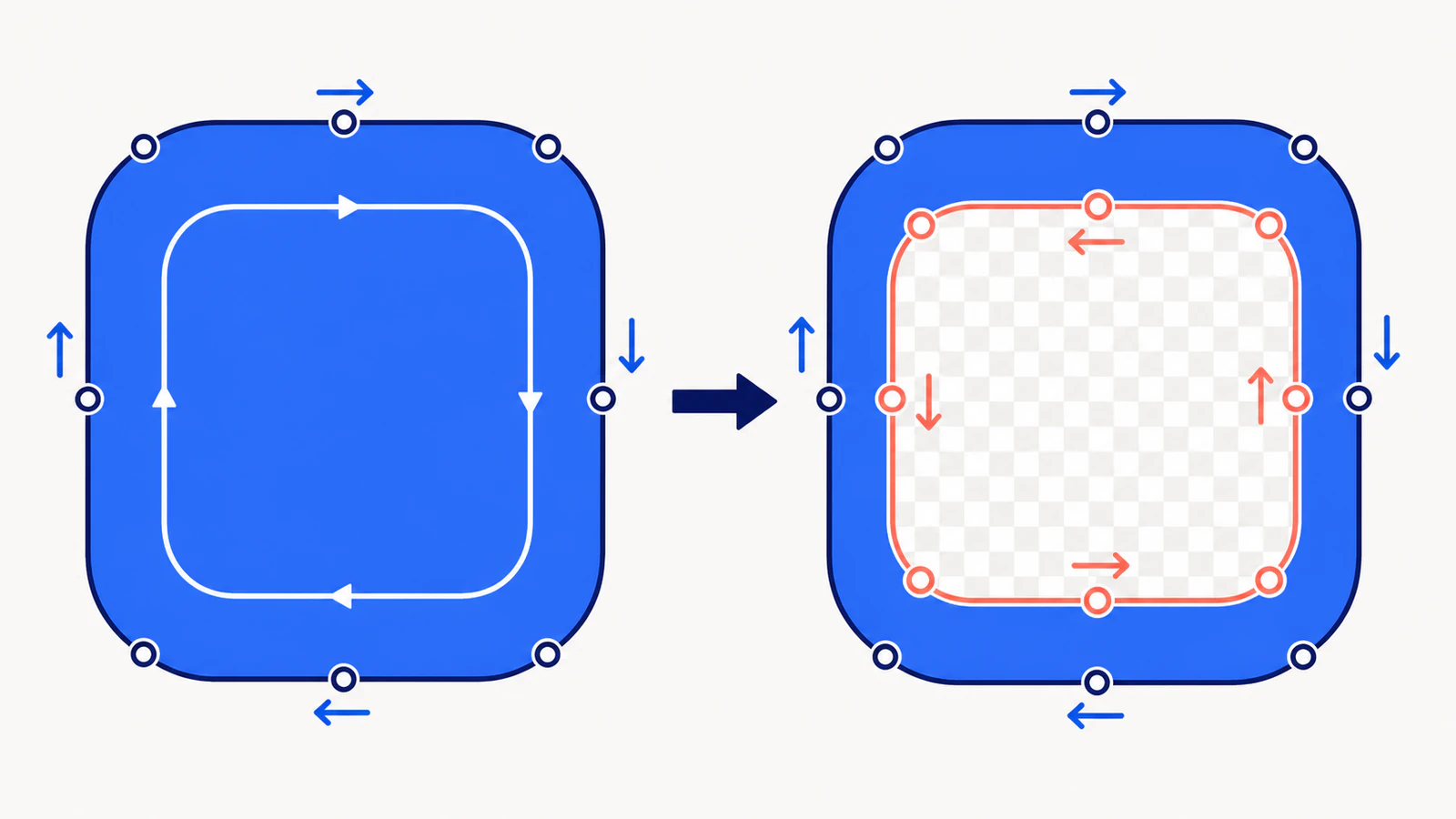
A letter O, a ring, and a logo with a punched-out center often use one path element with multiple closed subpaths. The outer contour defines the silhouette; an enclosed subpath defines the counter or cutout. The SVG path model permits multiple subpaths inside one path.
That is why Ungroup, Break Apart, and Release Compound Path are not interchangeable. Releasing the compound path can turn the inner contour into an ordinary filled object. The geometry is still present, but its relationship to the outer contour is gone.
Restore it on a duplicate:
- Select the outer boundary and only the contours that should be holes.
- Use Make Compound Path, Combine, or the equivalent command.
- Apply one fill to the resulting object.
- Check the fill rule.
- Reopen the saved SVG in a browser and the destination app.
Adobe's current compound-path documentation uses this same model: constituent paths determine filled and transparent regions through a fill rule.
For stamp artwork, check raised versus recessed pottery-stamp geometry before deciding which areas should remain filled.
Check nonzero versus evenodd
SVG has two fill rules. The SVG 2 painting specification sets nonzero as the initial value and defines evenodd as the other option.
nonzerouses signed path crossings. An inner contour with the wrong direction can add to the fill instead of canceling it.evenoddcounts crossings. A point enclosed twice is outside, so a simple nested contour becomes a hole regardless of contour direction.
This minimal path contains two same-direction rectangles. With evenodd, the center stays transparent:
<path
  fill="#2563eb"
  fill-rule="evenodd"
  d="M10 10H90V90H10Z M30 30H70V70H30Z"
/>
Changing the rule is useful when it matches the design, but it is not a universal repair. The two contours must still be evaluated as subpaths of the same shape. Setting fill-rule="evenodd" on two unrelated objects does not make one cut through the other.
If you keep nonzero, reverse only the inner contour when your editor provides that command. Illustrator exposes both fill-rule choices and a path-direction control for compound paths. Save a copy before reversing anything, because self-intersections and multiple nested counters can produce a different result than a simple ring.
When the SVG is right but the importer is wrong
Some cutting, CAD, 3D, and animation tools support only a practical subset of SVG. A browser may render the compound path correctly while the destination imports each contour as a solid object.
Use this repair order:
- Save a simplified copy from the source editor.
- Convert live text to outlines in that copy when text import is the weak point.
- Replace masks, clips, and appearance effects with plain path geometry only where needed.
- Keep each intended hole with its outer contour as one compound path.
- Test
evenoddandnonzerodeliberately rather than switching repeatedly. - If the importer still fills the opening, import both boundaries and subtract the inner profile in the destination.
For an extrusion workflow, the destination must also recognize a selectable closed profile. The SVG extrusion diagnosis covers open endpoints, duplicates, and profile validity after the hole survives.
When tracing closed the opening
A tracer can close the counter in a small letter or merge a narrow gap when the raster source is tiny, blurred, or low contrast. That is a geometry problem, not a fill-rule problem: the inner boundary never made it into the SVG.
Return to the raster source and:
- enlarge or recapture it without adding blur;
- increase separation around the important opening;
- remove compression noise near the gap;
- reduce smoothing or color merging if the tool exposes those controls;
- compare the new trace at the final output size.
This is the branch where PerfectVector can help. Use the image-to-vector workflow when you have the original raster and need a fresh SVG trace. Inspect every counter and negative space before download. If the SVG was correct until an editor released its compound paths, repair that SVG instead; retracing will not recover the lost edit history.
The same source-first approach is useful for lettering. The hand-lettering vector guide shows how to keep small counters open without stripping the character from the whole drawing.
A safe final check
Before sending the repaired SVG:
- view it on light, dark, and transparent backgrounds;
- select the target and confirm it is one intended compound path;
- inspect the fill rule in the editor or SVG source;
- check every letter counter, ring, and enclosed negative space;
- reopen the exported file instead of trusting the unsaved canvas;
- test the exact destination app;
- keep the editable source and the simplified delivery copy separate.
If the object now behaves as one selection, that may be correct. A compound path is one object by design. Use the SVG ungrouping guide before breaking it apart again.
FAQ
Why did the holes fill after I used Break Apart? Break Apart separated the inner contours from the outer compound path. The former holes became ordinary filled objects. Undo the command or recombine each outer contour with the correct inner contours, then verify the fill rule.
Should I use fill-rule="evenodd" for SVG holes?
evenodd is often convenient for nested contours because contour direction does not decide the result. It still works within one shape; it does not subtract a separate object. Keep nonzero when your source and destination preserve the intended contour directions.
Why does the SVG look correct in a browser but solid in my app? The destination importer may not preserve the compound path, fill rule, mask, or contour direction. Simplify a copy to plain paths, then test again. If necessary, import the outer and inner boundaries and subtract the hole in the destination.
Can I make a hole by putting a white shape on top? It only fakes a hole on a white background. The white object remains filled, so it can print, cut, or import as another solid. Use a compound path, subtraction, or another transparency structure when the background must show through.
Can PerfectVector fix filled holes in an existing SVG? PerfectVector is useful when you can return to a suitable raster source and create a new trace with the intended openings visible. It does not repair a compound path that an editor released or an importer ignored. Fix those relationships in a vector editor or the destination app.
Sources
- W3C — SVG 2 Painting — Defines
nonzero,evenodd, and the initial fill-rule value. - W3C — SVG Paths — Defines paths, subpaths, and closed path geometry.
- Adobe Illustrator — Create compound paths — Documents compound holes, fill rules, and reversing constituent path direction.
- PerfectVector — Image to Vector — The current raster-to-SVG workflow used in the conditional retracing branch.
If the opening was lost during raster tracing, make a fresh vector from the clean source and inspect every counter before delivery. If the browser version is already correct, keep that geometry and repair only the failing import.
More from the blog

Three.js SVGLoader: Turn Flat Artwork Into a 3D Mesh
Load SVG paths into Three.js, preserve a real opening, fix the vertical orientation, and size an extruded mesh using a small, reproducible browser example.

Unreal Engine SVG Import: Check Motion Design Geometry
Prepare an SVG for Unreal Engine Motion Design, inspect holes and separate pieces, and distinguish scene geometry from a texture or runtime UI image workflow.