SVG Pointer Events: Match Click Areas to Your Artwork
Control SVG click areas with fills, strokes, holes, and separate hit targets. Test event routing and keep keyboard activation on a native button or link.
On this page
SVG pointer-events controls which parts of a graphic can become a pointer event's target. A filled shape, a thin stroke, and an empty hole can respond differently even when they belong to the same illustration. Set the hit area to match the action a reader expects, then test the empty spaces as carefully as the colored ones.
This guide is for artwork used in a web interface: a selectable diagram, a clickable emblem, or an icon inside a button. If the SVG already contains usable paths, fix its interaction code directly. Vectorization only enters the workflow when the editable geometry is still trapped in a PNG or JPG.
Start with the element that receives the click
For SVG, the default auto value behaves like visiblePainted. A visible shape can be targeted over its fill when fill is not none, or over its stroke when stroke is not none. The SVG interactivity specification defines these hit-testing rules.
That explains an apparently broken icon: its listener may work on the outline but miss the empty center. The browser is testing the shape, not assuming that every point inside its surrounding rectangle means the same thing.
These are the useful choices for this workflow:
| Value | Intended use |
|---|---|
auto | Let visible painted fill and stroke determine the target |
stroke | Target the stroke region, including an open line |
fill | Target the shape's interior, even if its fill is none |
all | Target the fill and stroke regions without requiring paint or visibility |
none | Let this element be skipped as a pointer target |
all does not mean “every point in the SVG viewport.” It still refers to the element's geometry. If you want a specific rectangle around a delicate drawing to respond, create that rectangle deliberately.
Also distinguish transparent paint from no paint. fill="transparent" is still a fill value; fill="none" removes the fill. Opacity alone is not a reliable way to make an overlay ignore clicks.
Test a fill, a hole, and an open stroke
We built a small inline SVG lab with original hand-authored shapes. It contains a blue compound path with a rectangular hole, an orange open stroke, and a copy of that stroke over a separate transparent target. These are teaching examples, not PerfectVector conversion results.
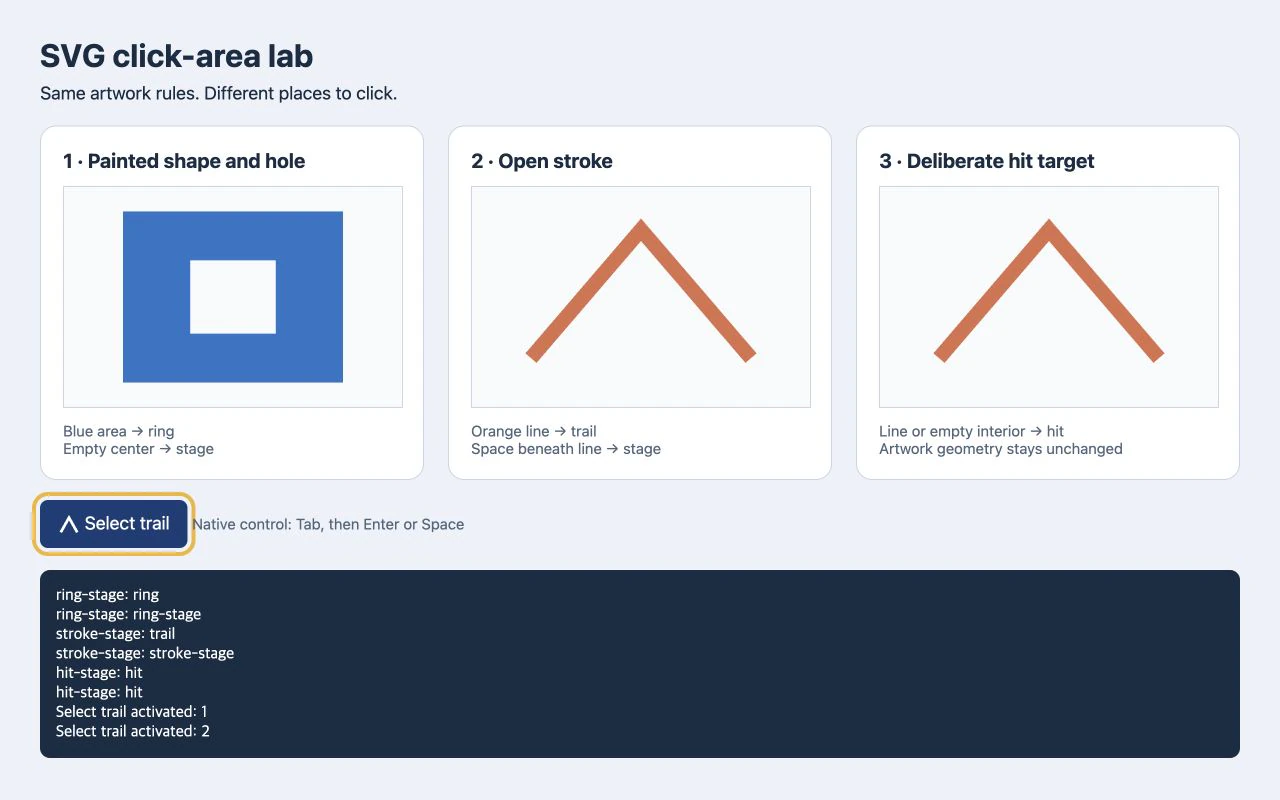
In the browser test, clicking the blue band logged ring. Clicking its empty center logged ring-stage, the containing SVG. The orange line logged trail, while the space below its peak logged stroke-stage. In the third panel, both locations logged hit.
The blue path uses two rectangular subpaths and fill-rule="evenodd":
<svg id="ring-stage" viewBox="0 0 240 180">
  <path id="ring" fill="#2874c8" fill-rule="evenodd"
    d="M30 20H210V160H30Z M85 60H155V120H85Z" />
</svg>
The inner rectangle is outside the filled region under the even-odd fill rule. It is a real hole. A white rectangle layered on top would be another painted shape with its own hit behavior. If the geometry itself is wrong, use the SVG hole repair guide before changing event rules.
Here is the open stroke from the second panel:
<svg id="stroke-stage" viewBox="0 0 240 180">
  <path id="trail" d="M30 140L120 35L210 140"
    fill="none" stroke="#db704c" stroke-width="12"
    pointer-events="stroke" />
</svg>
For a quick test, place either snippet in an HTML file with this logger after it. Give the SVG a visible size, such as width="360" height="270".
<output id="result" aria-live="polite">Click the artwork.</output>
<script>
  const stage = document.querySelector('svg');
  const result = document.querySelector('#result');
  stage.addEventListener('click', (event) => {
    result.textContent = `Target: ${event.target.id}`;
  });
</script>
Click the painted region, an empty interior, and a corner outside the drawing. Logging event.target distinguishes a path hit from a click that merely reached the SVG container. These examples test target selection; they are not finished interactive controls.
Add a hit target without thickening the artwork
Suppose the whole area around the orange trail should select that trail. Increasing its visible stroke would change the illustration. A separate target lets the interaction area have its own geometry:
<svg id="hit-stage" viewBox="0 0 240 180">
  <rect id="hit" x="20" y="20" width="200" height="140"
    fill="transparent" pointer-events="all" />
  <path d="M30 140L120 35L210 140"
    fill="none" stroke="#db704c" stroke-width="12"
    pointer-events="none" />
</svg>
The rectangle sits behind the artwork. The orange path ignores pointer targeting, so the rectangle can receive clicks through it. Its coordinates define the intended target explicitly; the visible path data stays identical to the second panel.
This is useful for a diagram region or a thin line that is awkward to point at. Keep targets from overlapping unrelated controls, and decide what should happen where two regions meet. A larger invisible shape can intercept a neighbor's clicks just as easily as a visible shape can.
For a simple icon that performs one action, a native HTML button often supplies the target you need without adding an SVG rectangle at all.
Keep keyboard activation on the control
Pointer targeting does not provide a label, keyboard activation, or button semantics. Put a single-action icon inside a named HTML button and keep the artwork decorative:
<button id="select-trail" type="button">
  <svg aria-hidden="true" viewBox="0 0 24 24"
    width="24" height="24" style="pointer-events: none">
    <path d="M3 20L12 4L21 20" fill="none"
      stroke="currentColor" stroke-width="3" />
  </svg>
  Select trail
</button>
<output id="selection" aria-live="polite"></output>
<script>
  const button = document.querySelector('#select-trail');
  const selection = document.querySelector('#selection');
  button.addEventListener('click', () => {
    selection.textContent = 'Trail selected';
  });
</script>
The native button element supplies the control behavior; the visible text supplies its name. Keep a visible focus indicator. Use a real link when the action navigates to another page.
In our lab, Tab focused the button, then Enter and Space each activated it. Test those keys in your actual interface too. A diagram with several independent actions needs an appropriate keyboard interaction design for those actions; one surrounding button cannot represent all of them.
Setting pointer-events: none is also not a disabled state. It does not remove an otherwise focusable control from keyboard navigation. MDN documents both keyboard focus and event propagation: descendants can opt back into targeting, and their events can still pass through a parent listener. Use the native disabled attribute when a button must be disabled.
When the starting artwork is a PNG
If the only source is a flat PNG or JPG and your interface needs independently editable shapes, PerfectVector's image-to-vector workflow can prepare an SVG candidate. Compare it with the original, inspect the important holes and regions, and decide which parts deserve separate interaction targets.
Tracing supplies geometry. Your application still needs meaningful IDs, action handlers, names, focus behavior, and deliberate hit areas. A traced visual outline may be much more detailed than the region a user should click. For a small interface icon, a manual redraw or an existing vector master may be easier to maintain. The PNG icon preparation guide explains what to inspect before bringing recovered artwork into a UI kit.
If the icon is simply decorative inside a control, a CSS mask icon may suit its color behavior; the surrounding control still owns the action. The broader vectorization guide covers when recovering paths is useful in the first place.
Verify the intended area before shipping
Test the actual displayed size, not only a large editor preview:
- Click a filled region, a stroke, each hole, and empty corners.
- Inspect the event target when the wrong action fires.
- Check for transparent rectangles or overlays intercepting the pointer.
- Confirm that neighboring targets do not overlap unexpectedly.
- Use Tab, Enter, and Space where appropriate, with visible focus.
- Test touch interaction on the devices your interface supports.
The lab verifies these particular shapes in one browser. It does not establish every browser's behavior for masks, clipping, filters, or complex imported artwork. Add those cases to your own test if your design uses them.
If editable geometry is missing, try your source image in PerfectVector, then inspect its contours and holes. Once the artwork is sound, define and test the interaction area separately.
FAQ
Why does my SVG only respond when I click its outline? With the default SVG pointer behavior, an unfilled shape may only be targeted over its painted stroke. Check the fill value and intended action. Use a deliberate hit target or a surrounding native control when empty space should activate the same action.
Does pointer-events="all" make the whole SVG clickable?
It targets the element's fill and stroke regions regardless of their paint or visibility values. It does not automatically turn the whole SVG viewport into a target. Add an explicit shape or use a surrounding control when you need that area.
Can a transparent rectangle receive clicks? Yes. Transparency does not mean the rectangle has no geometry or no fill. A transparent rectangle with an appropriate pointer-events value can serve as a deliberate hit target, but it can also intercept clicks accidentally.
Does vectorizing an image create accessible buttons? No. Vectorization can produce editable geometry from raster artwork. Names, keyboard behavior, action handlers, focus, and interaction regions must be implemented and tested in the interface.
Sources
- W3C — SVG 2 Scripting and Interactivity — Defines SVG pointer targeting and the geometry used by pointer-events values.
- W3C — SVG 2 Painting — Defines how fill rules determine the interior and holes of a path.
- MDN — pointer-events — Explains targeting, propagation, inheritance, and keyboard-focus limitations.
- MDN — The button element — Documents native button behavior, naming, and disabled state.
More from the blog
SVG ClipPath Units: Fit a Custom Shape to Its Target
Choose SVG clipPath units, normalize a silhouette, and preserve its proportions. Test wide and tall targets while keeping holes and source geometry intact.
SVG Alpha Threshold: Make Transparency a Hard Cutoff
Use feFuncA to turn SVG alpha into a hard cutoff. Compare discrete and table transfer on known PNG pixels, preserve holes, and check why opaque white stays.