SVG CSS Masks: Keep the Silhouette, Set the Colour
Use an SVG as a CSS icon mask, preserve transparent holes, and paint it with currentColor. Compare alpha and luminance before checking the icon at its UI size.
On this page
- Use a mask when one painted silhouette is the goal
- Prepare a small source with a real opening
- Paint the icon element with CSS
- Separate an SVG image from an SVG mask element
- Diagnose a square, a missing icon, or a filled opening
- Judge the result at component size
- Recover a raster silhouette only when the source needs it
- FAQ
- Sources
An SVG CSS mask controls which parts of an element remain visible. For a single-colour icon, use the SVG's silhouette as the mask and paint the element with background-color: currentColor. The icon then takes its visible colour from CSS rather than displaying the SVG's original palette.
Start with the source's transparency. An opaque rectangle behind the artwork can turn an intended icon into a solid block. A transparent opening must remain transparent if you want the page beneath it to show through.
MDN's mask-image reference describes how the source image and masking mode determine visibility. The practical task is to prepare a useful silhouette, choose its interpretation, and inspect it at the size your interface uses.
Use a mask when one painted silhouette is the goal
Consider a bookmark icon with a diamond-shaped opening and a small coral stripe. As an ordinary SVG image, it has two colours. As an alpha mask over a blue element, the opaque artwork reveals blue; the coral stripe no longer appears as a separate colour.
That is useful for a themeable interface icon. It would be a poor delivery choice for an illustration whose colour differences carry meaning.
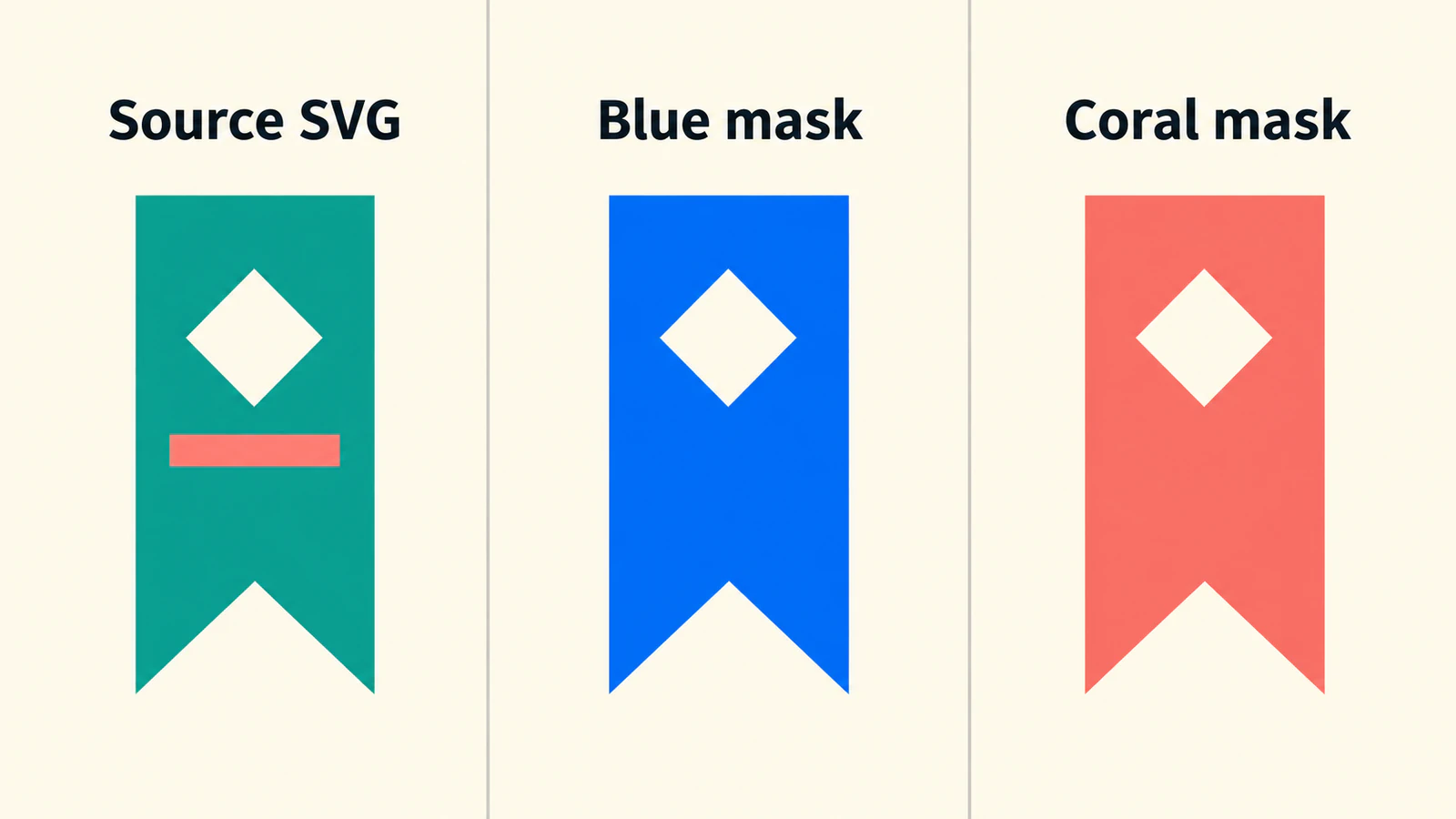
If you need to edit individual SVG fills and strokes, use the SVG colour-editing guide. Masking is useful when the silhouette itself is the reusable part. For a hard geometric boundary, fit a custom SVG clip to its target and choose between stretching the silhouette and preserving its proportions.
Prepare a small source with a real opening
Save this original example as bookmark.svg:
<svg xmlns="http://www.w3.org/2000/svg" viewBox="0 0 24 24">
  <path fill="#087f8c" fill-rule="evenodd"
    d="M5 3H19V21L12 17L5 21Z M12 6L15 9L12 12L9 9Z"/>
  <rect x="9" y="13" width="6" height="2" fill="#e76f51"/>
</svg>
The first path contains the outside bookmark and its diamond opening. There is no full-size background rectangle. The small second rectangle is the coral stripe.
Open the SVG over a contrasting background before using it as a mask. Check that you can see through the diamond and around the outer boundary. A white diamond painted over a solid bookmark would look similar on a white page, but it would still be opaque in an alpha mask.
For an existing asset, inspect any background shape as well as the visible motif. The transparent SVG background guide covers the difference between empty space and a white rectangle.
Paint the icon element with CSS
Place icon.css beside the SVG and use these rules:
.bookmark-icon {
  display: inline-block;
  width: 1.5rem;
  height: 1.5rem;
  background-color: currentColor;
  mask-image: url("./bookmark.svg");
  mask-mode: alpha;
  mask-repeat: no-repeat;
  mask-position: center;
  mask-size: contain;
}
.save-button {
  display: inline-flex;
  align-items: center;
  gap: 0.5rem;
  color: #175cd3;
}
Use a visible label on the button:
<button class="save-button" type="button">
  <span class="bookmark-icon" aria-hidden="true"></span>
  Save article
</button>
Here the icon accompanies “Save article,” so it is hidden from the accessibility tree rather than repeating that label. The example shows presentation only; connect the button to your application's save action separately.
The element needs a box to paint, which is why the CSS sets its width, height, and display. currentColor uses its text colour. Changing the button's color changes the icon's paint without rewriting bookmark.svg.
The mask-size reference defines contain as fitting the entire mask image while preserving its proportions. Combined with centering and no repetition, it makes the source occupy one predictable icon box. web.dev's masking guide covers these sizing and repetition controls.
Serve the example over HTTP, including when testing locally. MDN's mask-image description warns that local file:// image sources are not accepted for this use. A missing or failed mask image can leave the masked element invisible.
Separate an SVG image from an SVG mask element
An SVG file used as an image and a reference to an SVG <mask> element are different inputs. Do not choose the mode just because the filename ends in .svg.
| Source and mode | What controls visibility |
|---|---|
Ordinary SVG image with mask-mode: alpha | Source opacity; opaque artwork reveals the element |
Ordinary image with the default match-source | Alpha interpretation |
SVG <mask> reference with default settings | Luminance interpretation |
Explicit mask-mode: luminance | Brightness combined with opacity |
The mask-mode reference specifies this source-dependent default. Under alpha interpretation, opaque black and opaque white both reveal the element. Under luminance interpretation, opaque white reveals it and black hides it; intermediate values can produce partial visibility.
mask-type applies to an SVG <mask> element and defaults to luminance, according to the mask-type reference. Adding it to the ordinary icon span will not change an image mask's interpretation. Use mask-mode on the element being masked when you need to specify that behavior.
The bookmark example uses an ordinary external SVG image and explicitly chooses alpha. Test the properties you use in your supported browsers; support for the broader masking feature does not establish support for every mode and source combination.
Diagnose a square, a missing icon, or a filled opening
A useful negative test is to put a full-size opaque white rectangle behind a copy of bookmark.svg. With alpha interpretation, that copy reveals the entire mask area. Changing the rectangle from white to black does not restore the silhouette because both colours remain opaque.
Remove the unwanted background from the source instead of adjusting the element's colour. Keep the original file so you can compare the corrected copy.
| Symptom | Inspect first |
|---|---|
| A solid square replaces the bookmark | Full-size opaque source background |
| The diamond opening fills in | White overlay rather than genuinely transparent geometry |
| Nothing appears | Element dimensions, painted background, URL, and failed resource requests |
| Several copies appear | Mask repetition settings |
| The icon is too small within its box | Source viewBox whitespace and mask sizing |
| The icon looks faint | Source opacity or unintended luminance interpretation |
Keep these tests separate. A successful image request does not prove the source has the right transparency, and correct transparency does not give an element a missing width or height.
Judge the result at component size
Enlarge the bookmark to inspect its contours, then return it to the actual interface size. Check the diamond opening, the bottom notch, and the space between the icon and its label. The enlarged version helps find defects; the small version tells you whether the design is useful.
Try two contrasting page backgrounds and two icon colours. The opening should show the page colour in each case. If it stays white, return to the source structure.
For an icon family, compare neighboring symbols at the same CSS size. Their viewBoxes may contain different amounts of blank space, making equal boxes look uneven. The UI-kit icon preparation guide covers that consistency work.
Recover a raster silhouette only when the source needs it
A transparent PNG can already be a CSS mask; SVG conversion is not a requirement for masking. Keep an existing clean vector source when you have one.
If a useful icon survives only as a rough raster image, PerfectVector's PNG-to-SVG workflow can help prepare an editable candidate. Crop to the motif, inspect the vector preview for background regions and lost openings, then download the SVG. Use that file in the mask and repeat the component-size checks.
For the bookmark, judge the outer notch and diamond opening before worrying about the original coral stripe. The uniform mask paint will absorb that stripe's colour anyway. A complicated multicolour illustration may need a different treatment; choose the silhouette deliberately rather than tracing every detail.
The image vectorization overview explains source recovery more broadly. A vector file still needs a useful shape and appropriate transparency for this CSS workflow.
FAQ
Does an SVG mask keep the original colours? A mask controls visibility. In the uniform-background example, the element supplies one colour, so the source's separate colours are not retained.
Why does my icon become a solid square? Check for a full-size opaque background in the mask source. Under alpha interpretation, opaque white and black both reveal the element.
Are SVG masks always luminance masks? No. An ordinary SVG image normally uses alpha under match-source. An SVG mask element uses luminance by default unless its interpretation is changed.
Do I have to convert a transparent PNG to SVG? No. PNG can supply a mask image. Vectorization is optional when you need to recover or edit a suitable silhouette from a raster source.
Sources
- MDN — mask-image — Image sources, failed loading, local-server requirements, and visibility.
- MDN — mask-mode — Alpha, luminance, and source-dependent defaults.
- MDN — mask-type — Interpretation of an SVG mask element.
- MDN — mask-size — Contain sizing and image proportions.
- web.dev — Apply effects to images with CSS mask-image — Image masks, sizing, and repetition.
Start with one icon and check its silhouette, opening, and final UI size. If a raster source needs recovery, prepare an SVG candidate, inspect its transparency, and test it with the CSS paint your interface will use.
More from the blog

SVG Alpha Threshold: Make Transparency a Hard Cutoff
Use feFuncA to turn SVG alpha into a hard cutoff. Compare discrete and table transfer on known PNG pixels, preserve holes, and check why opaque white stays.

SVG Pointer Events: Match Click Areas to Your Artwork
Control SVG click areas with fills, strokes, holes, and separate hit targets. Test event routing and keep keyboard activation on a native button or link.