Unreal Engine SVG Import: Check Motion Design Geometry
Prepare an SVG for Unreal Engine Motion Design, inspect holes and separate pieces, and distinguish scene geometry from a texture or runtime UI image workflow.
On this page
- Choose the destination before changing the artwork
- Check the plugin in your engine version
- Prepare a hollow badge with one detached piece
- Import one file and identify the resulting asset
- Check the hole, paint, and separate objects
- Review curved artwork and reimport deliberately
- When a raster emblem needs reconstruction
- FAQ
- Sources
Unreal Engine's SVG Importer provides a geometry workflow for Motion Design. Epic's SVG importer tutorial describes turning 2D vector files into 3D geometry. Start by checking the plugin and documentation for your engine version, then import a small source whose holes, colors, and separate pieces you can recognize.
That is a different task from displaying an SVG as a runtime UI image. A texture preview, a scene actor, and a widget renderer are different deliverables. This walkthrough focuses on preparing artwork for the scene-geometry route and deciding whether the resulting objects suit the motion design.
The example is an original hollow badge with a detached diamond. It is a documented workflow to try in your project, not a reported Unreal import or extrusion test.
Choose the destination before changing the artwork
Decide what the graphic must become. An SVG extension alone does not answer that question.
| Intended use | What to establish first | What to inspect |
|---|---|---|
| A graphic built as scene geometry | The matching SVG Importer and Motion Design workflow | Holes, surfaces, paint, bounds, and object control |
| A flat image on a surface | The project's texture/material route | Resolution, transparency, and the final material |
| An icon inside ordinary UMG widgets | A UI-supported rendering approach | Widget behavior and packaged target support |
| An SVG received after the app starts | An explicit runtime loading/rendering implementation | Input handling, feature coverage, and failure behavior |
Epic's Motion Design quick start describes an editor plugin for broadcast graphics. Its interface resembles UMG, but it includes capabilities outside widgets. That resemblance is not evidence that an ordinary UMG Image can load arbitrary SVG files.
If you are moving the same source between engines, the Unity SVG import guide covers a separate importer and destination decision. Acceptance by one engine does not verify the other's file support.
Check the plugin in your engine version
Epic's SVG Importer plugin listing currently carries a Beta banner and lists its category as Experimental. Treat that as a reason to validate the feature in the project you will deliver, especially before building a large dependency on it.
The official tutorial is tagged for Unreal Engine 5.4 and 5.5. Current API documentation is a separate reference, so do not assume an older video's panels or labels exactly match another installed release.
For a Motion Design setup, follow the matching quick-start instructions to enable Motion Design and Storm Sync Motion Design Bridge. Check that the corresponding SVG Importer is available and enabled in that project. Follow any restart prompt from the editor before investigating the artwork.
Use a small test level first. The quick start describes an empty level or template, followed by Motion Design > Create Defaults > Spawn. Keep this test separate from a complex sequence so a missing actor, camera issue, or plugin setup problem is easier to distinguish from a malformed source.
Prepare a hollow badge with one detached piece
Save this original example as hollow-badge.svg:
<svg xmlns="http://www.w3.org/2000/svg" viewBox="0 0 180 140">
  <path fill="#147D78" fill-rule="evenodd"
    d="M24 24H116V116H24Z M46 46H94V94H46Z"/>
  <path fill="#EF8067" d="M150 30L168 48L150 66L132 48Z"/>
</svg>
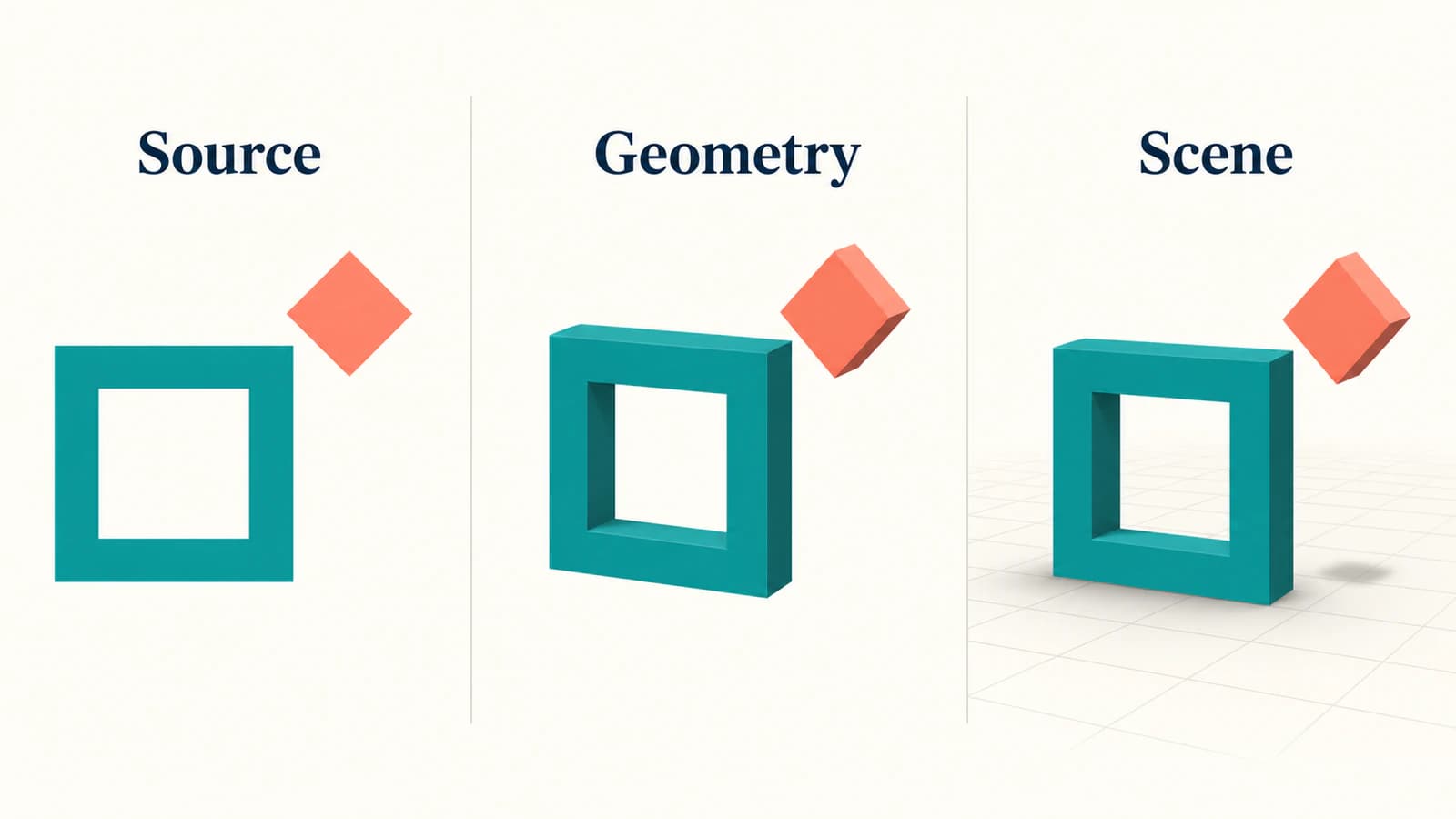
The teal path forms a square frame with an empty square center. The coral diamond is a separate path, with space between it and the frame. There is no background rectangle, stroke, text, filter, external image, or animation in the file.
Those omissions are deliberate. They let you ask a few useful questions before testing a complex illustration: does the center stay open, does the diamond remain detached, and are both colors represented as intended?
Inspect your own source in a vector editor too. If it only wraps a photograph in an SVG container, the embedded-raster check helps identify that situation. Renaming or wrapping a bitmap does not provide the closed boundaries needed for this geometry exercise.
Keep the editable master and export a delivery copy. Use simple closed filled shapes for a baseline; add effects, gradients, or elaborate clipping only when the project needs them and you can verify their handling. The existence of a similarly named class in an API reference is not a complete compatibility guarantee for the feature.
Import one file and identify the resulting asset
Choose a project content folder for the experiment. Epic's general asset-import guide documents the Content Browser's Import button and drag-and-drop import. With the matching SVG importer enabled, select the small SVG and inspect the importer-specific options and any diagnostics in your installed version.
If the file is rejected or the expected importer does not appear, first verify the engine version and plugin setup. Repeatedly simplifying the artwork will not fix an unavailable import feature.
After import, identify the asset type before placing it. Epic's SVGImporter API includes SVG data, SVG actors, and dynamic-mesh components. These are useful distinctions: a source-data asset is not itself proof that the scene contains the intended geometry.
Use your version's SVG actor placement workflow to bring the asset into the test scene. The Motion Design toolbox includes SVG actors. Select the placed result and inspect it from the front before changing depth, materials, or animation. Record which asset and actor you used so another teammate can reproduce the setup.
Save the imported assets and retain the original SVG. Unreal's general import guide explains that imported content is stored in project assets; the source file still matters for later editing and reimport.
Check the hole, paint, and separate objects
Start with the badge's square opening. View it against a contrasting background and from another angle if the result has depth. A pale-colored face covering the center can resemble an opening from the front. The acceptance check is whether the intended empty region actually remains empty.
If the center fills in, inspect the source's subpaths and fill behavior before adding more effects. The SVG hole troubleshooting guide explains why a painted inset and a genuine opening can look alike in a flat preview.
Next, inspect the space beside the diamond. Look for an unintended bridge, extra face, or background region. Then select the objects needed by the animation. If the diamond must move independently, verify that the available actor/component arrangement lets you move it without changing the frame. A visually separated accent does not by itself prove the desired selection structure.
Check paint after checking geometry. Compare the teal frame and coral diamond with the source under the material and lighting conditions the composition will use. Do not diagnose a shaded side face as a source color error solely because it is darker than the front.
For depth-related problems, the SVG extrusion checklist provides source-geometry questions to investigate. It is not an Unreal-specific command guide, and successful appearance in this test does not establish a watertight manufacturing mesh.
Review curved artwork and reimport deliberately
The square example avoids curves, but most logos do not. Epic's SVGImporter API describes a conversion-quality setting for turning splines into polylines. That means source curves and the generated representation are separate things to inspect.
For a rounded logo, check the outer curve and the smallest opening at the closest camera distance used in the shot. If edges appear faceted, inspect the relevant conversion controls in your engine version. Do not set an arbitrary maximum value simply because the source is a vector.
Epic's versioned SVGData reference for 5.4 states that changing its quality override triggers reimport and geometry regeneration. Treat that as a reason to save a baseline and recheck the scene after changing source or conversion settings, rather than assuming all downstream work remains unaffected. The property names in that reference are not a promise about every later editor panel.
Repeat the hole, gap, material, and object-control checks after reimport. Test the scene in the actual delivery context before organizing the full artwork set. This guide does not establish packaged runtime support, browser-equivalent SVG rendering, or universal performance for the plugin.
When a raster emblem needs reconstruction
If the vector master is missing and the source is a simple PNG or JPG emblem, PerfectVector's image-to-vector workflow can prepare a static SVG candidate. Crop to the design, inspect the opening and detached accent in the preview, and compare the candidate with the source. Download the accepted SVG, then run the same geometry checks in Unreal.
Vectorization does not choose scene units, create a rig, assign production materials, or guarantee a particular mesh topology. Use an existing vector master when available. Keep photographs and complex painted effects raster when that preserves their appearance better. For a simple geometric badge, authoring the few required shapes directly may provide more control than reconstructing them from pixels.
Keep a short handoff record: source file, engine/plugin version, importer settings, expected empty areas, parts that move independently, and the camera distance used for review. The blog's artwork preparation guides cover the source decisions before this engine-specific step.
FAQ
Can Unreal Engine import SVG files? Yes. Epic provides an SVG Importer used with Motion Design geometry. Check the feature and documentation for your engine version, then verify the imported asset and scene result.
Does SVG import mean UMG can display any SVG at runtime? No. A Motion Design geometry workflow does not establish arbitrary runtime SVG loading in ordinary UMG widgets. Choose and test the rendering route required by the UI.
Why does a hole in my SVG appear filled after import? Inspect whether the source contains a genuine opening or a painted inset, then check subpaths and fill behavior. Verify the imported geometry against a contrasting background rather than relying only on its front view.
Can I convert a PNG logo into an Unreal-ready 3D object? Vectorization can recover static source shapes, but it does not finish the Unreal scene. Import the accepted SVG, inspect the generated geometry and materials, and verify the object control your project needs.
Sources
- Epic Games — Importing + SVG importer — the Motion Design geometry route and tutorial version context.
- Epic Games — SVG Importer plugin — plugin scope, Beta banner, and Experimental category.
- Epic Games — Motion Design Quick Start Guide — project setup, editor scope, and SVG actor toolbox.
- Epic Games — Importing Assets Directly — general Content Browser import and saving assets.
- Epic Games — SVGImporter API — data, actors, dynamic-mesh classes, and spline conversion concepts.
- Epic Games — SVGData, Unreal Python 5.4 — the versioned quality override and regeneration behavior.
Validate one badge's opening, detached piece, and scene behavior before importing the set. If only raster art remains, prepare an SVG candidate, inspect its geometry, and check the accepted file in your Unreal project.
More from the blog

SVG clipPath vs Mask: Choose Hard Edges or Soft Fades
Compare SVG clipPath with alpha and luminance masks on one image. Copy the working pattern, test light and dark backgrounds, and export the right geometry.

PixiJS SVG Import: Choose Graphics or a Texture
Import an SVG into PixiJS as geometry or a texture. Test an icon at two sizes, check texture resolution, and catch missing group transforms before shipping it.