Three.js SVGLoader: Turn Flat Artwork Into a 3D Mesh
Load SVG paths into Three.js, preserve a real opening, fix the vertical orientation, and size an extruded mesh using a small, reproducible browser example.
On this page
To turn flat SVG artwork into a Three.js mesh, load the SVG, convert its paths into shapes, then pass those shapes to ExtrudeGeometry. Check the holes, vertical orientation, and dimensions before adding effects. A recognizable silhouette can still have a filled counter or an upside-down corner.
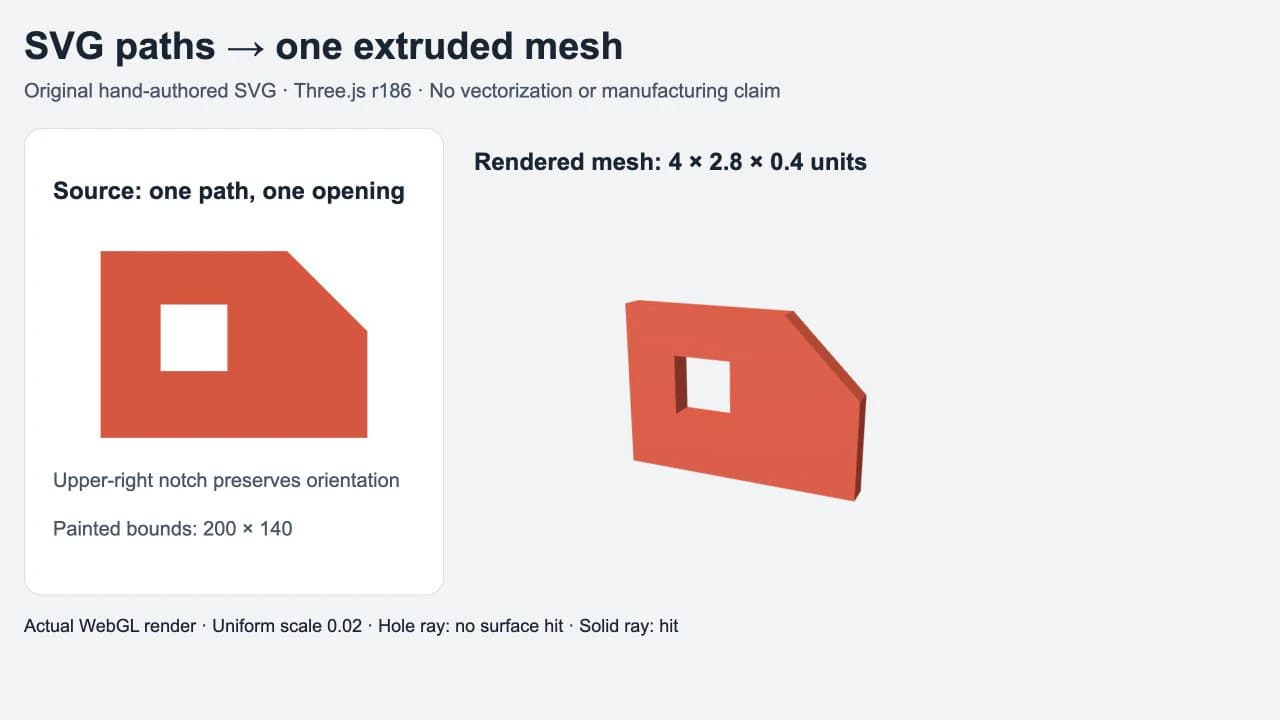
This walkthrough uses an original, hand-authored badge with one square opening and a clipped upper-right corner. The asymmetry makes an orientation error visible. It is a browser geometry example, not a PerfectVector conversion result or a manufacturing test.
Start with the shapes you want to give depth
Use a small SVG with closed, filled contours for the first attempt. Save this as badge.svg:
<svg xmlns="http://www.w3.org/2000/svg" viewBox="0 0 240 180">
  <path fill="#e64b35" fill-rule="evenodd"
    d="M20 20H160L220 80V160H20Z M65 60H115V110H65Z"/>
</svg>
There are two closed subpaths inside one path element: an outer boundary and an inner square. The evenodd fill rule makes that inner region an opening. A separate white rectangle would only cover the face in a flat picture; it would not describe the same empty region.
The artwork occupies 200 by 140 coordinate units inside a 240 by 180 viewBox. Keep that difference in mind when sizing the mesh. Blank margins are part of the SVG viewport, not part of the extruded silhouette.
If you already have an editable vector original, use it. If a PNG or JPG is your only source, PerfectVector's image-to-SVG workflow can help you prepare SVG path artwork. Inspect the preview and the downloaded contours, especially negative spaces, before loading the file into Three.js. Vectorization supplies the 2D artwork; the code below supplies depth, materials, lighting, and placement.
Load the SVG and render the mesh
The example was tested with Three.js 0.186.0. Keep the core library and addon on the same version. In a browser project with package imports, install three@0.186.0, serve the files over HTTP, and create a container:
<div id="viewer"></div>
<script type="module" src="./main.js"></script>
Your build tool must resolve the three imports. For a plain browser page without a build tool, put this import map before the module script, using the files from the same installed package:
<script type="importmap">
{
  "imports": {
    "three": "./node_modules/three/build/three.module.js",
    "three/addons/": "./node_modules/three/examples/jsm/"
  }
}
</script>
Place badge.svg beside the HTML page. The relative loading URL below resolves against that page's URL. Then save this as main.js:
import * as THREE from 'three';
import { SVGLoader } from 'three/addons/loaders/SVGLoader.js';

const data = await new SVGLoader().loadAsync('./badge.svg');
const artwork = new THREE.Group();
for (const path of data.paths) {
  if (path.userData.style.fill === 'none') continue;
  for (const shape of path.toShapes()) {
    const geometry = new THREE.ExtrudeGeometry(shape, {
      depth: 20, bevelEnabled: false, steps: 1
    });
    const material = new THREE.MeshStandardMaterial({
      color: path.color, roughness: 0.65, metalness: 0
    });
    artwork.add(new THREE.Mesh(geometry, material));
  }
}
if (!artwork.children.length) throw new Error('No filled shapes found');

// SVG y grows down; this scene uses y up.
artwork.scale.y = -1;
const bounds = new THREE.Box3().setFromObject(artwork);
const size = bounds.getSize(new THREE.Vector3());
const center = bounds.getCenter(new THREE.Vector3());
const scale = 4 / size.x;
artwork.scale.multiplyScalar(scale);
artwork.position.copy(center).multiplyScalar(-scale);

const scene = new THREE.Scene();
scene.background = new THREE.Color('#f1f3f5');
scene.add(artwork);
scene.add(new THREE.HemisphereLight(0xffffff, 0x596477, 2));
const light = new THREE.DirectionalLight(0xffffff, 3);
light.position.set(-3, 5, 7);
scene.add(light);
const camera = new THREE.PerspectiveCamera(35, 800 / 600, 0.1, 100);
camera.position.set(4, 3, 9);
camera.lookAt(0, 0, 0);
const renderer = new THREE.WebGLRenderer({ antialias: true });
renderer.setSize(800, 600);
document.querySelector('#viewer').append(renderer.domElement);
renderer.render(scene, camera);
SVGLoader is a separately imported addon. loadAsync() reads the file; parse(svgText) is the alternative when you already hold the SVG markup as a string.
In r186, use path.toShapes(). Older examples often call SVGLoader.createShapes(path). That helper was deprecated in r185 and delegates to toShapes() in the tested version. Check your installed release before mixing snippets from different tutorials.
The loop deliberately skips fill="none". It handles the solid fills in this example; it is not a full SVG renderer. Gradients, masks, embedded images, strokes, opacity, and overlapping color layers need their own decisions rather than an assumption that the flat appearance will become identical 3D geometry.
Set orientation before measuring and centering
The SVG's vertical coordinates increase downward. This scene looks toward the artwork with positive y pointing upward, so artwork.scale.y = -1 restores the expected orientation. The clipped corner is the check: it belongs at the upper right.
That sign change belongs to this coordinate setup. Do not add a second flip because the mesh still looks wrong after rotating a camera or parent object. Compare a known asymmetric feature from the source against the rendered scene first.
The next lines measure the flipped group, calculate a uniform scale, and offset its scaled center to the origin. Box3.setFromObject() measures bounds including child objects and their transforms. Here, the group has no transformed parent and no artwork rotation when measured.
The original extrusion measures 200 by 140 by 20. Setting the width to 4 gives a scale of 4 / 200, or 0.02. Because that scale applies to all three axes, the resulting bounds are 4 by 2.8 by 0.4. A depth of 20 in the constructor does not remain 20 after group scaling.
These are scene units. The example makes no claim that one unit is a millimeter. If your application needs a particular physical interpretation, define it explicitly and validate it through the destination workflow.
Confirm the hole before decorating the surface
The test produced one loaded path, one shape, and one hole. We also cast a ray through the square opening and another through the solid area: the opening returned no mesh hit, while the solid returned a hit. Rays through the clipped upper-right corner and solid lower-right corner confirmed the vertical orientation independently of the angled view.
You can start with a simpler visual check in your own scene: view the face straight on, then at an angle against a contrasting background. The opening should reveal the background, and its side walls should appear when the camera moves. A white face covering the area is a different result.
If a counter fills in, isolate that one shape. Inspect whether the source uses subpaths, separate filled objects, a clipping path, or a mask. Do not try to hide the problem with a material color. The guide to SVG holes that fill in explains the source-file distinctions; the extrusion diagnosis covers contour repair when the underlying artwork is broken.
Add depth effects only after the plain extrusion works
The example turns bevels off so the initial dimensions are easy to inspect. The ExtrudeGeometry options separately control depth, bevel size, bevel thickness, and curve sampling. Recheck small openings and bounds when you enable beveling. A decorative edge changes the geometry you just measured.
For curved artwork, inspect the mesh silhouette at the size and camera distance your application will use. Increase curve sampling only when the faceting needs it; reducing the input's unnecessary nodes is a separate editing task. Neither setting restores detail that was absent from the source.
A stroke-only drawing also needs a different decision. The loader exposes pointsToStroke() for stroke geometry, but the filled-shape loop above intentionally omits those paths. If the visible line should become an extruded ribbon, first decide what closed outline defines that ribbon. If it should remain a line in the scene, build a line or stroke representation instead.
For a React application, run the browser-only loading and renderer work on the client and dispose of owned geometry, materials, and the renderer when the view is removed. The compact example renders once at a fixed size; a production viewer also needs resize handling and its own resource lifecycle.
Keep the source and destination checks separate
A browser mesh is useful for an interactive badge, logo preview, or scene decoration. It does not establish that the result is a watertight, dimensionally suitable part. If fabrication is the destination, use the separate image-to-SVG for 3D printing workflow and inspect the imported model there.
For the screen workflow, keep three files or stages distinct: the editable source SVG, the derived mesh, and the scene presentation. That makes it easier to tell whether a bad result came from path geometry, mesh construction, or the camera and lighting. More SVG workflow guides cover the source side when the artwork needs repair before loading.
FAQ
Why is my SVG upside down in Three.js? SVG vertical coordinates increase downward. In a scene that uses positive y upward and views the front of the artwork, flipping the artwork group's y scale can restore the source orientation. Check an asymmetric feature before adding another flip or rotation.
Should I use createShapes or toShapes? This example uses path.toShapes() with Three.js 0.186.0. SVGLoader.createShapes() was deprecated in r185. Use the API documented for the version installed in your project, with the core package and addon on the same release.
Does SVGLoader turn a PNG inside an SVG into a mesh? An embedded raster picture does not provide the filled contours used by this example. Obtain suitable path artwork first, or use the image as a texture when preserving its appearance is the actual goal.
Does extrusion preserve SVG stroke width? This example extrudes filled shapes and skips paths with fill set to none. Stroke geometry needs a separate workflow; a thick painted line is not automatically the closed outline of an extruded ribbon.
Sources
- Three.js — SVGLoader — Documents the addon import, parsing and loading methods, stroke helper, and createShapes deprecation.
- Three.js — ShapePath — Documents converting path collections into shapes with toShapes.
- Three.js — ExtrudeGeometry — Defines shape extrusion, depth, bevel, and curve-sampling options.
- Three.js — Box3 — Documents measuring transformed object bounds and obtaining their size and center.
Working from a raster-only emblem? Prepare an SVG candidate, inspect its filled contours and openings, then test that file in this small scene before building the full viewer.
More from the blog

SVG, STL or 3MF: Choose a File for a Raised Logo
Compare one logo as SVG, STL, and 3MF. Inspect the 2D outline, extruded mesh, units, opening, and material data before choosing the next file to send.
Unreal Engine SVG Import: Check Motion Design Geometry
Prepare an SVG for Unreal Engine Motion Design, inspect holes and separate pieces, and distinguish scene geometry from a texture or runtime UI image workflow.