
SVG z-index Not Working? Fix Path Stacking Order
When SVG z-index does not bring a path forward, check element order. Compare the same emblem before and after a reorder, then verify groups and exported files.
On this page
If an SVG path stays behind another shape after you raise its CSS z-index, inspect the order of the elements in the SVG. In the usual SVG drawing order, the earlier shape is painted first and later shapes cover it. To bring a path forward, place it after the shapes it should cover. The SVG rendering model defines that order.
First establish where the overlap occurs. A whole SVG sitting behind a page header is an HTML layout problem; two shapes inside the same SVG are an artwork-order problem. The fix below addresses the second case.
Check the layer before changing CSS
- Two paths in one SVG: inspect their order in the markup or editor layer panel.
- The whole SVG behind a page element: inspect the surrounding HTML boxes and their stacking contexts.
- A stroke covering its own fill: inspect paint-order instead of moving the object.
See the difference on one emblem
We drew an original three-part emblem: an orange star, blue disk, and green ribbon. In the left panel, the star comes first in the SVG and has CSS position: relative and z-index: 999. The browser computes that z-index value, but the later disk and ribbon still cover the star. In the right panel, only the element order changes: the same star is last and appears in front.
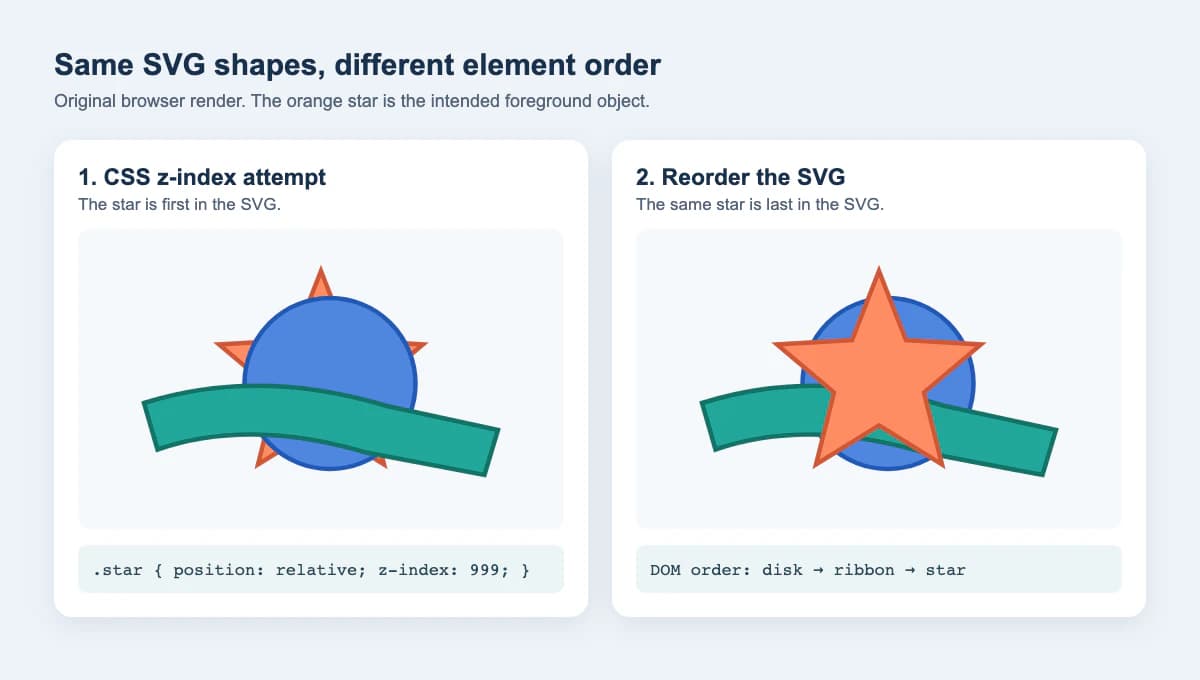
The test used HeadlessChrome 141 with a 1200 × 680 screenshot. Its reported child order was star, disk, ribbon on the left and disk, ribbon, star on the right. This is a narrow test of ordinary overlapping SVG children, not a promise about every renderer, nested group, or effect.
Fix the order in the SVG file
Open the SVG source in a text editor or inspect its objects in a vector editor. Find the overlapping shapes and read them from top to bottom in the file. Earlier sibling elements are painted first. Move the object that needs to appear in front after the objects it should cover, then save a copy.
For example, this simplified drawing puts the star last:
<svg xmlns="http://www.w3.org/2000/svg" viewBox="0 0 240 160">
  <circle cx="120" cy="80" r="55" fill="#4f86df"/>
  <path d="M20 90 Q110 60 220 100 L220 125 Q110 85 20 115Z"
        fill="#22a79a"/>
  <path id="star" d="M120 20 L135 60 175 62 145 88 155 130
           120 108 85 130 95 88 65 62 105 60Z"
        fill="#ff8c64"/>
</svg>
The path data and fill colors do not need to change for this correction. If a design application has a Bring to Front command, export the SVG afterward and inspect the saved markup or reopen it. An editor's visible layer panel is helpful, but the delivered file is what the next renderer reads.
For an interactive SVG, JavaScript can move an existing child to the end of its current parent:
const star = document.querySelector("#star");
star.parentNode.appendChild(star);
MDN's appendChild reference confirms that appending an existing node moves it rather than making a second copy. Use this only when changing the DOM is part of the application. A static logo file is usually clearer if you put the intended order in the SVG itself.
Check groups, holes, and other kinds of order
If the star belongs to a group, moving it to the end inside that group may still leave the entire group behind a later sibling group. Inspect the parent structure. Move the relevant group when the whole grouped artwork should come forward; reorder its children when only parts within that group overlap. Be careful when moving a child out of its group: the group may carry transforms, clipping, opacity, or a mask. The SVG rendering model's group section explains why grouped content is rendered together.
An object-order fix also cannot repair an actual hole or gap in path geometry. If the center of a letter or emblem fills in after export, inspect the shapes and the destination file. A later opaque object may merely be covering the opening. The SVG holes guide helps separate that case from fill-rule or contour problems. If a thin white line appears between adjacent shapes instead, use the gap diagnosis before changing the stack.
Finally, paint-order is a different setting. It changes when one element's fill, stroke, and markers are painted; it does not put that element above a neighboring path. The MDN paint-order reference defines that scope. Use the paint-order guide when a thick outline hides its own fill, rather than when one colored logo piece hides another.
| What is behind? | Check first | Likely edit |
|---|---|---|
| One SVG path behind another | Their order under the same parent | Move the foreground path later |
| A child of one group behind a sibling group | Parent group order and effects | Move the appropriate group, then retest |
| A whole SVG behind an HTML header | Page stacking contexts | Adjust the positioned page boxes |
| An element's stroke obscures its fill | Fill/stroke painting order | Test paint-order |
CSS z-index still matters for positioned HTML boxes and flex or grid items, as MDN documents. Keep that page-layout case separate from the path order stored inside the SVG.
What this looks like with PerfectVector
Use an existing SVG master if you have one. Re-vectorizing it would introduce a new set of shapes without solving the layer decision. If the only source is a flattened PNG or JPG logo, PerfectVector can help earlier in the workflow: turn the image into an SVG candidate, then inspect the separate pieces and their overlap in an editor. Move the recovered paths into the intended order before delivery. The conversion does not assign your design's foreground objects or guarantee that a small opening survives tracing.
When the source image has blur, shadows, or tiny lettering, a manual redraw of those details may be more reliable than tracing. The broader SVG editing guide covers path cleanup after conversion.
Verify the file you will deliver
- Save a copy of the source SVG and reorder only the intended object or group.
- Open the saved file in a browser at the size where the overlap matters. Compare it against the source design.
- Reopen it in the receiving editor or app. Check the same overlap, plus any masks, clipped areas, and holes.
- If the SVG is interactive, test pointer and hover behavior after the reorder. A newly topmost shape may receive interaction where another shape did before.
- If the result looks wrong only at one zoom or export size, inspect for sampling seams or true gaps before moving more objects.
For a raster-only source, make an SVG candidate with PerfectVector, then inspect its path order, openings, and saved render at the intended size. If the file already contains the right vector shapes, start with the reorder.
FAQ
Can I use CSS z-index to bring one SVG path to the front? For ordinary sibling shapes inside one SVG, move the path later in the SVG document order. A CSS z-index that affects surrounding page boxes does not reliably reorder those child shapes.
Does paint-order change which SVG object is on top? No. Paint-order changes the fill, stroke, and marker sequence within one shape or text element. Reorder separate objects to change which one covers another.
Why is a path still hidden after I move it last in its group? Its entire group may sit behind another group. Inspect the parent groups and any transforms, clipping, masks, or opacity before moving the child outside its group.
Sources
- W3C — SVG 1.1 Rendering Model — Defines the paint order of elements in an SVG document.
- MDN — Node.appendChild() — Documents how an existing DOM child moves when appended.
- MDN — SVG paint-order attribute — Limits paint-order to a shape's fill, stroke, and markers.
- MDN — CSS z-index property — Explains z-index for positioned and layout items in page stacking.
- W3C — SVG 2 Rendering Model — Describes SVG stacking contexts, grouping, and pointer targeting.
More from the blog

SVG ClipPath Units: Fit a Custom Shape to Its Target
Choose SVG clipPath units, normalize a silhouette, and preserve its proportions. Test wide and tall targets while keeping holes and source geometry intact.

Paper.js SVG Booleans: Cut and Join Imported Artwork
Import SVG paths into Paper.js, join overlapping shapes, subtract a real opening, and check the exported file with a small, reproducible browser example.