How to Check an SVG File Before You Cut It (or Buy It)
The five-minute preflight for cut files: spot fake vectors, doubled paths, node bloat, and stray boxes before you waste vinyl, plus what to check before buying.
On this page
Every crafter learns this one the expensive way: the file that looked perfect in the listing preview cuts double lines, weeds like a nightmare, or won't upload at all, and the evening's vinyl is gone. Cut files fail for a small, predictable set of reasons, and every one of them is visible before the mat loads, in about five minutes of checking.
This is that preflight, in two halves: what you can judge before you buy a file (listings hide more than they show), and the five-check audit to run on any SVG, bought, downloaded, or made, before cut day. Each check links to a deeper guide if the file fails it, because each failure has its own fix. For the app-specific handoff after the audit, use the LOKLiK IdeaStudio image-to-SVG workflow.
The five-minute preflight
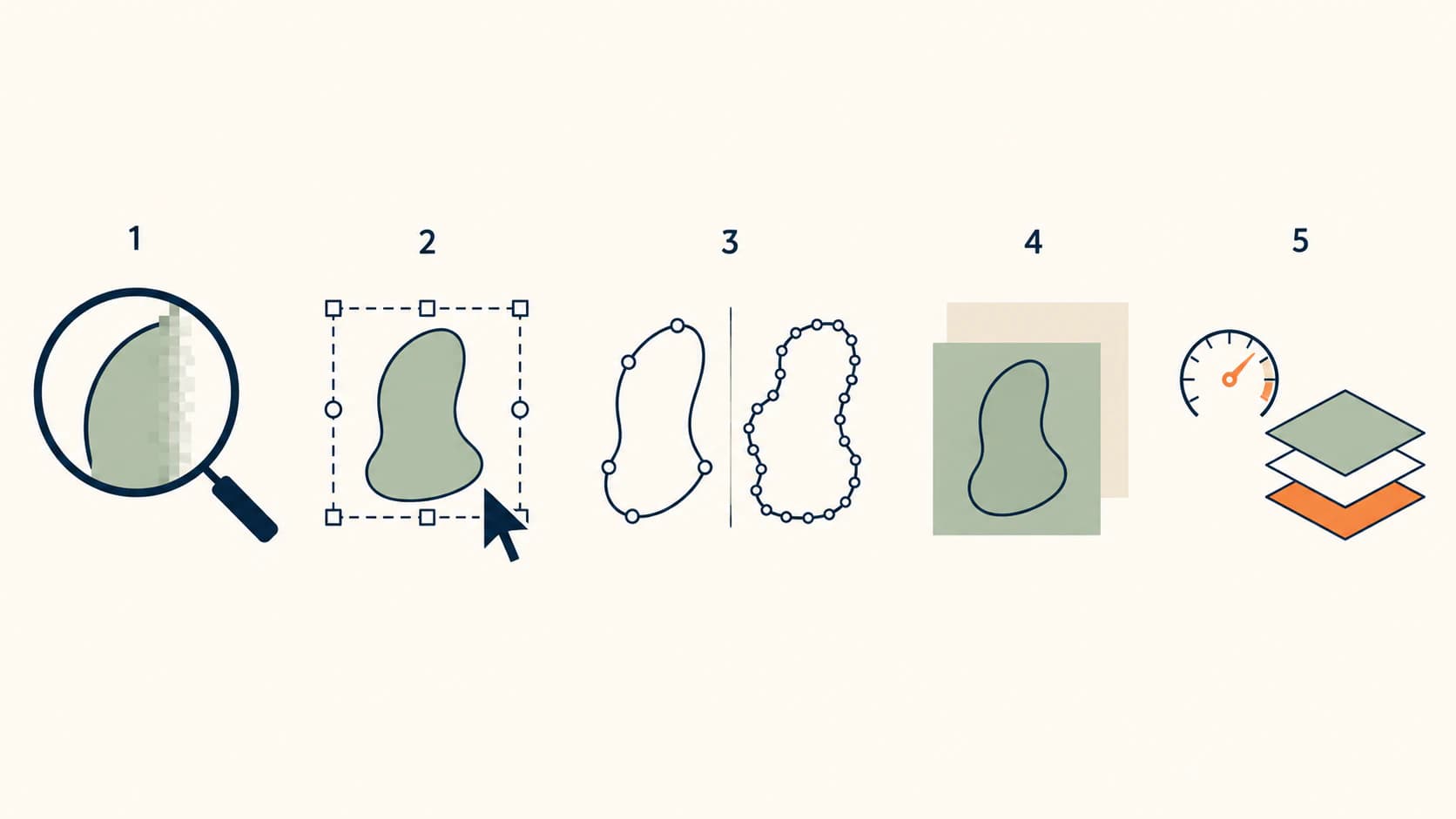
- Zoom to 800%. Crisp edges are a useful vector signal; blurred or blocky edges mean you should inspect the file for embedded pixels.
- Click the shapes. Each piece selects individually; outlines are single paths, not doubled ones.
- Glance at the nodes. Smooth curves from a handful of points, not hundreds.
- Drop it on a colored background. No invisible white rectangle lurking behind the design.
- Check size and layer count against your machine and your patience.
Before buying: format list, license terms, a layered (not flattened) preview, and reviews that mention actual cutting.
Before you buy: what the listing can't show you
Marketplace previews are JPG images of the artwork, which means a listing literally cannot show you the thing you're buying: the quality of the paths. What you can read from a listing:
- The format bundle. Serious cut-file sellers ship SVG plus fallbacks (PNG, DXF, EPS) and say so. An SVG-only listing isn't damning, but a seller who documents formats usually documents the rest.
- A layered preview. Sellers proud of their layer separation show the design exploded into its cut layers. A single flattened mockup tells you nothing about how it cuts.
- License clarity. Personal versus commercial use, and how many finished items the commercial tier covers, should be stated, not assumed. If you sell what you make, this line matters more than the artwork.
- Reviews that mention cutting. "So cute" is about the design; "cut clean at 3 inches" is about the file. Skim for the second kind.
- The seller's response to problems. Shops that answer file questions in reviews will answer yours when a check below fails.
None of this replaces the audit; it just raises the odds the audit passes.
The five-check audit
Run these on any SVG before it earns mat time. Nothing here needs special software: a browser and any free vector editor cover all five.
1. Is it actually a vector? Open the file and zoom in hard, 800% or more. Real paths stay crisp; if edges soften into pixels, inspect the object structure or source for an embedded image. SVG legally supports embedded PNG and JPEG content, so the extension alone is not proof of cuttable paths. Diagnosing a pixelated SVG covers the thirty-second confirmation.
2. Are the cut lines single paths? Click into the design and select its outlines. Each intended cut should be one path. If an outline is secretly a thin filled ring, or two parallel paths, your machine will cut everything twice, and the symptom only shows up in cut vinyl.
3. How heavy are the paths? Select a curve and look at its anchor points. A clean file draws smooth curves from a few well-placed nodes; an auto-traced mess buries the same curve under hundreds. Node bloat makes files slow to load, painful to edit, and rough to cut, and it's invisible until you look.
4. Is anything hiding behind the design? Drop the SVG onto a colored background, or select-all in an editor. A full-size white rectangle sitting behind the artwork is a classic converter leftover, and it becomes a mystery box around your design at cut time.
5. Will your machine accept it? Very complex files hit real limits: Cricut's current upload documentation says SVGs with more than 5,000 paths trigger its File Too Large error, and the "file too large" error has four distinct causes. While you're at it, count the layers against your actual patience for mat changes; a layered file should have a layer count the project deserves.
After the geometry passes, use the SVG Mat Preview to check the measured footprint, scale, rotation, guide padding, and edge margin before Cricut's final Prepare screen. This checks the layout; it does not simulate the machine or certify the file for cutting.
Test it like it's cut day
The audit catches file problems; a dry run catches everything else. Upload the SVG to your cutting software the day you get it, not the night you need it: watch how the layers arrive, check the real project size and mat preview (small text and thin details that looked fine at full screen turn into weeding torture at sticker scale), and if the project matters, spend one sheet of cardstock or scrap vinyl on a test cut. Sellers fix files and answer questions on their timeline, not your deadline.
When a file fails a check
Failing one check doesn't always kill a file, and the response depends on which one:
- Embedded raster instead of paths (check 1): ask the seller for a true vector version. If you have rights to a clean source image, trace that source into vector paths rather than repeatedly exporting the wrapper.
- Doubled paths, stray boxes (checks 2 and 4): often repairable in a vector editor; the editing guide covers selecting and deleting the offenders.
- Node bloat (check 3): editors can simplify paths with mixed results; if you have the original artwork, a clean re-trace beats repairing a bad one.
- Machine limits (check 5): simplify colors and layers first, merging near-duplicate colors is the fastest single fix, and recoloring or merging takes clicks in the right tool.
And the buyer's rule that underlies all of it: a seller who won't stand behind a file that fails these checks has told you everything about the shop.
PerfectVector is not a checker or repair tool for a purchased SVG. It fits only when the failed file is an embedded raster and you have rights to a clean source image: retrace that source with PerfectVector, inspect the new paths and nodes in the preview, then repeat this audit before unlocking or cutting the result.
FAQ
How do I check if an SVG is good for Cricut? Run the five checks: zoom in to look for raster pixelation, select outlines to confirm single paths, inspect node counts, place the file on a colored background to reveal hidden rectangles, and confirm that its size, path count, and layers suit your machine.
How can I tell if an SVG is a real vector file? Zoom in and try to select an individual shape. Vector paths remain mathematically defined as you enlarge them, while an embedded raster eventually shows its pixel grid and often selects as one image. Filters and effects can still look soft, so confirm the object type instead of relying on zoom alone.
Why does my purchased SVG cut double lines? The outlines were built as thin filled shapes or duplicated paths rather than single paths, so the blade faithfully cuts both edges. It's fixable in an editor by deleting or merging the duplicates, and it's visible before cutting if you select the outlines during the audit.
What should I check before buying an SVG on Etsy? The format bundle (SVG plus fallbacks), a layered rather than flattened preview, explicit license terms for how you'll use it, and reviews that mention actual cutting results rather than just the design. Then run the file audit as soon as you download.
Can I fix a bad SVG file I bought? Often, depending on the failure: stray boxes and doubled paths are quick editor fixes, node bloat sometimes responds to simplification, but a raster-in-an-svg-shell has no paths to fix. In that case, ask the seller for a corrected file or re-trace clean artwork you have rights to.
Do I need special software to check an SVG? No. A browser handles the zoom and background checks, and any free vector editor (Inkscape, or a web editor) covers selecting shapes and viewing nodes. The whole audit is doable with tools that cost nothing.
Sources
- Cricut — How to upload images into Design Space — supported SVG upload behavior and the current 5,000-path limit.
- Cricut — Image uploads: unsupported items — clipping paths, editable text, linked images, patterns, and embedded raster limitations.
- W3C — SVG Embedded Content — the standard basis for raster images inside an SVG container.
- W3C — SVG Paths — paths, subpaths, and the geometry a cutting workflow needs to inspect.
Audit what you buy and test it on the day you download it. If the file is only a raster wrapper and you have rights to the original artwork, retrace the clean source, then run the same five checks on the new SVG before cutting.
More from the blog

Sure Cuts A Lot Image Trace: Trace or Import SVG?
Choose Sure Cuts A Lot's native Image Trace or import a prepared SVG, then check layers, scale, doubled lines, path density, and the final cut preview.
Adobe Express SVG Converter: Features and Limits
What Adobe Express's free SVG converter offers, per its own docs: formats, limits, and the flow. Plus the three checks any SVG should pass, whatever made it.